Splunk
Anomali Security Analytics can ingest event log data from Splunk. Anomali Link for Splunk supports the following features:
-
Drilldown: The drilldown feature allows you to retrieve raw event log data.
-
Backfill: The backfill feature allows you to ingest event logs from a time period before Anomali Link for Splunk was installed.
-
Custom Correlation Fields: You can use the Splunk Link App to set up custom correlation fields that map event data to Security Analytics fields if non-standard fields are required for your organization's security event tracking.
Refer to Anomali Link (for Splunk) Installation Guide for complete details about installing Anomali Link for Splunk.
Network Topology and Requirements
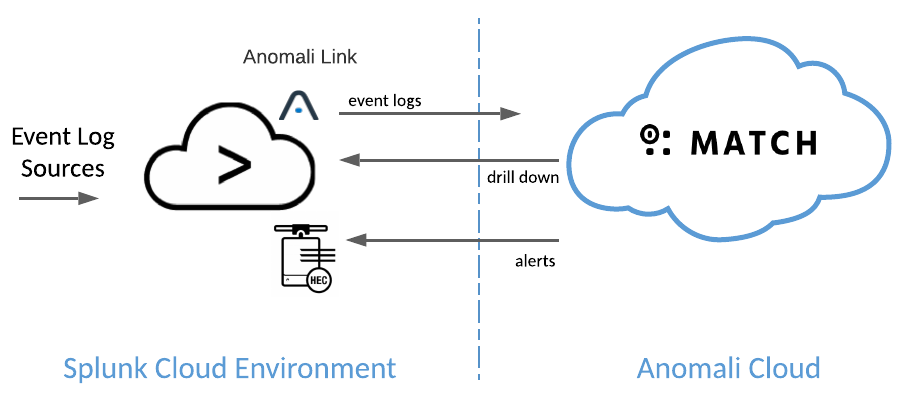
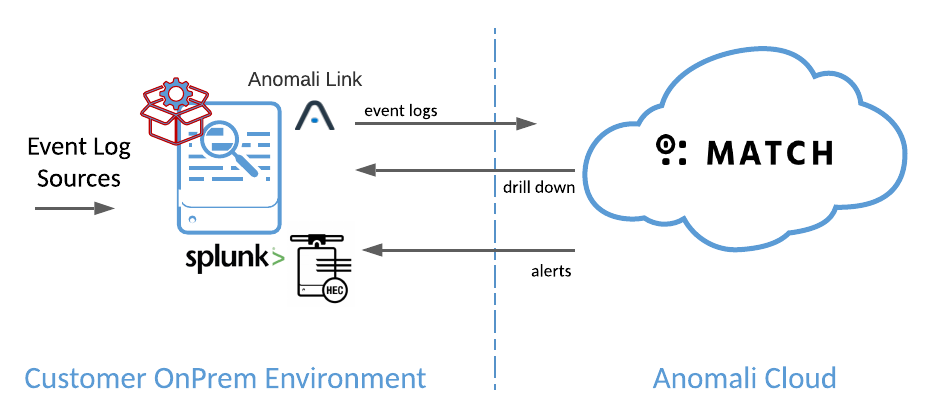
The Splunk integration involves cloud-to-cloud data flow or on-premise-to-cloud data flow. Network requirements vary according to Splunk installation type.
 Click here for information about deployments with Splunk Cloud.
Logs collected in Splunk Cloud are forwarded by Splunk Link to Security Analytics. Optionally, you can configure Security Analytics alerts to a Splunk destination.
-
Anomali Splunk Link must be able to send requests and data outbound to
api.threatstream.comand AWS S3. -
Security Analytics must be able to access the Splunk management port (8089/https) to enable drilldown in Security Analytics.
-
Splunk must have an input configured to receive alerts from Security Analytics if you configure alert actions to send alert messages to Splunk HEC. The default port to which alerts are sent to Splunk HEC is port 8088/https (trials) or port 443/https (licensed).
-
For deployments with Splunk Cloud Platform, you can use the Splunk Service API to add the IP addresses to the Splunk allow list for search-api on port 8089. Refer to Splunk documentation for details.
-
Refer to Anomali Security Analytics IP Addresses, Ports, and URLs for Security Analytics network details that your network and security needs to know to allow communication from your enterprise resources to your Security Analytics deployment.
Inbound connections to Security Analytics are secured using ThreatStream API authorization. If your organization has enabled ThreatStream CIDR restrictions, you must add the Splunk Cloud IP address to the Permitted CIDRs list.
To add the Splunk Cloud IP address to the permitted CIDRs list:
-
In ThreatStream, go to Settings > Organization.
-
Scroll to the Permitted CIDRs section.
The list typically contains CIDR denotations of the IP addresses for hosts on your enterprise network that make connections to ThreatStream.
-
Add the Splunk Cloud IP address.
-
Click Save.
Click here for information about deployments with Splunk Enterprise.
Logs collected in Splunk Enterprise are forwarded by Splunk Link to Security Analytics. Optionally, you can configure Security Analytics alerts to a Splunk destination.
-
Anomali Splunk Link must be able to send requests and data outbound to
api.threatstream.comand AWS S3. -
Security Analytics must be able to access the Splunk management port (8089/https) to enable drilldown in Security Analytics.
-
Splunk must have an input configured to receive alerts from Security Analytics if you configure alert actions to send alert messages to Splunk HEC. The default port to which alerts are sent to Splunk HEC is port 8088/https.
-
Refer to Anomali Security Analytics IP Addresses, Ports, and URLs for Security Analytics network details that your network and security needs to know to allow communication from your enterprise resources to your Security Analytics deployment.
Inbound connections to Security Analytics are secured using ThreatStream API authorization. If your organization has enabled ThreatStream CIDR restrictions, you must add the Splunk Enterprise IP address to the Permitted CIDRs list. However, because Splunk Enterprise is deployed in your enterprise network, it is likely you have already added a CIDR block that includes your Splunk Enterprise host IP address.
To confirm the Splunk Enterprise IP address is permitted:
-
In ThreatStream, go to Settings > Organization.
-
Scroll to the Permitted CIDRs section.
The list typically contains CIDR denotations of the IP addresses for hosts on your enterprise network that make connections to ThreatStream.
-
Confirm the Splunk Cloud IP address is within the CIDR block specified. If not, add it.
-
Click Save.
Step 1: Review and Modify the Security Analytics Log Source Configuration
When you install Anomali Link for Splunk, it automatically registers with Security Analytics and creates a Link configuration. You can review and modify the configuration (if necessary).
To modify Anomali Link for Splunk settings:
-
Click the Settings icon
 in the left navigation panel and select Security Analytics.
 -
Click Links.
-
In the actions column, click the Edit icon (
 ).
). -
Complete the configuration as described in the following table.
Setting Description Name Name of the Link and its ID. Type Type and Version. Splunk User Name User name to use for authenticating to the Splunk instance. Password The corresponding password. Splunk Management URL The URL for the management port of this Splunk instance. For example:
https://<splunk_server_IP>:8089
When the Link is set up on the Splunk deployer, the URL is either https://<splunk_cluster_search_head_IP>:8089 or <https://splunk_cluster_ load_balancer_IP:8089>.
Drilldown Limit This is the maximum number of rows returned by the drilldown. Default is 100 rows. Index Filter Default is:
index=main
-
Click Save.
Step 2: Configure Custom Fields
In deployments with Splunk, you set up fields for correlation on the Splunk side. If your correlation setup has custom fields, you can add them in the Security Analytics Settings > General Settings > Custom Fields page. See the Anomali Link (for Splunk) Installation Guide for details.
Step 3: Verify Logs Are Ingested into Security Analytics
You can expect logs to be transmitted to Security Analytics and correlated with asset and intelligence data by the Security Analytics correlation engine usually within one hour after Anomali Link for Splunk has been set up. By default, Splunk Link sends updates every 1 hour, and processing by the Security Analytics correlation engine takes some time. Wait a sufficient time after the previous step has been completed, and then perform an IOC Match search to verify expected results.
To verify logs are ingested:
-
Navigate to Activity > IOC Match.
-
Perform a search and then use the Filter UI to select the log source you want to verify.
Troubleshooting Tips
-
The drilldown feature allows you to retrieve raw event log data. Drilldown queries require Splunk to receive traffic from Security Analytics. On the Splunk server, add an inbound rule to allow Security Analytics to access the Splunk management port (8089/https).