Getting Started with Activity Search
The Activity pages provide a user interface for searching matched events, as well as imported intelligence or asset data.
Note: Security Analytics Activity Search is separate from AQL Search. For information about AQL Search, go to the AQL Search Help Center.
Activity Search Indexes
The Activity search menu has a number of pages that can be used to perform searches against different Security Analytics data sets. The following table summarizes the purpose of each.
| Activity Search Page | Purpose |
|---|---|
| IOC Match | Search the IOC Match index. When your event logs are ingested, the Security Analytics correlation engine analyzes those fields in your logs which contain data that can could potentially match IOCs. If the evaluation produces matches, the event log is enriched with your asset data and indexed for activity search. See Modifying IOC Correlation Engine Settings for details. When you search this index, you can specify as search terms any of the threat intelligence fields and event log fields—or a combination of them. See IOC Match Activity Searches. |
| DGA Match | Search the DGA Match index. The DGA Match index is populated by the Security Analytics DGA processor, which analyzes domain data present in event logs during log ingestion to determine the probability a domain is a DGA domain. See DGA Match Activity Searches. |
| Threat Model — Actor, Attack Pattern, Campaign, Threat Bulletin, TTP, Vulnerability |
Search the Threat Model index. The Threat Model index is a view of matches filtered by threat model entity. When you search this index, you search by threat model entity fields. When you view a Security Analytics result details page, the record includes event log details for the match. Refer to the following topics for details about activity search for a particular threat model index: |
| Asset | Search the Asset index. Asset details are available only if your organization has imported asset data. See Managing Asset Data Imports and Asset Activity Searches. |
| Alert | Search the Alert index. The Alert index is populated by the alert engine. In the Alerts results table, the title column shows the name of the alert configuration that generated the alert. See Alerts Activity Searches. |
Full-Text Search
A full-text search specifies a string that may exist in any column in the targeted Security Analytics index. Full-text searches have the following rules:
-
Use single quotes to specify literal matches. Literal matches return records with case-senstive, whole word matching strings. For example, specifying
'apt'returns only matches with columns having that literal string. -
Use asterisks marks to specify stem pattern matches. Stem pattern matches return records that include the matching string and may have additional characters before or after the stem. For example, specifying specifying
*aptreturns matches with columns containing the stringmapt; specifyingapt*returns matches with columns containing the stringaptt. -
If you do not use single quotes or asterisks marks, the search term is transformed as if you had specified an asterisks following the stem. For example:
apt*. This means you can possibly get values likeaptt.
Keyword Search
A keyword search specifies a domain or IP address that may exist in any column that has domain or IP address values. For example: example.com or 10.1.123.10. You can use logical operators to form complex search expressions. Keyword searches have the following rules:
- You can specify wildcard characters in search keywords. For example,
10.1.23.*. - To search for a keyword that includes spaces, special characters such as period (.) or slash (/), or double-byte characters, enclose the keyword in double quotes (" "). For example, to search for a string with special characters like
http://mydomain.com, specify"http://mydomain.com". Similarly, to search for the phrasemy domain, specify"my domain". - When two or more keywords are specified without an operator, the OR operator is assumed.
Field-Based Search
A field-based search specifies name=value pairs, where name is the column name and value is the data expected in that column. For example, to search for indicator matches with Very High severity, enter severity=very-high or to search for events tagged with mirai, enter detail=mirai. For a list of supported fields for each type of search, click the  icon to the right of the search query text box. Field-based searches have the following rules:
A field-based search specifies name=value pairs, where name is the column name and value is the data expected in that column. For example, to search for indicator matches with Very High severity, enter severity=very-high or to search for events tagged with mirai, enter detail=mirai. For a list of supported fields for each type of search, click the icon to the right of the search query text box.
Field-based searches have the following rules:
-
Wildcard characters and regular expression queries are supported. The regular expression queries follow the Lucene search syntax.
-
Spaces and hyphens (-) are treated as word boundaries. For example, a search for
severity = very-highreturns results where the value for severity includes the wordsveryorhigh. -
If the field value contains spaces, special characters such as period (.) or slash (/), or double-byte characters, you can use a phrase search expression to match values having all words in the phrase in the order specified. For example, a search for
severity = "very-high"matches results that have the termsveryandhighin that order. To create a phrase search expression, enclose the value in double quotes (" "). A phrase search uses the equals (=) operator. You cannot use contains, startswith, or endswith operators. -
The hyphen is treated as a word boundary, but the underscore (_) is not treated as a word boundary. For example, the value
pub-tsis treated as two separate words, but the valuepub_tsis treated as one contiguous word. - A search with the
startswith,endswith, orcontainsoperator matches any word in the value that starts with, ends with, or contains the specified pattern. For example,tags startswith tsmatches valuespub tsandpub-tsbut notpub_ts. -
A search for a phrase in quotes with the equals operator matches a value having the phrase words in the same order. For example,
tags = "panama papers"matches tags like"abc-panama-papers-xyz"but not tags like"abc-papers-panama-xyz". -
Best Practice: Searching
tagsanddetailcan be challenging. You might have to test and refine the logic of your search expression a few times until you are confident that the results are filtered appropriately for your ad hoc and automated threat hunting tasks. It can help to review the naming conventions that your organization follows for tags, so tagging and searching efforts are well coordinated. -
You can use logical operators (AND, OR, NOT), and parenthetical expressions using () to join together multiple search conditions. For example,
(c2_ip AND ip = 192.168.10.20) OR (brute_ip AND ip = 192.168.10.20). -
Use the IN operator to search in string and numeric fields containing a list of values. For numeric lists, float and double values are not supported. Lists being searched must not be empty. You can use
in,In, orIN; but notiN.For string fields, use double quotes to escape special characters.
-
Multi-type fields are fields that Security Analytics indexes as both text and keyword field types.
-
Text
Data for the text type is passed through an analyzer that tokenizes string values. This means string values are broken down into individual terms during indexing to allow for partial matching. Spaces and hyphens (-) are treated as word boundaries.
For example, when you specify
severity startswith high, you will notice results where severity isvery-highorhigh. This is expected for the text type value. During indexing, the valuevery-highis broken into termsveryandhigh. -
Keyword
Data for the keyword type is not transformed during indexing. Therefore, you can assume you are searching a string exactly as found in the raw event log or raw intelligence data. To search the keyword type, append the suffix
.rawto the fieldname when you form your search expression. Follow the formatfieldname.raw.For example, a search for
event.parent_image.raw contains "C:\Windows"can match the Windows pathname, including special characters.Another useful example is the field
severity.raw. When you specifyseverity.raw startswith high, you will notice that your result set has only rows where severity ishigh.Lastly, compare the following search expressions:
event.dest endswith privacy-yahoo.comevent.dest.raw endswith privacy-yahoo.comThe fist returns results where the
event.destfield ends with tokenized termsprivacyoryahoo.com.The second returns results where the
event.dest.rawfield ends with the raw stringprivacy-yahoo.com.
The following table lists the multi-type fields. To search the keyword type, append the suffix
.rawto the fieldname when you form your search expression.Field Source Field Asset asset_dest_dept, asset_dest_hostname, asset_dest_location, asset_dest_vulnerability, asset_src_dept, asset_src_hostname, asset_src_location, asset_src_vulnerability Intelligence country, indicator, itype, maltype, org, severity, source, url
Events event.action, event.answer, event.app, event.category, event.command_line, event.dest, event.event_name, event.file_name, event.file_path, event.host, event.http_referrer, event.message_id, event.original_file_name, event.parent_command_line, event.parent.image, event.platform, event.query, event.receiver, event.record_type, event.reg_key, event.reg_value_data, event.value_name, event.sender, event.sourcetype, event.src, event.subject, event.title, event.url, event.user, event.user_agent, src_host
-
Search Raw Events
A raw event search targets logs collected from specific Link or log sources. Specify the peek command and Link ID or the sourcetype ID.
Note:
- The
peekcommand is only used in searches for raw events. The command does not apply to other searches such as for filter conditions. - This technique is useful to troubleshoot cases when you want to determine whether a Link is actively forwarding events to Anomali Security Analytics.
To search raw events:
- Copy the Link ID:
Click the Settings icon
 in the left navigation panel and select Security Analytics.
Click Links. This displays all configured Links.
Select the Link ID text and copy it to the clipboard.
- Go to the IOC Match search page to issue a search.
In the search field, use the following examples as a guide:
peek dcid=<paste the Link ID you copied earlier>peek dcid=9*
peek sourcetype=<name of sourcetype>For example,
peek sourcetype=cisco:sourcefire. -
Combine the search expression with other search terms and apply filters, such as time range, to narrow your results.
Search results default to 10K.
Filter UI
You can use the filter UI in the left pane to specify date range filters and other filters. The types of other filters available vary according to what is appropriate for the targeted Security Analytics index type.
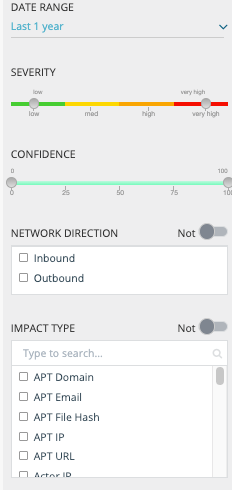
Date Range Filter
The date range specified on Activity search pages filters search results based on dates most pertinent to the index type, as follows.
| Activity Search Index | Date Filter |
|---|---|
| IOC Match, DGA Match | Filters by event timestamp. |
| Actor, Campaign, Threat Bulletin, TTP, Vulnerability | Filters by ThreatStream publication timestamp. |
| Alert | Filters by alert trigger timestamp. |
| Asset | Filters by asset record timestamp (the time the asset data was imported into Security Analytics). |
The default time range is specified in My Profile settings. See Change the Default Date Range Filter.
If you change the time period, the time period that you specify persists across all Dashboard and Activity search pages until you change it again or log out of your browser session.
Saved Searches
Saved searches are previously defined search expressions defined by analysts in your organization.
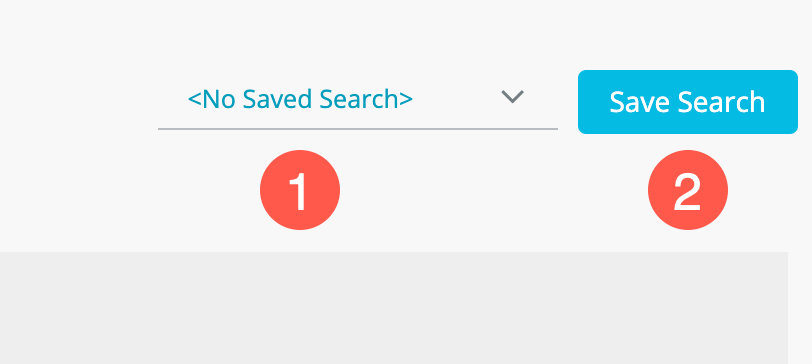

|
Select a previously saved search. |

|
Create a new saved search. |
Your organization can maintain saved searches to retrieve and run frequently used or complex queries at the click of a button. The saved queries can be selected to filter the Dashboards visualizations and also be used for configuring Alerts.
To save a search:
- Refine your search query.
-
Click the Save Search button to the right of the search box.
-
Enter a meaningful name and description for the query you are saving.
-
Click Save.
Search Result Fields
The search results populate a search results table. You can adjust the rows and columns as shown in the following figure.
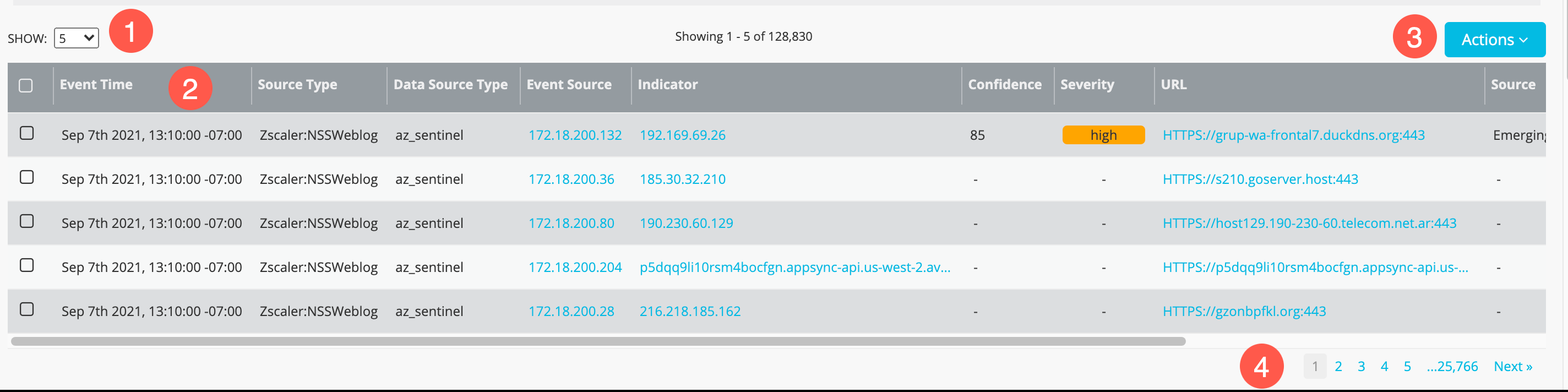
|
|
Select a number of rows per page. |
|
|
Click the column header to sort the rows in ascending or descending order according to values in the column. Click a column header divider and drag it to make a column wider or more narrow. |

|
Use the action menu to configure fields (columns) displayed in the table. |

|
Go to the next page of results or another page by page number. |
Export Search Results
You can export search results to a file in CSV or JSON format.
To export search results:
-
Click the Export icon
 above the results table to display the Export dialog box.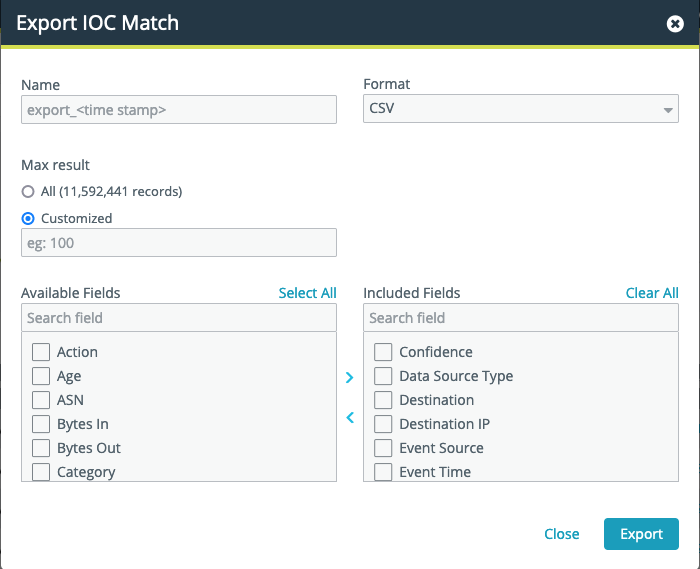
-
Enter the following information:
- Name: Name of the export file.
- Format: CSV or JSON.
- Max result: Number of results that should be exported. You can select from All or Customized. When you select Customized, you are prompted to enter the number of results you want to export. Recommended limit is < 1 million results.
-
The default fields to be included in the export are listed under Included Fields. Specify the fields to be included or excluded in the export, with one of these options:
-
Select a field and use the > or < control to move it from one list to another. Repeat as required.
-
Click Select All and then click the > control to move all Available Fields to the Included Fields list.
-
Click Clear All to clear the current list of Included Fields. Then you can start with a new list of fields to include.
-
-
Click Export.
The file is downloaded to your local computer. In addition, you can find the file under Manage > Exports. All exported files from Anomali Security Analytics are available on this page.