Modifying IOC Correlation Engine Settings
You can use the Settings > Correlation page to modify IOC Correlation Engine settings.
About the IOC Correlation Engine
The IOC correlation engine matches indicators defined in ThreatStream intelligence feeds with event logs ingested from Links. The resulting IOC Match table combines the intelligence fields and event fields. If you have imported asset data, the IOC Match table is enriched with asset data associated with logged IP addresses. Correlation and asset enrichment is performed upon log ingestion. Correlated matches are usually available on Activity search pages within minutes.
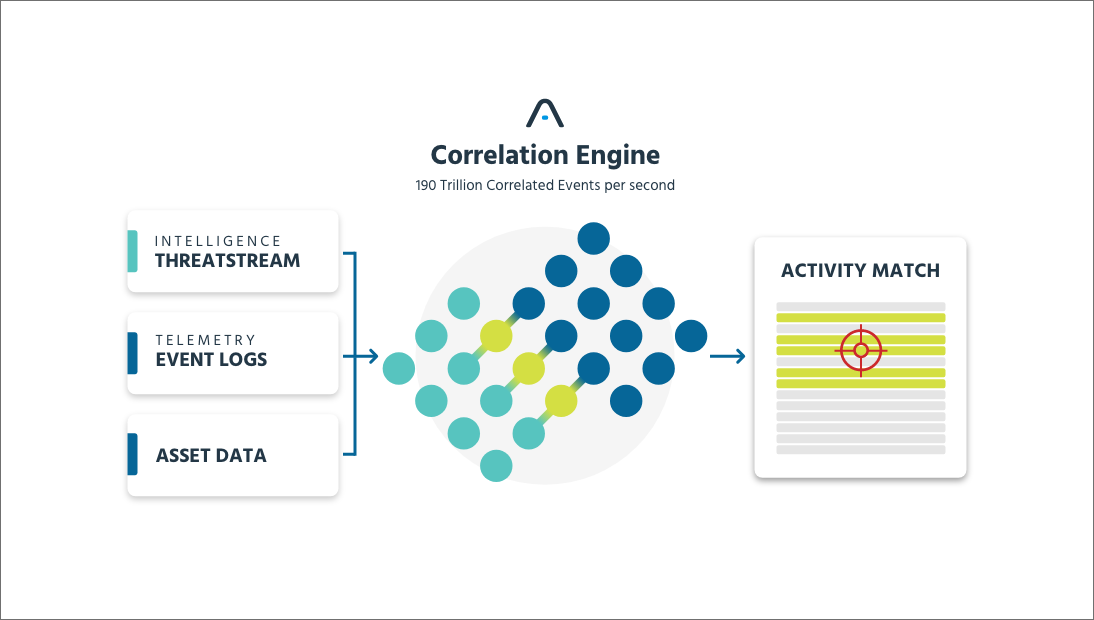
Indicator values and event log field values must be identical to be considered a match. For example, a Domain indicator having the value f0563362.xsph.ru matches any event log field having the value f0563362.xsph.ru but not an event log field having the value a0558863.xsph.ru. Reporting partial matches would result in too many imprecise records for analysts to examine. Instead, it is customary for a threat intelligence platform to maintain separate precise entries for indicators. In this example, ThreatStream maintains a separate entry for a0558863.xsph.ru.
The following table provides examples of correlation matches.
| Indicator Value Type | Event Field Value Type | Notes and Examples |
|---|---|---|
Must be an exact match. For example, an APT email indicator with the value vrickson@mail.com matches any event log field with the value vrickson@mail.com. |
||
| Hash | Hash | Must be an exact match. For example, an APT file hash indicator with the value 2f4b376d5f0a6a6e7540c36645bc600c949f4875 matches any event log field with the value 2f4b376d5f0a6a6e7540c36645bc600c949f4875 but not patterns or substrings of the full hash string. |
| IP | IP | Must be an exact match. For example, a Malware C&C IP indicator with the value 104.247.81.50 matches any event log field with the value 104.247.81.50. Partial matches and pattern matches are not included in the correlated results. |
| URL | URL | Must be an exact match. For example, a Malware URL indicator with the value http://121.40.242.232/images/logo.png matches any event log field with the value http://121.40.242.232/images/logo.png. Partial matches are not included in correlated results. For example, an event log field with the value http://121.40.242.232 would not be included in the correlated results. |
| Domain | Domain |
Must be an exact match. However, Security Analytics parses event log destination URLs to extract domain values. For example, Security Analytics extracts the domain uyhmgnbvue5j5dbw.onion from http://uyhmgnbvue5j5dbw.onion/kpanel/connect.php. Security Analytics attempts to correlate domain indicators and the extracted domain. |
In ThreatStream, indicators have value types Domain, Email, Hash, IP, URL, and String. Security Analytics does not support correlation with indicators having String value types. See ThreatStream Indicator Types for a comprehensive list of indicator types (iTypes) available to IOC Match correlation.
Note:
-
The daily correlation limit per organization is 3 million IOC Match correlations.
-
A single event log can generate multiple correlations (if the event log matches multiple indicators or if you have multiple threat intelligence feeds that report the same indicator).
-
When the limit is reached, event log ingestion continues, correlation continues, but the correlation results are not indexed and cannot be searched from the UI for the period that day after the limit was reached.
-
You can review event logs for this period in the Forensics & Retrospective Search index, and these logs will show associated ThreatStream IOCs (if any).
Modify IOC Correlation Settings
You can use the settings page to change IOC correlation engine settings.
Note:
-
IOC correlation settings do not affect correlation for event logs for outbound traffic.
-
The IOC correlation settings apply to inbound traffic. The default settings exclude event logs having the actions Block, Blocked, Deny, Denied, Drop, Dropped, Reject, and Rejected.
-
If you change settings, note that the configuration changes do not change matches that have already been indexed. New settings are effective immediately upon saving the configuration and apply to logs ingested after the setting was changed. In searches for periods before the setting was changed, you will still observe matches for actions that were not excluded when those event logs were ingested.
To change IOC correlation settings:
-
Click the Settings icon
 in the left navigation panel and select Security Analytics.
 -
Click Correlation.
-
Click the Edit icon (
 ) next to Actions to exclude.
 -
Use the selector controls to move items to and from the exclude list.
-
Click Save when you are done.