Attack Pattern Activity Searches
Search the Attack Pattern index to examine attack pattern indicators that have matched event logs during the specified time period.
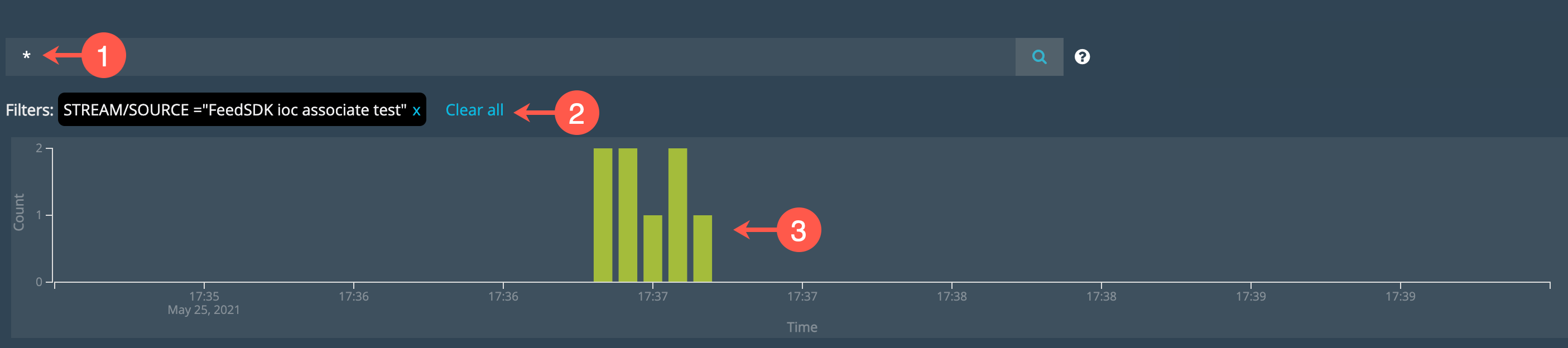

|
Search text box: Specify a keyword or field-based search expression. Keyword searches match any of the following fields: name, feed name, tags. Specify field-based name-value pairs for more precise targeting. |

|
Applied Filters: Review and clear filters. |

|
ThreatStream Publication Timeline: Bars indicate when the threat entity publication was last modified in ThreatStream. Click a bar to filter by date. Click and drag over two or more bars to set a date range filter. |
About Attack Pattern Searches
The Anomali Threat Model is STIX-compatible and supports workflows for developing threat intelligence using a commonly understood taxonomy of threat entities. Security Analytics has a search index for the following threat model entities: Actors, Attack Patterns, Campaigns, TTPs, Threat Bulletins, and Vulnerabilities.
Attack Pattern refers to common methods of exploiting software reported by MITRE and other intelligence providers. You can perform searches based on details of Attack Patterns maintained by your organization in ThreatStream.
When you search the Threat Model index, you search by threat model entity fields. When you view a Security Analytics result details page, the record includes event log details for the match.
Note: MITRE associations are based on your organization's MITRE release version setting in ThreatStream:
-
MITRE ATT&CK techniques associated with MITRE v6 and earlier are classified as TTPs in the Anomali Threat Model.
-
MITRE ATT&CK techniques and sub-techniques associated with MITRE v7 and later are classified as attack patterns in the Anomali Threat Model.
Therefore, use the TTP search index if your ThreatStream organization uses MITRE v6 and earlier; use the Attack Pattern search index if your ThreatStream organization uses MITRE v7 and later.
Filter UI
You can use the filter UI to apply the following filters to your search:
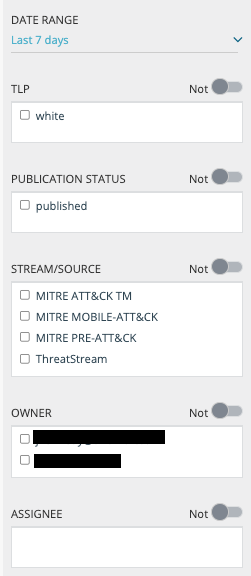
- Date Range
Select a time period, a relative expression, or a date range. The time period filter is based on the ThreatStream publication date (the timestamp for "Modified" in ThreatStream).
- TLP
Select a TLP (Traffic Light Protocol) associated with the entity.
- Publication Status
Select a publication status: New, Pending Review, Review Requested, Reviewed, or Published.
- Stream/Source
Select the name of the Feed in ThreatStream.
- Owner
Select the ThreatStream user who created the entity.
- Assignee
Select the ThreatStream user assigned to investigate.
Note: You can use negation in search expressions by selecting the NOT operator next to the filter heading. For example, to use negation with TLP, select the values you do not want to search and toggle on the NOT operator next to the TLP filter heading.
Filter Examples
modified_ts > "2021-11-09T15:50:00"
publication_status=new and tags=test
publication_status = published or publication_status = new
(publication_status != new) and (feed_name contains FD-5737 or FD-5989)
modified_ts > "2021-11-09T15:50:00" and (publication_status != new) and (feed_name contains FD-5737 or feed_name contains FD-5989)
tags = Reconnaissance or tags = "Command & Control (C2)"
tags in ['mitre-att&ck:detectable_by_common_defenses="Yes"', PRE-T1123] and (modified_ts < "2022-12-01")
Filter Operators
The following table describes the logical operators you can use to form complex field-based search expressions. Operator names are not case sensitive.
| Field Type | Use this Operator |
|---|---|
| String |
=, !=, contains, startswith, in (for lists) Notes:
|
| Numeric |
=, !=, <, <=, >, >=, in (for lists) For example, Note: The |
| Date | =, !=, <, <=, >, >= |
| Logical | AND, OR, NOT, (specify a parenthetical expression) |
Filter Fields
The following table describes all of the possible Attack Pattern search fields. The fields listed in the first column correspond with results table column names. The field names listed in the second column are the fields you specify when you form field-based name-value pair search expressions.
Note: Not all fields are included as columns in the results table. When you search by fields without column names, you can locate the matching values in the details page. All of the fields listed in this table can be selected when you export results.
| Column Name | Field Name | Type | Description |
|---|---|---|---|
| Assignee | assignee_user | String | User name on ThreatStream who is assigned to investigate. |
| Created |
created_ts |
Date |
Timestamp of when the entity was created on ThreatStream. Notes:
|
| Stream/Source | feed_name | String | Name of the feed in ThreatStream. |
| Modified |
modified_ts |
Date |
Timestamp of when the entity was last updated on ThreatStream. Notes:
|
| Name | name | String | Name of the entity. |
| Owner | owner_user | String | Name of the user in the organization on Anomali ThreatStream that created the entity. |
| Publication Status | publication_status | String |
|
| Published Date | published_ts | Date |
Timestamp of when the entity was published on ThreatStream. Notes:
|
| Tags | tags | String | Tags associated with the entity. |
| TLP | tlp | string |
TLP (Traffic Light Protocol) color associated with the entity. The TLP color provides a mechanism to communicate to consumers of the information whether further dissemination of this information is allowed; if yes, how freely can this information be distributed. To learn more about TLP, search for "Traffic Light Protocol" in your favorite search engine. Possible values: white, yellow, green, red |
Attack Pattern Matches Results Table
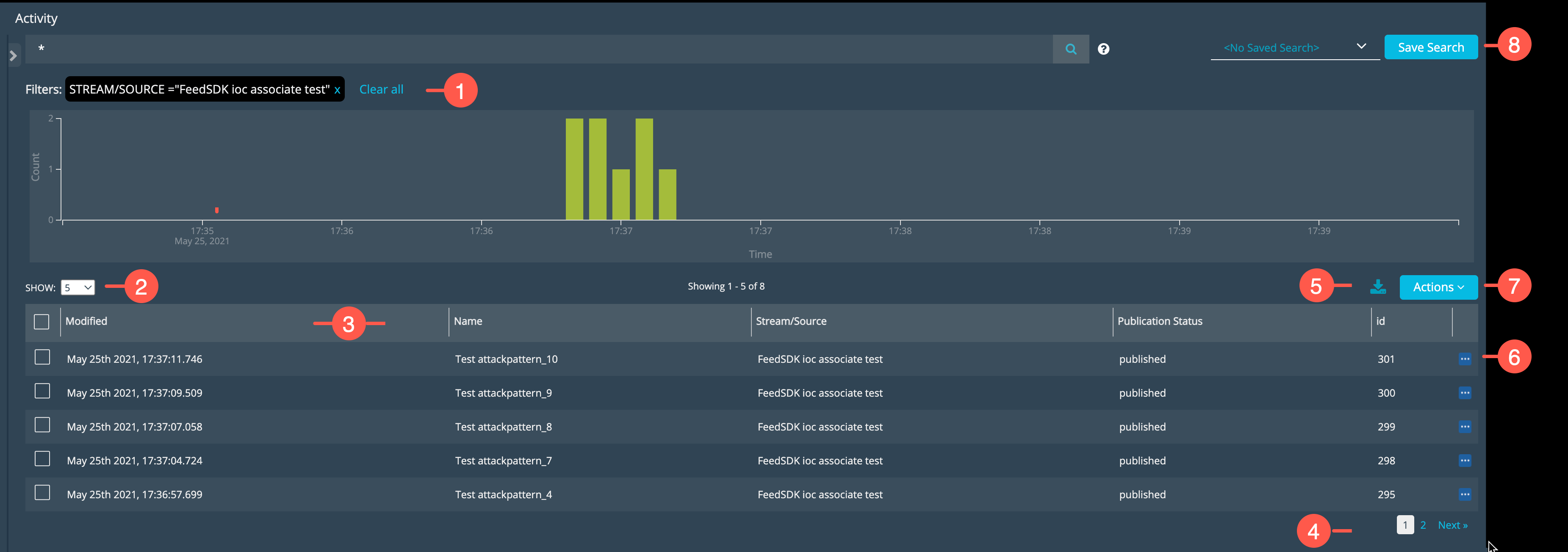
The following figure identifies the UI elements that you use to manipulate the displayed results to find information about Attack Pattern matches.

|
Review and reset applied filters. |

|
Select a number of rows per page. |

|
Click the column header to sort the rows in ascending or descending order according to values in the column. Click a column header divider and drag it to make a column wider or more narrow. |

|
Go to the next page of results or another page by page number. |

|
Export the results table. See Export Search Results. |

|
Display the Details page for the matched event. See View Details. |

|
Perform an action related to the selected row. See Perform Actions. |

|
Create a Saved Search configuration. See Saved Searches. |
Perform Actions
The Action menu above the results table allows you to perform the following actions.
| Action | Description |
|---|---|
| Configure Fields | Select this option to configure the fields (columns) that appear in the results table. |
| Retrospective Search | Select this option to perform a retrospective search for the indicator correlated with the event. |
View Details

|
Click the Details icon in the right-most column to display the details page. |
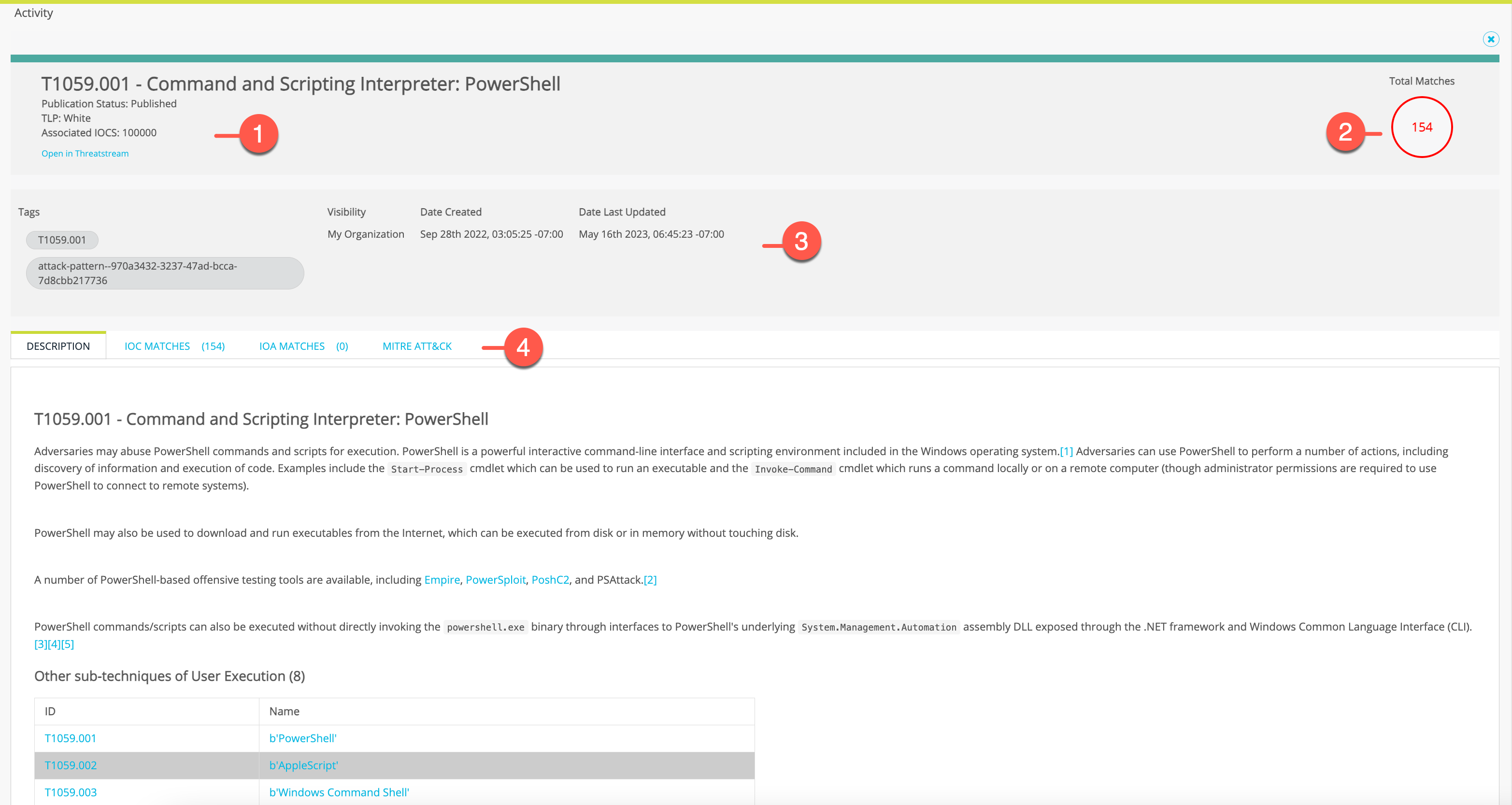
The following figure summarizes the Attack Pattern Details page sections.
|
|
Review key summary details. Click Open in ThreatStream to view the record in ThreatStream. |
|
|
Total Match count. |
|
|
Tags and other key details from ThreatStream. |
|
|
Use the tabs to learn more:
|
Attack Pattern Description
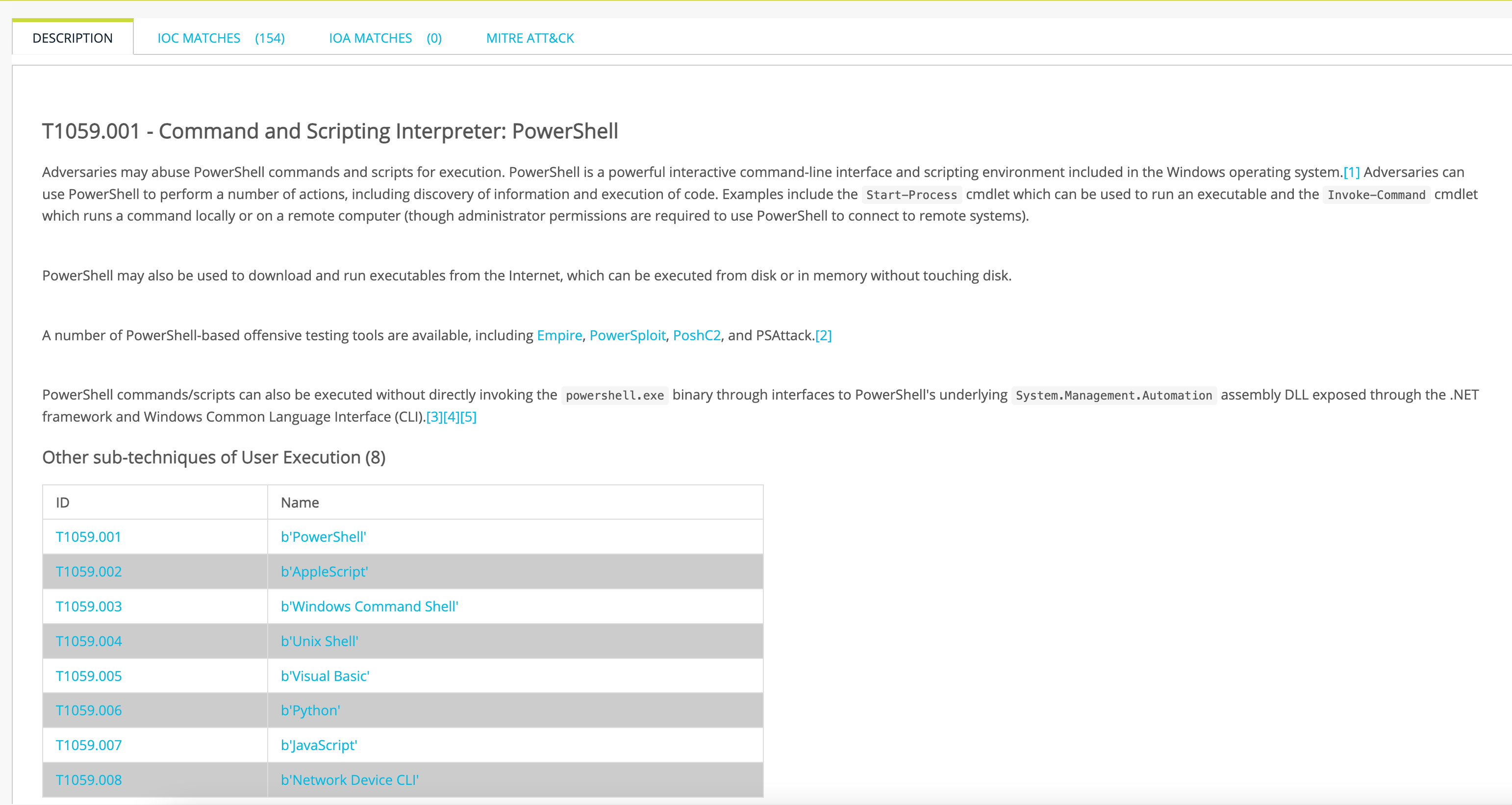
The following figure shows the Description tab. The description is populated by the ThreatStream intel source.
Matches
The details page has a tab for IOC matches.
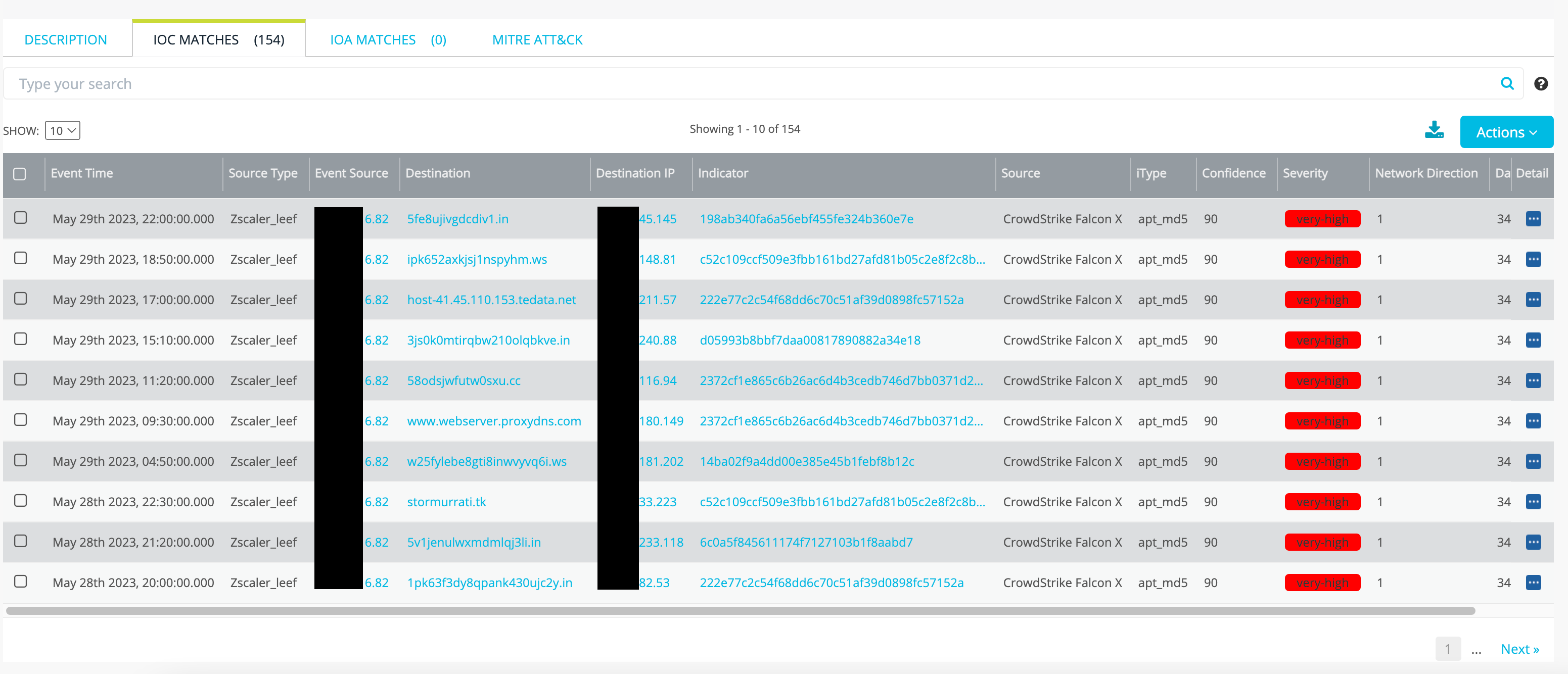
The matches results tables can be used just like the IOC Match activity search results table. For details, see IOC Match Results Table.