Asset Activity Searches
Search the Asset index to examine IT asset details imported into Security Analytics during the specified time period. The Asset details page shows a history of IOC matches associated with the asset.


|
Search text box: Specify a keyword or field-based search expression. Keyword searches match any field. Specify field-based name-value pairs for more precise targeting. |

|
Applied Filters: Review and clear filters. |
About Asset Searches
An asset model in a network infrastructure defines attributes of computer assets (a device, server, software). Attributes can include IP addresses, hostnames, MAC addresses, criticality, geographic location, and so on. For example, the servers in a finance server farm of your company are highly critical assets. Therefore, IP addresses and MAC addresses associated with those servers can be labeled highly critical. Additionally, if this server farm is located in a data center in Virginia, you can also associate Virginia Data Center as the geographic location for the server farm.
You can upload an asset model of your network infrastructure to Security Analytics, so event matches are enriched with this information.
After you have uploaded an asset model to enrich Security Analytics, you can use Activity search to quickly identify impacted systems and prioritize the resources you want to spend on corrective measures. For example, you can leverage the asset enrichment to identify hosts impacted by security events by hostname rather than IP address, which can be very dynamic in DHCP environments. You can also leverage asset criticality attributes to help you prioritize risk analysis.
Filter UI
You can use the filter UI to apply the following filters to your search:
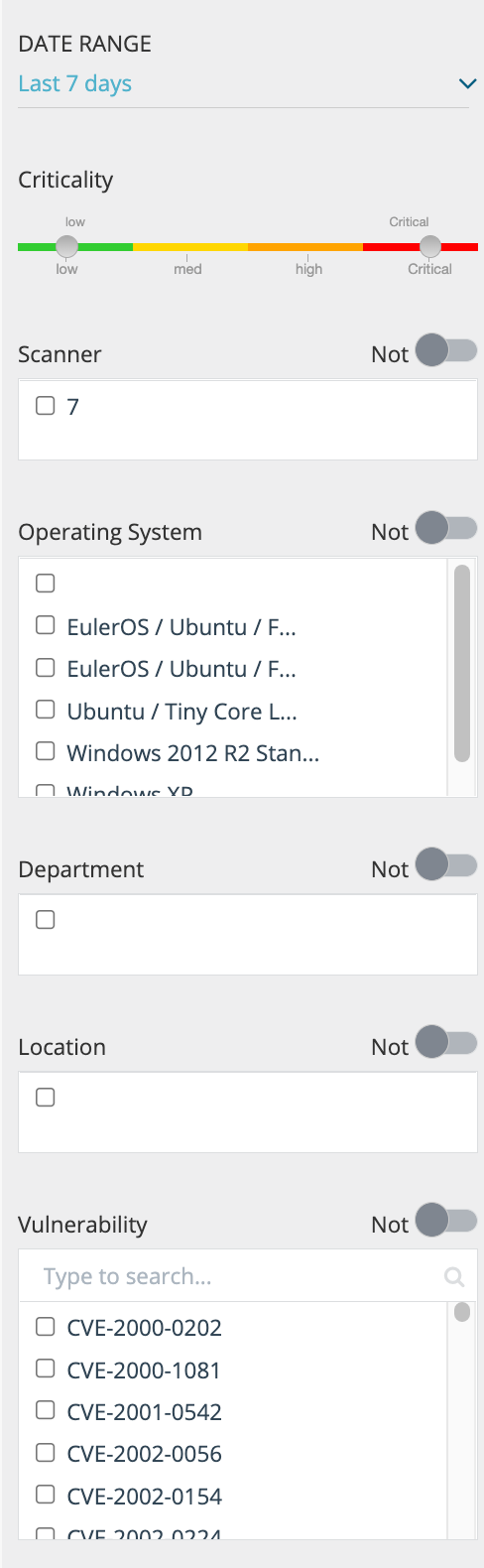
- Date Range
Select a time period, a relative expression, or a date range. The time period filter is based on the Security Analytics asset record time; in other words, the timestamp the asset record was created in Security Analytics from its scanner source, CSV import, or manual entry.
- Criticality
Use the slider to specify a criticality range or drag both ends of the slider to a single severity to filter on just one. Criticality is set by the asset data source.
- Low
- Medium
- High
- Critical
- Scanner
- AWS
- qualys
- rapid7_insightvm_platform
- tenable.io
- tenable.sc
- Operating System
Select one or more operating systems.
- Department
Select one or more department names.
- Location
Select one or more locations.
- Vulnerability
Select one or more vulnerability CVE IDs.
Note: You can use negation in search expressions by selecting the NOT operator next to the filter heading. For example, to use negation with Vulnerabilities, select the CVE IDs you do not want to search and toggle on the NOT operator next to the Vulnerabilities filter heading.
Filter Examples
platform=windows
vulnerabilities in [CVE-2021-21137, CVE-2019-3385]
criticality=high AND (hostname startswith q or hostname startswith u)
platform contains *n*x and ip insubnet 192.0.2.0/24
timestamp >= 2021-01-01T00:00:00 AND criticality = critical OR criticality = medium
hostname contains VM and criticality = critical and vulnerabilities contains 2019
criticality = critical AND platform != ipad AND platform != macos AND platform != printer
((platform != "printers" AND criticality = "critical") OR (platform = "printers" AND criticality = "high")) AND vulnerabilities contains "CVE-1999.*"
timestamp >= "2021-01-01T00:00:00"
ip=192.0.2.1
ip insubnet 192.0.2.0/24
ip insubnet 192.0.2.0/24 and platform contains macOS
Filter Operators
The following table describes the logical operators you can use to form complex field-based search expressions. Operator names are not case sensitive.
| Field Type | Use this Operator |
|---|---|
| String |
=, !=, contains, startswith, insubnet, in (for lists) |
| Numeric |
=, !=, <, <=, >, >=, in (for lists) |
| Date | =, !=, <, <=, >, >= |
| Logical | AND, OR, NOT (specify a parenthetical expression) |
Filter Fields
The following table describes all of the possible Asset search fields. The fields listed in the first column correspond with results table column names. The field names listed in the second column are the fields you specify when you form field-based name-value pair search expressions.
| Column Name | Field Name |
Type | Description |
|---|---|---|---|
| Criticality | criticality | String |
Criticality associated with the asset. Possible values: critical, high, medium, low |
| Department | department | String |
Assigned department. Examples: Engineering, Finance, HR, Labs, Marketing |
| Hostname | hostname | String |
Host name. Examples: example.local, example-pc |
| IP | ip | String |
IP address. Example: 192.0.2.1 |
| FQDNS | fqdns | String |
Fully-qualified domain name. Tenable.io scanner reports include a FQDN field for assets. Example: example.com |
| Location | location | String |
Assigned location. Example: Redwood City, CA |
| MAC Address | mac | String |
MAC address. Examples: 00:00:5E:EF:10-00:00:00 |
| Netbios | netbios | String |
NetBIOS is a program used to enable applications on separate computers to communicate within a LAN. Tenable.io scanner reports include NetBios data. Example: COMPUTERNAME1 |
| Owner | owner | String |
Owner field, if any, mapped from an AWS asset source. |
| Platform | platform | String |
OS type. Examples: CentOS Linux, ipad, Linux-Ubuntu-18, macOS Mojave, printer, Windows XP, Windows NT 10.0 |
| Scanner | scanner | String |
A supported scanner from which the asset information was imported. Examples: qualys, rapid7_insightvm_platform, tenable.io, tenable.sc |
| source | Numeric | ID of the scanner from which the asset data was imported. For example, if you had two Qualys scanners, the sources of information could be distinguished with source id=1 and source id=2. | |
| Tags | tags | String | Tags field, if any, mapped from an AWS asset source. |
| timestamp | timestamp | Date |
Notes:
|
| Vulnerabilities | vulnerabilities | String |
Vulnerability CVE number from asset datastore. Examples: CVE-2021-21137, CVE-2019-3385 |
Asset Match Results Table
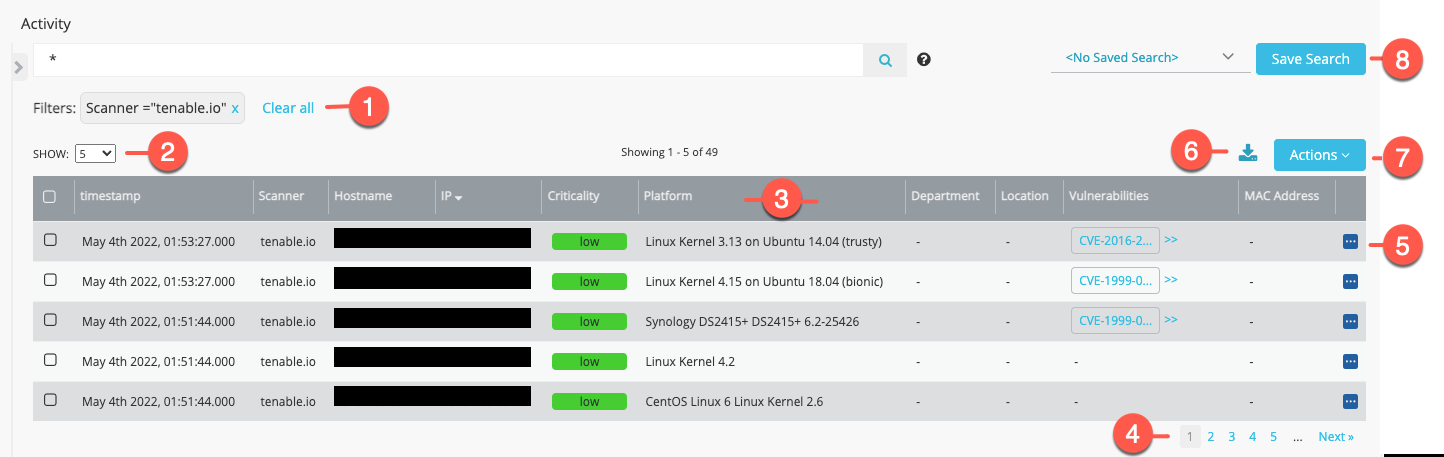
The following figure identifies the UI elements that you use to manipulate the displayed results to find information about Asset matches.

|
Review and reset applied filters. |

|
Select a number of rows per page. |

|
Click the column header to sort the rows in ascending or descending order according to values in the column. Click a column header divider and drag it to make a column wider or more narrow. |

|
Go to the next page of results or another page by page number. |

|
Display the Details page for the matched event. See View Asset Details. |

|
Export the results table. See Export Search Results. |

|
Perform an action related to the selected row. See Perform Actions. |

|
Create a Saved Search configuration. See Saved Searches. |
Perform Actions
The Action menu above the results table allows you to perform the following actions.
| Action | Description |
|---|---|
| Configure Fields | Select this option to configure the fields (columns) that appear in the results table. |
| Retrospective Search | Select this option to perform a retrospective search for the indicator correlated with the event. |
| Add selected asset to exclude list | Select this option to add the asset to the asset exclude list. |
View Asset Details

|
Click the Details icon in the right-most column to display the details page. |
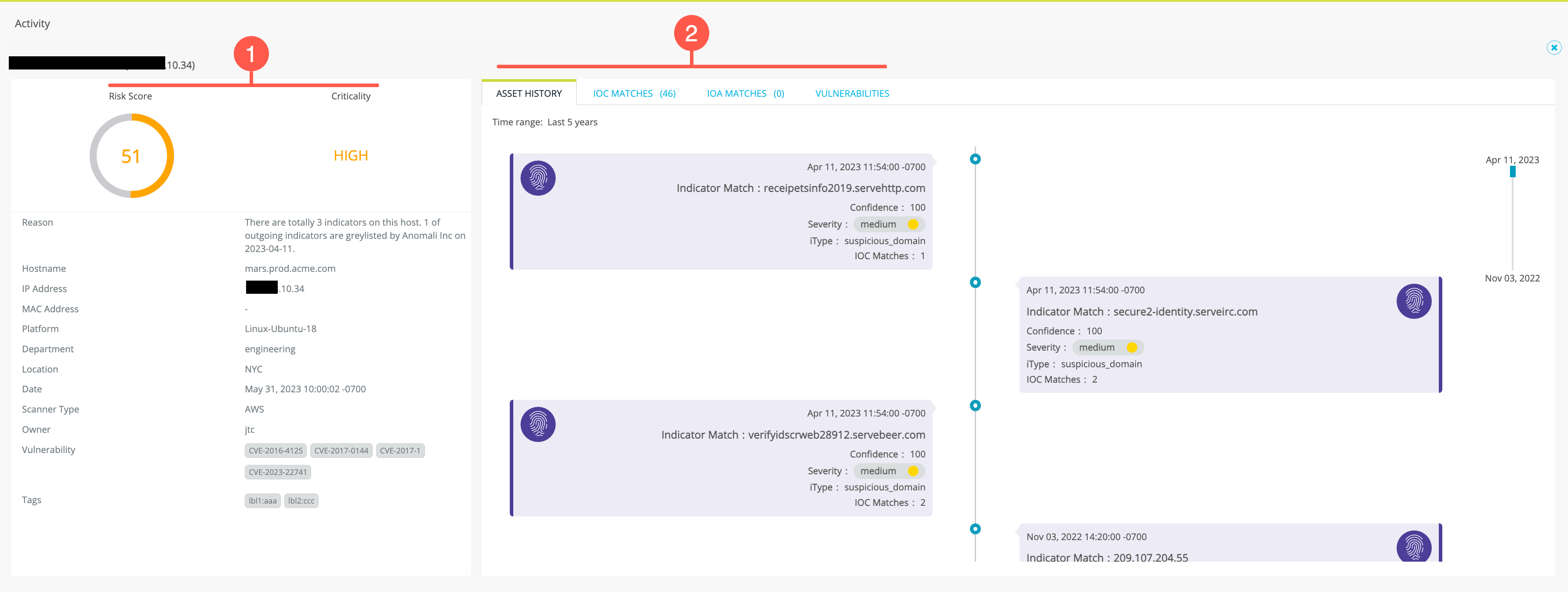
The following figure summarizes the Asset Details page sections.
|
|
Review detailed items described in Asset Details Listing. |
|
|
Use the tabs to learn more:
|
Asset Details Listing
The following table describes the asset details items.
| Item | Description |
|---|---|
| Risk Score |
Risk score is a weighted score based on multiple factors, including indicator confidence, severity, indicator type, and the number of sources reporting the indicator. |
| Criticality |
Criticality set by the asset data source:
|
| Reason | An explanation about Risk Score when such detail is available. |
| Hostname | Hostname from the asset datastore. |
| IP Address | IP address from the asset datastore. |
| Platform | Platform from the asset datastore. |
| Department | Department from the asset datastore. |
| Location | Location from the asset datastore. |
| Date | The timestamp the asset record was created in Security Analytics from its scanner source, CSV import, or manual entry. |
| Scanner Type | Scanner type from the asset datastore. |
| Owner | Owner field, if any, mapped from an AWS asset source. |
| Vulnerability | Vulnerabilities from the asset datastore. |
| Tags | Tags, if any, mapped from an AWS asset source. |
Asset History
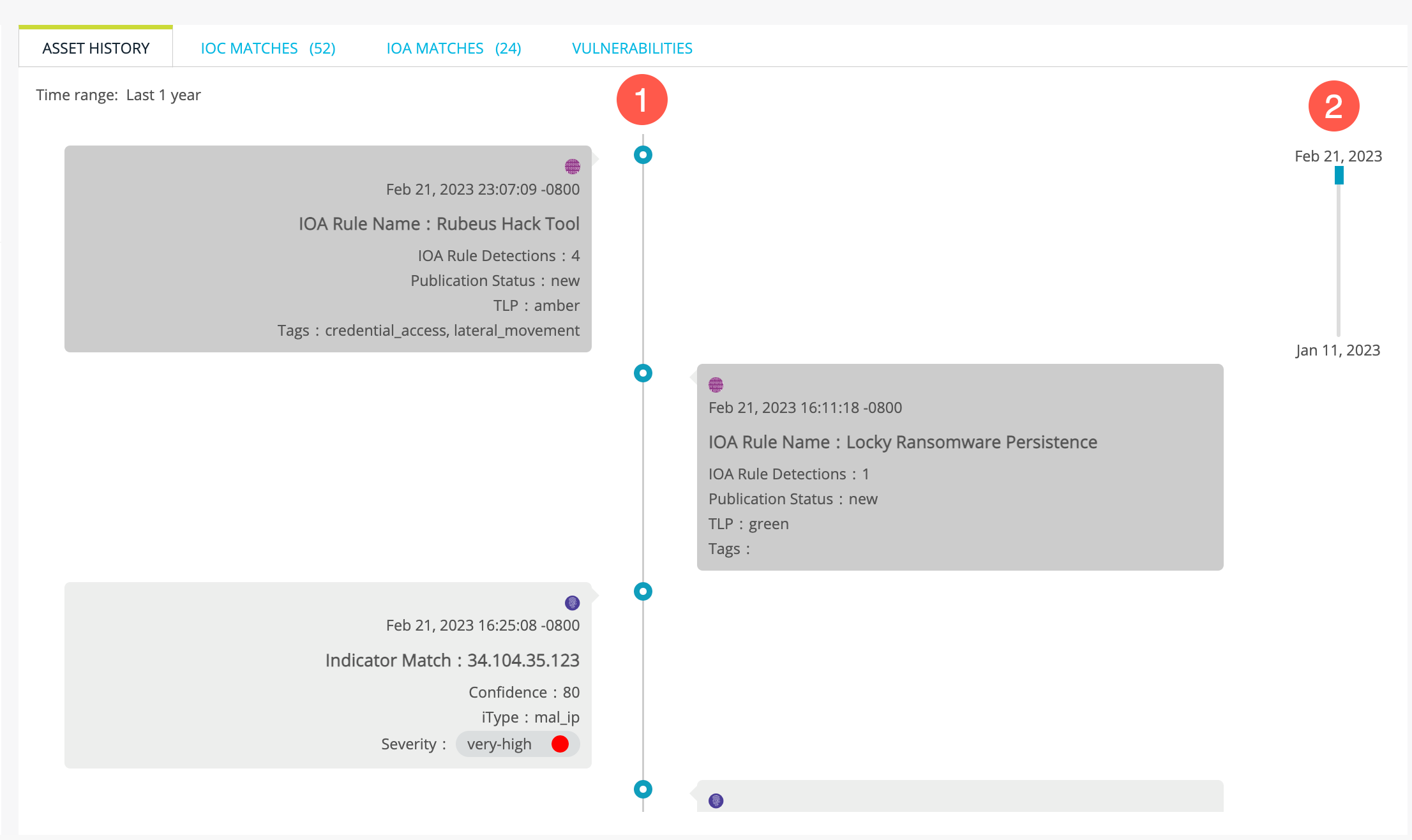
The following figure shows the Asset History tab.
|
|
Timeline: Review events that matched IOCs in the timeline. Click an event to issue a search on the IOC Match activity search, filtered for the particular asset host and matching IOC rule. |
|
|
Scroll Bar: Use the scroll bar to scroll the timeline if necessary. |
IOC Matches
The following figure shows the IOC Matches tab.
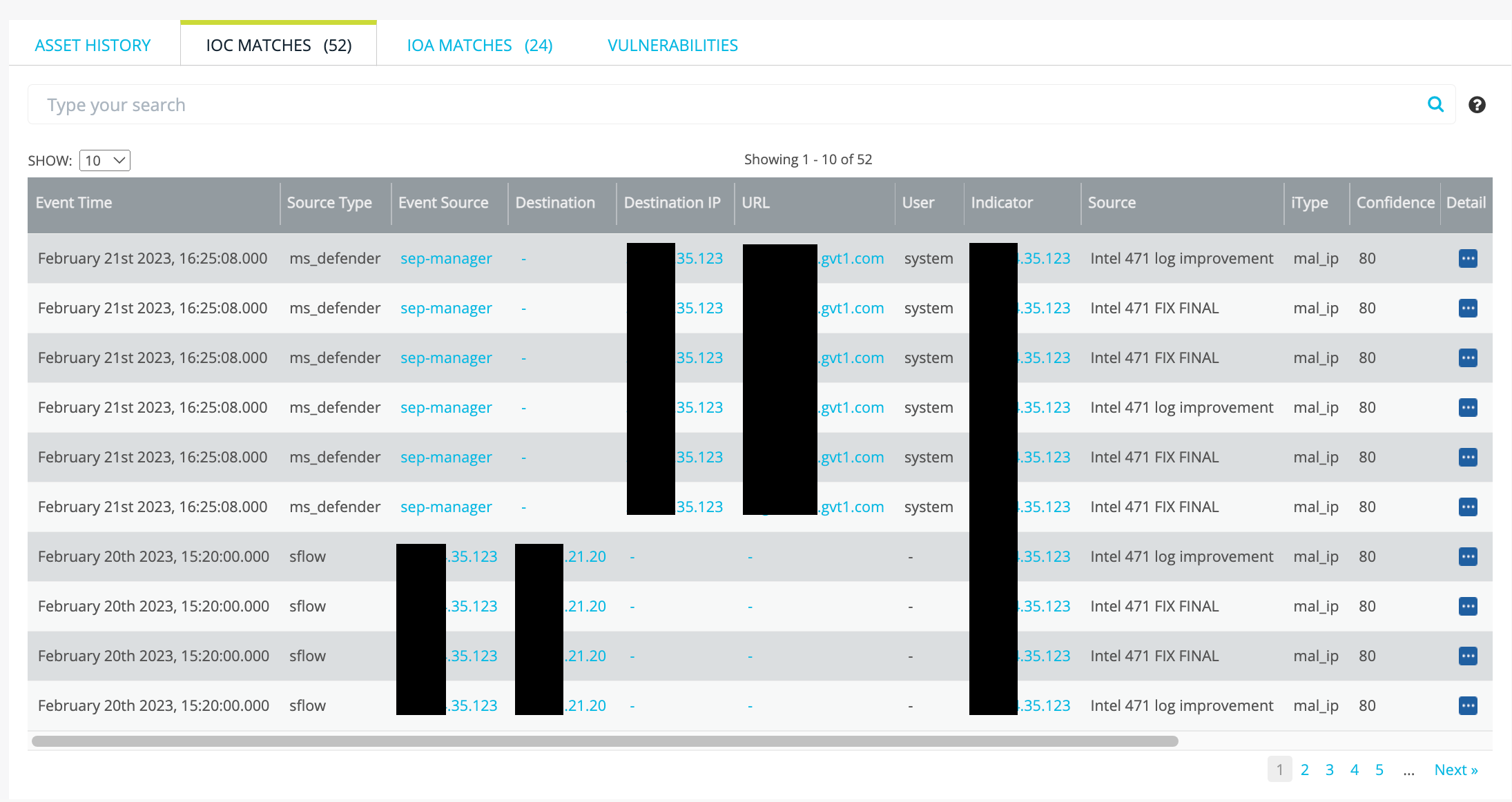
The IOC Matches results table can be used just like the IOC Match activity search results table. For details, see IOC Match Results Table.
Vulnerabilities
The following figure shows the Vulnerabilities tab. The Vulnerabilities tab data is populated by ThreatStream intelligence, not the asset datastore. This tab shows a summary of CVSS scores and the source of this information.
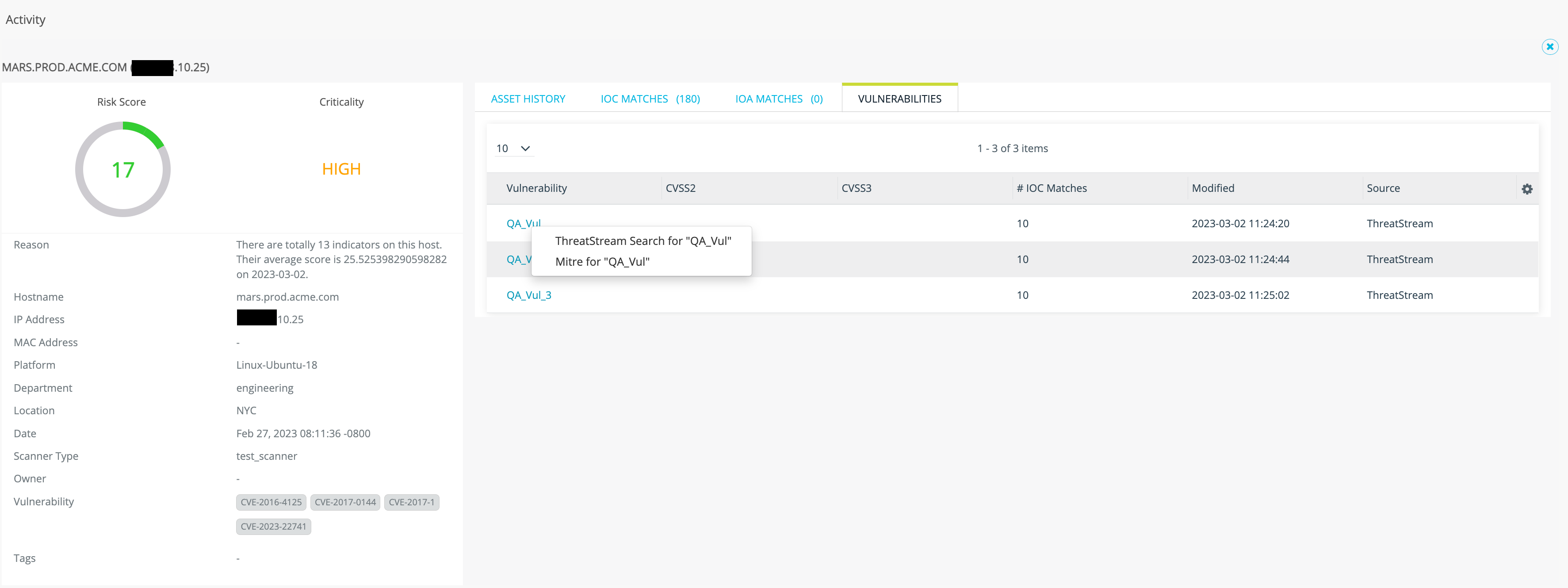
You can click the hyperlink in the Vulnerability column and select ThreatStream Search or Mitre to go to additional details hosted on ThreatStream or cve.mitre.org.