IBM QRadar
Anomali Security Analytics can ingest event log data from IBM QRadar. QRadar is a log source type that supports the following features:
-
Drilldown: The drilldown feature allows you to send queries for raw event log data to the log source.
-
Backfill: The backfill feature allows you to ingest event logs from a time period before the configuration was activated.
Note: This documentation describes integration with an IBM QRadar instance deployed in your onpremise environment—an on-premise-to-cloud workflow. For assistance with log ingestion from IBM QRadar on Cloud, contact Anomali Customer Support.
Network Topology and Requirements
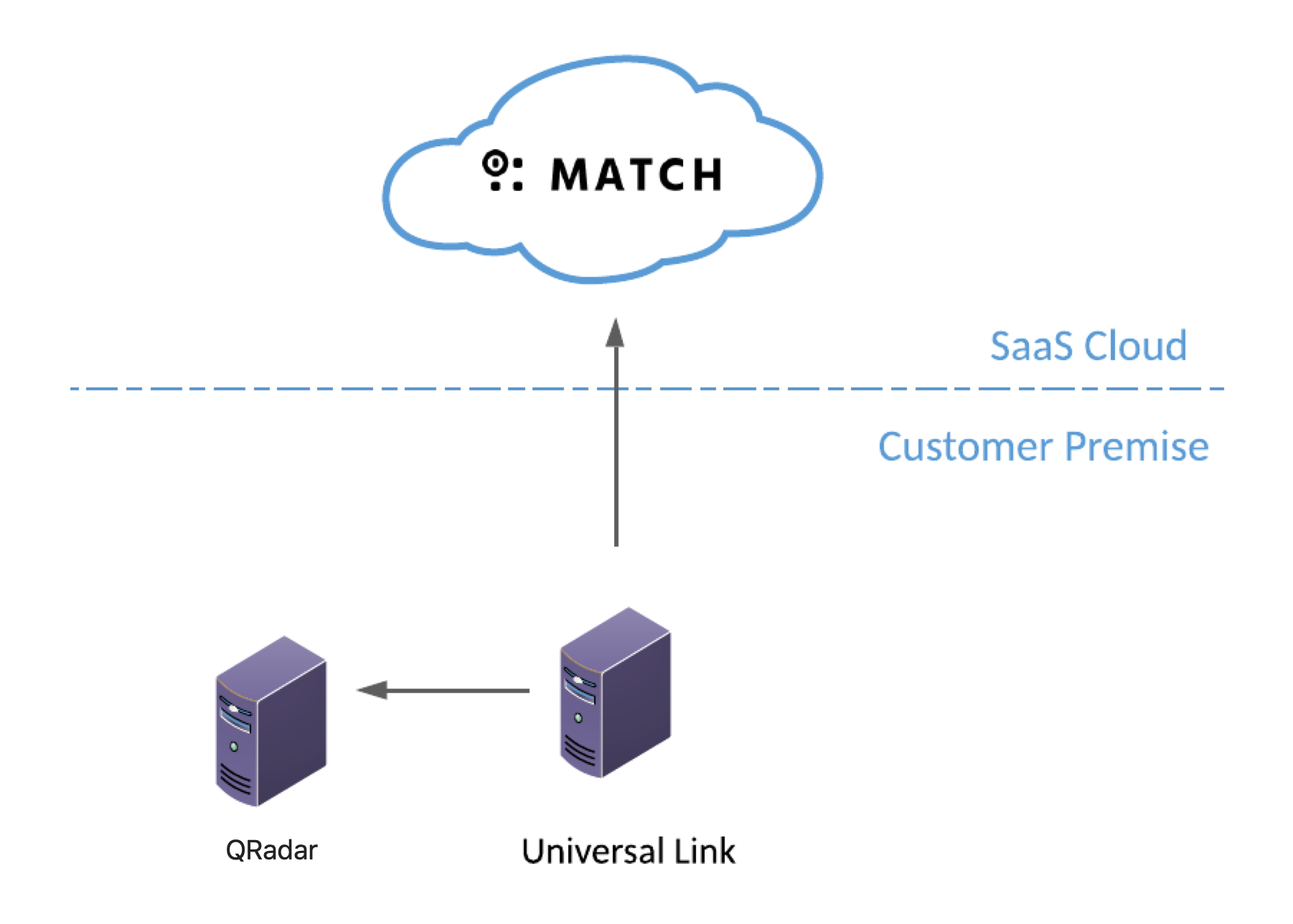
When IBM QRadar is deployed in your on premise environment, logs collected in your IBM Security QRadar instance are forwarded by a Universal Link instance in your on premise environment to Security Analytics. Anomali has tested the integration with QRadar 7.3.3.
-
Universal Link sends queries to IBM QRadar port 443/https to collect events.
- Universal Link must be able to send requests and data outbound to api.threatstream.com and AWS S3.
- Security Analytics listens to Universal Link for updates from log sources on port 443/https. Typically, your network and security team creates rules to allow this traffic when Universal Link is first installed.
-
Refer to Anomali Security Analytics IP Addresses, Ports, and URLs for Security Analytics network details that your network and security needs to know to allow communication from your enterprise resources to your Security Analytics deployment.
Before You Begin
-
The operating system time for the IBM QRadar server host system and the Universal Link host system must be set to the same time zone to enable drilldown queries.
-
You must configure an Authorized Service on QRadar to allow the Link to access the QRadar server. You will need the authentication token that is generated for the Authorized Service to configure the Link. The token for the Authorized Service can be associated with either Admin or All user role. See the QRadar documentation for information on configuring an Authorized Service.
-
Have connection details at hand for both IBM QRadar and Security Analytics. The log source configuration requires you to configure compatible settings between the two systems.
About IBM QRadar Event Fields
The field names listed in the following table are commonly used in IBM QRadar queries. In this table, the column Custom Property identifies the fields that you must create using IBM QRadar Custom Event Properties.
| Field | Description | Custom Property? |
|---|---|---|
|
AccountDomain |
Destination host |
Yes |
|
category |
Low-level category |
|
|
destinationIP |
Destination IP |
|
|
destinationPort |
Destination port number |
|
|
deviceType |
Log source type | |
| "Email Sender" |
The email address of the message sender |
Yes |
|
file_sha2 |
The hash of the file, |
Yes |
|
"File Hash" |
The hash of the file, |
Yes |
|
"File Path" |
The path of the file |
Yes |
|
Filename |
The name of the file |
Yes |
|
flowInterface |
Flow interface |
|
|
"MD5 Hash" |
The hash of the file, |
Yes |
|
sourceIP |
Source IP |
|
|
sourcePort |
Source port number |
|
|
URL |
URL |
|
| username | Username associated with an authenticated HTTP(S) connection request |
Creating Custom Properties
The following example shows how to use IBM QRadar Custom Event Properties to extract meaningful values from the Squid Proxy events.
Step 1:
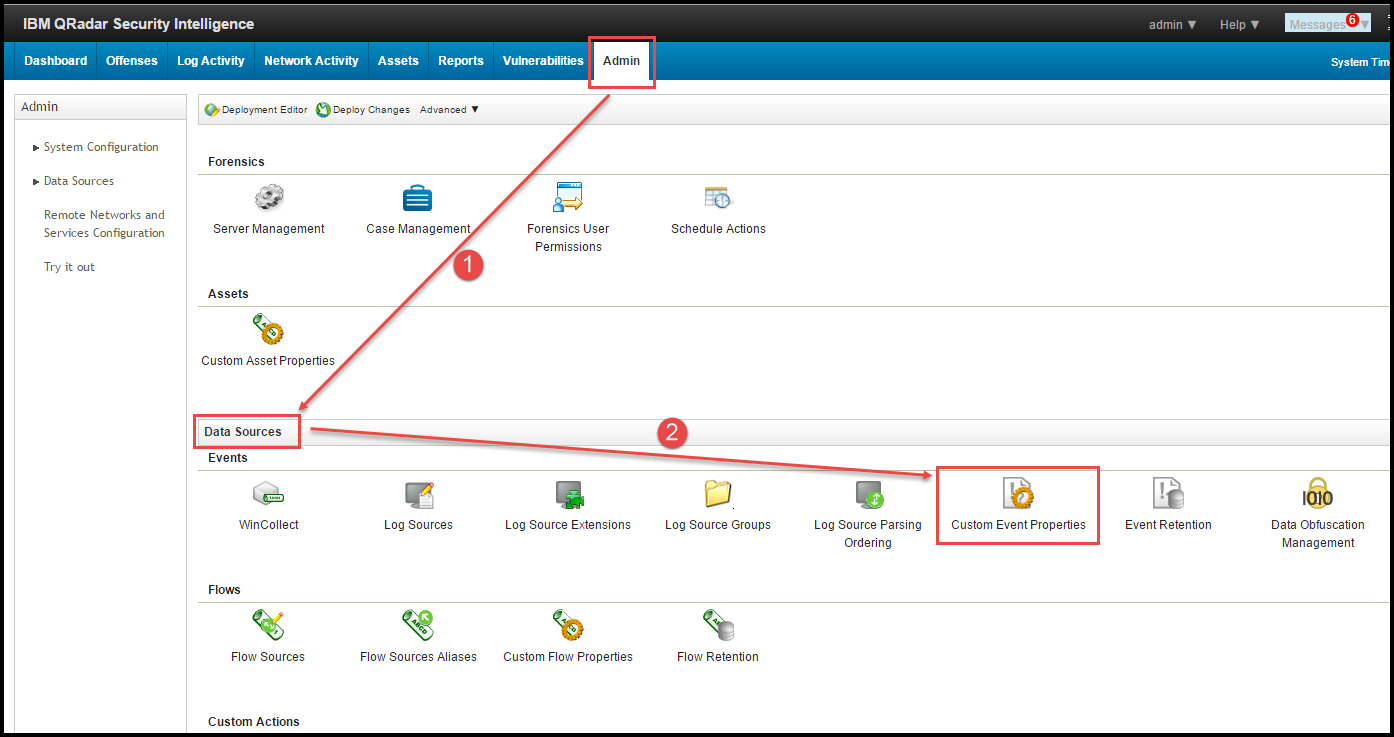
Step 2:
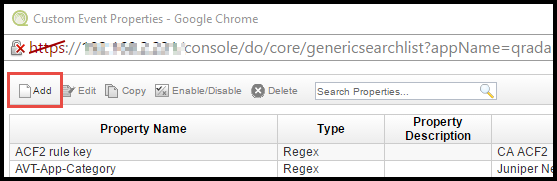
Step 3:
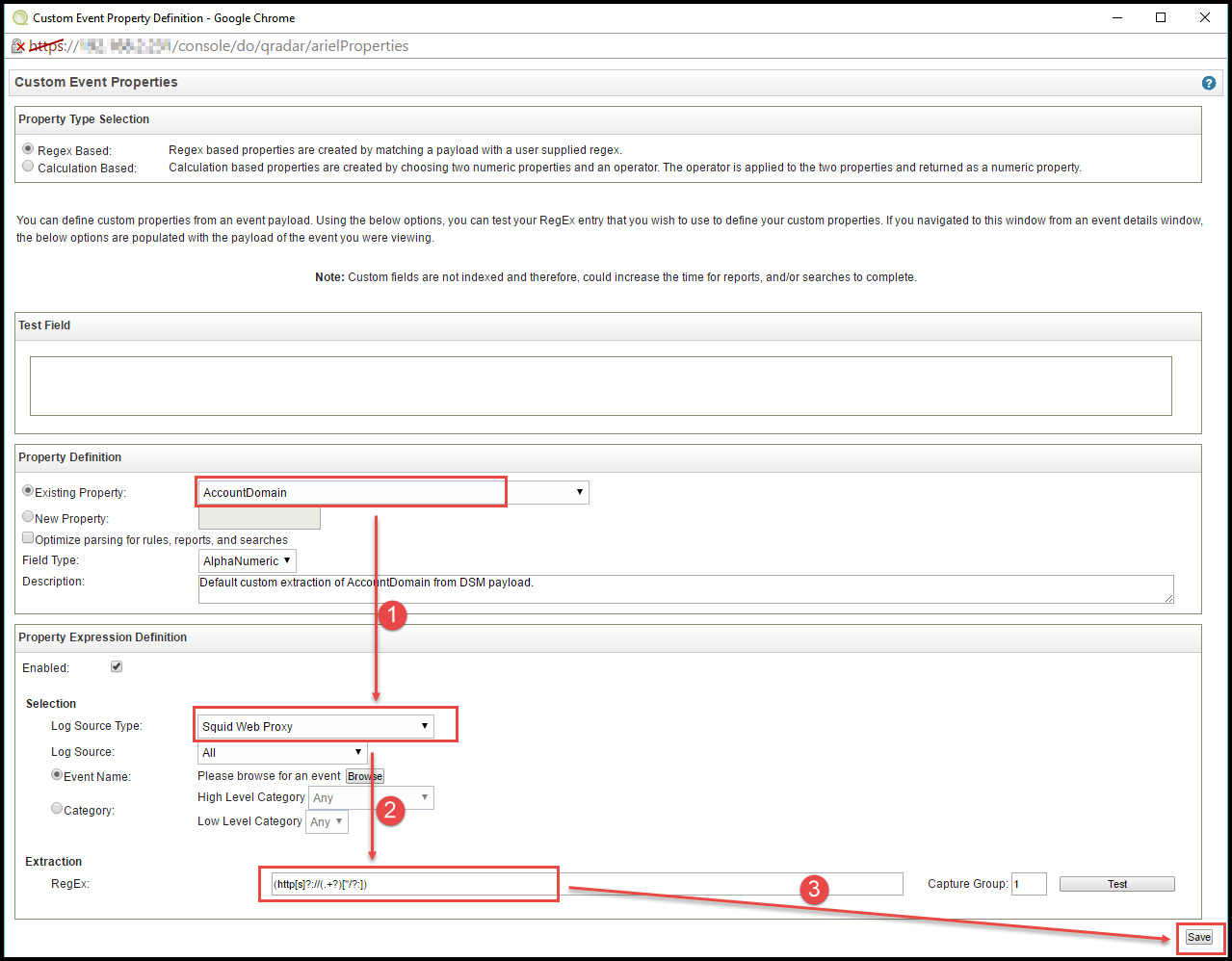
In this example, the regular expression (http[s]?://(.+?)["/?:]) is used to extract the AccountDomain field for Squid Web Proxy logs.
IBM QRadar Query Guidelines
When you configure the QRadar log source in Security Analytics, Security Analytics populates the configuration with sample queries. Use the guidelines in this section to modify the sample queries.
Specify the IBM QRadar Field Names
You must modify the sample queries with the names of the fields used in your IBM QRadar instance.
The following is a sample query to event log sources that is provided in the Security Analytics UI:
SELECT LOGSOURCETYPENAME(devicetype) as sourcetype, sourceIP as src, sourcePort as src_port, DestinationIP as dest_ip, destinationPort as dest_port, REPLACEALL(' ', CATEGORYNAME(category), '_') as action, AccountDomain as dest, URL as url, "File Path" as 'file_path', "File Hash" as 'file_hash', username as user, count(*) from events where src!=dest and dest!='127.0.0.1' {exclusions_term} group by sourcetype, src, src_port, dest_ip, dest_port, action, dest, url, file_path, file_hash, user {time_term}}
Assume you do not have AccountDomain but you have a custom property already defined in your QRadar instance called dest_host to store your host/domain information.
When you add your query in the Security Analytics configuration, specify your field names instead of the sample field names, as follows:
SELECT LOGSOURCETYPENAME(devicetype) as sourcetype, sourceIP as src, sourcePort as src_port, DestinationIP as dest_ip, destinationPort as dest_port, REPLACEALL(' ', CATEGORYNAME(category), '_') as action, dest_host as dest, URL as url, "File Path" as 'file_path', "File Hash" as 'file_hash', username as user, count(*) from events where src!=dest and dest!='127.0.0.1' {exclusions_term} group by sourcetype, src, src_port, dest_ip, dest_port, action, dest, url, file_path, file_hash, user {time_term}
The following is an example of a query to a QRadar flow interface source:
SELECT flowInterface as sourcetype, sourceIP as src, DestinationIP as dest, sourcePort as src_port, destinationPort as dest_port, count(*) from flows where src!=dest and dest!='127.0.0.1' group by sourcetype, src, src_port, dest, dest_port {time_term}
You can modify field names for flow interface queries in the same manner as the event source example shown above.
Filter Unnecessary Logs
You can add where conditions to filter logs that do not need to be examined in Security Analytics. In the following example, the where clause filters logs having deny actions.
SELECT LOGSOURCETYPENAME(devicetype) as sourcetype, sourceIP as src, sourcePort as src_port, DestinationIP as dest, username as user, destinationPort as dest_port, REPLACEALL(' ', CATEGORYNAME(category), '_') as action, count(*) from events where action not ilike '%Deny%' and action not ilike '%Denied%' and action not ilike '%deny$' and url is null and src!=dest and dest!='127.0.0.1' {exclusions_term} group by sourcetype, src, src_port, user, dest, dest_port, action {time_term}
Step 1: Create the Security Analytics Log Source Configuration
-
Click the Settings icon
 in the left navigation panel and select Security Analytics.
 -
Click Links.
-
Locate the Universal Link configuration for which you want to add a log source and click the hyperlink name in the Name column. The Link must be online.

-
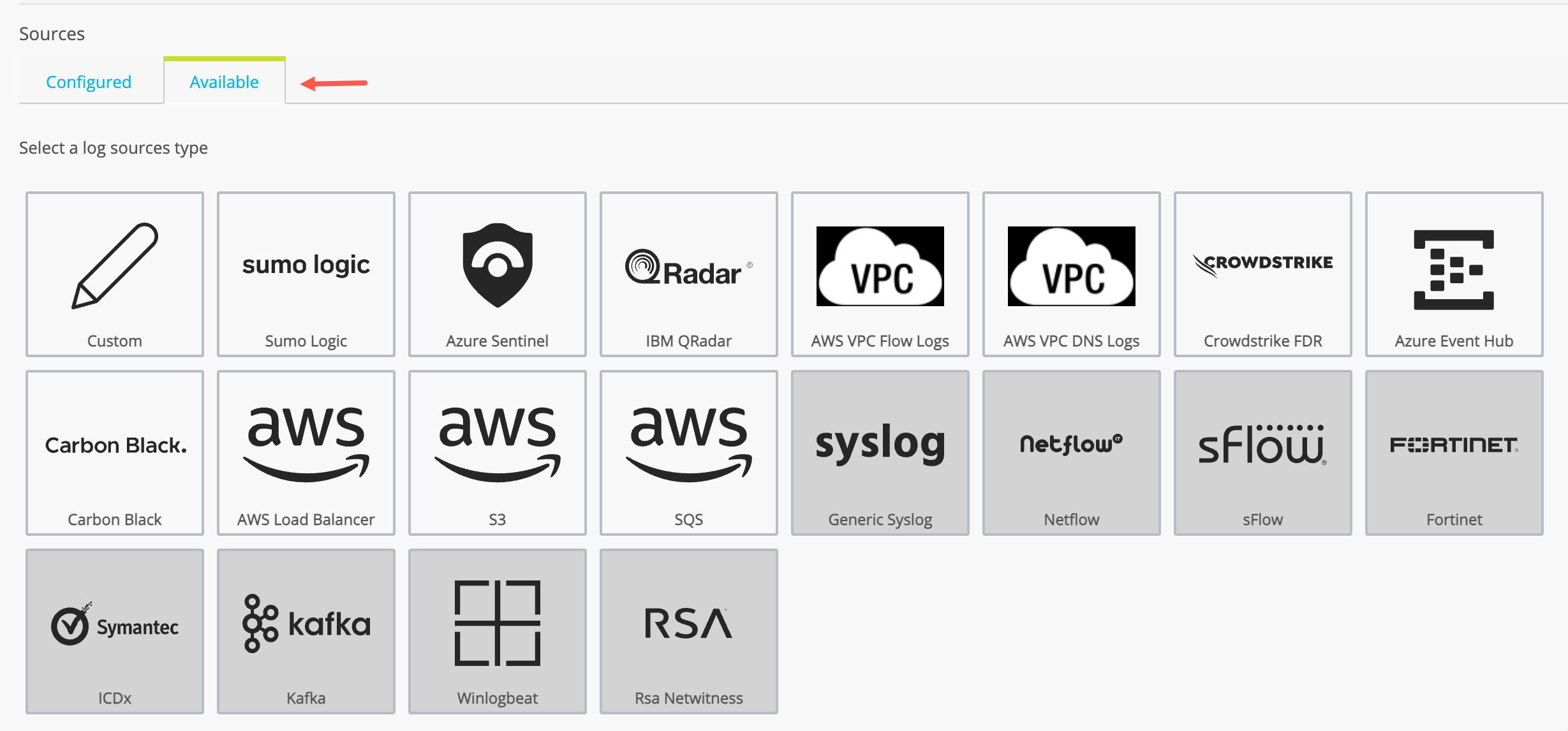
Click the Available tab to display the log source types available. The set of available log source types are different for Cloud Link and Universal Link deployed on premises.
-
Click the IBM QRadar icon.
-
Configure the settings described in the following table.
Setting Description Data Source Name Type a name that facilitates Link management. Only ASCII characters are allowed. Data Source Description (Optional) A short description for the log source.
QRadar URL
The IP address or FQDN part of the URL for the QRadar instance.
QRadar API Version
API Version number. Version 12.0, 11.0, 10.0, and 8.0 are supported. The default is 12.0.
Authentication Token
Authentication token for the connection to the QRadar instance. Use Proxy
Not applicable for Security Analytics. - Click Next.
-
Enter your query string in the Search Query 1 field to define what data is to be retrieved from the log source. See IBM QRadar Query Guidelines.
Click the Plus icon (
 ) to add another query for the same table.
 - Enter Interval Schedule, the time between each query run. Default is 10 minutes.
-
Optional: Click Backfill Enable and specify a backfill period if you want to ingest event logs from a period before the log source was activated.
-
Click to expand Drilldown Settings and specify drilldown settings.
Drilldown Field Mappings Specify mappings in JSON format. For example:
{"event.sourcetype": "LOGSOURCETYPENAME(devicetype)","event.src_ip": "sourceip","event.src_port": "sourceport","event.dest_port": "destinationport","event.dest_ip": "destinationip","eventname": "LOGSOURCETYPENAME(devicetype)"}Drilldown Limit Number of rows to be returned by drilldowns. The default is 10 rows.
- Click Save.
Step 2: Activate the Security Analytics Log Source Configuration
By default, a newly-added data source is not active.
To activate a log source:
-
Click the Settings icon
 in the left navigation panel and select Security Analytics.
 -
Click Links.
-
Locate the Link configuration you want to review and click the hyperlink name in the Name column.
-
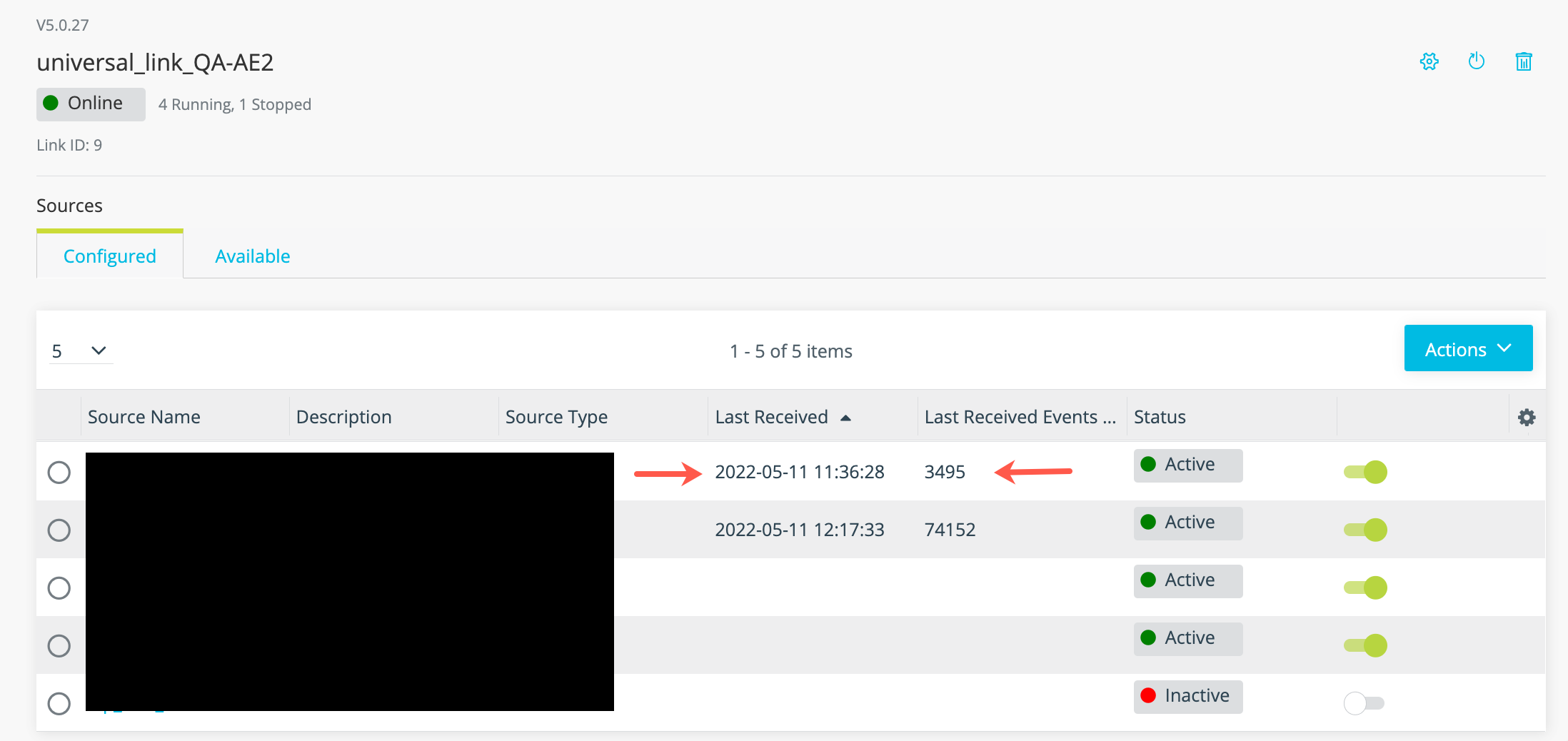
Locate the log source you want to activate and toggle the activation switch shown in the following figure.
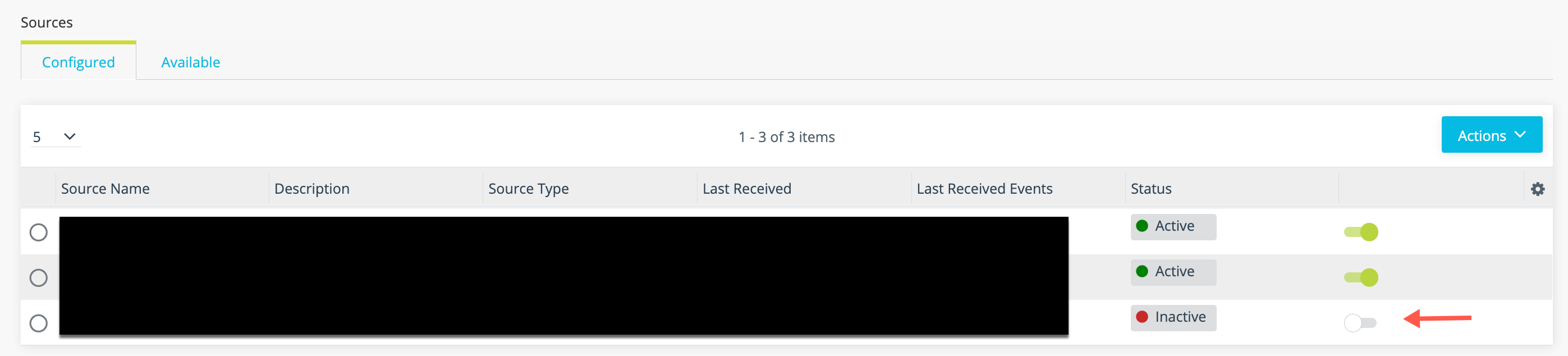
With this log source type, the associated Link configuration does not need to be regenerated.
Step 3: Verify Logs Are Ingested into Security Analytics
You can expect logs to be transmitted to Security Analytics shortly after the log source has been activated and the Universal Link regenerated.
To verify logs are ingested:
-
Click the Settings icon
in the left navigation panel and select Security Analytics. -
Click Links.
-
Click the hyperlink in the Name column for the Universal Link associated with the log source.
-
Review the timestamp for the last data received and the number of events in the last batch of data to confirm event logs are ingested as expected.