Anomali Search
Anomali Search enables analysts to scan, correlate, and analyze large volumes of security telemetry and threat intelligence. Using Search, analysts query event logs, lookup tables, and views to investigate activity and detect potential security incidents.
Search supports querying data using two schema standards: the eventlog schema and the Open Cybersecurity Schema Framework (OCSF) schema. Both these schemas support normalized event data as well as unstructured raw log messages. Fields can be automatically extracted from raw messages (such as JSON, CEF, or key-value logs) and queried using dotted notation. This schema-on-the-fly capability allows you to rapidly use data in downstream applications such as Visualizations or Anomali Dashboards, without requiring prior field normalization.
Organization administrators can control access to both eventlog and OCSF data across all Search features by assigning roles with targeted filters, ensuring each user sees only the data their function requires. See Role-Based Access Control for Schemas for more information.
Search queries are written using the Anomali Query Language (AQL), generated automatically using the Basic query builder, or natural-language prompts through Anomali Copilot. These queries allow analysts to filter, aggregate, and analyze large data volumes to support threat hunting and investigations.
Additionally, Anomali offers Anomali Virtual Compute, a computing framework that enables you to measure your usage of virtualized infrastructure whenever you launch a search.
Search also supports federated searches that use the Managed Security Service Provider to enable querying across multiple managed organizations at once, while keeping each customer’s data isolated and clearly identified in results. See Federated Search to understand how Anomali ensures multi-tenancy.
Accessing the Search Interface
Click Search ( ) in the left navigation panel to go to the Search home page.
Search Types
Anomali Search supports multiple search types, each optimized for different use cases. See Types of Anomali Search for guidance on choosing the right search type.
Search Modes
Search supports two modes of constructing a search query:
-
AQL mode: Manually construct queries using AQL operators, filters, aggregations, and regular expressions.
-
Basic mode: Build queries by selecting components of an AQL query without requiring knowledge of AQL syntax, simplifying query construction.
See Using Search Modes for more information to understand how these modes enhance your search experience.
Understanding the Search Bar
Use the Search bar to enter AQL queries or natural language prompts and refine the generated query before running it. See Understanding the Search Bar for more information.
Searching with Anomali Copilot
Anomali Copilot lets you convert natural-language prompts into valid AQL queries that you can review, edit, and run from the Search page. See Search with Anomali Copilot for more information.
Exploring Results and Refining Queries
Review search results, inspect field values, and apply filters or follow-up actions to narrow your search results and focus your investigation. See Exploring Search Results and Refining Queries for more information.
Using Saved Searches
The Event Search page also includes the Saved Search utility that lets you save the current query to a configuration you can reuse in the future. See Saved Searches for more information.
Searching with Visualizations
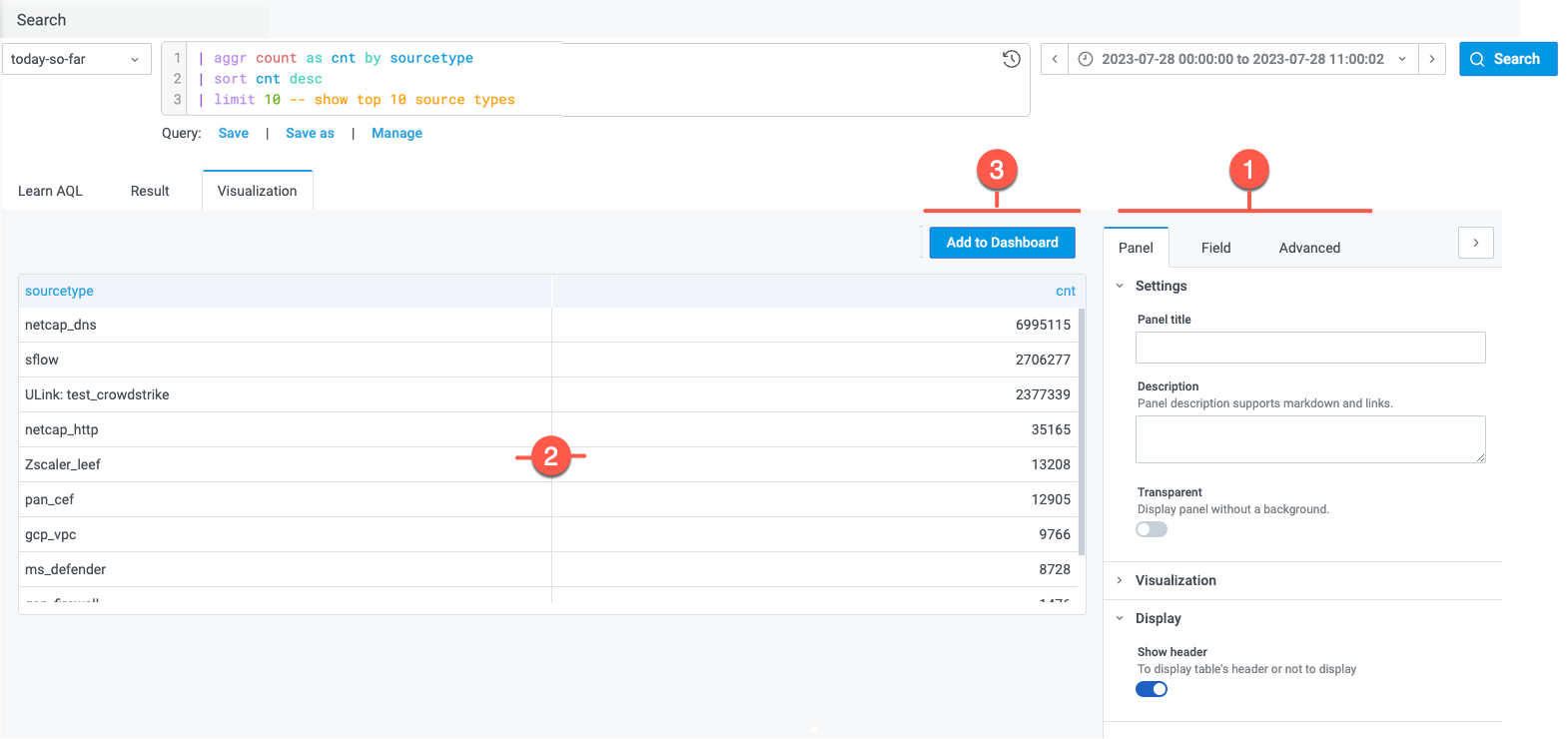
After refining a query, navigate to the Visualization tab to get a visual snapshot of your search results. Select a visualization appropriate for your use case, customize its properties, and save it to your dashboard.
See Working with Visualizations for more information on all the visualizations Anomali Search supports.
(Click the image to enlarge it.)
Tagging Anomali Resources
Search also allows you to tag different Anomali resources such as lookup tables, views, macros, reports, saved searches, and dashboards, leading to a shared, organization-wide tagging system that eases the process of organizing and locating them. See Resource Tags for more information.
Modifying Search Settings
Search also allows you to toggle between light and dark mode themes for a better user experience. See Modifying Search Settings for more information.