Saved Searches
Saved searches let you store frequently used AQL queries. You can also apply tags to locate and organize saved searches, as well as filter, share, and edit them directly from the Saved Searches list.
When Schema RBAC is active for your organization, the schema filters in your assigned roles determine which data this feature returns. An eventlog filter limits your results to only the eventlog data your role permits, and an OCSF filter limits your results to only the OCSF data your role permits. If a query runs against a schema for which your role has no filter assigned, the query returns a forbidden error. For details, see Role-Based Access Control for Schemas.
Accessing Saved Searches
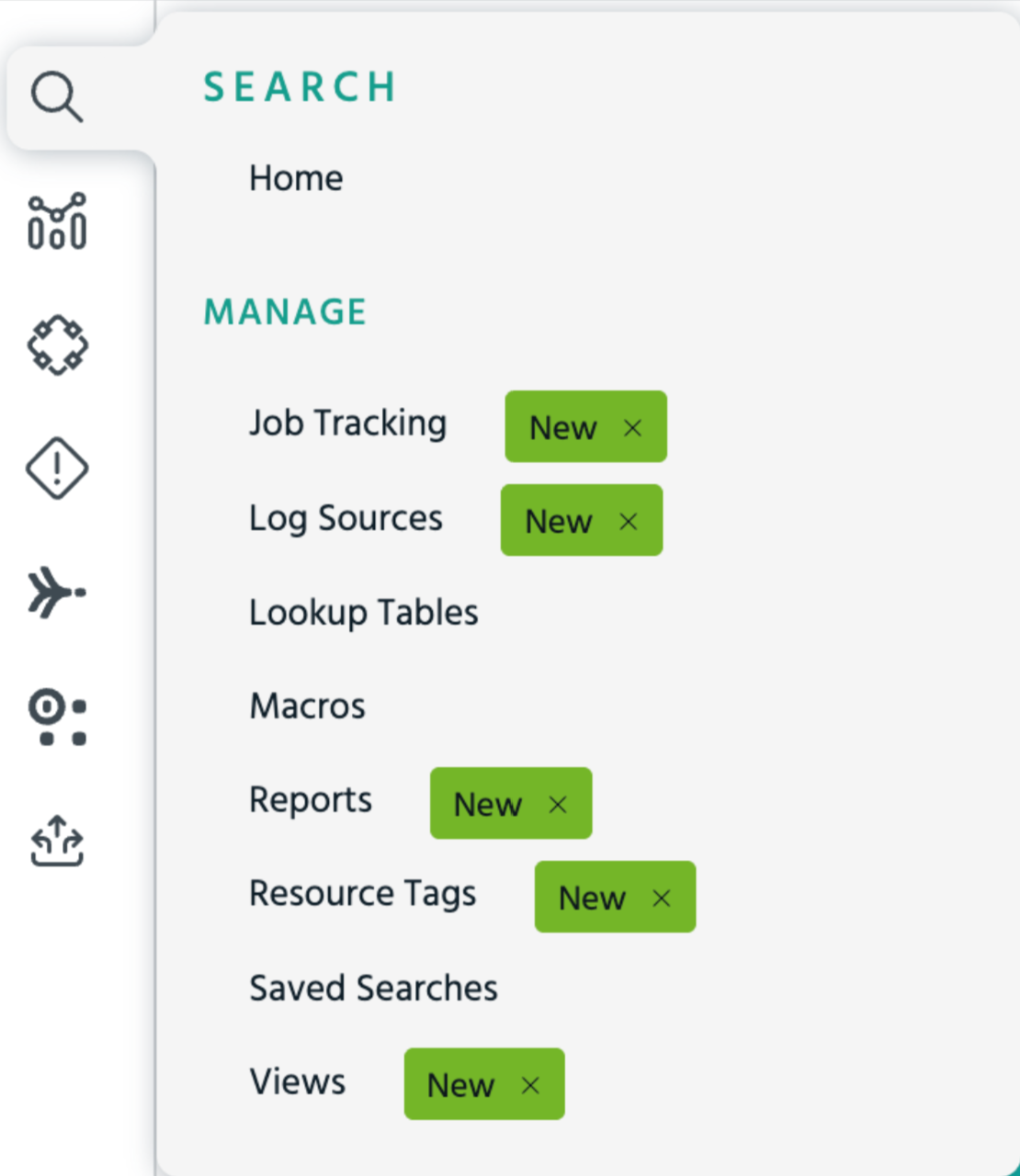
To access all saved searches, on the left navigation menu, click Search > Manage > Saved Searches.
Understanding the Saved Searches Catalog

|
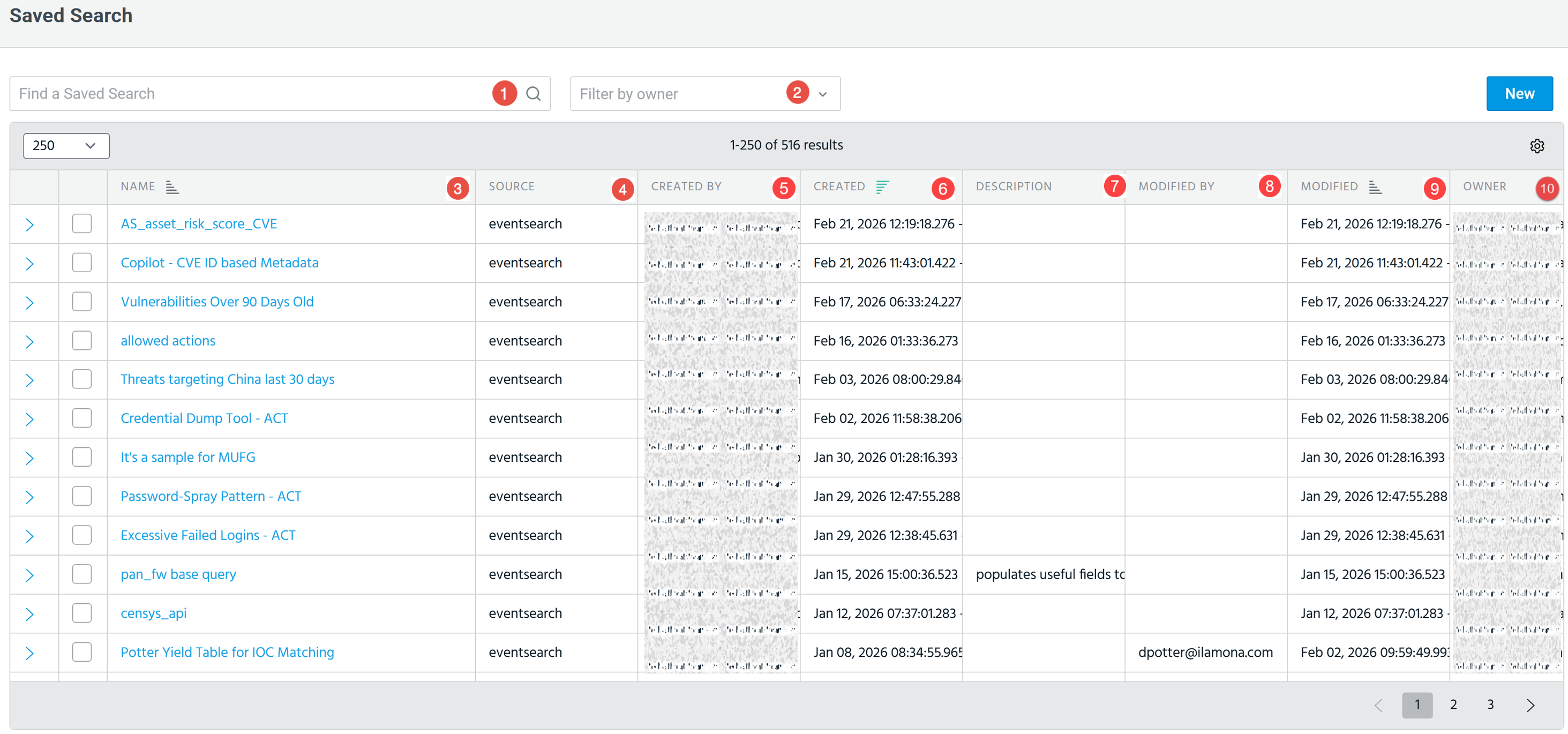
Find a Saved Search: Enter the name of the saved search you want to find. The search is incremental, that is, the results are updated as you type. |
|
Filter by tag: Filter the saved search list by one or more resource tags.
See Filtering saved searches by tag for details. |
|

|
Filter by owner: You can filter saved searches by owner. Possible values include:
|

|
Name: Name of the saved search. |
|
Tags: Resource tags applied to the saved search, displayed as colored chips. To filter the list by tag, see Filtering Saved Searches by Tags. |
|

|
Source: The source of the saved search. |

|
Query: The AQL query associated with the saved search. |

|
Created by: Indicates the creator of the saved search. By default, the creating user is the owner and is private (not shared). The owner can:
|

|
Created: The date and time when the saved search was initially created. |

|
Description: A brief explanation of the purpose or functionality of the saved search. |

|
Modified by: The user who last updated the saved search. |

|
Modified: The date and time when the saved search was last updated. |

|
Owner: The user who owns the saved search. |

|
Start Time: The start time of the search duration range associated with the saved search. This time can either be relative or absolute time. |

|
End Time: The end time of the search duration range associated with the saved search. This time can either be relative or absolute time. |

|
New: Click New to create a new saved search. |
Filtering Saved Searches by Tags
Use the tag filter on the Saved Search list to show only saved searches that have specific resource tags applied.

Note: Organization administrators can see all tags, including private tags owned by other users.
To filter saved searches by tag:
-
Navigate to Search > Manage > Saved Searches.
-
Click Filter by tag and select one or more tags from the dropdown. After selecting these tags:
-
The list updates to show only saved searches that have all selected tags applied. For example, selecting the tag brandnewtag returns only saved searches containing this tag.
-
The dropdown shows only tags you own or that are shared to your organization.
-
The count displayed next to each tag reflects usage for saved searches only, not the total across all the supported resource types. A tag used across multiple resource types will show a different count on each resource page, depending on the resource you are viewing.
-
-
Click Clear tags to remove the filter and restore the full list.
Saving a Search
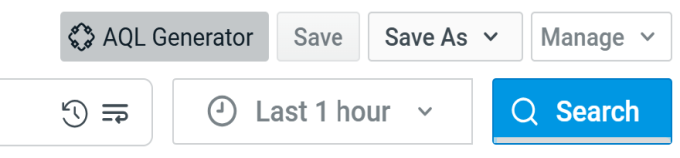
To save a search, click Save As on the top-right. If you edit an existing saved search, click Save to save the changes you made.
Creating a Saved Search
To create a saved search, navigate to Search > Manage > Saved Searches.
|
|
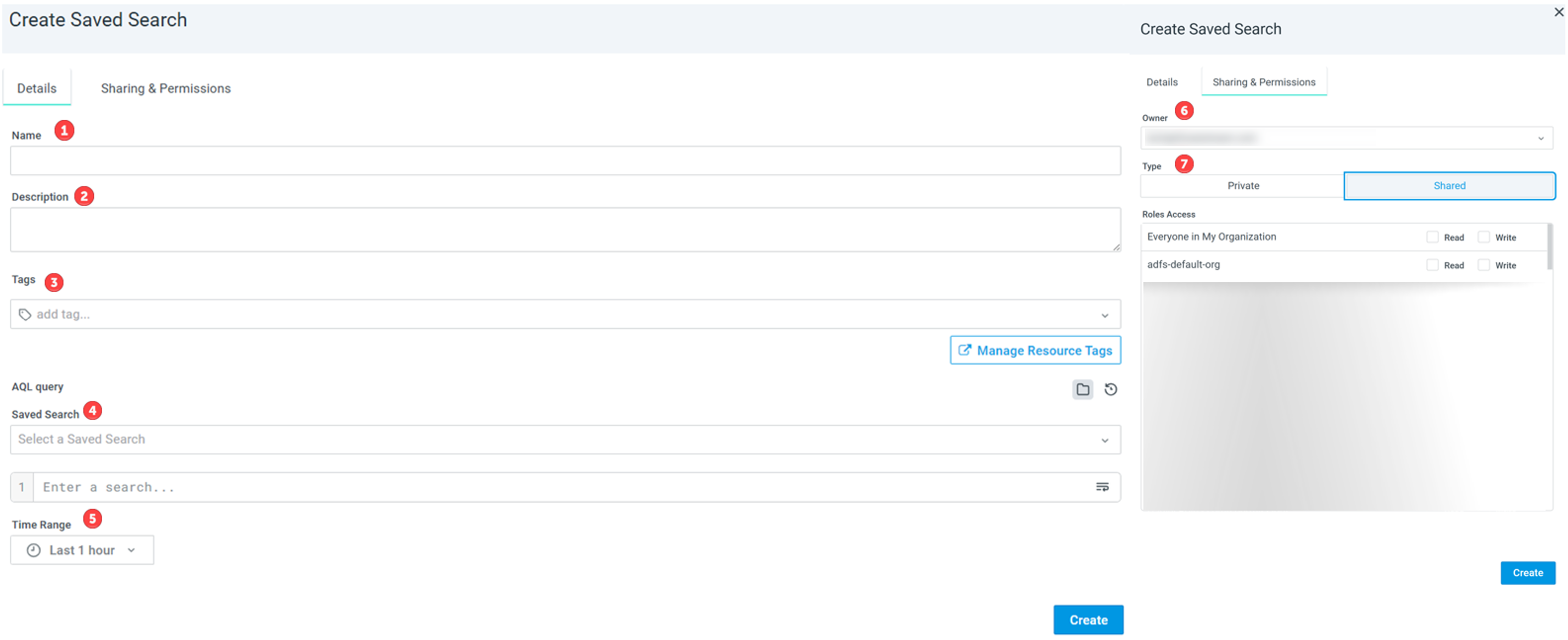
Name: Enter a name for the search query you want to save. |
|
|
Description: Enter a description for the search. |

|
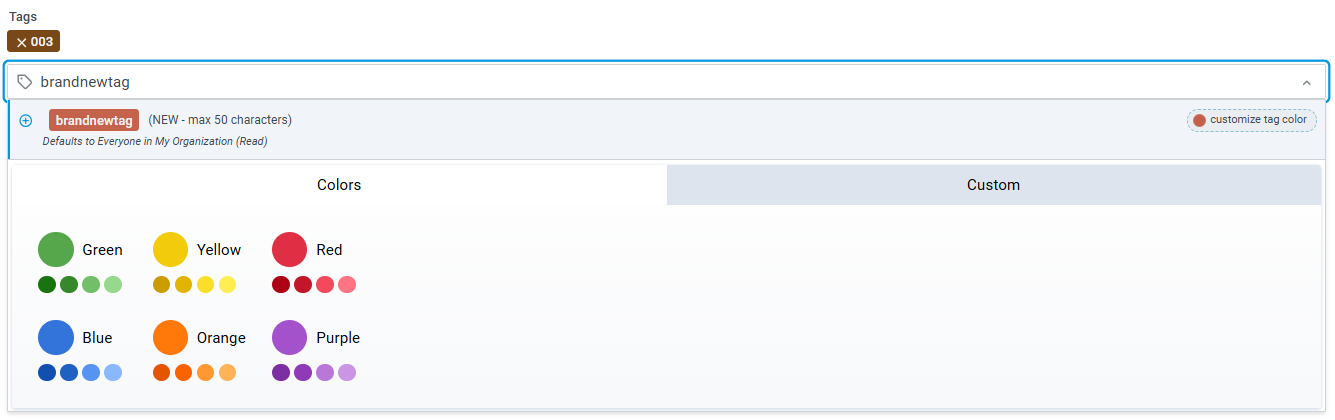
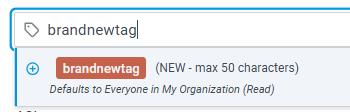
Tags: Apply one or more resource tags to the saved search.
Note: The tag-to-saved-search association is saved only when you save the saved search. Abandoning the edit does not apply the tag, even if a new tag was created in the catalog during that session. Click Manage Resource Tags to open the Resource Tags settings page, where you can view and manage all tags you own or can access. Organization administrators can see all tags. |
|
|
AQL Query: You can supply an AQL query for a saved search in the three following ways:
|
|
|
Time Range: Select a time range from the time picker. You can select either an absolute or relative time range. |
|
|
Owner: The owner of the saved search. By default, this is the user who created it. Owners can modify all details, configure sharing and permissions, and delete the saved search. You can transfer ownership to another user. |
|
|
Type: Set the visibility of the saved search:
|
 ) on the right to search the history of your saved searches and select an AQL query. This list only displays saved searches for which you have permissions.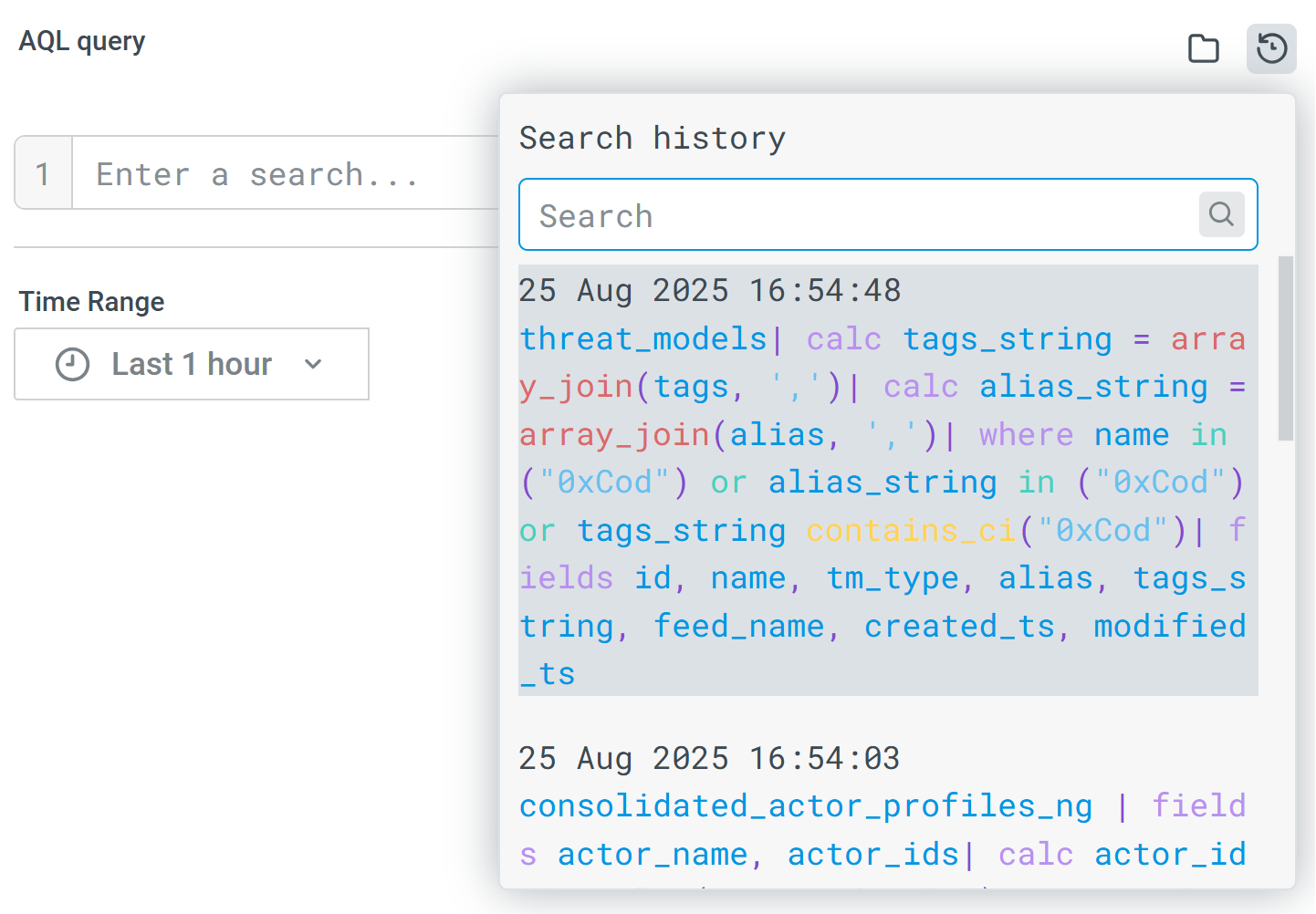
Bulk Editing Tags on Saved Searches
Select multiple saved searches and apply tags, owner, and permissions to all of them at once.

You must own the saved search, or have write permission, to edit its tags and permissions. Organization administrators can bulk edit any saved searches.
To bulk edit tags on saved searches:
-
Navigate to Search > Manage > Saved Searches.
-
Select two or more saved searches. The Bulk Edit button appears in the action bar.
-
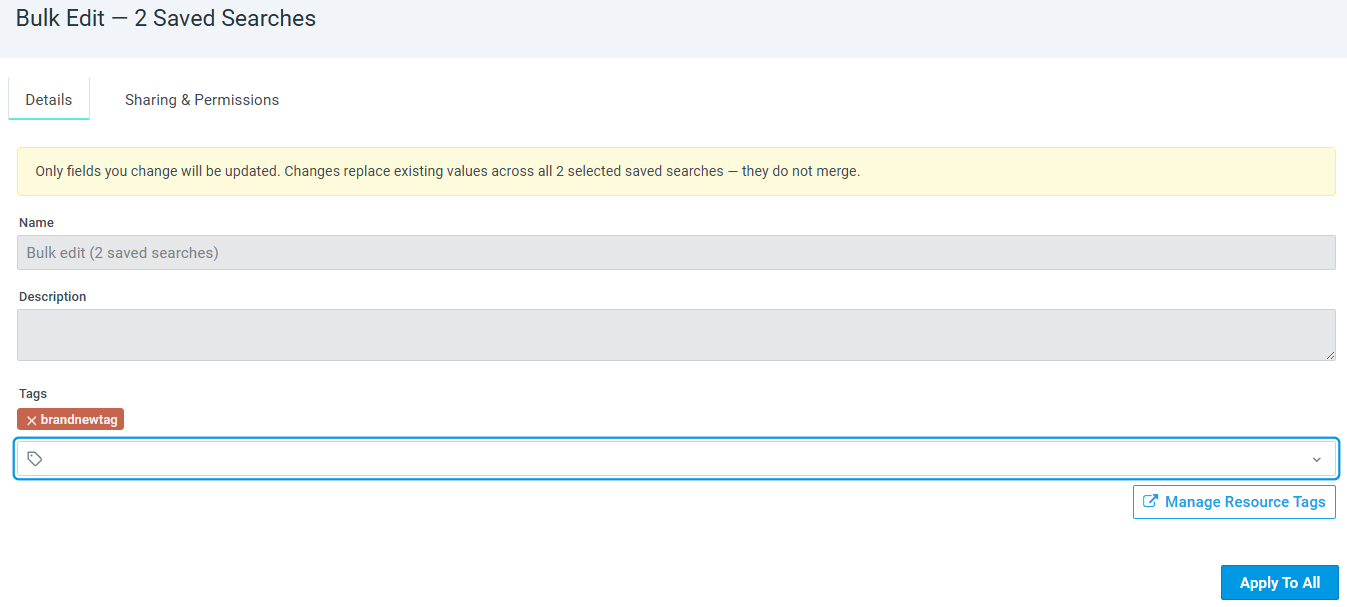
Click Bulk Edit to open the bulk edit slide panel.
-
On the Details tab, use the Tags field to apply tags to all selected saved searches. The Name and Description fields are Read-only because they are unique per saved search.
-
(Optional) Select the Sharing & Permissions tab to update the owner and access control settings for all selected saved searches.
-
Click Apply to All to save the changes.
Note: Fields you edit replace the existing values on all selected saved searches; they do not merge. Fields you do not edit are not updated.
Components of a Saved Search
-
Select a saved search to load the query in the search bar and issue the search with the same AQL syntax.
-
Organization administrators and users with audit privileges can audit saved searches, including the actions of creating, updating, and deleting a saved search.
Note: The saved search configuration saves the absolute time range filter that was applied to the search from which it was saved. For example, if you select the relative time period Today so far on July 28 at 11:00 AM, issue a query, and save the search, then the absolute time is saved. If you select and run the saved search on July 29, you will get results for July 28 from 0:00 AM to 11:00 AM.
OCSF Saved Searches and Role-Based Access Control
The OCSF filter defined in a user's role controls what data is returned when running an OCSF-based saved search. The following examples illustrate the experience of creating and running an OCSF saved search under different RBAC states.
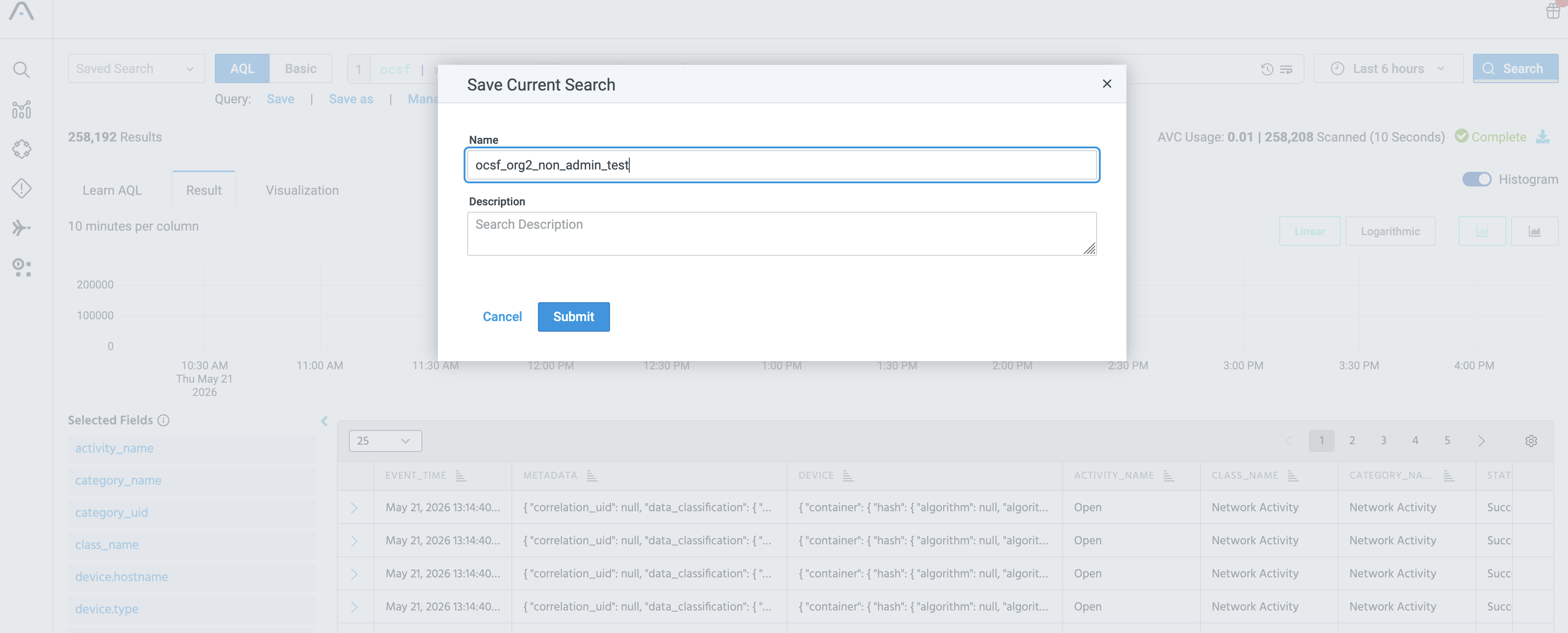
Creating an OCSF saved search: A user with an OCSF role assigned can save an OCSF-based query just like any other search. In the example below, the search ocsf | where isnotnull(src_endpoint.ip) is saved as ocsf_org2_non_admin_test. The saved search stores the query intact; the OCSF filter from the user's role is applied at run time, not at save time.
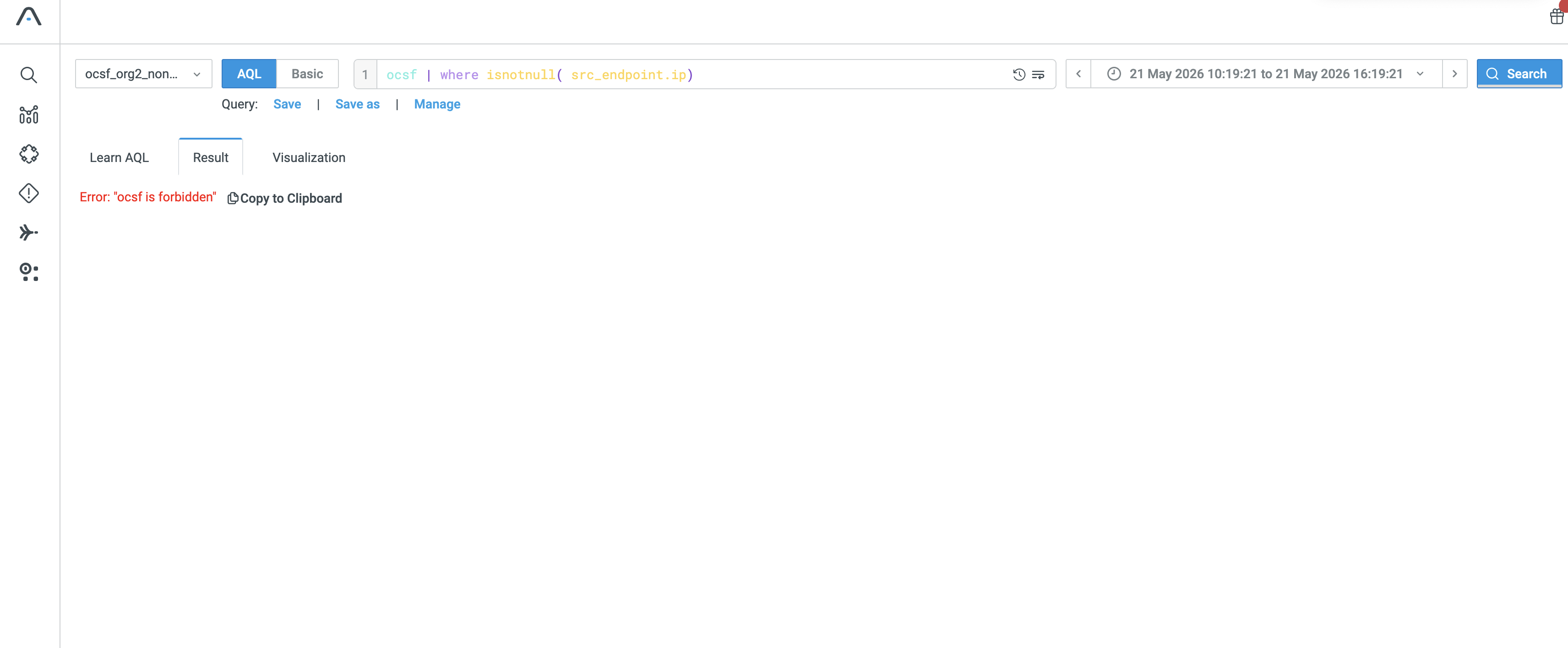
Running an OCSF saved search — OCSF RBAC enforcement not enabled: If OCSF RBAC enforcement is not yet enabled for the organization, non-administrator users receive an ocsf is forbidden error when they run an OCSF-based saved search, even if the query itself is valid. The saved search cannot return results until enforcement is enabled and the user has an OCSF role assigned.
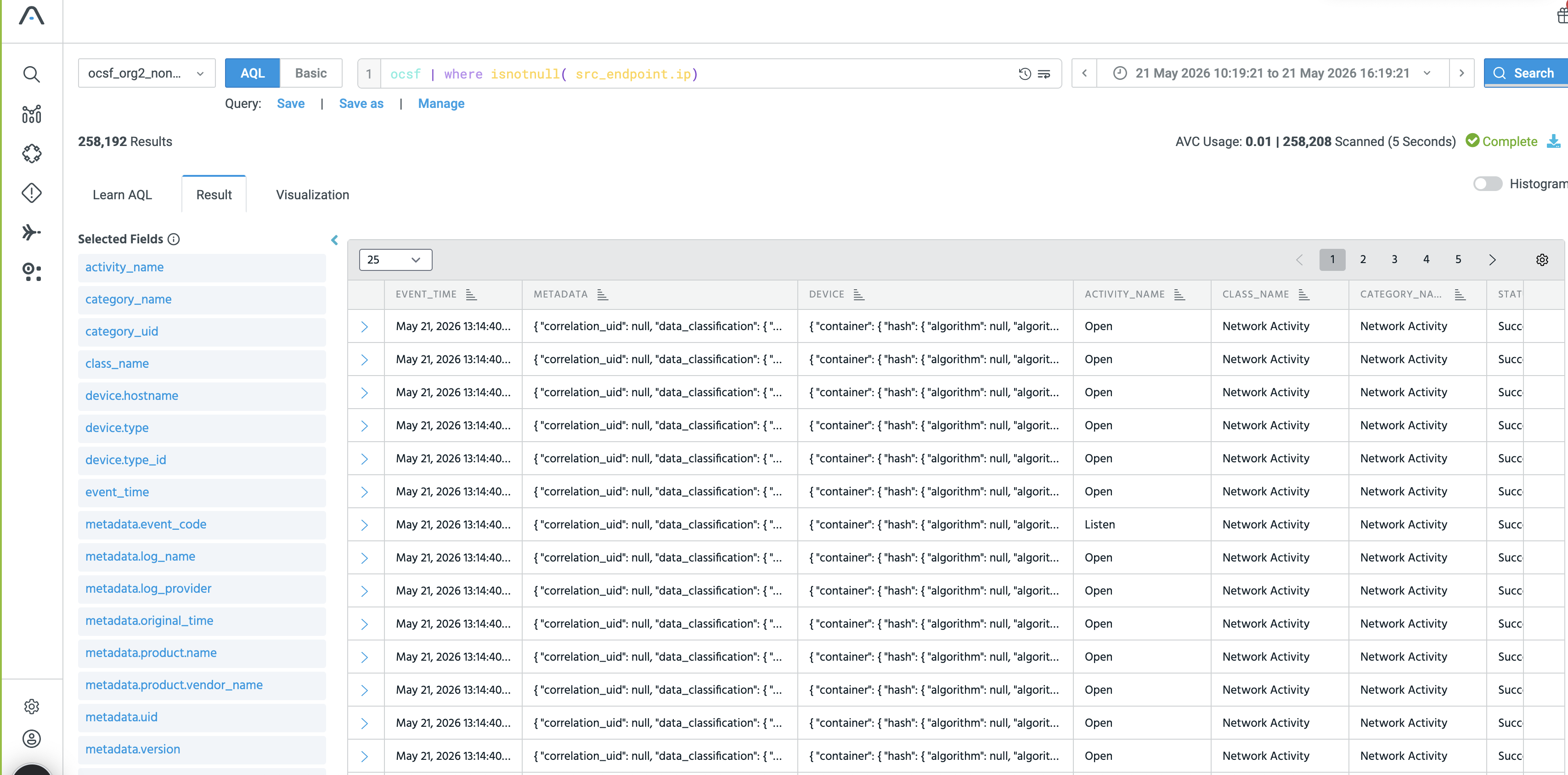
Running an OCSF saved search — OCSF RBAC enforcement enabled, OCSF role assigned: After OCSF RBAC enforcement is enabled and the user has a role with an appropriate OCSF filter, running the same saved search returns results filtered to the permitted categories. In the example below, the user's role permits Network Activity, and the saved search returns 258,192 Network Activity events.
Alerts for Saved Searches
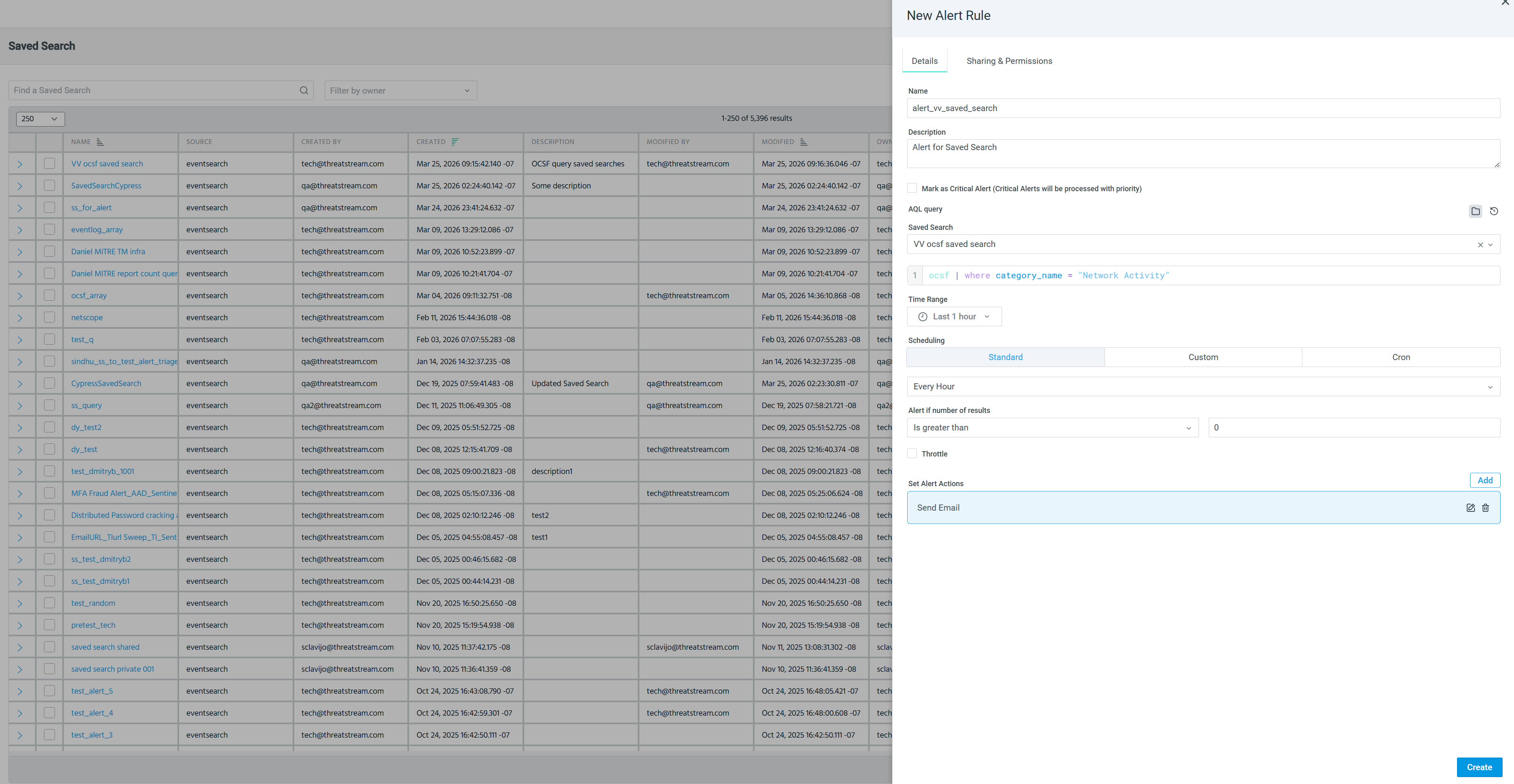
Once you create a saved search, the results table lets you configure an alert with the newly saved search.
To configure an alert from Saved Search:
-
Navigate to Search > Manage > Saved Search.
-
Click the alert bell icon (
 ) to open the New Alert Rule form.
 -
Complete Steps 1–8 of Creating Alerts to finish creating the alert.
In the following example, the OCSF Version 1.2 schema-based saved search named "vv ocsf alert" triggers an alert from Anomali Security Analytics that sends an email notification about the saved search, based on how alert was configured.
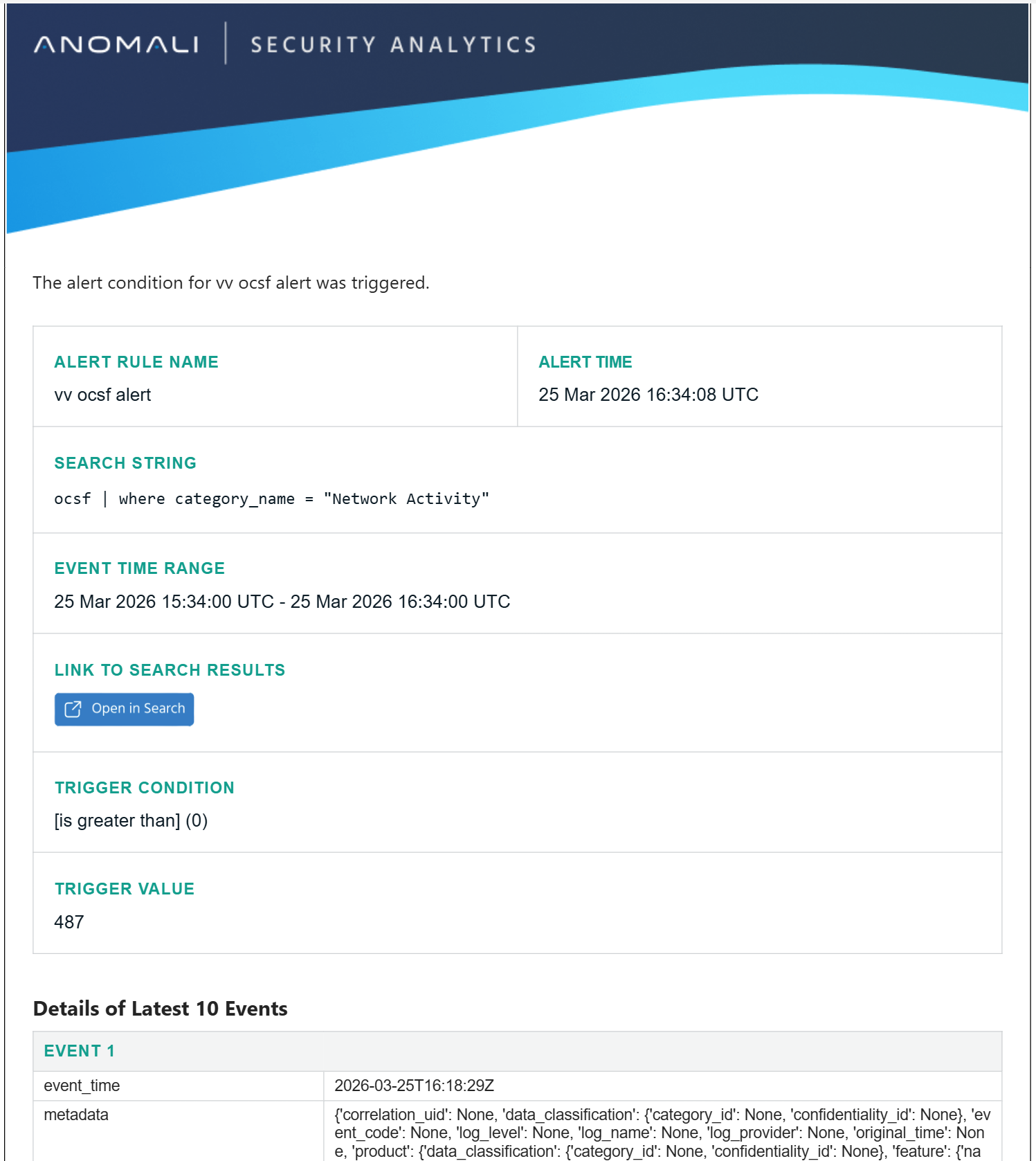
See Anomali Security Analytics Alerts to know more about how alerts automate the process of detecting, notifying, and responding to specific security events that meet user-defined conditions, while minimizing manual oversight.