Resource Tags
Anomali users work with many resources such as dashboards, saved searches, alerts, macros, lookup tables, and views. As these resources grow, locating and organizing them across different teams, projects, or use cases could become difficult.
Resource Tags solves this problem by providing a shared, organization-wide tagging system. Any user who can edit a resource can apply tags to it and create new tags.
A single resource can have multiple tags, and one tag can be applied to many resources. This flexibility lets your team organize and find resources as per your needs.
Resource tags are supported for dashboards, saved searches, alerts, macros, lookup tables, views, and reports. See User Sharing and Permissions to understand who can rename, merge, and delete tags.
Accessing Resource Tags
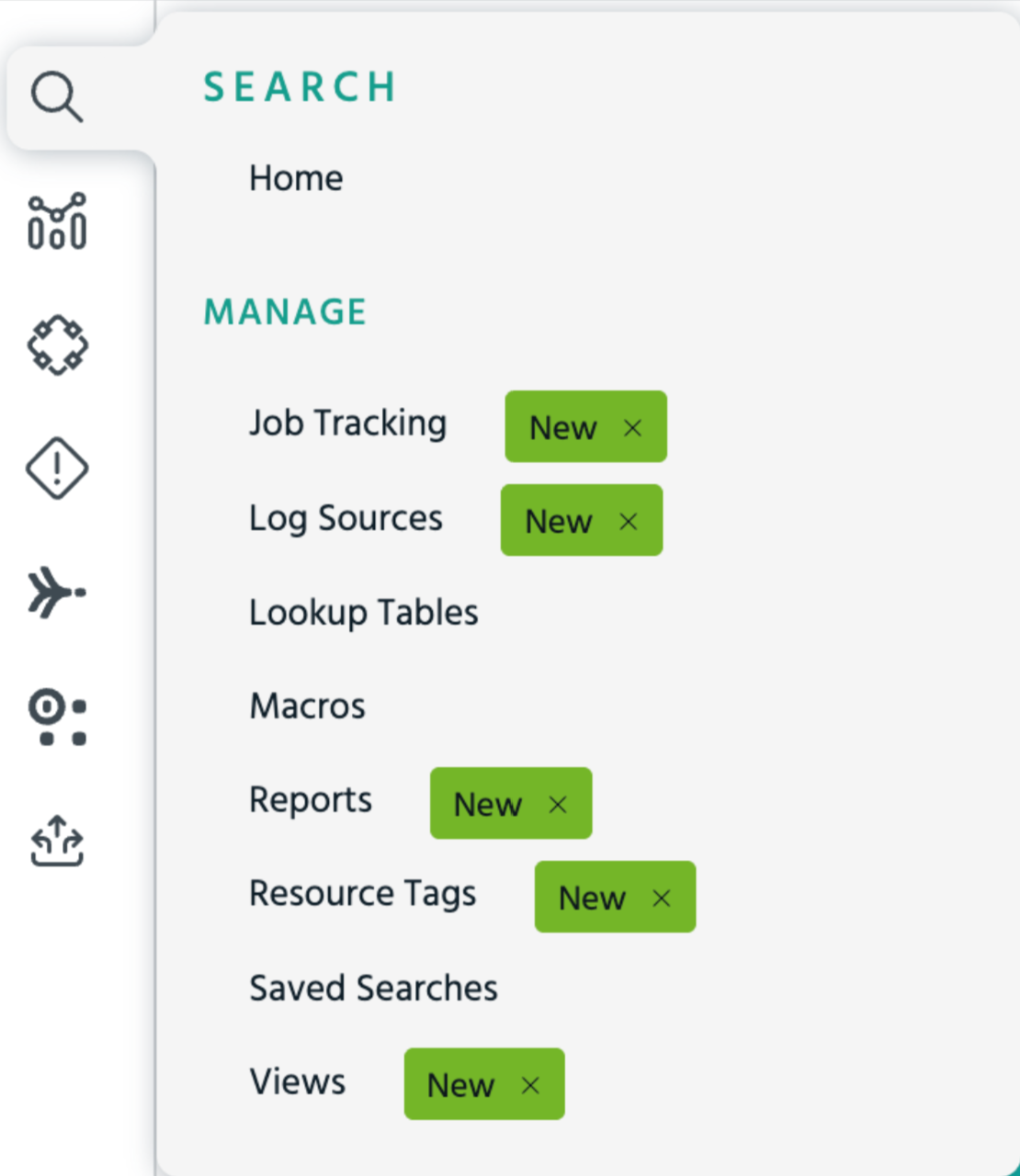
To access Resource Tags, on the left navigation menu, click Search > Manage > Resource Tags.
Understanding the Tags Catalog
The Resource Tags page is the central catalog for viewing and managing the tag library of your organization. This list of tags is filtered by your permissions. You can view and monitor tags you own or those that have been shared with your organization. Organization administrators see all tags. See User Sharing and Permissions for more information.

|
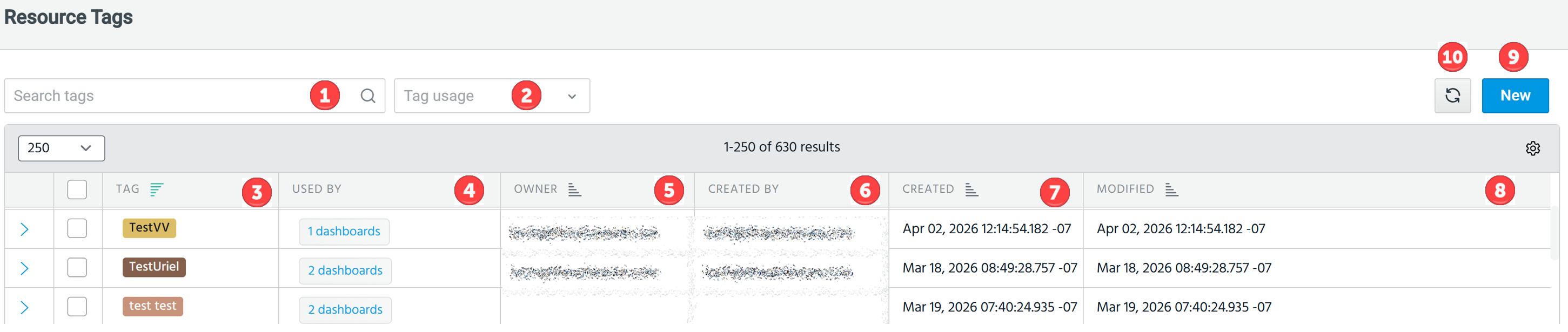
Search: Filter the tag list by name. The search is case-insensitive and updates results incrementally as you type. |

|
Tag usage: Filter the list by whether tags are currently in use. Possible values are:
|

|
Tag: View the tag name, displayed as a color chip.
|

|
Used By: Shows the number of resources that currently carry this tag across all supported resource types.
|

|
Owner: Shows the user who owns the tag. The owner has full control over the tag, including changing its sharing settings and reassigning ownership. See User Sharing and Permissions for more information. |

|
Created By: Denotes the email address of the user who created the tag. |

|
Created: Captures the date and time the tag was created. |

|
Modified: Captures the date and time the tag was last modified. |

|
Refresh: Reloads the tag list to reflect the latest state of the catalog. |

|
New: Opens the Create Resource Tag page to let you add a new tag to the catalog. See Creating a Resource Tag for details. |
User Sharing and Permissions
New tags default to Shared to Organization (Read). The tag owner or an org admin can change this at any time.
Permission Levels
-
Private — Only the tag owner can see and use the tag. It does not appear in the tag catalog or in auto-complete suggestions for any other user, unless they are an organization administrator.
-
Shared to Organization (Read) — All users can see and apply the tag to resources they have permission to edit, but cannot rename, merge, or delete it. This is the default setting when a new tag is created.
-
Shared to Organization (Write) — All users can see, apply, rename, recolor, update the description, merge, or delete the tag.
Permissions by Role
| Action | Read | Write | Owner | Org Admin |
|---|---|---|---|---|
| View and apply tag | ✓ | ✓ | ✓ | ✓ |
| Rename, recolor, update description | ✗ | ✓ | ✓ | ✓ |
| Merge or delete | ✗ | ✓ | ✓ | ✓ |
| Change sharing or permission level | ✗ | ✗ | ✓ | ✓ |
| Reassign ownership | ✗ | ✗ | ✓ | ✓ |
| See private tags owned by others | ✗ | ✗ | ✗ | ✓ |
| See global used-by counts | ✗ | ✗ | ✗ | ✓ |
Note: Resource tags do not control access to resources. They are organizational metadata labels only. Applying or removing a tag does not change dashboard visibility, sharing settings, or permissions.
Note: Resource tags are scoped to the organization. A tag created in one customer organization is not visible to any other organization. "Shared" in this context means shared among users within the same organization only.
Applying Tags to Resources
The table above governs what users can do with the tag itself. To apply or remove a tag on a resource (such as a lookup table or macro), the user must also have the appropriate permission on that resource:
-
Read permission on a resource: The user can see tags applied to the resource but cannot add or remove them.
-
Write permission or ownership on a resource: The user can apply any tag they can see (based on tag sharing) and can remove tags from the resource.
-
Organization administrators: Can apply or remove tags on any resource, including those they do not own.
Audit Logging Resource Tags
All changes made to resource tags, including creating, renaming, changing a color or description, merging, and deleting, are recorded in the audit log. Each entry captures the action type, the user who performed it, a timestamp, and the relevant state of the affected tag.
See Audit Logging for Resource Tags for details on what each operation logs and example AQL queries for retrieving audit log entries.