Renaming and Merging Resource Tags
You can update the name, color, or description of a tag on the Resource Tags page. It also supports two distinct workflows depending on what you enter in the name field:
-
Rename: Type a new, unique name. The tag is updated in place and all resources, such as dashboards, carrying it reflect the new name immediately.
-
Merge: Select an existing tag from the auto-complete suggestions. All resources, such as dashboards, currently tagged with the source tag are re-tagged to the target tag, and the source tag is deleted.
Note: You must be the tag owner, have Write permission on the tag, or be an organization administrator to rename or merge a tag. You cannot edit tags to which you have Read-only access.
Note: A case-only change (for example, renaming production to Production) is a valid rename action.
Renaming a Tag
To rename a resource tag:
-
Click Search > Manage > Resource Tags.
-
Select the tag you want to rename and click Edit. On the Edit Resource Tag page:
-
Tag details are pre-populated.
-
Modify the tag name, color, or description.
-
View how many resources, such as dashboards or saved searches, currently use this tag to understand the impact of your update prior to saving it.
-
-
In the Name field:
-
Type the new name.
-
As you type, matching tags from the list appear in a drop-down.
-
If the new name does not match any existing tag, the operation is a standard rename.
-
If you select an existing tag from the drop-down, the operation becomes a merge. See Merging Tags to understand how merging different tags works.
-
-
(Optional) Update the Color or Description fields.
-
(Optional) Click Sharing & Permissions to update the sharing type, permission level, or owner.
-
Owner: Reassign tag ownership to another user. Only the current owner or an organization administrator can change these settings.
-
Type: Select Private or Shared to Organization.
-
Permission level: If Shared is selected, set to Read or Write.
See User Sharing and Permissions for more information.
-
-
Click Save.
The tag name is updated and propagated to all dashboards that carry it.
Merging Tags
Merging consolidates two tags into one. After a merge, supported resources that carried the source tag are re-tagged to the target tag, and the source tag is permanently deleted from the catalog. The following table shows which resource types support tag merging:
| Resource | Supports Tag Merging | Explanation |
|---|---|---|
| Anomali Dashboards | Yes | When you merge tags, all dashboards that carried the source tag are automatically re-tagged to the target tag. |
| Saved Searches | No | Tag associations on saved searches are not updated when you merge tags. Tag changes replace existing values. To update tags on saved searches, edit them individually or use Bulk Editing Tags on Saved Searches. |
Caution: Merge actions are irreversible, that is, you cannot un-merge tags after a successful merge. Carefully consider merging to avoid misorganized dashboards.
To merge a resource tag into another tag:
-
Click Search > Manage > Resource Tags.
-
Select the tag you want to merge (the source tag) and click Edit.
-
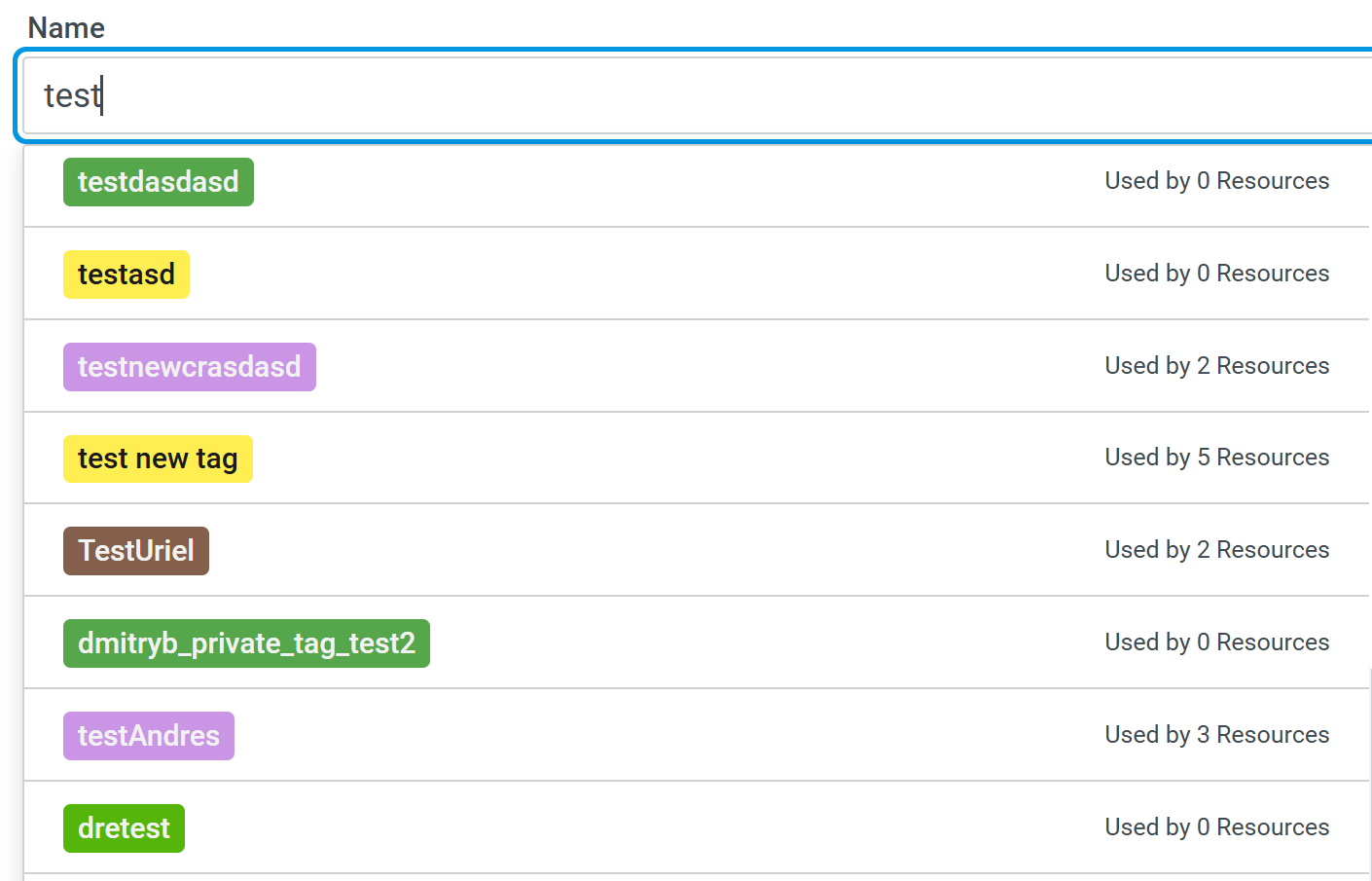
In the Name field, begin typing the name of the tag you want to merge into (the target tag). Matching tags appear in the auto-complete drop-down.
-
Select the target tag from the drop-down.

The dialog shows the source and target tag names, and the number of resources that will be re-tagged.
-
Click Merge Tags to confirm the merge operation. After a successful merge:
-
All resources previously tagged with the source tag are now tagged with the target tag.
-
The source tag is deleted from the catalog.
-
-
To cancel, click Cancel. No change or merging is performed.
After the merge, the Dashboard Library reflects the updated tag association. Dashboards that previously carried the source tag now show the target tag, and filtering by the target tag includes all of them.
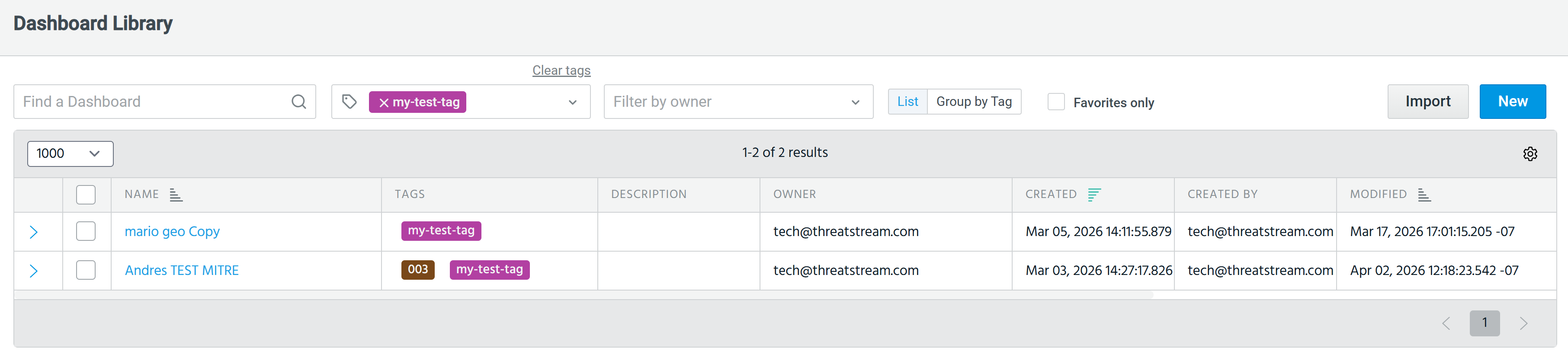
See Filtering Dashboards by Tag for more information on filtering the dashboard library by tags.