Reports 
Reports provide a centralized way to turn your operational dashboards into scheduled, repeatable, shareable outputs that can be consumed by external stakeholders outside your SOC or to ensure compliance. Instead of manually exporting data or taking screenshots, you can configure a report once by defining a source dashboard, configuring its variables in the dashboard settings, and setting its schedule.
Accessing Reports
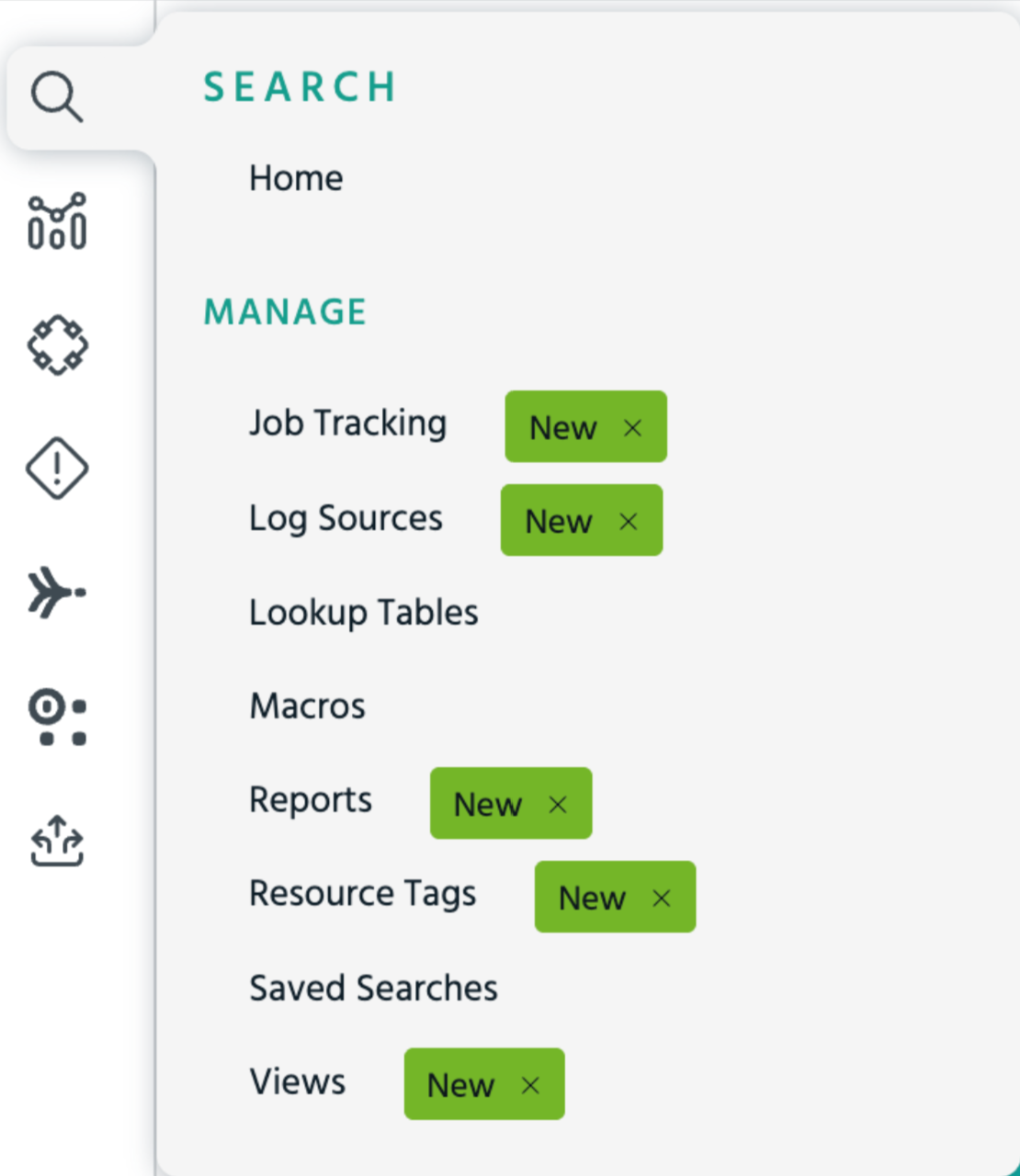
To access reports, click Search > Reports ( ) in the left navigation panel. The Reports page displays all the information about reports configured to run on a schedule.
On this page, you can create new scheduled reports, edit existing ones, review run history, and control who can access or modify them by configuring sharing and permissions.
Note: Reports support dashboards built with queries using either the eventlog schema or the OCSF schema, or a combination of both. See OCSF Schema Overview for more information about the OCSF schema.
When Schema RBAC is active for your organization, the schema filters in your assigned roles determine which data this feature returns. An eventlog filter limits your results to only the eventlog data your role permits, and an OCSF filter limits your results to only the OCSF data your role permits. If a query runs against a schema for which your role has no filter assigned, the query returns a forbidden error. For details, see Role-Based Access Control for Schemas.
Understanding the Reports Catalog

|
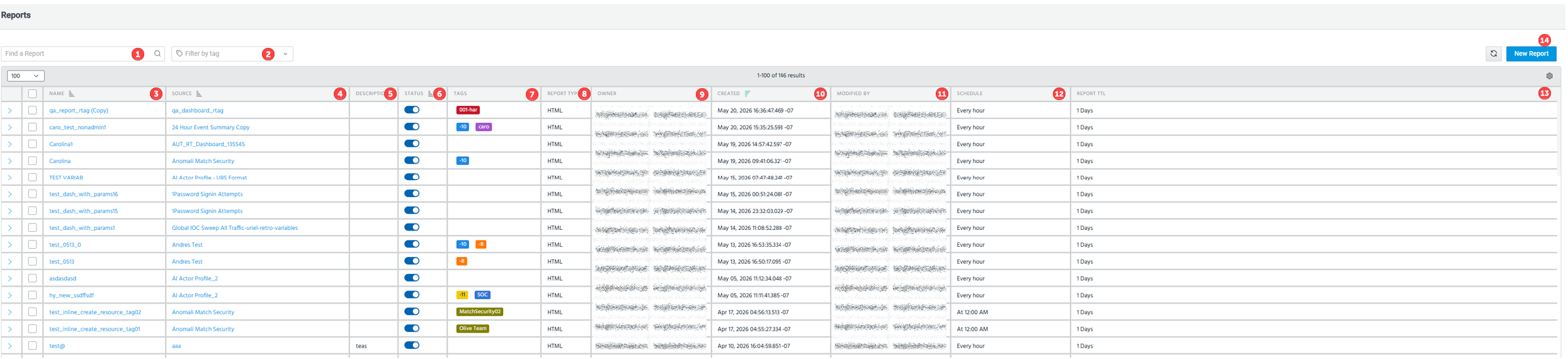
Find a Report: Search for an existing report. The search is incremental, that is, the results update as you type, spanning all the columns of the table. |

|
Filter by tag: Filter the report list by one or more resource tags.
See Filtering Reports by Tags for details. |

|
Name: Name of the report. |

|
Source: The dashboard source from which this report is generated. |

|
Description: Optional summary explaining the purpose or contents of the report. |

|
Status: Indicates whether the report schedule is currently enabled or disabled. |

|
Tags: Resource tags applied to the report, displayed as colored chips.
See Applying Tags to Reports for details. |

|
Report Type: The output formats (HTML or PDF) generated when the report runs. |

|
Owner: The user who owns the report and controls its configuration. |

|
Created: When the report was first created. |

|
Modified By: The last user who changed the report configuration. |

|
Schedule: How often and when the report is automatically generated. |

|
Report TTL: How long generated report files are retained before they expire. |
 ) to add tags to a report.
Creating Reports
You can create a scheduled report from the Reports page, or directly from any dashboard, which preselects the dashboard as the source and streamlines configuration. See Creating a Report for more information.
Applying Tags to Reports
Resource tags let you label reports with shared, organization-wide identifiers so that you can organize and locate them across your team. Any user with edit access to a report can apply or remove resource tags on it.
See Applying Tags to Reports for more information.
Filtering Reports by Tags
The Reports page lets you filter the reports catalog by tags and ensure more control to narrow the list to reports that carry one or more specific resource tags.
See Managing Report Tags for more information.
Bulk Editing Tags on Multiple Reports
You can apply or update resource tags across multiple reports at the same time using the bulk edit option. See Bulk Editing Tags on Multiple Reports for more information.