Role-Based Access Control for Schemas
Security operations teams are often organized by domain, with some teams focusing on network activity, others on application behavior, or system events. Role-Based Access Control (RBAC) for schemas helps administrators ensure that data access for each user aligns with their function by assigning roles with targeted filters. This access ensures users see only what their work requires and administrators have confidence that access is both accurate and appropriately scoped.
RBAC in Anomali Search lets organization administrators control which event data each user can access. RBAC now supports the OCSF Schema Overview in addition to the standard Eventlog schema, allowing administrators to restrict user access to specific OCSF categories.
This page covers the schema-specific aspects of RBAC. For foundational information on roles, user types, permissions, and general role management, see User and Role Management on the Anomali Platform.
About Role-Based Access Control
Roles define the permissions and data access filters that apply to users assigned those roles. On the Anomali platform, organization administrators manage roles from Settings > User & Role Management.
Key principles of RBAC relevant to OCSF:
-
Organization Administrators: Bypass all RBAC filters and have unrestricted access to all schemas and data.
-
Non-administrator users: Use permissions according to the filters defined in the roles assigned to them. If no filter is set in a role, that role does not restrict the data the user can access.
-
Multiple roles: When a user is assigned more than one role, their final permissions are the union of all the assigned roles, that is, their role permissions are combined using OR logic. The user can, therefore, access any data permitted by any of their assigned roles.
-
Schema-specific filters: Eventlog filters and OCSF filters operate independently. An eventlog filter on a role restricts access to the standard eventlog data. On the other hand, an OCSF filter restricts access to OCSF data.
-
One filter per role: A role can only have one filter, either an eventlog or OCSF filter, but not both simultaneously. A user can be assigned multiple roles, with one role containing an eventlog filter and another role containing an OCSF filter. However, a user cannot be assigned a role that has multiple filters.
Schema Filter in Roles
The role creation and editing form includes a Schema selector with two options: eventlog and OCSF.
-
Select eventlog to define an eventlog-based filter in the Filter field. Use this field to restrict access to eventlog data using fields such as
sourcetype,event_tags,ext_source, andext_sourcetype. For example:sourcetype in ('aws_vpc_flow'). -
Select OCSF to define an
ocsf-based filter in the Filter field. Use this field to restrict access to OCSF data by specifying acategory_nameconstraint.Example:
category_name = 'Network Activity'
A role supports only one filter type. Switching the schema selector clears any filter previously entered for the other schema type.
For the list of supported OCSF categories, see Supported OCSF Categories.
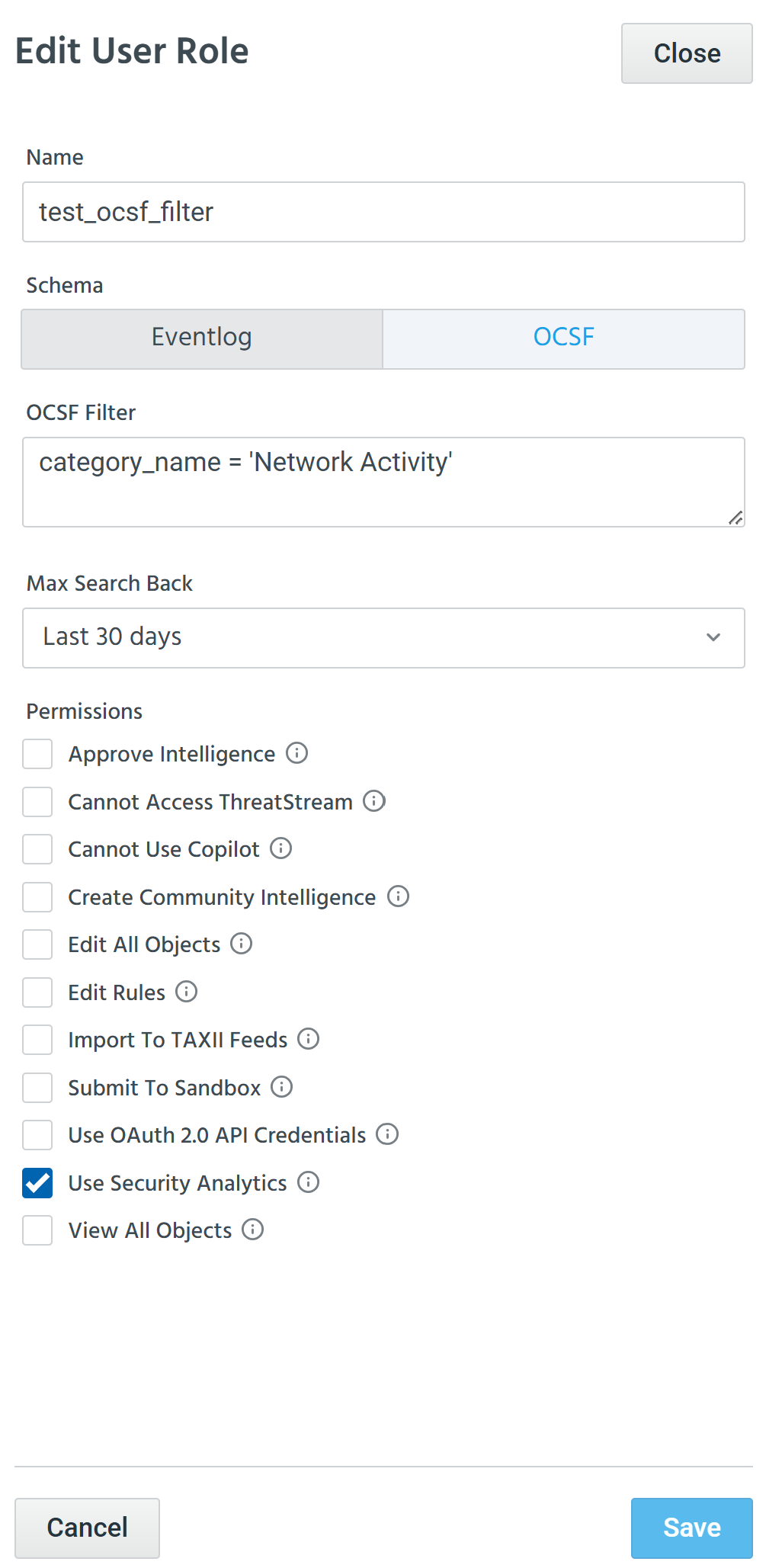
Note: A Security Analytics subscription is required to use the OCSF Filter field.
Configuring a Schema Filter for a Role
To configure an OCSF filter for a role:
-
In the bottom-left corner of the side navigation panel, click Settings > User & Role Management.
-
Click the Roles tab.
-
Select an existing role to edit, or click New to create a new role.
-
(Optional) In the Schema selector, click OCSF to define the OCSF Filter. If you select Eventlog, the field name becomes Eventlog Filter.
A role supports only one filter type. Switching the schema selector clears any filter previously entered for the other schema type.
-
In the OCSF Filter field, enter a
category_nameconstraint to restrict user access to the desired OCSF category. For example:Copycategory_name = 'Network Activity' -
(Optional) Select the Max Search Back range and any Permissions to include in this role.
-
Click Save.
The role is saved with the OCSF filter applied.
Note: If a role includes an invalid OCSF constraint, a validation error is returned when saving. Ensure the constraint uses the correct category_name syntax and a supported OCSF category value.
How the Schema Filter Works
The following table illustrates how role assignment and schema (OCSF or eventlog) filter affect search results, covering both unrestricted and filtered scenarios.
In this table, "Unrestricted" means the query runs without any data filter applied, and returns all results matching the query.
| Use Case | Role Configuration | OCSF Query Result | Eventlog Query Result |
|---|---|---|---|
| 1 | No role assigned | Unrestricted | Unrestricted |
| 2 | Role assigned, no filter defined | Unrestricted | Unrestricted |
| 3 | Role assigned with an eventlog filter, no OCSF filter | ocsf is forbidden
|
Unrestricted |
| 4 | Role assigned with OCSF filter: single category | Filtered to that category | eventlog is forbidden
|
| 5 | Role assigned with OCSF filter: multiple categories | Filtered to permitted categories | eventlog is forbidden
|
| 6 | Role assigned with OCSF filter only, user runs eventlog query | Filtered as per role | eventlog is forbidden
|
Use Case 1: Non-Administrator with No Role Assigned
When a non-administrator user has no role assigned, OCSF RBAC enforcement does not apply. Both eventlog and OCSF queries run without restriction, regardless of whether OCSF RBAC is active for your organization.
Use Case 2: Non-Administrator with a Role Assigned but No Filter Defined
When a non-administrator user has a role assigned but the role does not include an eventlog or OCSF filter, both eventlog and OCSF queries run without restriction. The system enforces only the filter that is explicitly defined in an assigned role. If no filter is set, no restrictions apply.
Use Case 3: Non-Administrator with a Role Assigned but No OCSF Filter
When OCSF RBAC is active and a non-administrator user has a role assigned that does not include an OCSF filter, all OCSF queries return an ocsf is forbidden error. The user cannot access any OCSF data until an organization administrator assigns them a role that includes an OCSF filter.

Use Case 4: Non-Administrator with a Single-Category OCSF Role
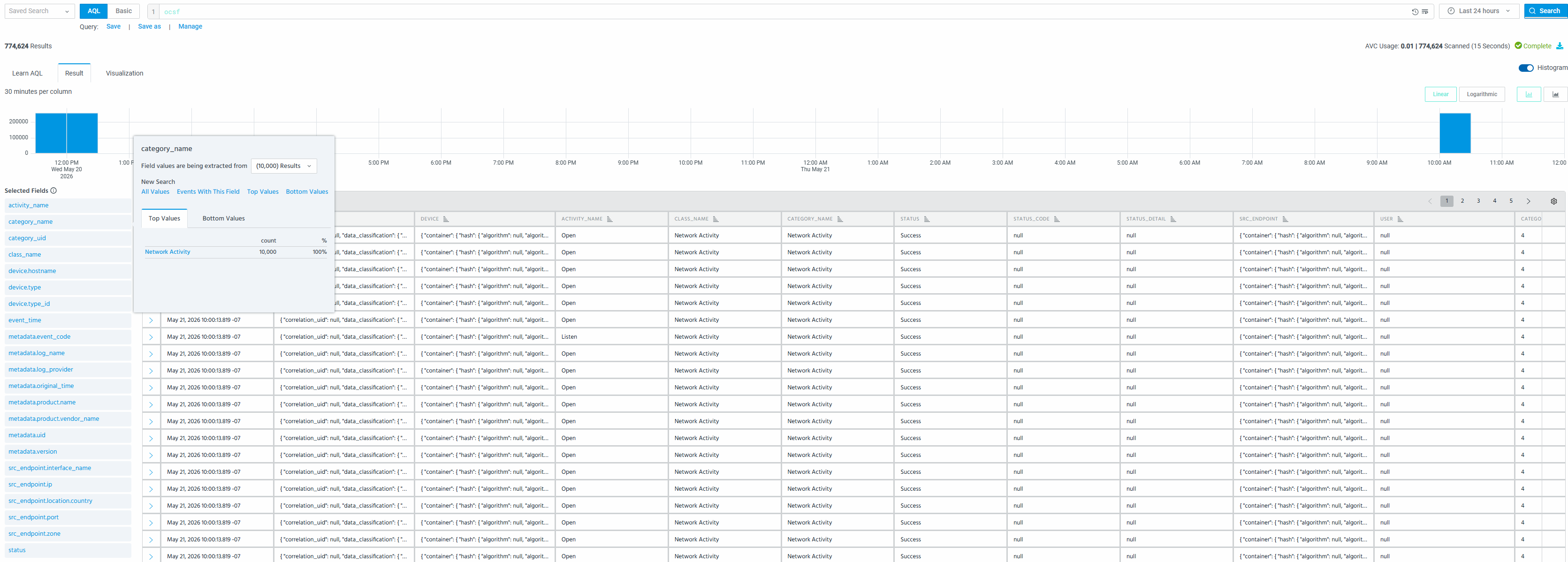
When a non-administrator user is assigned a role with an OCSF filter of category_name = 'Network Activity', Anomali Search automatically appends the filter to every OCSF query in the backend. The user does not need to include the filter in the search bar, and the filter does not appear in the query as typed.
For example, the following user query
ocsfis automatically updated by Anomali Search to execute the equivalent of:
ocsf | where category_name = 'Network Activity'The constraint is applied silently and automatically based on the role, so the results contain only Network Activity events regardless of how broadly the user queries.
Use Case 5: Non-Administrator with a Multi-Category OCSF-filter Role
When a non-administrator user is assigned a role with an OCSF filter that permits multiple categories — for example, both category_name = 'Network Activity' and category_name = 'System Activity' — the filters are combined using OR logic to include both these OCSF categories. Therefore, the user can access events from both these permitted categories.
In the example below, running
ocsf | aggr count as cnt by category_name returns results for both the categories permitted by the filter in the assigned role.

Use Case 6: User Querying Eventlog Data with OCSF-Only Filter
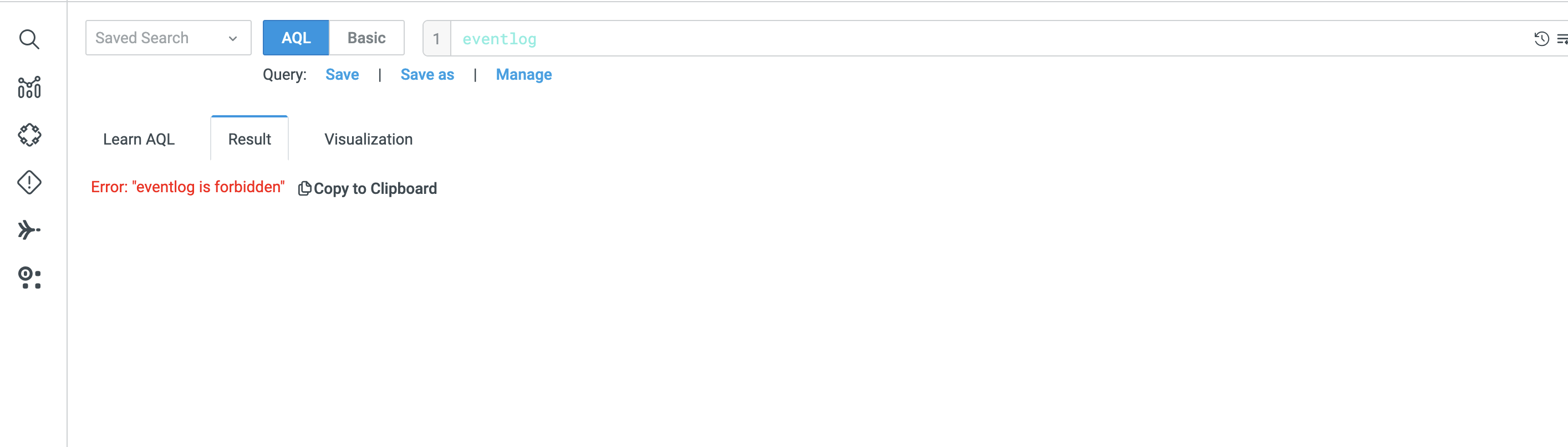
OCSF and eventlog access are controlled independently. A user whose role grants access to OCSF data but does not include an eventlog filter cannot query eventlog data. If such a user runs an eventlog query, Anomali Search returns a forbidden error, because the underlying query targets the eventlog schema that the role prohibits.
This filter is bidirectional:
-
an eventlog filter on a role does not grant OCSF access
-
an OCSF filter on a role does not grant eventlog access.
Therefore, users who need to query both schemas must have appropriate roles configured for each schema: one role containing an eventlog filter, and another role containing an OCSF filter.
Schema Filter Scope Across Search Features
Schema filters defined in user roles apply across all Search platform features, not only to direct AQL queries. This includes macros, Copilot, saved searches, visualizations, reports, views, full-text indexing, turbosearch, and correlation lookup tables. In every case, the same access rules apply to both schemas:
-
Eventlog filters restrict what eventlog data is returned when any feature runs an eventlog query. A user without an eventlog-filter role will receive an
eventlog is forbiddenerror when a feature attempts to run an eventlog query. -
OCSF filters restrict what OCSF data is returned when any feature runs an OCSF query. A user without an OCSF-filter role will receive an
ocsf is forbiddenerror when a feature attempts to run an OCSF query.
See Saved Searches for an example of how Schema RBAC enforcement works in the saved search workflow. See OCSF Field Panel for a search feature that uses OCSF category context.
Schema-RBAC Enforcement
Schema RBAC enforcement is an optional capability that controls whether data access is restricted by the schema filters defined in user roles. This applies equally to both the eventlog and OCSF schemas.
Contact your Anomali administrator or Anomali Support to activate Schema-RBAC for your organization.
Current Behavior
The following behavior applies by default, before Schema-RBAC is active for your organization:
| User Type | Query Behavior |
|---|---|
| Organization Administrator | All queries run without restriction. |
| Non-administrator |
OCSF queries such as:
run without any OCSF filter applied. Similarly, standard |
| User without Security Analytics access | OCSF queries return a Forbidden error. Access to allowed tables such as observables and threat_models is unaffected. |
After Schema-RBAC is Active
See How the Schema Filter Works for a detailed breakdown of how queries behave under each role configuration when Schema-RBAC is active.