Understanding the Search Bar
Search queries are sent to the server as AQL expressions. You can enter natural language prompts or start typing a search query.
Note: For non-administrator users, the OCSF filter configured in their assigned role under Settings > User & Role Management determines which OCSF data the search returns. See Role-Based Access Control for Schemas for more information.
Specifying the Schema Table
Search supports querying data using two schema standards: eventlog and OCSF. Select which schema to query by specifying the table prefix before the first pipe operator. To generate OCSF queries, include the case-insensitive keyword "ocsf" in your natural language prompt. By default, natural language prompts generate eventlog queries.
| Schema | Description | Syntax | Context |
|---|---|---|---|
| eventlog | Normalized Anomali schema used by default. |
Specify the table name as a prefix: Copy
eventlog is used by default:Copy |
Example 1 Uses Example 2 No table mentioned. Prompt resolves to using default schema, which is |
| OCSF | OCSF Version 1.2 schema with support for nested-object dotted notation like src_endpoint.ip |
Specify the table name as a prefix: Example 1 Copy
Example 2 Copy
|
Examples 1 and 2
|
Natural Language Searches
-
In the AQL Query Mode, enter two dashes (
--) and then a space in the search bar. These dashes change the hint text in the search bar to "Natural Language Prompt".
-
Enter your search request in natural language. Search converts this natural language prompt to a valid AQL query. By default, natural language prompts generate eventlog queries.
Copy-- show top 10 sourcetypes
Note: When
--are the first characters of the first line, it invokes the natural language parser, like in Step 1. When--appears at the end of a line, it is treated as a comment. -
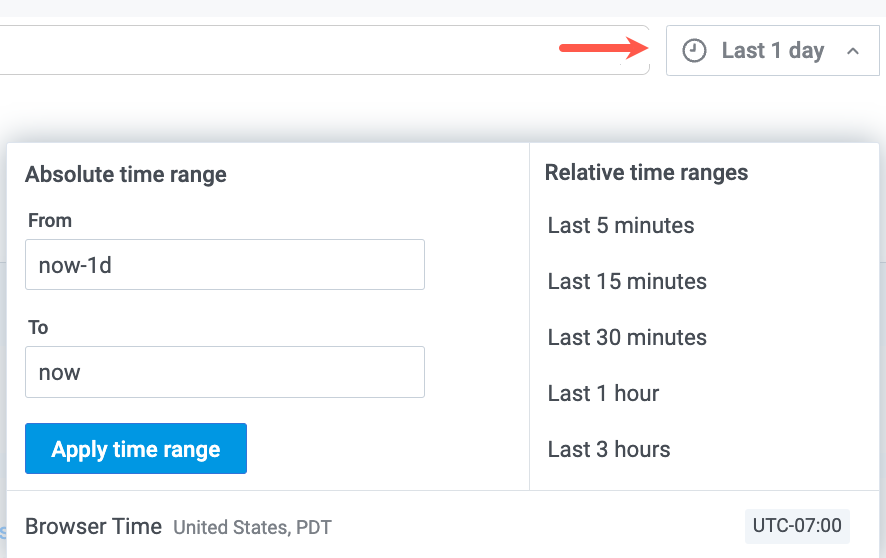
Select a search time range from the time picker to limit your search to the selected time range.
-
Click
 . The button also displays the total AVC units you have consumed from your daily quota and the remaining balance for today. See Monitor your AVC usage for more information.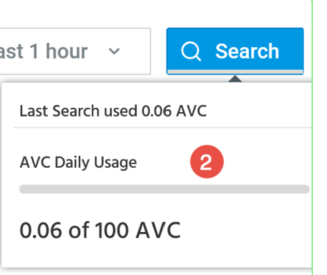
When Schema RBAC is active for your organization, the schema filters in your assigned roles determine which data this feature returns. An eventlog filter limits your results to only the eventlog data your role permits, and an OCSF filter limits your results to only the OCSF data your role permits. If a query runs against a schema for which your role has no filter assigned, the query returns a forbidden error. For details, see Role-Based Access Control for Schemas.
Note: When -- appears at the end of a line, it is a comment. When -- are the first characters of the first line, it invokes the natural language parser, like in Step 1.
AQL Syntax
Note: AQL boolean arguments are case-insensitive, that is, all the following boolean arguments are valid:
Positive case: True, true, t
Negative case: False, false, f
-
In the Search bar, enter the operator separator
|followed by a space.
-
You can embed a subsearch in the primary search. See Subsearch for more information.
-
Select a search time range from the time picker to limit your search to the selected time range.
Auto-Completion Suggestions
When you construct OCSF-based queries, you can use auto-completion suggestions that display OCSF field names with nested object paths and valid values for OCSF fields.
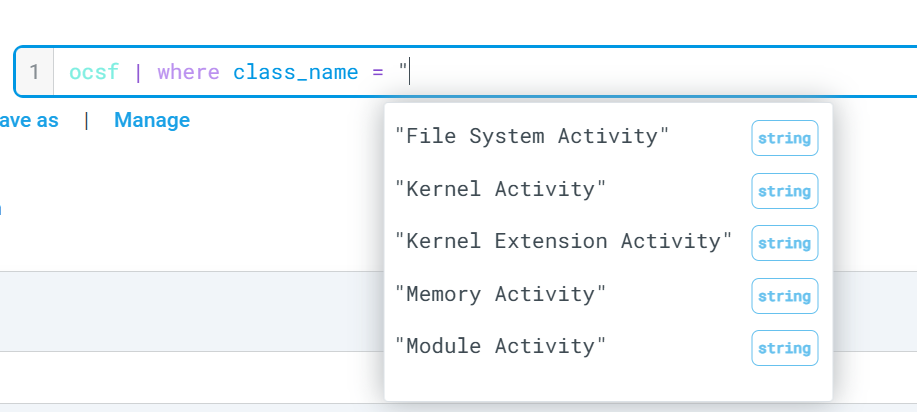
See OCSF Schema Overview for more information on the OCSF schema, field naming conventions, and features the OCSF schema supports.
Build the where Clause
You can type a search expression in the search bar or use the field name selector to build a where clause for your search expression.
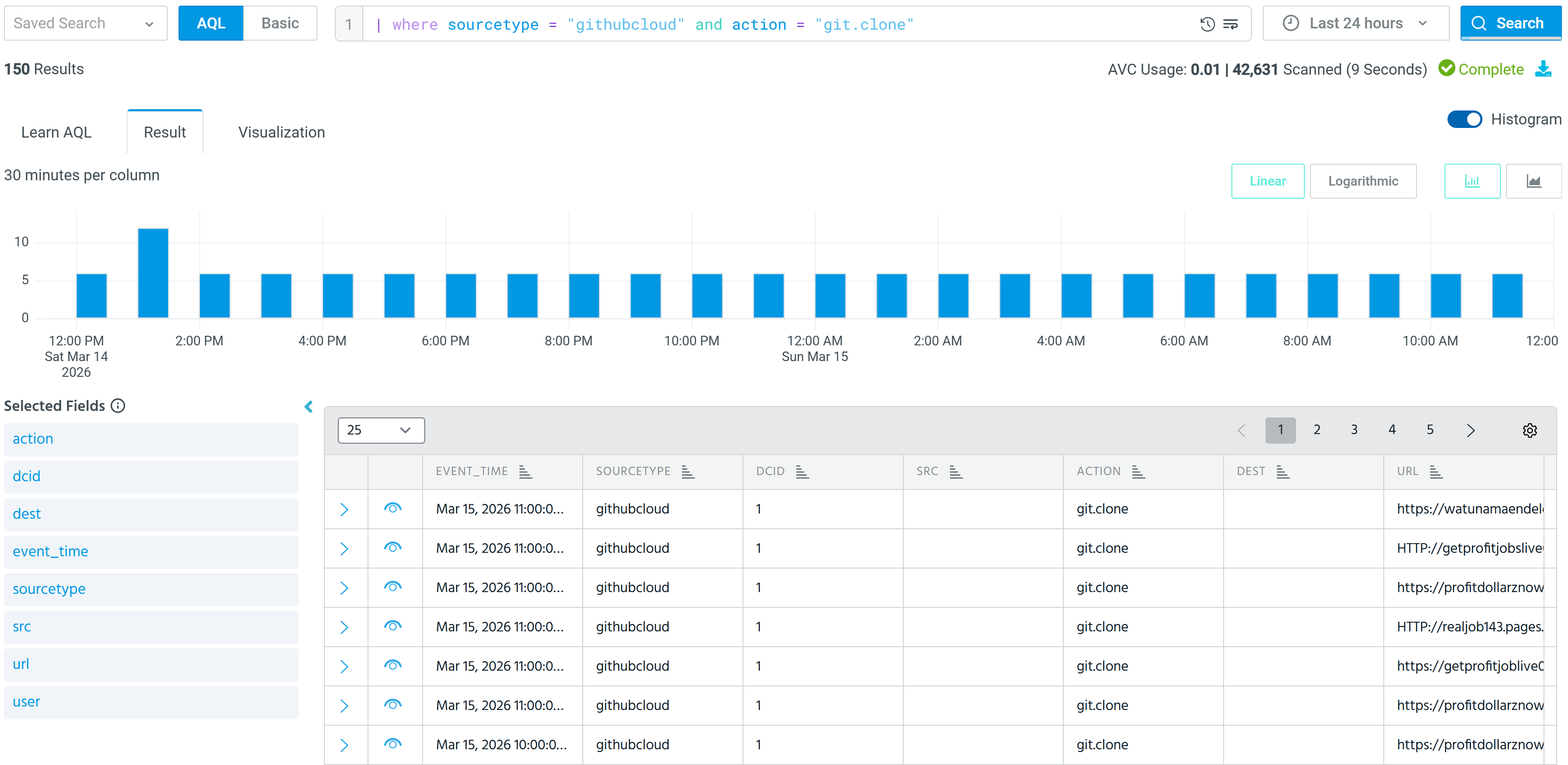
The where clause filters your data to selects rows that match the where conditions. For example, the following expression returns results that satisfy both the specified sourcetype and event_name:
| where sourcetype contains "crowdstrike" and event_name contains "LogonFailed"In the example below, the query returns GitHub Cloud logs where users used the git clone command to copy an existing repository.
(Click the image to enlarge it.)
See Using AQL Operators to understand how you can combine the where clause with other operators to create advanced queries for complex use cases.
Note: For non-administrator users querying OCSF data, the OCSF filter defined in their assigned role automatically constrains the rows that match the where clause. For example, a user with a role filter of category_name = 'Network Activity' sees only Network Activity events in the results, regardless of the where conditions in the query.
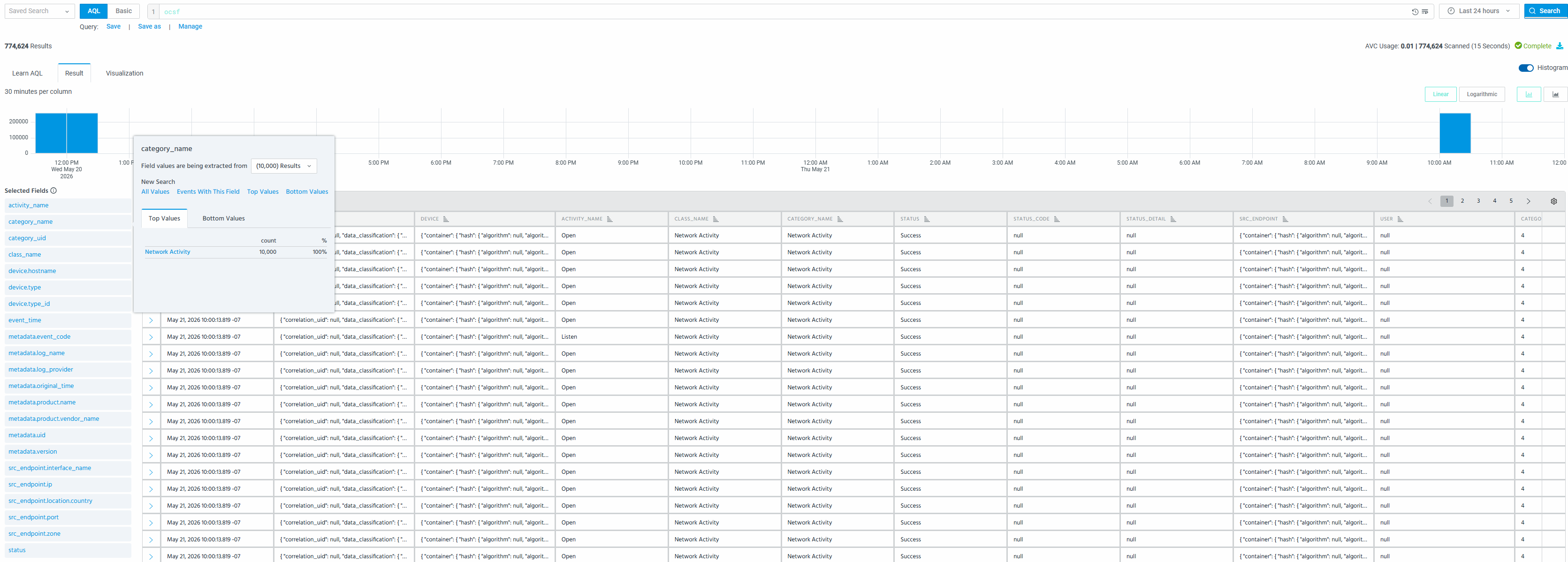
You can also embed a subsearch in the primary search to create efficent and dynamic search queries that can perform correlations across multiple datasets. See Subsearch for more information.
Using AQL Operators
AQL operators help you filter, transform, aggregate, and correlate data so you can build more precise searches and deeper investigations. For example, you can use the timetrend operator to perform time-based aggregations.
Use Timetrend to Discover High Frequency Events
You can use timetrend operator in a search expression to perform aggregations over time spans, or sort the time span aggregation rows by count. Additionally, use the span argument to define the time span in seconds, minutes, hours, days, weeks, months, or years.
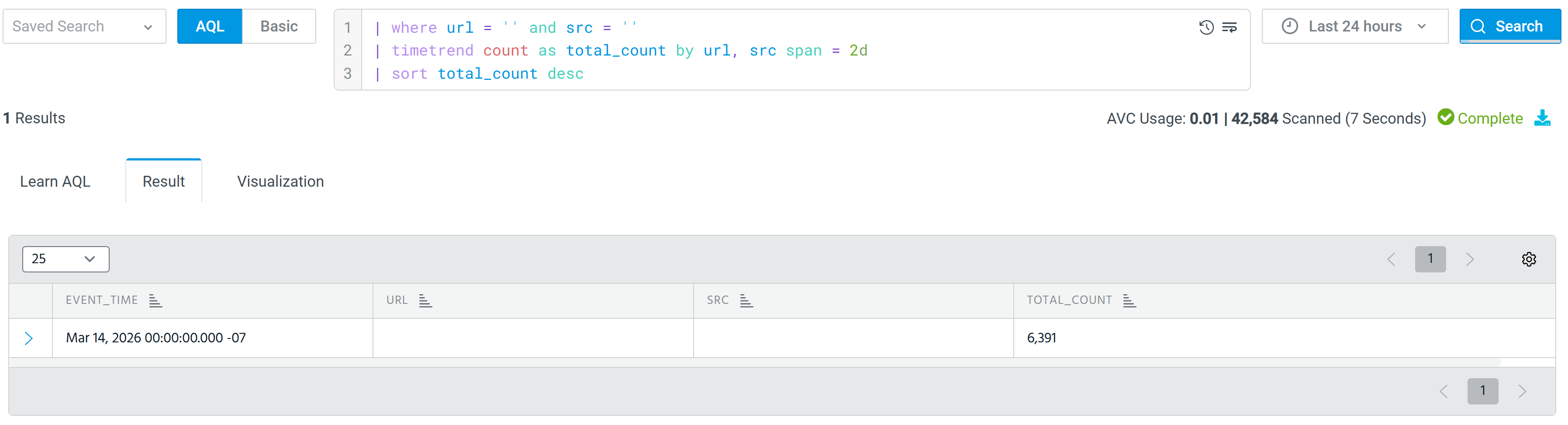
In the following example, the timetrend operator counts instances of events with the same user over one day time spans.
(Click the image to enlarge it.)
You cannot use the
fieldsoperator withtimetrend. However, you can usebyto list the fields to include in the results table. For example, the querytimetrend count by url, src span = 2dincludes the fieldsurlandsrcas columns in the results table.Copytimetrend count by url, src span = 2dAfter you issue a search with
timetrend, the value forspanmay be recalculated and rationalized to create meaningful buckets, based on the configured time range.
Use Aggregation to Analyze OCSF Network Activity
Note: For OCSF schema fields, array indexes start at array[1] and not array[0].
You can use the aggr operator with the OCSF Version 1.2 schema to perform aggregations on nested fields, ensuring the same analytical capabilities as eventlog queries while using the OCSF schema structure.
In the following example, the query counts OCSF network activity events grouped by source endpoint IP address and destination port.
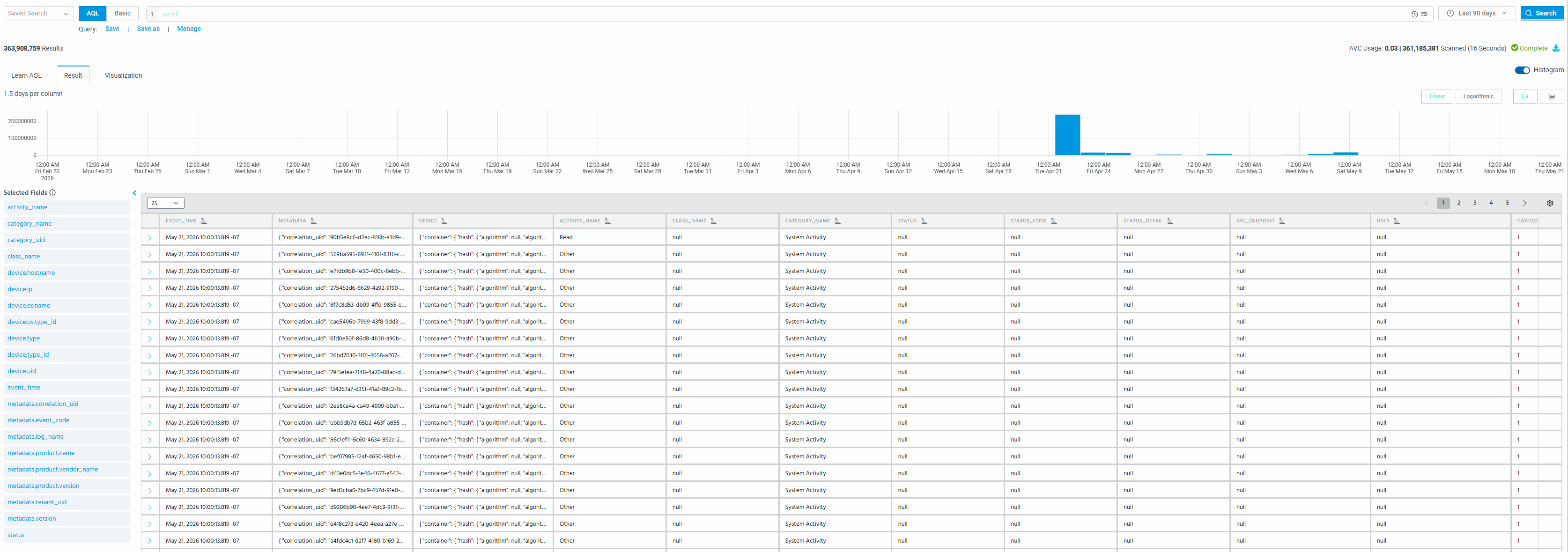
ocsf | where class_name = "Network Activity" | aggr count as cnt by src_endpoint.ip, dst_endpoint.port | sort cnt descNote: For non-administrator users querying OCSF data, the OCSF filter defined in their assigned role constrains the data that AQL operators process. Aggregations, sorts, and other operators run only against the OCSF categories the user has permission to access. In the example below, a user whose role permits both Network Activity and System Activity runs ocsf | aggr count as cnt by category_name and sees exactly those two categories in the results — no other categories are returned regardless of what is in the data.

The Max Search Back setting in the role also constrains OCSF queries. Even if a user selects a wider time range from the time picker, results are returned only for the period permitted by the Max Search Back value in their role. In the example below, the user selected Last 90 days from the time picker, but their role sets Max Search Back to 30 days — the histogram shows data only for the last 30 days, while the x-axis extends further back with no results outside that window.
Linking from External Platforms
When you drilldown into Anomali Search from an external platform (for example, lookups from a SIEM), you can use the following URL parameters:
Case 1: Only Search query with time range for new searches
To start a new search, for an existing query, you can include only the query in the URL along with the time ranges:-
Absolute time format
xdr/gf/m/a?query=query&from=1740521149989&to=1740521449989Relative time format
xdr/gf/m/a?query=query&from=now-3d&to=nowCase 2: Only Job ID for existing, completed searches
For an existing search that is already complete, you can provide only the job_id the URL to load and view the corresponding search results.
xdr/gf/m/a?job_id=job_id