Using Search Modes
Search supports two search modes:
-
AQL Query Mode: In addition to the offerings of the Basic Mode, the AQL mode allows you to manually construct queries by using advanced AQL operators, filtering, aggregation, and regular expressions using both the
eventlogandocsfschemas. See AQL Query Mode for more information. -
Basic Mode: The Basic mode lets you construct queries by selecting different components of an AQL query, without prior knowledge of AQL syntax. These components, therefore, lead to a simple and efficient search experience. This mode supports eventlog data, OCSF data, Lookup Tables, as well as Views. See Basic Mode for more information.
AQL Query Mode
(Click the image to enlarge it.)
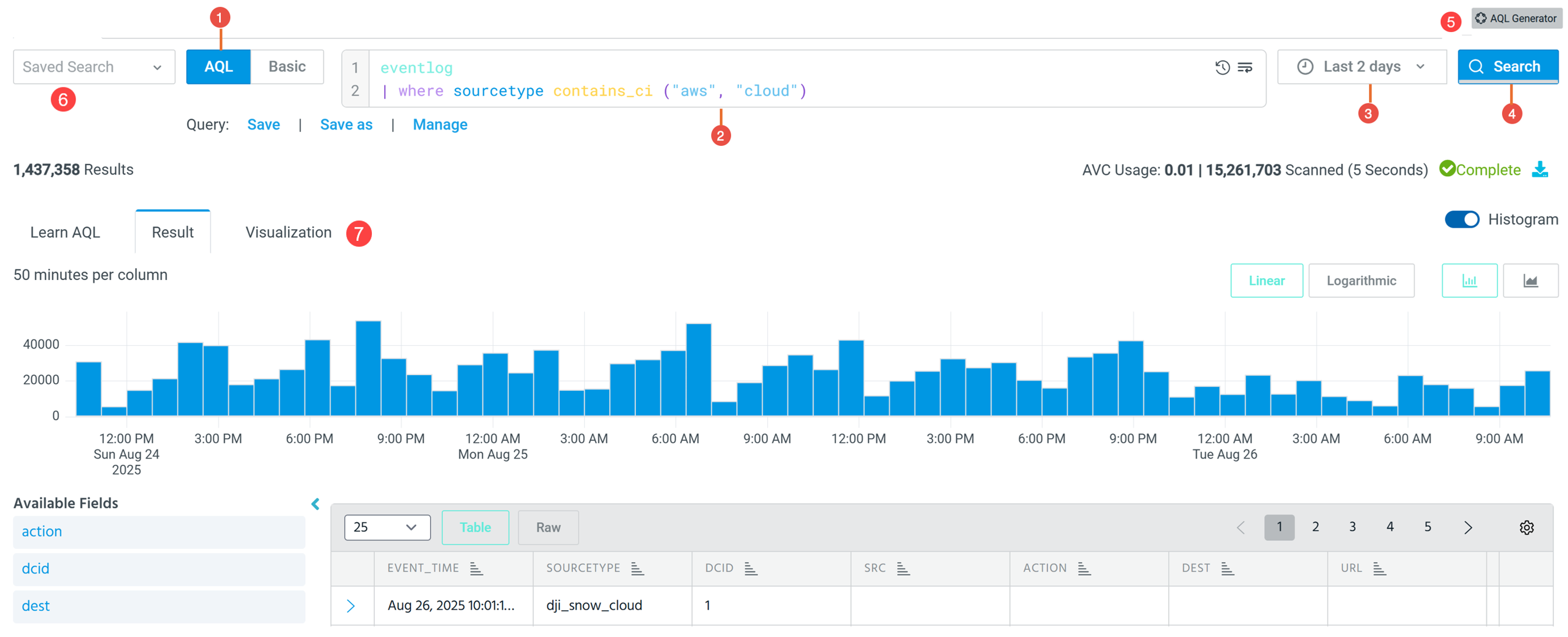


|
AQL Query Mode: This mode includes all the features of the Basic Mode, as well as covers advanced search functionality using AQL operators, filters, and aggregation functions. You can start a search in two ways:
See Understanding the Search Bar to learn more about creating valid queries. Schema Selection: You can query data using For example: eventlog: Copy
OR Copy
OCSF: Copy
Note: For OCSF schema fields, array indexes start at After |

|
Time Range: Select a relative range, quick range, or specify an absolute time range. The time period filter uses event time, which corresponds to the timestamp in the event log. Notes:
|

|
Hover the mouse over the button to view your AVC usage. See Anomali Virtual Compute for more information on how the framework measures your infrastructure usage as per your search. |

|
AQL Generator: Use natural language to generate an AQL query.
To generate OCSF queries using AQL Generator, include the case-insensitive keyword Copy
Note: You must include the case-insensitive keyword |

|
Saved Search: Review a list of recent saved searches. Select a search to load the query in the search bar and issue the search. See Saved Searches for more information. Search History: Review a list of recent searches; select one to load the query in the search bar and issue the search. See Using Search History for more information. |

|
Focus Tabs: Toggle between the following tabs:
|

|
Search Tabs: Use one or more search tabs to launch a search query.
|

 : Click Search to issue the search. Click the
  icon next to
  to stop the search.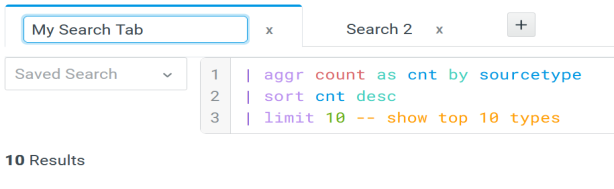
Basic Mode
(Click the image to enlarge it.)
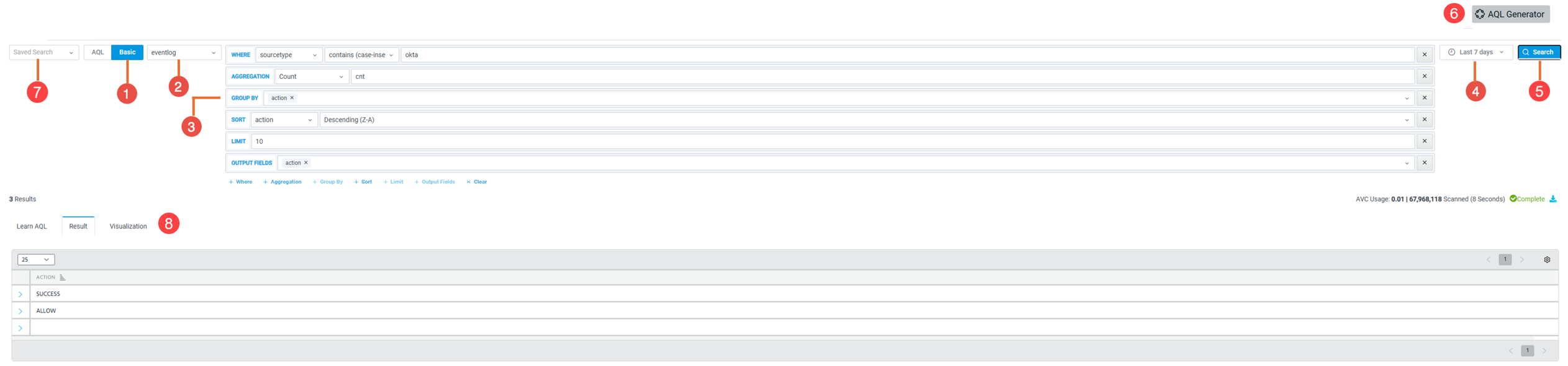
|
|
Basic Mode: Click Basic to use the structured query builder. The builder lets you select query components in any order and generate the corresponding AQL query, eliminating the need to manually write the query.
Basic Mode supports only a limited subset of filtering, aggregation, and sorting options. For more advanced functionality, see Using Search Modes for more information. |
|
|
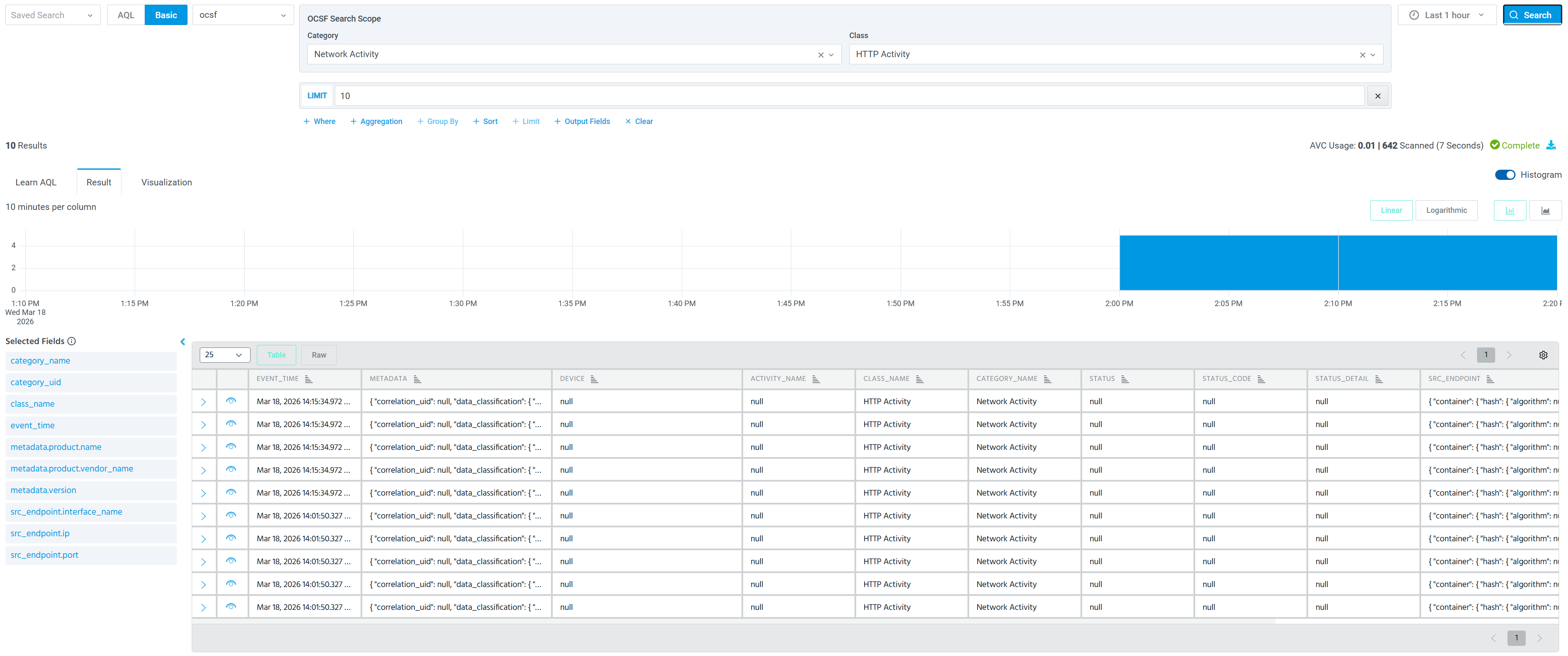
Dataset: Select a dataset to start a structured search on event log data, a lookup table, or a view. All conditions and operations apply to the selected dataset. eventlog Select to query event data using the eventlog schema with standard field names. OCSF Select to query event data using the OCSF Version 1.2 schema with nested object notation. When you select the OCSF dataset, the OCSF Category and OCSF Class filters allow you to filter events by OCSF event categories and classes. See OCSF Schema Overview for more information about supported OCSF classes.
|
|
|
Query builder: Optionally select different components of the AQL query. Filter conditions appear first, followed by aggr, sort, and limit.
Additionally, click Clear if you would like to clear the built structured query. |
|
|
Time Range: Select a relative range, quick range, or specify an absolute time range. The time period filter uses event time, which corresponds to the timestamp in the event log. Notes:
|
|
|
Hover the mouse over the button to view your AVC usage. See Anomali Virtual Compute for more information on how the framework measures your infrastructure usage as per your search. |
|
|
AQL Generator: Use natural language to generate an AQL query.
To generate OCSF queries using AQL Generator, include the case-insensitive keyword Copy
Note: You must include the case-insensitive keyword |
|
|
Saved Search: Review a list of recent saved searches. Select a search to load the query in the search bar and issue the search. See Saved Searches for more information. Search History: Review a list of recent searches; select one to load the query in the search bar and issue the search. See Using Search History for more information. |
|
|
Focus Tabs: Toggle between the following tabs:
|

|
Search Tabs: Use one or more search tabs to launch a search query.
|
 : Click Search to issue the search. Click the