Performing Basic Observable Searches
The Basic observable search function is a full text keyword search. Use it in cases of simple observable searches, such as specific values observed during investigations or recent observables from a trusted source.
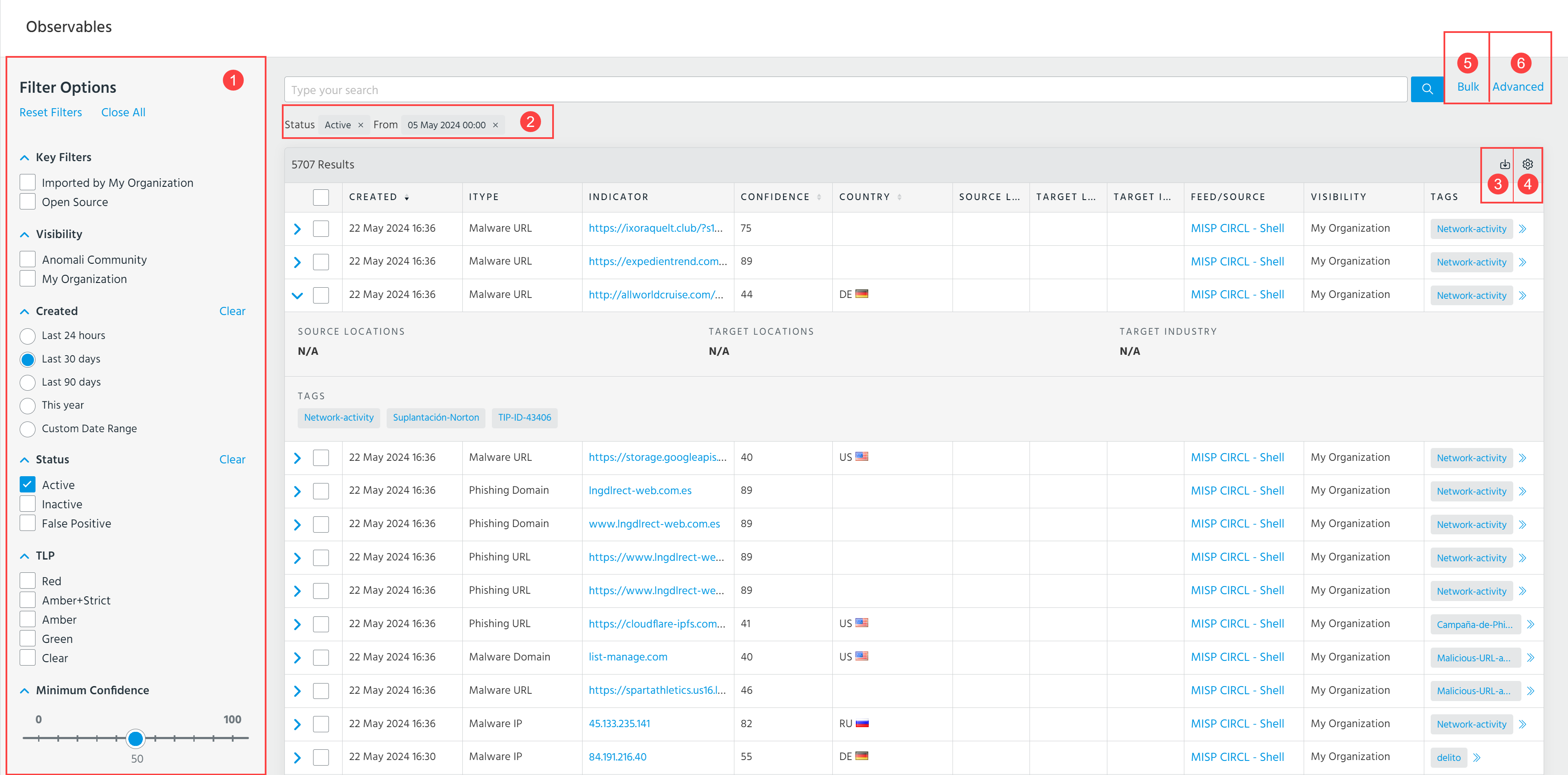
 Filter Options: Filter displayed search results. See Filtering Search Results for more information.
 Applied filters: The search filters you apply are displayed here. By default, ThreatStream searches for active observables that were imported within the last 30 days.
 Export: Export listed search results. For more information, see Exporting Search Results.
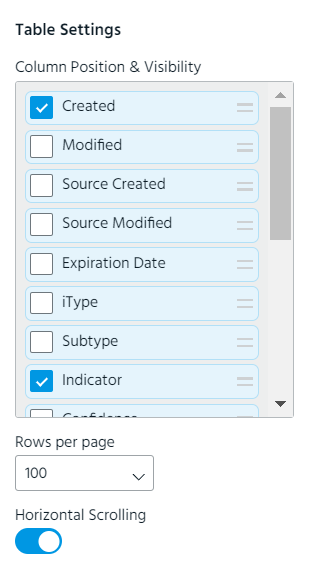
 Table Settings: Select which search result columns are displayed.

 Advanced: Click to switch to the Advanced search page to perform advanced search of observables. See Performing Advanced Observable Searches for details.
From this Observables page, you can also apply the following actions to selected observables:
- New Threat Bulletin: Create a Threat Bulletin with the observables you select from listed search results. See Threat Bulletins for more information.
- Edit: Edit observables. See Editing Observable Details for more information.
- Edit Tags: Add or remove tags associated with observables from the listed search results in bulk. For more information on editing tags in bulk, see Bulk Tag Management of Observables.
To add private tags that are only visible to your organization, assign them the My Organization visibility setting. Tags assigned the Anomali Community visibility setting are visible to any user with access to the observable. See Adding Private Tags to Observables for more information.
- Assign to Workgroups: Restrict the visibility of the selected observable to specific workgroups within your organization. See Restricting Observable Visibility to Workgroups for more information.
- Bulk Add Workgroups: Restrict the visibility of the selected observables to specific workgroups within your organization. See Restricting Observable Visibility to Workgroups for more information.
- Start/Continue Investigation: Create a new investigation with the observables you select from listed search results or add them to an existing investigation. See Creating Investigations for more information.
- Anonymize: Change the user and organization information anonymization setting for selected observables that belong to your organization. If enabled, users outside of your organization with access to the data will see "Analyst" in all fields that would otherwise display an organization or user name.

Performing Basic Searches
You can access the search page by navigating to ThreatStream > Analyze > Observables. The Observables page contains a list of every observable available to you in ThreatStream.
Enter a keyword to perform a search.
Note: Keywords are not case sensitive.