Viewing Tool Details
 Summary
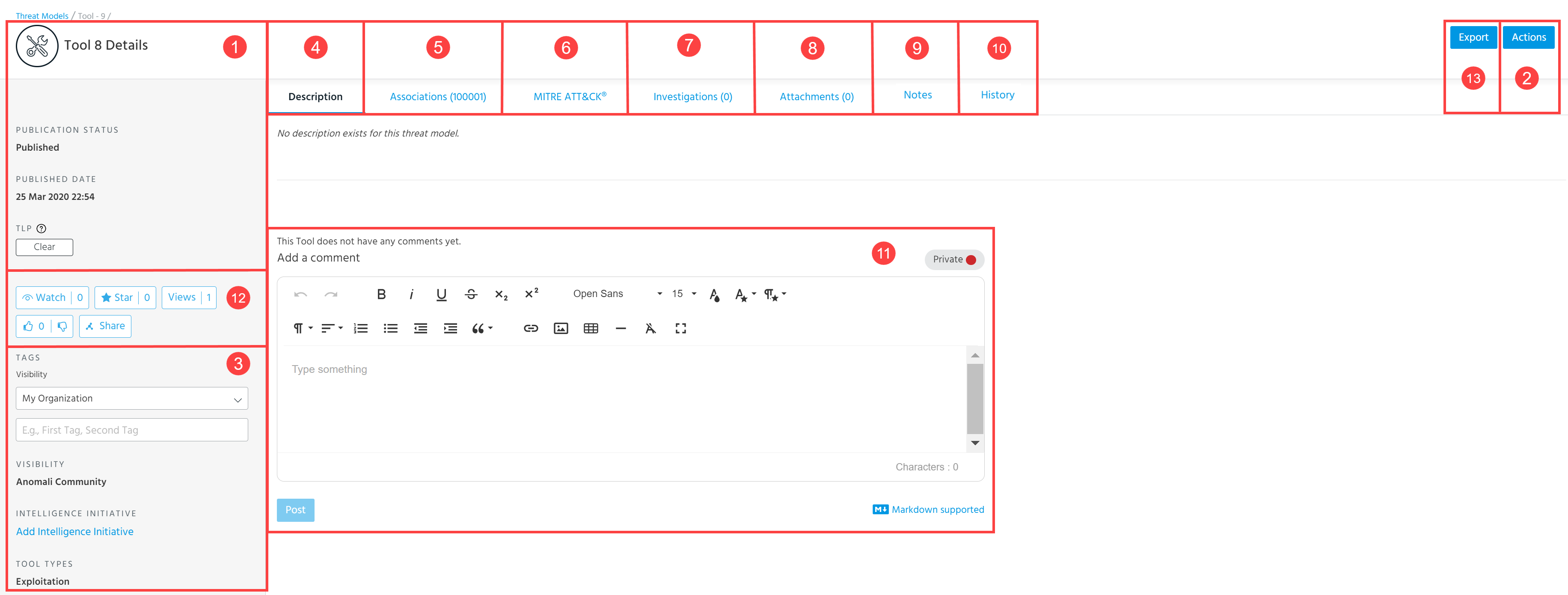
Summaries contain high-level information, such as the Tool title, the user who created the Tool entity, publication status, publication date, and TLP setting.
 Actions
Actions- Edit: Edit Tool details. For more information, see Editing Tools.
- Assign User: Assign the Tool to a user in your organization for further work on the entity.
- Publication workflow: Move the Tool through the publication review workflow. Possible actions include Assign User, Request Review, Complete Review, and Publish.
- Add to Investigation: Add the Tool to a new or existing investigation. When adding a Tool to an investigation, you can additionally add any observables associated with the Tool to the investigation. See Managing Investigation Entities for more information.
- Anonymize: Change the user and organization information anonymization setting. If enabled, users outside of your organization with access to the data will see "Analyst" in all fields that would otherwise display an organization or user name.
- Delete: Delete the Tool.
- Clone: Create a private copy of the Tool.
 Attributes
Attributes may include Tags,
For a complete list of fields and definitions, see Editing Tools.
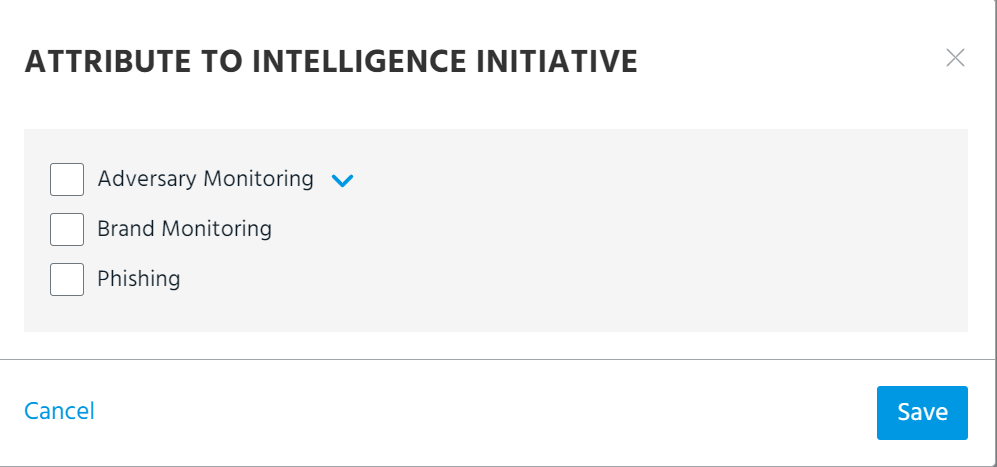
To assign an intelligence initiative to a Tool:
-
Click Add Intelligence Initiative.
-
Select the intelligence initiatives with which you want to associate the Tool.
-
Click Add.
 Description
Full text description of the Tool.
 Associations
Associated Observables, Threat Model entities, Import Sessions, and Sandbox Reports.
If you associate an import session with the Tool, associations are also created for all observables contained in the import session.
 MITRE ATT&CK
MITRE heat map displaying all attack patterns or TTPs associated with the Tool. See Using MITRE ATT&CK Frameworks in Threat Models for details.
 Investigations
Investigations in which the threat model entity appear. Click the Investigation Name to drill down on the investigation. For information on adding threat model entities to investigations, see Managing Investigation Entities.
Investigations do not appear in this list until they are saved.
If a user has created an analyst note for a specific threat model entity inside of an investigation, the analyst icon is displayed in the Investigations tab for that threat model entity.
 Attachments
External references relating to the Tool.
 Notes
Notes
STIX 2.1 notes associates with the Tool.
 History
When a change is made to a Tool, a log entry of the change is created in this section for future reference. If the change is made by the owner of the Tool, the organization name is shown in the log entry; all other organization names are hidden.
 Comments
View and add comments to the threat model entity. Posted comments are displayed in reverse chronological order based on the timestamp in the created_ts field, with the most recently added comments appearing first and the oldest comments appearing last.To add private comments visible to your organization only, assign the Private red color to them. Comments with the Public white color assigned to them are visible to any user with access to the threat model entity. If the Public white color is not available, your Organization Administrator has enabled the Restrict Public Comments setting to restrict users in your organization from posting public comments. This is done to prevent your organization’s comments from being shared publicly.
 Intelligence Actions
-
Watch: Receive notifications when the intelligence is updated.
-
Star: Bookmark the intelligence.
-
Views: Total view count of the intelligence by organization users.
-
Like: Tell the Anomali community if you like or dislike the intelligence.
-
Share: Send the intelligence to another ThreatStream user. Users receive in-app notifications when intelligence is shared with them. For more on in-app notifications, see Receiving In-App Notifications From ThreatStream.
 Export
- Create Report (PDF): Generate a PDF using a template for sharing threat model entities outside of ThreatStream. See Creating PDF Reports for more information.
- Share via Email: Share the Tool with ThreatStream users (within or outside your organization) or non-ThreatStream users through email. See Sharing Threat Model Entities via Email for more information.
- Export IOCs to CSV: Export observables associated with the Tool in CSV format. You can select specific Fields to Export. You can export up to 1000 associated observables.
- Export to STIX: Export the Tool in STIX format. See Exporting Threat Model Entities in STIX Format for more information.