Reviewing Threat Model Entities for Publication
You can use the Publication Status field to manage the review cycle of your threat model entities, from creation to publication.
There are four publication statuses in the ThreatStream review workflow: New, Review Requested, Review Completed, and Published.
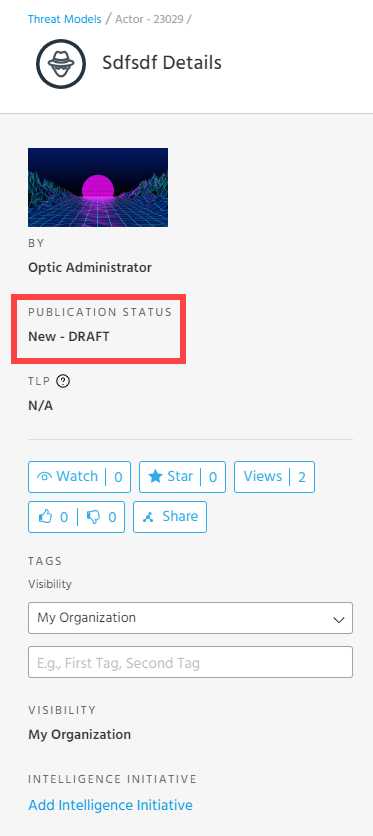
Threat Model entities are not visible to users outside of your organization unless the Publication Status is set to Published. However, unpublished entities are visible to users within your organization at all times. Entities yet to be published display DRAFT in the entity description, as displayed below.
The chart below illustrates the full threat model publication workflow.
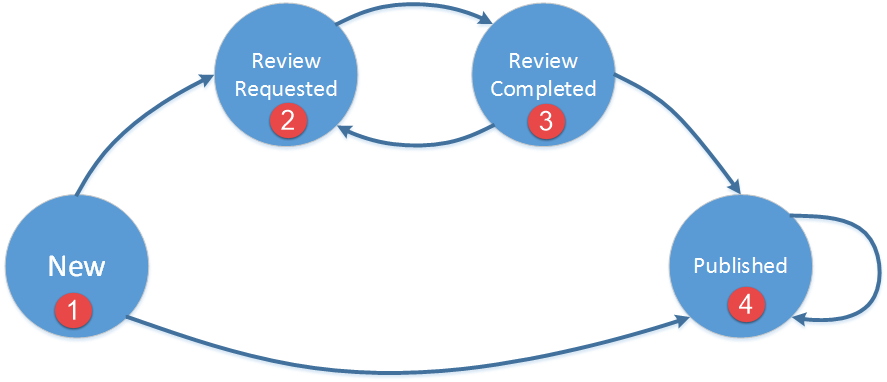
 When you create a threat model entity, its status is set to New. From New, you can set the status to Published or Review Requested.
 When you set the status to Review Requested, you can assign the entity to a user in your organization for review. Click Assign User in the Actions menu to select a user in your organization to review the entity. Users receive email notifications when threat model entities are assigned to them.
 After review, the assignee can set the status to Review Completed and re-assign the entity to the reporter. If the reviewed entity is ready for publication, you can set the status to Published. If the reviewed entity requires further review, you can set the status to back to Review Requested and select another assignee.
 When you set the status to Published, the entity is visible to other users. After an entity is published, Publish remains an available action. Re-publishing an entity enables you to change the Visibility of the entity. During publication, you can also anonymize your user and organization information by selecting Anonymize user and organization. Users outside of your organization with access to the data will see "Analyst" in all fields that would otherwise display an organization or user name.
To move Threat Model entities through the review process:
- Navigate to ThreatStream > Analyze > Threat Model.
- Click the entity of your interest.
-
Under Actions, select a publication review action.
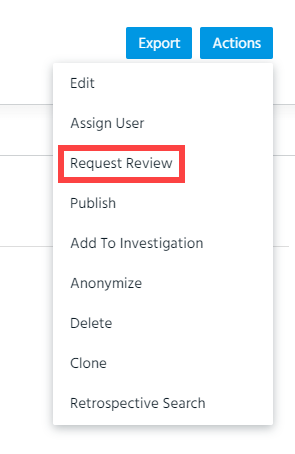
- When the entity is ready for publication, click Publish in the Actions menu.
-
Specify the visibility of the entity. You can select Anomali Community, Trusted Circles, or My Organization.
If you select Trusted Circles, select trusted circles from the drop down menu. For more information, see Creating a Trusted Circle.
You can also restrict the visibility of the entity to specific workgroups within your organization. To do so, select My Organization and then select desired workgroups from the Restrict To Workgroups menu.
- Click Save.