Sharing Threat Model Entities via Email
You can share threat model entities with users in your organization through email from threat model entity details pages or the Threat Model page. Threat model entities are included in the body of the email and attached to the email in PDF format. PDFs are generated using the template of your choosing. For information on creating and managing your organization PDF templates, see Creating PDF Reports.
Additionally, the email includes hyperlinks to the threat model entity details pages in ThreatStream.
Organization Administrators can restrict the email domains with which threat model entities can be shared. See Email Report Distribution for more information. Contact your Organization Administrator if you are unsure of the restrictions implemented by your organization.
If you share a threat model entity with a non-ThreatStream user, note that the recipient is unable to access threat model entity details pages. Therefore, if a non-ThreatStream user receives the email and clicks the hyperlink, they are shown the ThreatStream login screen.
Sharing Threat Model Entities via Email From the Threat Model Page
You can share threat model entities in bulk from the Threat Model page.
To share threat model entities via email from the Threat Model page:
- Navigate to ThreatStream > Analyze > Threat Model.
-
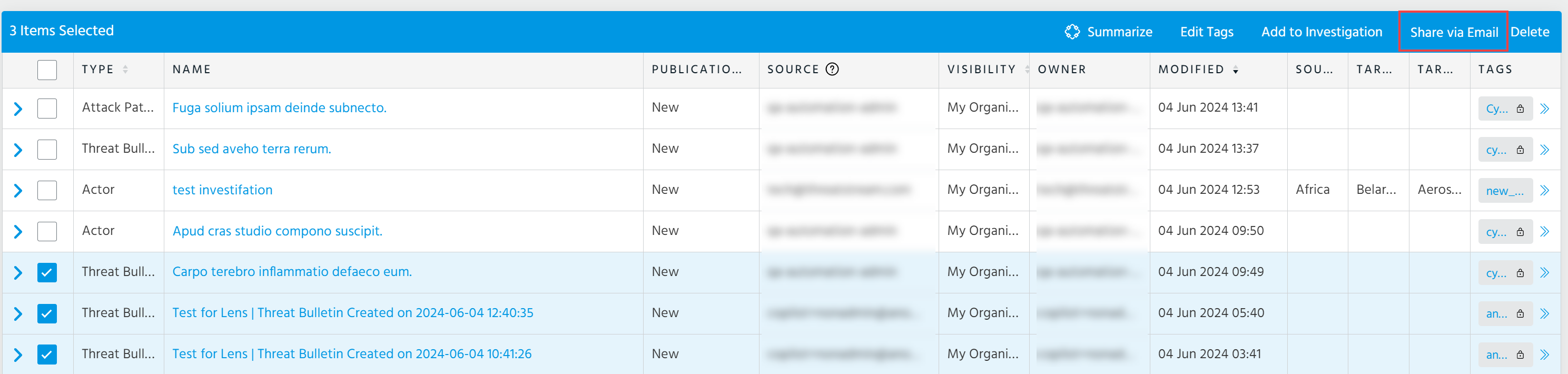
Search for and select the threat model entities you want to share.
Note: You can share up to 10 threat model entities at once. Selected entities are shared in a single email.
- Click Share via Email.
-
In the dialog box that opens, enter the email address of the user with whom you want to share the entities. Click + or Cc/Bcc to add additional users.
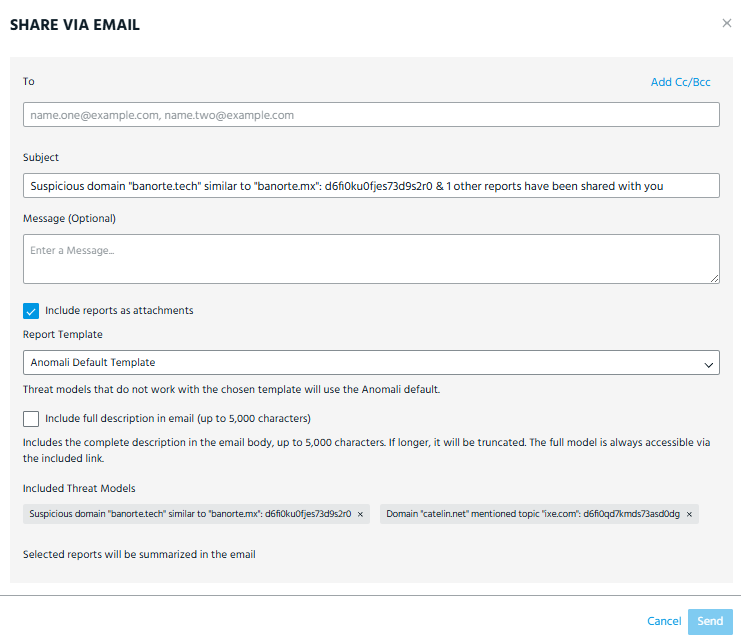
- (Optional) Modify the email Subject. Email subjects are automatically populated with the name of the first entity you have selected.
- (Optional) Enter a Message to include with the entities in the body of the email.
-
If you want to attach the threat model entities to the email in PDF format, select Include reports as attachments.
Select a Report Template, which ThreatStream will use to generate the PDFs. If you select a template which is not applicable to the current threat model entity type, the Anomali Default Template will be used. For information on creating and managing your organization PDF templates, see Creating Report Templates.
-
(Optional) Include full description in the email.
Threat model entity descriptions are truncated at 5,000 characters in the body of the email. To view the full description, open the attached PDF file or follow the hyperlink included in the email. - Click Send.
The threat model entities have been shared with the recipient email addresses.
Sharing Individual Threat Model Entities via Email From Threat Model Details Pages
You can share an individual threat model entity directly from the its details page.
To share individual threat model entities via email from threat model details pages:
- Navigate to ThreatStream > Analyze > Threat Model.
-
Search for the threat model entity you want to share. Click the name of the entity in the search results to navigate to its details page.
- Click Share Via Email in the Export menu.
- In the dialog box that opens, enter the email address of the user with whom you want to share the entities. Click + or Cc/Bcc to add additional users.
- (Optional) Modify the email Subject. Email subjects are automatically populated with the name the entity you selected.
- (Optional) Enter a Message to include with the entities in the body of the email.
-
If you want to attach the threat model entities to the email in PDF format, select Include reports as attachments.
Select a Report Template, which ThreatStream will use to generate the PDFs. For information on creating and managing your organization PDF templates, see Creating Report Templates.
-
(Optional) Include full description in the email.
Threat model entity descriptions are truncated at 5,000 characters in the body of the email.
To view the full description, open the attached PDF file or follow the hyperlink included in the email.
- Click Send.
The threat model entity has been shared with the recipient email addresses.