Exporting Threat Model Entities in PDF Format
PDF Report exports enable you to generate PDFs based on customizable templates for sharing with a wider audience outside of ThreatStream. PDF Reports are generated using templates, which can be customized to include specific fields, headers, footers, and text styles.
Creating PDF Reports
PDF report are created based on customizable templates.
To create a PDF Report:
-
Navigate to the details page of the threat model entity you want to export.
-
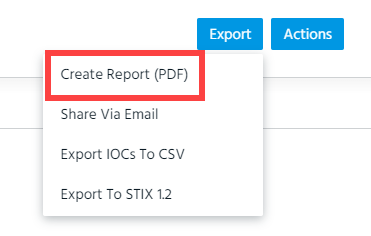
In the Export menu, click Create Report (PDF).
-
Select the template you want to use to create your report. In addition to templates created by your organization, you can use the Anomali Default Template. This template contains all possible fields, and it has default colors and styles. It can be cloned, but it cannot be edited or deleted.
Note: Read Only users can create PDF reports using the Anomali Default Template or other templates created by their organization. However, Read Only users cannot create, edit, clone, delete, or set default templates.
To create a new template, click Add New Template or New in the Actions menu. See Creating Report Templates for more information.
(Click the image to enlarge it.)
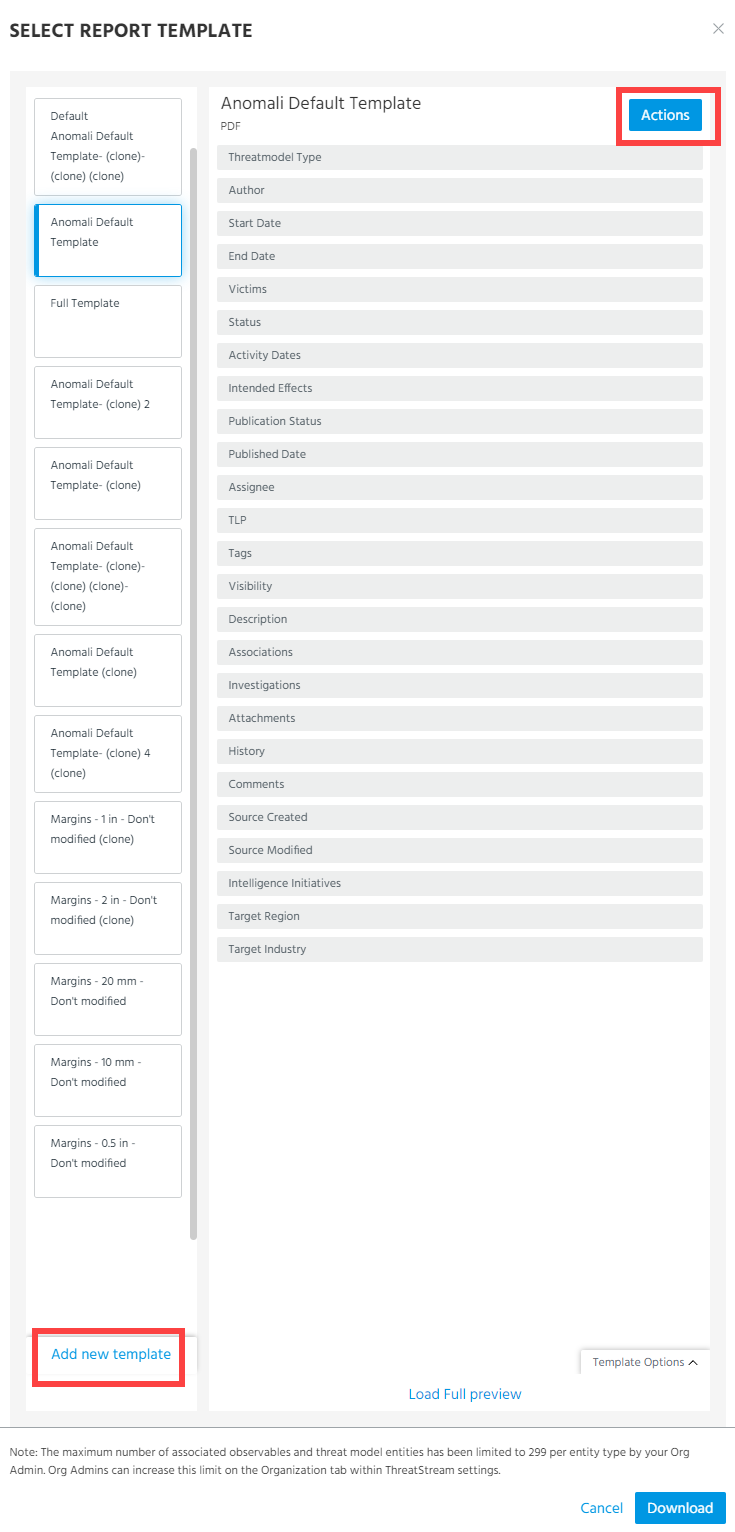
Click Load Full Preview to view a preview of the template applied to the threat model entity.
Click Template Options to view and edit the template Included Elements on an ad-hoc basis.
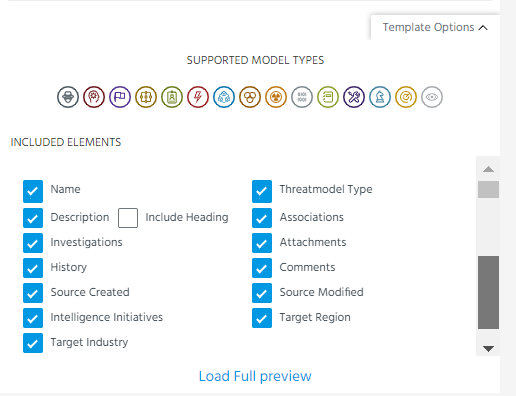
Note: When you deselect Tags, tags from both the primary entity and associated entities are excluded from the report.
Changes made to the template are applied to the current download only and are not permanent. If you selected the Anomali Default Template the Save settings option is available. When this option is selected, changes to the selected Included Elements are saved for the template. The next time you use the Anomali Default Template, your previous changes are maintained.
Note: If the selected template is not applicable to the current threat model entity type, the Download button is not available.
-
Click Download. The download begins immediately.
Click Download Now to start the downloading process.
Creating Report Templates
When you create a report template, it becomes available to all users in your organization.
To create a report template:
- Navigate to any threat model entity details page.
-
In the Export menu, click Create Report (PDF) and then click New in the Actions menu. You can also click Add New Template on the Select Report Template window.
-
Enter a template title in the corresponding field.
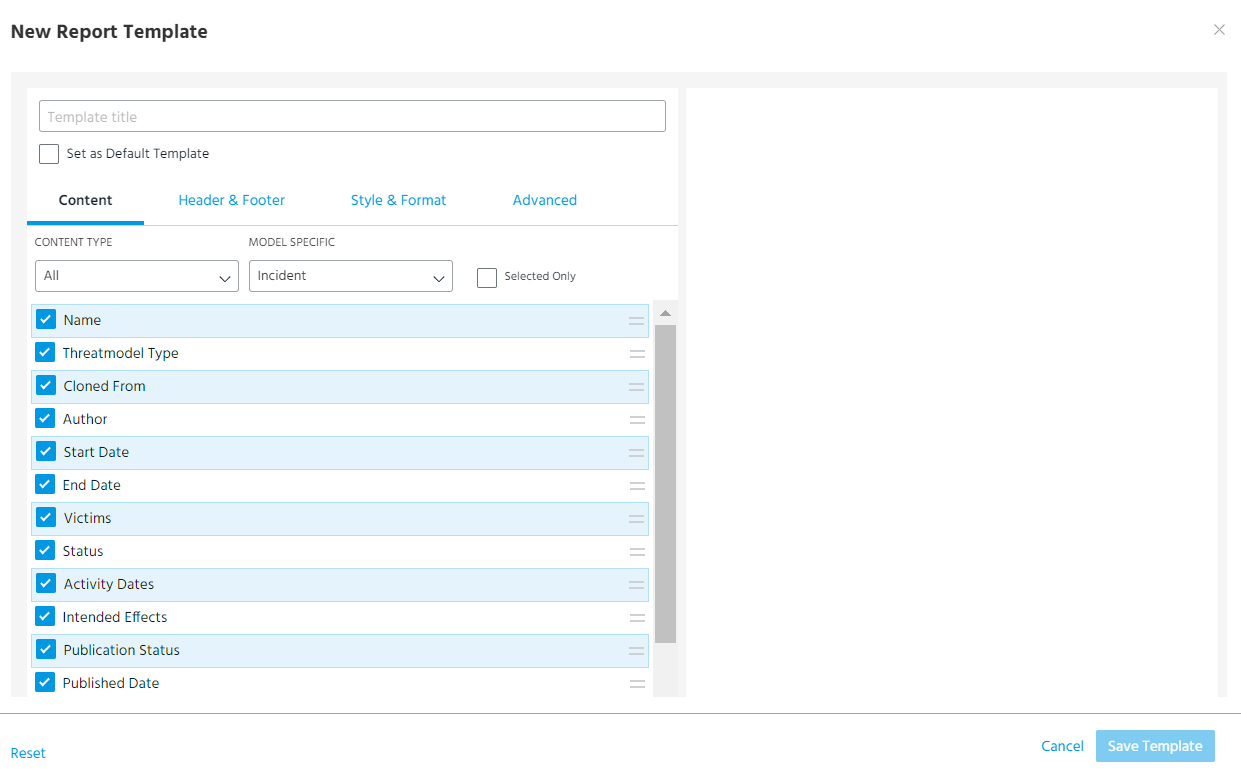
You can click Reset in the bottom left corner of the window at any time to undo all customizations you have made.
Note: Click Load Full Preview to view a live preview of the template applied to the current threat model entity. After loading the preview, configurations you make on the template window are not reflected in the live preview until you click Refresh Preview.
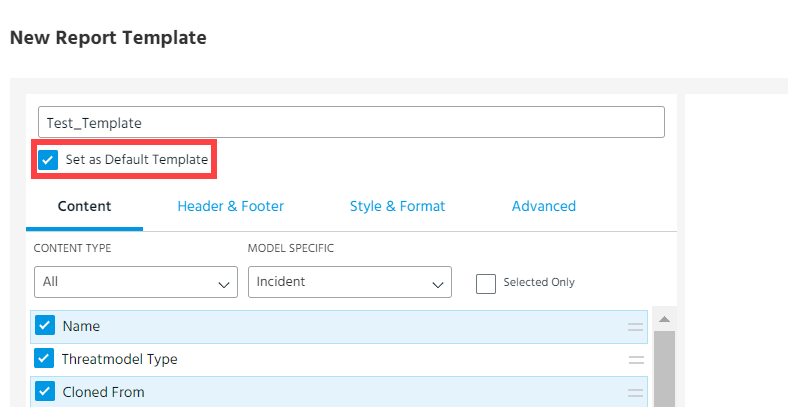
- (Optional) Select Set as Default Template if you want the new template to serve as your default. If you select this option, the new template will appear at the top of the template list each time you create a PDF report.
-
On the Content tab, select the threat model entity fields you want to include in the Report template.
The following filters can be used to filter the fields listed on the tab:
- Content Type—display Header, Description, or Metadata fields only
- Model Specific—display fields related to specific threat model entity types
- Selected Only—remove unselected fields from the list
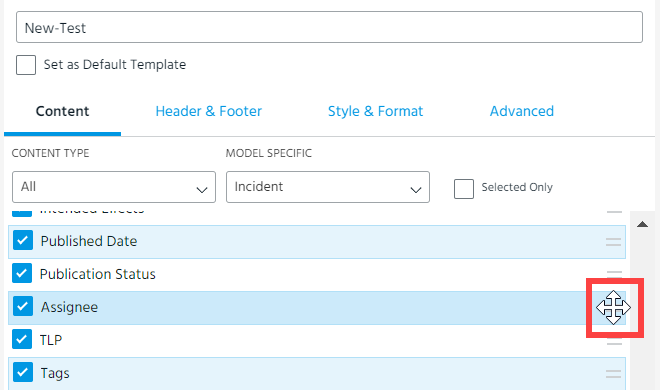
You can change the order of fields in the PDF by clicking and dragging the drag and drop icon.
-
On the Header & Footer tab, configure the following settings:
Field Description Image Banner image to be displayed at the top of the first page. Use Organization logo Check this box to use your organization logo for the header image. Org Admins can upload an organization logo on the Org Settings tab within ThreatStream settings under Upload a Custom Logo for Threat Model. See Viewing and Editing Organization Settings for more information.
Note: Images uploaded for the template are overridden with the organization logo if this option is selected.
Image Placement Whether the banner image is left, center, or right aligned. Page Header Text to be displayed at the top of the page.
Contact Anomali Customer Support if you require additional customization.
Display header on all pages Whether the image and header is added to each page of the PDF. If not selected, images headers are only applied to the first page. Page Footer Text to be displayed at the bottom of each page.
Contact Anomali Customer Support if you require additional customization.
-
On the Style & Format tab, configure the following settings:
Field Description Format Not configurable—report templates only enable PDF exports. Document Margin Specify page margins for the report. You can specify margins in inches or millimeters. The size you select is applied to all four sides of the page. The maximum margin size is two inches or 50.8 millimeters. Colors: Primary Text color applied to report titles and headings.
Click the current color to open the color picker. You can select a new color using the color picker or by entering a hex code.
Colors: Secondary Text color applied to the body of the report, such as the description, comments, and history.
Click the current color to open the color picker. You can select a new color using the color picker or by entering a hex code.
Override colors in the description Whether the template will apply the selected Secondary color to the description. If this option is not selected, default colors are applied to the threat model entity description. Fonts: Document & Section Titles Font applied to report titles and headings. Fonts: Body Text Font applied to the body of the report. Override font in the Description Whether the template will apply the selected Body Text font to the description. - On the Advanced tab, select the threat model entity types for which you want to make the template available. This enables you to apply specific content sets to entity types of interest.
- Click Save Template.
The template is created and available to all users in your organization.
Managing Report Templates
While Org Admin privileges are not required to create templates, non-admin users can only edit and delete report templates that they created. However, non-admin users can clone templates which they do not have permission to edit, thus creating an editable copy. Org Admins can edit and delete any template in their organization. All users can select a default template. When you set a template as your default, the template appears at the top of the template list.
Tip: Org Admins can monitor organization PDF report activity. See User Activity Audit for more information.
To edit existing templates:
- Navigate to any threat model entity details page.
-
In the Export menu, click Create Report (PDF).
-
Select the template you want to edit and click Edit in the Actions menu.
Note: If the Edit action is not available, you do not have privileges to edit the template.
- Make desired changes.
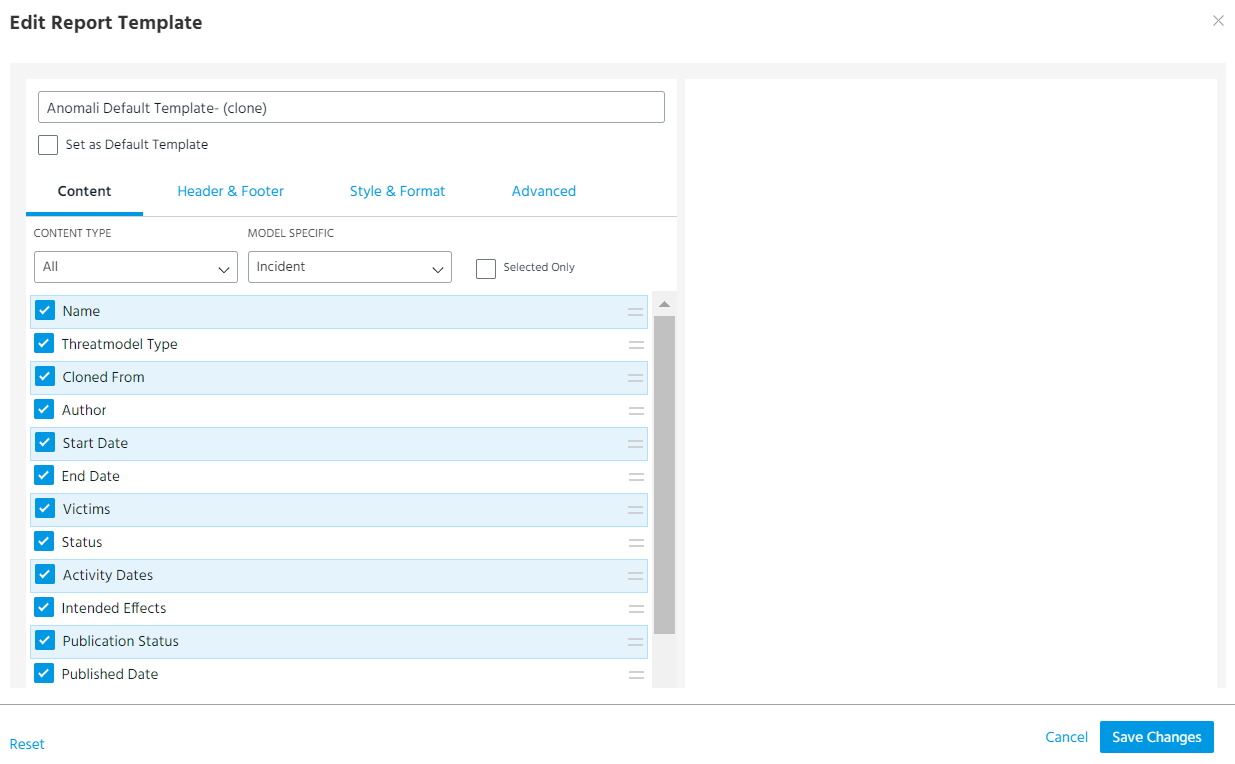
- Click Save Changes.
The template has been updated.
To clone an existing template:
- Navigate to any threat model entity details page.
-
In the Export menu, click Create Report (PDF).
-
Select the template you want to clone.
-
In the Actions menu, click Clone.
-
Make desired changes.
Note: If you have selected a default template, only content fields can be modified.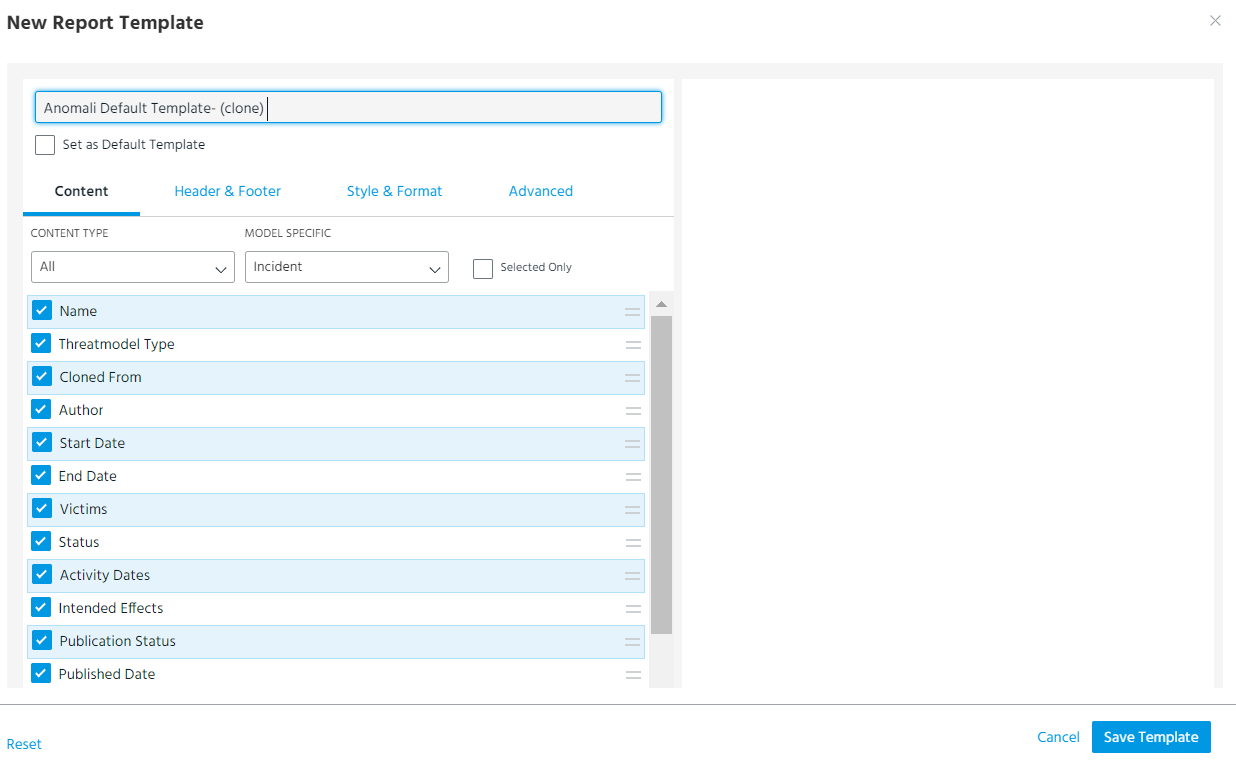
- Click Save Template.
The template has been cloned.
To delete a template:
- Navigate to any threat model entity details page.
-
In the Export menu, click Create Report (PDF).
-
Select the template you want to delete and click Delete in the Actions menu.
Note: If Delete is not an available action, you do not have privileges to delete the template.
- Click Delete on the confirmation window.
.png)
The template has been deleted.
To set your default template:
- Navigate to any threat model entity details page.
-
In the Export menu, click Create Report (PDF).
-
Select the template you want to set as your default template in the left menu.
- Click Set as Default in the Actions menu.
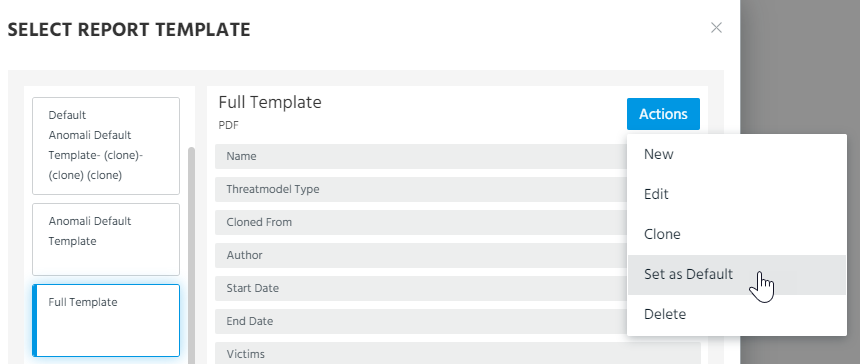
The template now appears at the top of the list of templates. This is a user-level setting, and it does not impact other users in your organization.
Alternatively, you can also set a template as your default template when creating, editing or cloning a template by selecting the Set as Default Template option.