Match Analysis Dashboard
The Match Analysis Dashboard provides analytics about the threat intelligence feeds, indicator types, indicators, and DGA domains that match events in your network. These analytics can be useful in determining the effectiveness or noise-level of a threat intelligence element. If a premium feed shows matches on events, you can be certain that the premium feed is valuable to your business and its security operations. Likewise, if particular feeds or indicator types are unnecessary, you can create filters to suppress them, or you might unsubscribe.
The following figure shows the Match Analysis Dashboard. The sections that follow provide details about the Match Analysis Dashboard panels.
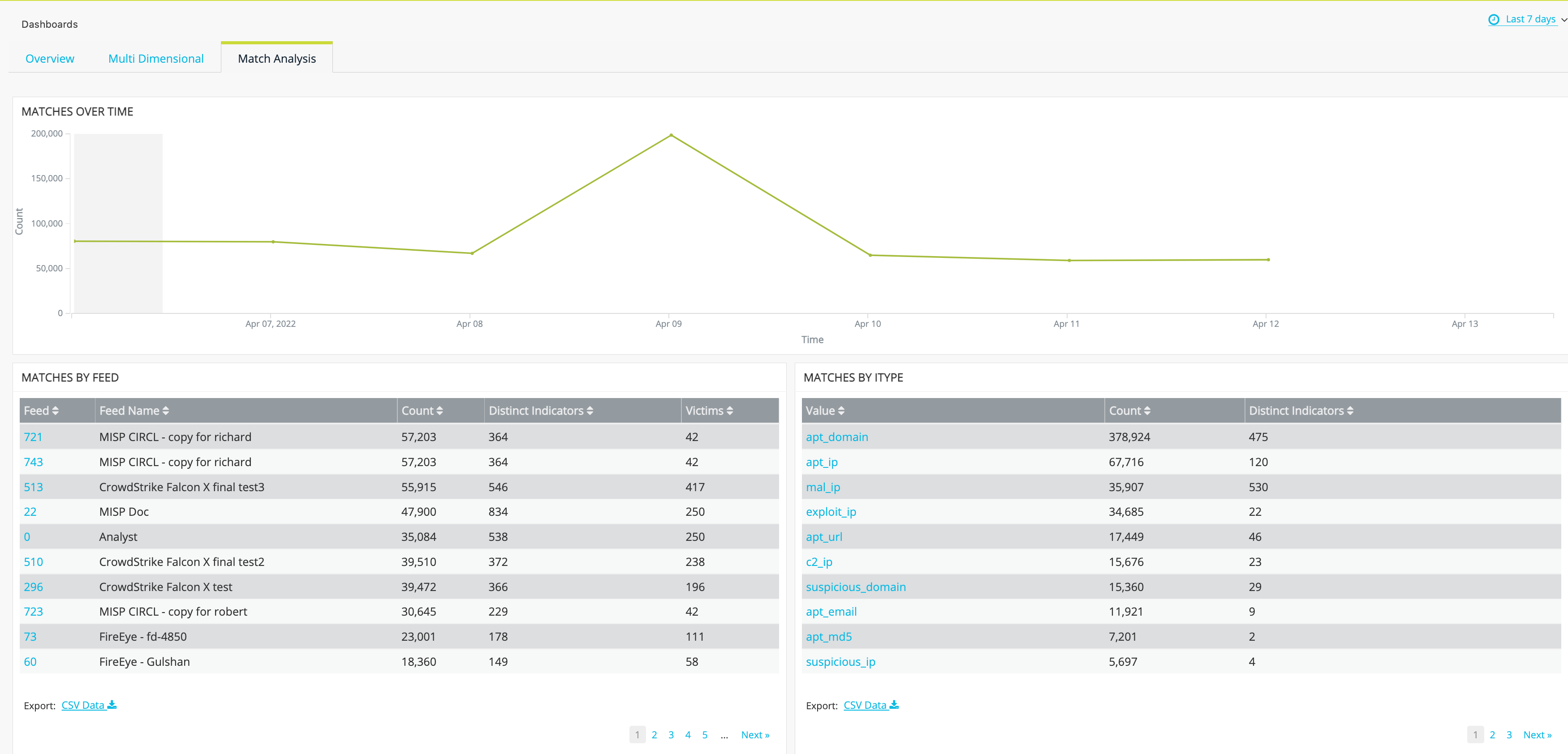
For an overview of dashboard time period and saved search filters, file export, and navigation elements, see Getting Started with Dashboards.
Note:
-
Statistics on the Match Analysis dashboard are not real-time statistics. The statistics are based on daily counts. The counts are recorded daily at a time randomly selected for the customer, and that is the time that the count for the previous calendar day is recorded. Therefore, if you select time filters that are more granular than one day, such as Last 1 hour or Last 4 hours, the Match Analysis panels will indicate "No results found."
-
When you select a time period longer than a day, be aware that the counts do not include events from the current day. For example, the default time period is Last 7 days, which means "the last 7 days for which data was recorded." If your enterprise encountered an attack beginning at 08:00, you will not yet see the spike in indicator or victim counts on the Match Analysis dashboard. To see events from the current day, Anomali recommends that you perform a search from the Activity page, which provides a granular view of the recent activity up to the current time. See Getting Started with Activity Search for complete details.
-
In addition, note that the counts reported for Distinct Indicators and Victims are the statistical max values for any day during the reporting period. For example, when the Last 7 days time period is selected, the Distinct Indicators count reported is the highest daily count of distinct indicators for the previous 7 days for which data was recorded. If the daily counts were 1, 4, 1, 2, 2, 1, and 1, the Distinct Indicators count would be 4.
Matches Over Time
This panel displays a line graph of the total indicator match count over time.
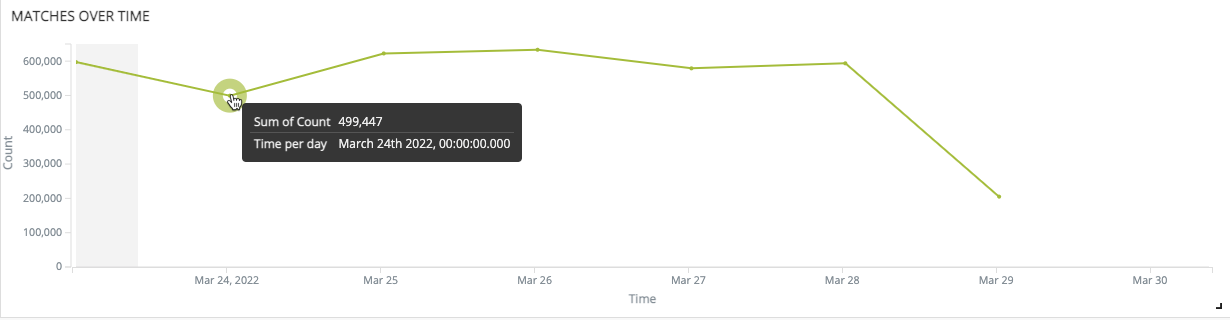
The following table describes the chart.
| Element | Description |
|---|---|
| Count | Running total count of matches. The running total is recorded once per day. |
| Time |
The granularity of the time axis is based on the dashboard time period selection. The default time period is Last 7 days. You can change the default time period associated with your user profile. See Modifying My Profile. |
Matches by Feed
This panel displays a table summarizing matches by threat intelligence feed.
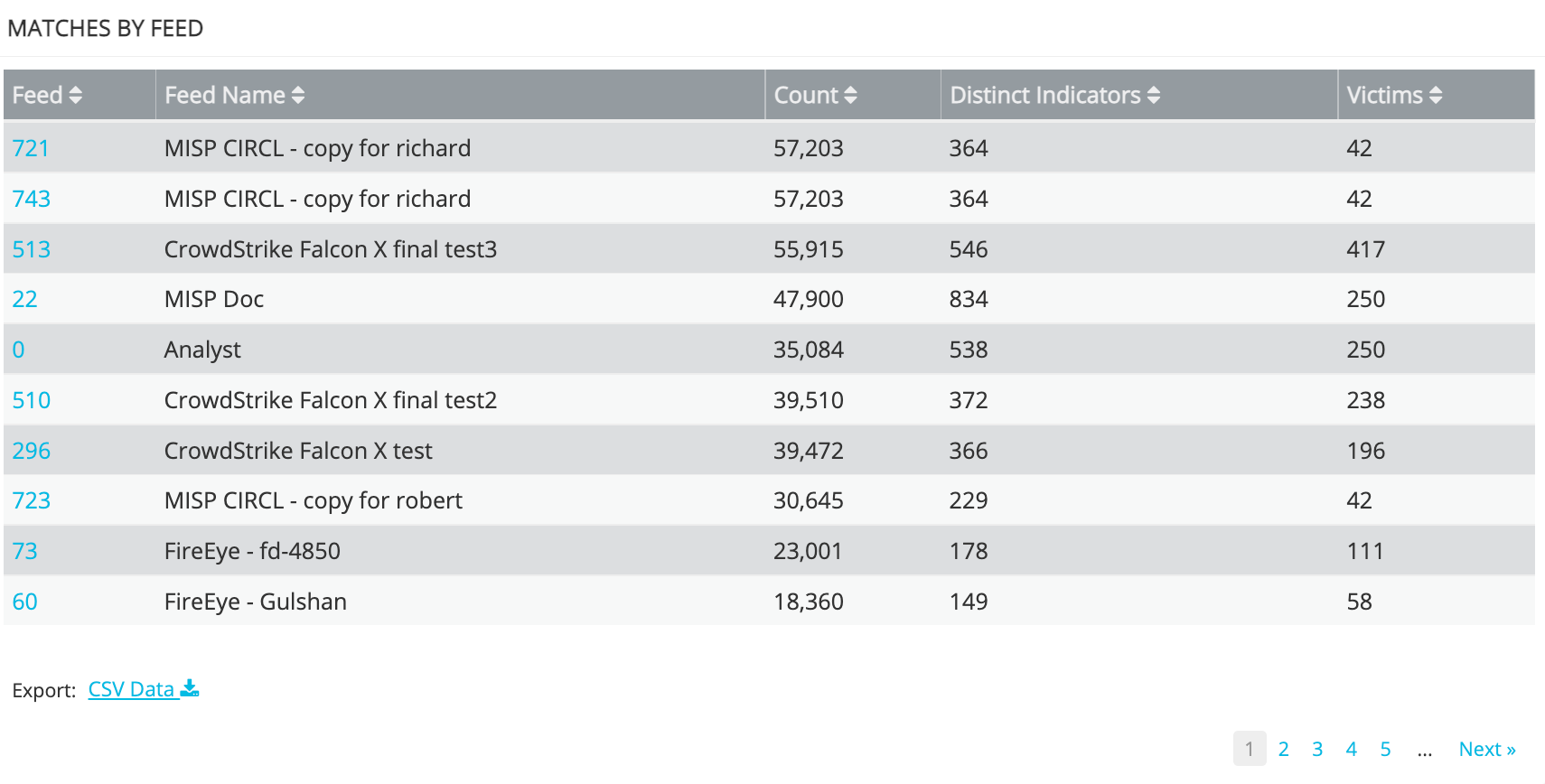
The following table describes the Matches by Feed table columns.
| Column | Description |
|---|---|
| Feed |
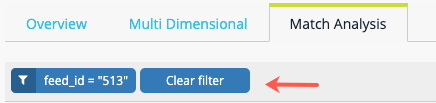
The Anomali Security Analytics ID assigned to the feed. Values in this column are hyperlinks:
|
| Feed Name | The name of the threat intelligence feed. |
| Count | Total event matches for this feed during the selected time period. |
| Distinct Indicators | The highest daily count of distinct matches to indicators in this feed during the selected time period. |
| Victims | The highest daily count of systems or hosts that were impacted by the indicators in this feed during the selected time period. |
Matches by iType
This panel displays a table summarizing matches by iType. See ThreatStream Indicator Types for a list of indicator types and their descriptions.
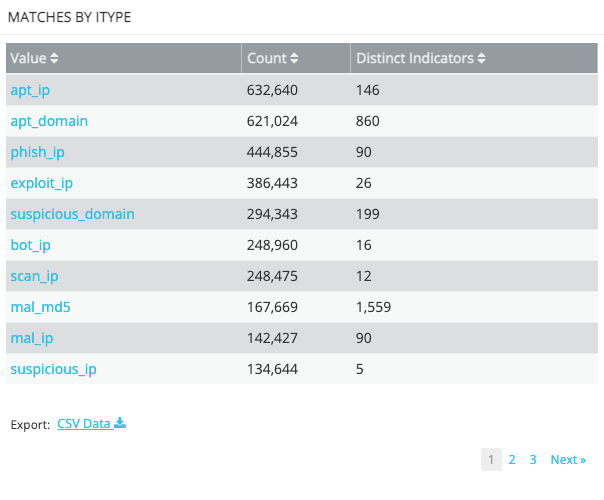
The following table describes the Matches by iType table columns.
| Column | Description |
|---|---|
| Value |
iType short name. Values in this column are hyperlinks.
|
| Count | Total event matches for this iType during the selected time period. |
| Distinct Indicators | The highest daily distinct count of indicators with this iType value during the selected time period. A distinct count returns the number of different indicators having this iType value. |
Matches by Indicator
This panel displays a table summarizing matches by Indicator.
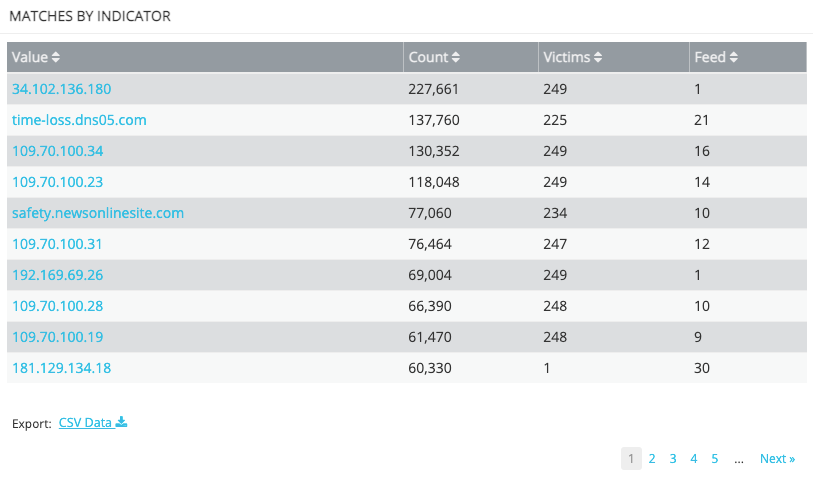
The following table describes the Matches by Indicator table columns.
| Column | Description |
|---|---|
| Value |
The indicator value appearing in event logs. Values in this column are hyperlinks.
|
| Count | Total event log matches for this indicator during the selected time period. |
| Victims | The highest daily count of systems or hosts that were impacted by the indicator during the selected time period. |
| Feed | Number of intelligence feeds that had identified the indicator. |
Matches by DGA
This panel displays a table summarizing matches for events related to Domain Generated Algorithm (DGA) domains. See About DGA Match Searches for an overview of DGAs.
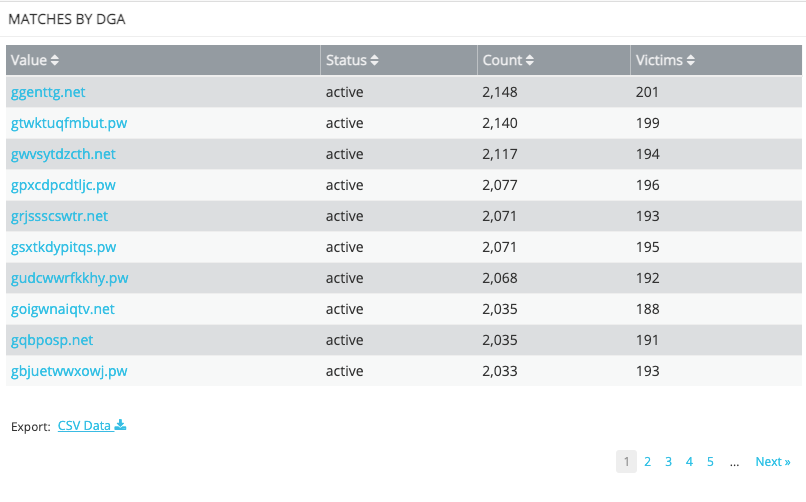
The following table describes the Matches by DGA table columns.
| Column | Description |
|---|---|
| Value |
Domain identified as a DGA domain. Values in this column are hyperlinks.
|
| Status |
|
| Count | Total event log matches for this DGA domain during the selected time period. |
| Victims | The highest daily count of systems or hosts that were impacted by the DGA domain during the selected time period. |