Getting Started with Dashboards
This topic describes common Security Analytics Dashboard features.
Note: Security Analytics Dashboards are separate from AQL Dashboards. For information about AQL Dashboards, go to the Anomali Dashboards Help Center.
Panels
A dashboard comprises panels, which include visualizations or table presentations of Security Analytics statistics.
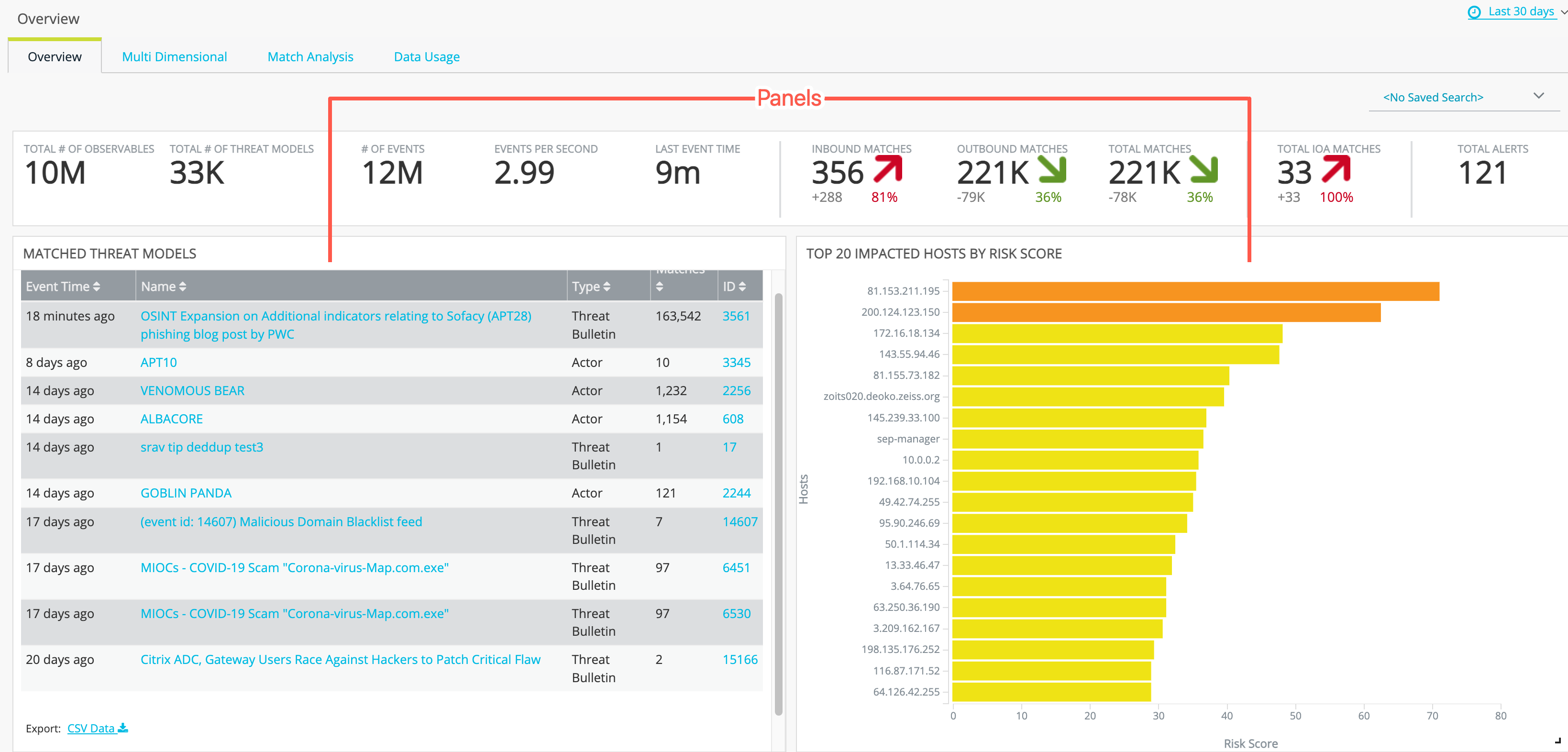
To resize a panel:
-
Hover over the lower-right corner.
-
When the cursor changes to an arrow, click and drag the panel to the size you prefer.
To rearrange panels:
-
Click the title bar and drag the panel to the location on the dashboard you prefer.
Time Period
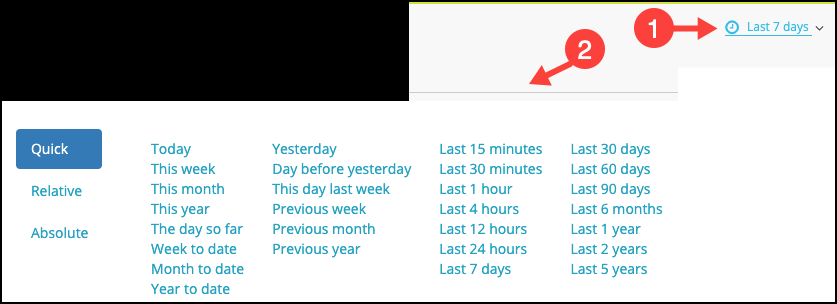
By default, a dashboard displays statistics for the last 7 days. You can use the time period picker in the top-right corner of the page to select a different time range.

|
Click the current time period filter to display the time period picker. |

|
Use the time period picker to select a time period. There are three sets of selectors:
|
The time period filter is based on event time; in other words, the timestamp in the event log.
The event retention policy renders event log data unavailable for search and dashboards after a configured number of days.
Events received from log ingestion backfill jobs can have dates that go farther back than the retention policy expiration date. For example, a backfill job might ingest logs with event timestamps from up to 5 years ago, and those are the events that are included when the Last 5 years filter is applied.
The default time range is specified in My Profile settings. See Change the Default Date Range Filter.
If you change the time period, the time period that you specify persists across all Dashboard and Activity search pages until you change it again or log out of your browser session.
Saved Search
By default, dashboards display information based on results of a predefined query.
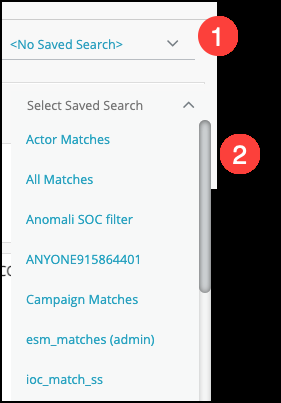
You can use the Saved Search picker to make the information in the dashboards based on a saved search. This selection affects only the current web session of the currently logged in user.
|
|
Click the current saved search filter to display the saved search picker. |
|
|
Use the saved search picker to select a new saved search. |
See Managing Saved Searches for information on defining saved search queries.
Export CSV
|
Panels with table presentations include a link below the tables. Click the CSV Data link to download the table as a CSV file. Rename the file if you want, choose a location for the exported file, and then click Save. |
Hypertext Links
The visualizations or table presentations in panels may include hypertext links that allow you to filter data in the current view, drill-down to a detailed view, pivot to related content, or take action.