Managing Exclude Lists
You can use the Manage > Exclude List page to manage exclude lists populated by your analysts.
About Exclude Lists
An exclude list is a list of entities (indicator, DGA, asset, IType, feed) that you do not want to examine because they are benign or uninteresting. An exclude list eliminates noise from your research activities.
Once you have added an entity to an exclude list, the search results exclude matches to it from the time it was added. However, any search operations that span the time range before the entity was added to the list will still have matches to these entities. Similarly, dashboard widgets that display historical results, such as the Top 20 Impacted Hosts by Risk Score, will continue to show the excluded entity (if it was included before being added to the list) until the entity no longer falls into the time range accounted for in the dashboard panel.
Manage the Suppressed Indicators List
The suppressed indicators list includes intelligence indicators that your analysts have marked for exclusion.
Add Indicators to the Suppressed Indicators List
There are multiple ways analysts can suppress indicators:
Add Indicators from Activity Search Results
-
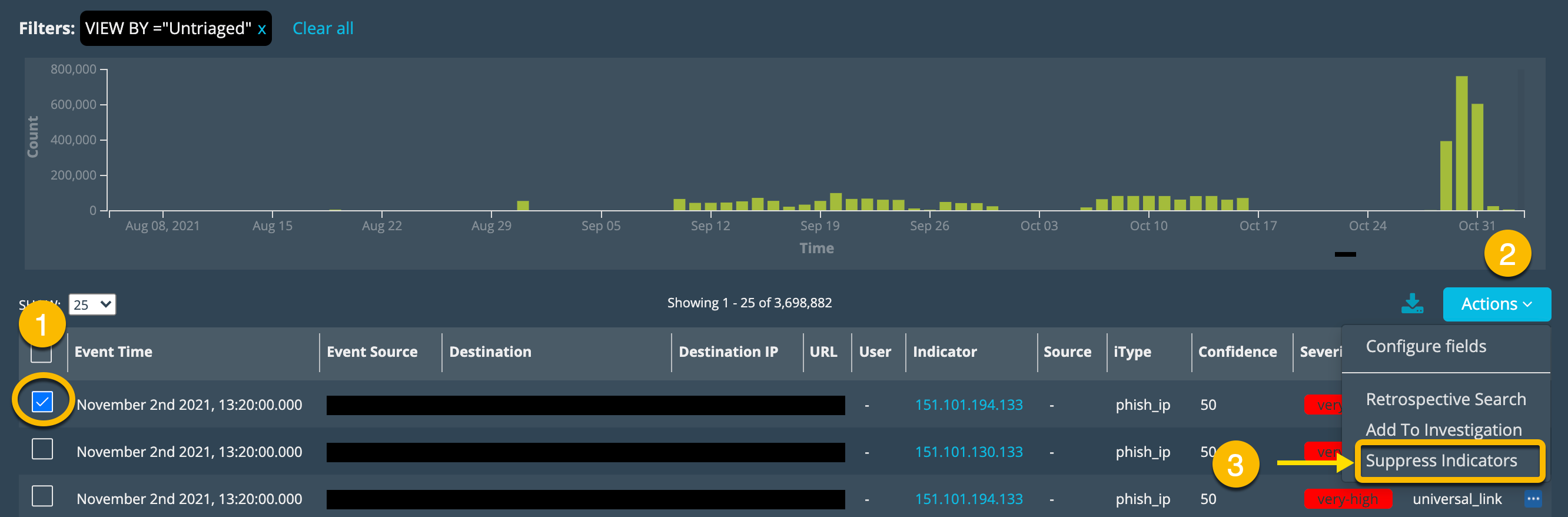
From the Activity > IOC Match results table, select the row or rows for the indicators you want to suppress.
-
Click Actions and select Suppress Indicators.
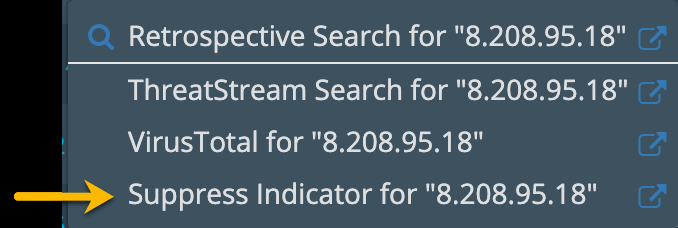
Alternatively, you can right-click a value under the Indicator column; and on the context menu, choose Suppress Indicator for "<indicator_value>" as shown in the following figure.
Upload a List of Indicators to Exclude
Many organizations maintain exclude lists independent from Anomali Security Analytics. You can leverage existing exclude lists by uploading a file or specifying entries manually.
Note: In the file for upload, specify one value per line.
To upload an exclude list:
-
Navigate to Manage > Exclude List.
-
Click Actions and select Upload.
-
Select Suppressed Indicators as the Content Type.
-
Select Manual Entry or File as the Upload Type.
-
If your upload type is Manual Entry, enter the suppressed indicator in the Value field.
If your upload type is File, click Choose File and browse to the location of your file.
- Click Upload.
The list on the Suppressed Indicators tab is updated.
Remove Indicators from the Suppressed Indicators List
You can delete one entry at a time, multiple entries displayed on the page, or all entries on the page.
To remove a single entry:
-
Navigate to Manage > Exclude List.
-
Click the Suppressed Indicators tab.
-
Click the checkbox next to the list entry.
-
Click the delete (
 ) icon under the Action column.
To remove multiple entries from entries displayed on the page:
-
Navigate to Manage > Exclude List.
-
Select multiple entries in one of the following ways:
-
Click multiple checkboxes next to the entries.
-
Click the checkbox next to the Value column heading to select all entries displayed on the page.
-
-
Click Actions and then select Remove from List.
To remove all entries, including those not displayed on the page:
-
Navigate to Manage > Exclude List.
-
Click the Suppressed Indicators tab.
-
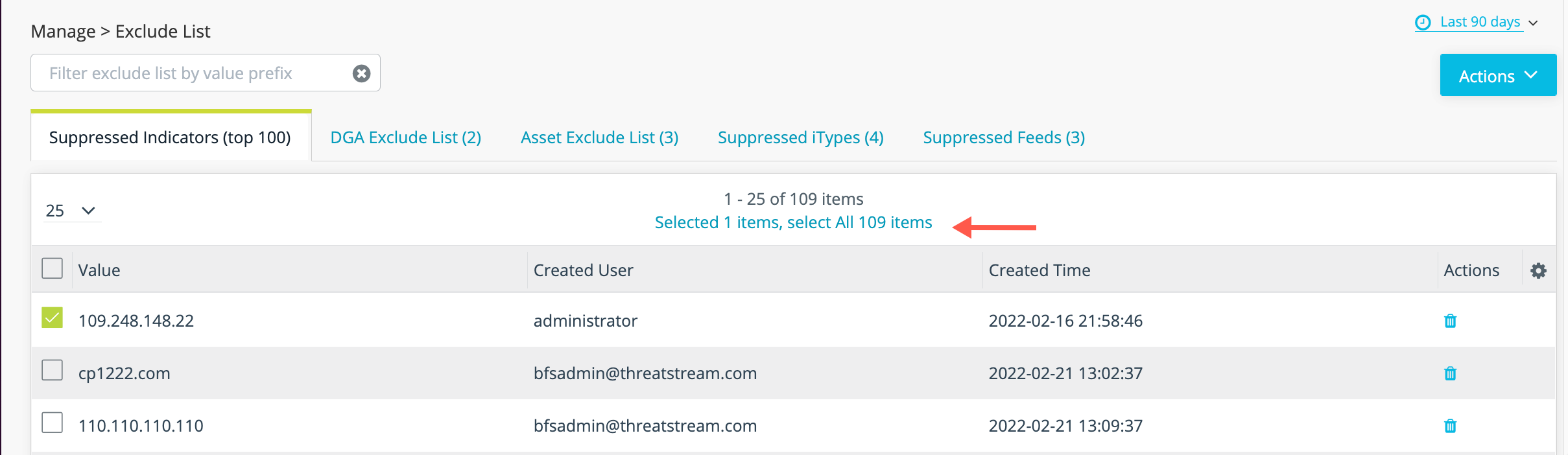
Click a checkbox in the Value column and then click the "select all" link below the total number to select all entries, as shown in the following figure.
-
Click Actions and then select Remove from List.
The list on the Suppressed Indicators tab is updated. Entries removed from the list will be processed again as matched indicators.
Manage the DGA Exclude List
The DGA processor uses two lists to exclude known domains from being processed. The exclude lists define which domains should be considered benign and excluded from the DGA determination process. One of these exclude lists is maintained by Anomali. It is based on millions of well-known domains, such as microsoft.com, google.com, and so on. The second exclude list is maintained by your organization.
Add Domains to the Exclude List
Analysts can add any domains in the following ways:
-
From the Activity > DGA Match search results table, select a row or rows, click Action and select Mark as False Positive.
-
Upload a file or manually enter domains to exclude.
Note: In the file for upload, specify one DGA entry per line.
To add domains to the DGA exclude list:
-
Navigate to Manage > Exclude List.
-
Click Actions and then select Upload.
-
Select DGA Exclude List as the Content Type.
- Select Manual Entry or File as the Upload Type.
-
If your upload type is Manual Entry, enter the domain in the Value field.
If your upload type is File, click Choose File and browse to the location of your file.
-
Click Upload.
The list on the DGA Exclude List tab is updated.
Remove Domains from the Exclude List
You can delete one entry at a time, multiple items displayed on the page, or all items on the page.
To remove a single entry:
-
Navigate to Manage > Exclude List.
-
Click the DGA Exclude List tab.
-
Click the checkbox next to the list entry.
-
Click the delete (
) icon under the Action column.
To remove multiple entries from entries displayed on the page:
-
Navigate to Manage > Exclude List.
-
Click the DGA Exclude List tab.
-
Select multiple entries in one of the following ways:
- Click multiple checkboxes next to the entries.
- Click the checkbox next to the Value column heading to select all entries displayed on the page.
-
Click Actions and then select Remove from List.
To remove all entries, including those not displayed on the page:
-
Navigate to Manage > Exclude List.
-
Click the DGA Exclude List tab.
-
Click a checkbox in the Value column and then click the "select all" link below the total number to select all entries.
-
Click Actions and then select Remove from List.
The list on the DGA Exclude List tab is updated. Entries removed from the list will be processed again as DGAs.
Manage the Asset Exclude List
If an asset is incorrectly matched or you want to stop a matched asset from being matched again, you can add it to an asset exclude list. Assets on the list are excluded from the asset matching process.
Add Entries to the Exclude List
Analysts can add any domains in the following ways:
-
From the Activity > Asset search results table, select a row or rows, click Action and select Add selected asset to exclude list.
-
Manually enter asset details.
To add manual entries:
-
Navigate to Manage > Exclude List.
-
Click the Asset Exclude List tab.
-
Click Actions and then select Upload.
- Enter the asset IP address. To specify an IP address range, use CIDR format (for example,
192.0.2.0/24). - Optional. Enter a description, location, and department.
- Click Upload.
The asset is added to the list.
Remove Entries from the Exclude List
You can delete one entry at a time, multiple entries displayed on the page, or all entries on the page.
To remove a single entry:
-
Navigate to Manage > Exclude List.
-
Click the Asset Exclude List tab.
- Click the checkbox next to the list entry.
- Click the delete () icon under the Action column.
To remove multiple entries from entries displayed on the page:
-
Navigate to Manage > Exclude List.
-
Click the Asset Exclude List tab.
-
Select multiple entries in one of the following ways:
- Click multiple checkboxes next to the entries.
- Click the checkbox next to the IP/IP Ranges column heading to select all entries displayed on the page.
-
Click Actions and then select Remove from List.
To remove all entries, including those not displayed on the page:
-
Navigate to Manage > Exclude List.
-
Click the Asset Exclude List tab.
-
Click a checkbox in the IP/IP Ranges column and then click the "select all" link below the total number to select all entries.
-
Click Actions and then select Remove from List.
The list is updated.
Manage the Suppressed iTypes List
You can suppress correlation with specific iTypes if you find you are categorically not interested in them.
Add Entries to the Suppressed iTypes List
Analysts can add iTypes to the list in the following ways:
-
From the Match Analysis Dashboard | Matches by iType table. Right-click an iType and select Suppress this itype.
-
Manually enter the iType.
To add manual entries:
-
Navigate to Manage > Exclude List.
-
Click Actions and then select Upload.
-
Select Suppressed iTypes as the Content Type.
-
Type the iType name and then click the + icon. You can repeat this to add more than one-at-time.
Note: The name must match the iType name exactly. Refer to ThreatStream Indicator Types for a list of iType names. -
Click Upload.
The iType is added to the list.
Remove Entries from the Suppressed iTypes List
You can delete one entry at a time, multiple entries displayed on the page, or all entries on the page.
To remove a single entry:
-
Navigate to Manage > Exclude List.
-
Click the Suppressed iTypes tab.
-
Click the checkbox next to the list entry.
-
Click the delete (
) icon under the Action column.
To remove multiple entries from entries displayed on the page:
-
Navigate to Manage > Exclude List.
-
Click the Suppressed iTypes tab.
-
Select multiple entries in one of the following ways:
- Click multiple checkboxes next to the entries.
- Click the checkbox next to the Value column heading to select all entries displayed on the page.
-
Click Actions and then select Remove from List.
To remove all entries, including those not displayed on the page:
-
Navigate to Manage > Exclude List.
-
Click the Suppressed iTypes tab.
-
Click a checkbox in the Value column and then click the "select all" link below the total number to select all entries.
-
Click Actions and then select Remove from List.
The list is updated.
Manage the Suppressed Feeds List
You can suppress correlation with specific intelligence feeds if you find you are categorically not interested in them.
Add Entries to the Suppressed Feeds List
Analysts can add feeds to the list in the following ways:
-
From the Match Analysis Dashboard | Matches by Feed table. Right-click a feed ID and select Suppress this feed.
-
Manually enter the feed ID.
To add manual entries:
-
Navigate to Manage > Exclude List.
-
Click Actions and then select Upload.
-
Select Suppressed Feeds as the Content Type.
- Type the feed ID and then click the + icon. You can repeat this to add more than one-at-time.
Note: The values you specify must match the ThreatStream feed ID exactly. - Click Upload.
The feed is added to the list.
Remove Entries from the Suppressed Feeds List
You can delete one entry at a time, multiple entries displayed on the page, or all entries on the page.
To remove a single entry:
-
Navigate to Manage > Exclude List.
-
Click the Suppressed Feeds tab.
- Click the checkbox next to the list entry.
- Click the delete () icon under the Action column.
To remove multiple entries from entries displayed on the page:
-
Navigate to Manage > Exclude List.
-
Click the Suppressed Feeds tab.
-
Select multiple entries in one of the following ways:
- Click multiple checkboxes next to the entries.
- Click the checkbox next to the Value column heading to select all entries displayed on the page.
-
Click Actions and then select Remove from List.
To remove all entries, including those not displayed on the page:
-
Navigate to Manage > Exclude List.
-
Click the Suppressed Feeds tab.
-
Click a checkbox in the Value column and then click the "select all" link below the total number to select all entries.
-
Click Actions and then select Remove from List.
The list is updated.