Managing Access to Cases
Access to cases is controlled by two independent layers: permissions and per-object access control (ACL). A user must meet both requirements to perform an action on a case.
-
Permissions determine what actions a user can perform on cases as a class. See Managing Roles for details on case permissions that can be assigned to roles.
-
Per-object access control (ACL) determines which users can access a specific case, and at what level.
Case Actions and Their Required Permissions
The following table lists the permissions and ACL access levels required for common case actions. Both requirements must be met unless otherwise noted.
| Action | Permission Required | Access Level Required |
|---|---|---|
| View a case | View Cases | Read or higher |
| Create a case and add incidents | Create Cases | - |
| Add comments to a case | View Cases | Write or Owner |
| Update case fields, tags, add incidents or add items to the Case Locker | Manage Cases | Write or Owner |
| Assign analysts | Manage Cases | Write or Owner |
| Submit a case resolution and close | Resolve Cases | Write or Owner |
| Approve or return a case submitted for closure | Approve Case Closure | Read or higher |
| Reopen a closed case | Reopen Cases | Read or higher |
| Export a case summary report | Export Cases | Read or higher |
| Export Case Locker evidence | Export Case Evidence | Read or higher |
| Configure sharing | - | Owner |
Important Access Rules
-
Organization Administrators: Can view, edit, and manage any case regardless of its ACL.
-
Case ownership: The user who creates a case is its owner by default. The owner can restrict the case to Private or share it with specific roles. Reassigning the analyst does not change the owner.
-
Default access: New cases use the Read ACL by default. Users with the View Cases permission can view these cases.
-
Analyst assignment: Assigning an analyst does not grant access to the case. The Assign To picker lists only users who have at least Read ACL access. If an assigned analyst needs Write access, the owner must share the case with a role that grants Write access.
-
Case closure: Closing a case requires approval. A user with the Resolve Cases permission and Write or Owner ACL access can close the linked incident and submit the case for review. A user with the Approve Case Closure permission then approves the closure. Closing the linked incident also requires the Resolve Incidents and View Incidents permissions and a closure reason.
-
Export: The Export option is available only to users who have both the Export Cases and Export Case Evidence permissions. If a user has only one of these permissions, the option is hidden.
Managing Access to an Individual Case
The Sharing & Permissions section of a case shows who can access it. The case owner uses it to share the case with specific roles at a chosen access level, or to restrict it to Private so that only the owner (and Organization Administrators) can view it. Users who are not the owner see this section as read-only.
To manage access to a case:
-
Navigate to ThreatStream Next Gen > Security Operations > Cases.
-
Open the case's full-page view.
-
In the Sharing and Permissions section, click Manage. This link appears only for the case owner or Organization Administrator.
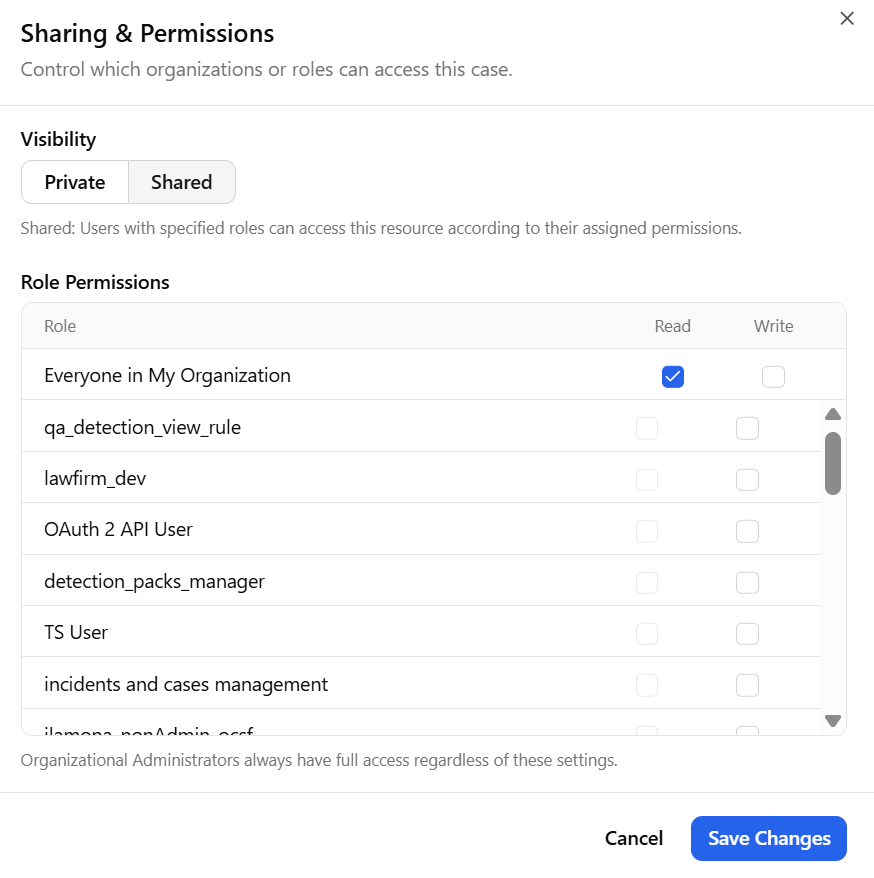
-
Choose whether the case is Private (visible only to the owner) or Shared, and if shared, select which roles can access the case and at what level (Read or Write).
-
Click Save to apply changes.