Viewing and Editing Organization Settings
As an administrator, you can view and edit basic settings for your organization in the Organization tab.
The following fields can be edited:
| Field | Description |
|---|---|
| Organization Name | Name of your organization. |
| Upload a Custom Logo for Threat Model | Add a custom logo for your organization. This image will be displayed on the banners of all threat model entities created by your organization. |
| Message of the Day |
Add a message that is displayed in a banner across the top of the screen to all organization users. ThreatStream provides an intuitive text editor to compose messages. Select Enable Message of the Day to display the message to organization users. Messages may include compliance information on issues such as customer data. After users dismiss the message, it will no longer be displayed unless updated by an org admin. |
| Maximum Number of Search Results for PDFs |
Maximum number of observables included in Note: The maximum number of observables included in CSV exports is configurable by export job. For more on CSV exports, see Exporting Search Results.
|
| Maximum Associations Per Entity Type in PDF Exports |
Places a limit on the number of associations per association type included in Threat Model entity PDF exports.
|
| Resync Integrators when joining a new Trusted Circle or Feed |
For ThreatStream Integrator users: When enabled, ThreatStream Integrator performs a full intelligence resynchronization at the time of your next scheduled synchronization each time you join a Trusted Circle or subscribe to a new threat intelligence feed. Doing so enables ThreatStream Integrator to provide historical data from the Trusted Circle or feed to your configured downstream integrations. This setting is enabled by default. When disabled, ThreatStream Integrator only receives threat intelligence from the point of subscription onward until you force a full resynchronization from ThreatStream Integrator. You can force a full resynchronization (known as a Full Refresh) from ThreatStream Integrator at any time, regardless of your configuration of this setting on ThreatStream. See the Anomali ThreatStream Integrator Installation & Administration Guide for information on executing a Full Refresh from the ThreatStream Integrator user interface. |
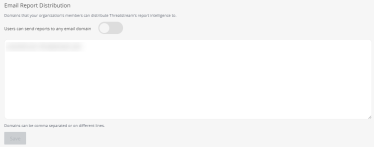
| Email Report Distribution |
Restrict the email domains to which users in your organization can send Threat Model entities.
Note: For more information on sharing Threat Models through email, see Sharing Threat Model Entities via Email.
By default, users in your organization can share Threat Model entities with any email address. To implement domain restrictions, disable Users can send reports to any email domain. After doing so, the email domains registered with your account on ThreatStream automatically populate the text box. You can add additional domains to the list. Domains can be separated by commas or line breaks. After manually modifying the domain list, click Save to implement the domain restrictions. |
| Security Analytics Integration URL |
For Security Analytics users only: Enter the URLs which you use to connect to your Security Analytics system. Doing so validates which Security Analytics systems can make connections to your organization on ThreatStream. |
| SSO Logout URL |
If your organization leverages a third party single sign-on (SSO) service for ThreatStream, enter the URL for the portal of your SSO provider. You will be directed to this URL when logging out of ThreatStream. If left blank, the default ThreatStream login URL is used. |
| Maximum Session Lifetime |
Enable a maximum limit for active sessions in ThreatStream. When this setting is enabled, ThreatStream terminates sessions for users in your organization which have been active for the specified length of time. Users must reauthenticate in order to continue using ThreatStream after the limit has been reached. To enable this setting, specify a length of time and click Save. |
| Sessions Inactivity Timeout |
Enable ThreatStream session timeout for users in your organization and decide when timeouts occur after periods of inactivity. By default, sessions timeout after 30 days of inactivity. To enable timeout after a specific period of inactivity, select a length of time and click Save. To enable timeout each time users close their browser, click Terminate session on browser close. Note that timeouts will not occur when users simply close browser tabs on which they are running ThreatStream. If you need to disable Session Timeout, contact Anomali support. |
| Analysis Time |
The amount of time that the sandbox records runtime activity of detonated files after execution. Note: In some cases, malicious software may delay the execution of malicious activity in order to evade sandboxes. Increasing the analysis time can help ensure activity is recorded in these cases.
|
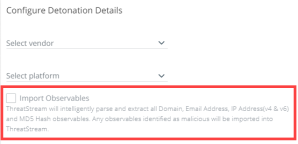
| Allow Observable Imports from Sandbox |
When switched on, users have an additional Import Observables when submitting Sandbox detonations. This option enables users to automatically import observables discovered during detonation. Select Import Observables option is selected by default if you want the option to be pre-selected on the Sandbox detonation window. Organization users can still disable the option on an ad-hoc basis. When switched off, the Import Observables option is grayed out and users are unable to select it, as displayed in the image below.
|
| Password Lockout |
Configure a policy for locking accounts after consecutive failed login attempts. You can set the following parameters:
|
| Password Age | Specify the maximum number of days that organization users can use a password. Passwords will expire after the time period you select and users are forced to set new ones. You can select 30, 60, or 90 days. |
| Notify users before password expiration | Specify the number of days before password expiration when users receive notification from ThreatStream to change their passwords. Users receive notifications through email and the ThreatStream user interface. |
| MITRE ATT&CK® |
View the current version. You can click Change Version to set a later version. However, you cannot revert to an earlier version. See Using MITRE ATT&CK Frameworks in ThreatStream for details about version support. |
| Timezone |
Click Change Timezone to set a default timezone for your organization. All timestamps displayed on the ThreatStream user interface reflect the timezone you select. Organization users will be notified of the change the next time they login to ThreatStream. Note: This setting only impacts timestamps displayed on the ThreatStream user interface. Timestamps retrieved through the ThreatStream API or provided to downstream integrations through ThreatStream Integrator are in UTC, regardless of the timezone you configure for the ThreatStream user interface.
|
| Use Source Reported Confidence on Intelligence detail page | When switched on, confidence scores reported by intelligence feeds or importers are displayed on observable details pages instead of ThreatStream confidence scores. |
| Use Organization as default Visibility | When switched on, imported intelligence is shared only with your organization by default. Enabling this setting does not prevent users from selecting the "Anomali Community" sharing setting. It simply sets "Organization" as the default Visibility setting. |
| Use My Organization as default tag TLP | When switched on, newly created tags are assigned the TLP color red and only visible to users of your organization. When switched off, newly created tags are assigned public visibility by default. |
| Restrict Public Comments | When switched on, restricts users in your organization from posting public comments in Threat Models, Observables, and Sandbox Reports to prevent your organization’s comments from being shared publicly. The setting is turned off by default. |
| Use SSO for login exclusively |
When switched on, users must use the portal of your SSO provider for ThreatStream login and cannot use the ThreatStream login page. If users attempt to login via the ThreatStream login page, a message will instruct them to use the SSO portal instead. When Use SSO for login exclusively is enabled, users no longer receive password expiration warning emails from ThreatStream. |
| Use Multi-Factor Authentication (MFA) | When switched on, users must provide a randomly generated MFA Token to login. |
| Use Password Requirements |
When switched on, users must adhere to the password requirements you configure. Requirements you can configure include:
|
| Allow Anomali staff to add users |
When switched on, Anomali can add users to your organization that attempt to register on ThreatStream with an email address from your domain. This is the default setting. When switched off, you are responsible for adding new users to your organization. New users can be added manually from the User Admin page. When new users attempt to register via the registration form with email addresses from your domain, Org Admins receive email notifications and can then add the new users manually. Note: When this setting is disabled, all new users must be added manually to your organization through the User Admin page. For more information on adding new users, see Managing Organization Users .
|
| Restrict ThreatStream Cloud Access |
When switched on, non-admin users are restricted from accessing the ThreatStream Cloud user interface and must use your ThreatStream OnPrem user interface exclusively. Org Admins can still access ThreatStream Cloud. In order to enable this setting, you must first enable "Use local server for email delivery" on the Organization tab within ThreatStream Settings on your ThreatStream OnPrem. "Restrict ThreatStream Cloud Access" is only displayed for organizations that use ThreatStream OnPrem. |
| Allow public tags on data owned by my organization |
When enabled, users outside of your organization are allowed to add Anomali Community tags to data owned by your organization. When disabled, users outside of your organization are prevented from adding Anomali Community tags to data owned by your organization. However, users from other organizations can always add My Organization tags—those that are visible to only their organization—to any data they have the privileges to access. |
| Help Improve ThreatStream |
When enabled, Anomali collects usage data on the actions you take in ThreatStream to improve the platform and customize your user experience. Usage data is also collected on the Anomali Copilot browser extension for users of v5.3 and above. See the Anomali Cookie Policy for more information on usage data collection. |
| Enable ThreatStream Chat |
Enable instant messaging for your organization on ThreatStream. See Collaborating with ThreatStream Chat for more information. Once Chat is enabled for your organization, an additional column is available on the User Admin screen within ThreatStream settings, which allows Org Admins to grant or deny organization users permission to use Chat. All users are excluded from Chat by default and must be granted permission by an Org Admin to use Chat. |
| Permitted CIDRs |
Grant exclusive access to your organization on ThreatStream Cloud to IP addresses that fall within specified CIDRs. After entering a valid CIDR, all organization members must access ThreatStream from an IP address within the CIDR in order to login. Permitted CIDRs also covers API clients and any integrations which use the API. You can enter up to 1000 CIDRs. Note: If you configure Permitted CIDRs, ThreatStream automatically ensures connection with multiple internal IP addresses which enable communication between ThreatStream and the Anomali Copilot browser extension.
|
| Custom SSO Authentication Error Message | If your organization uses SSO for authenticating to ThreatStream, you can enter a custom error message that ThreatStream will display when users attempt to authenticate using an account that does not exist in ThreatStream. |
To view or edit your organization settings:
- In the bottom-left corner of the side navigation panel, click
 > ThreatStream and then click Organization.
 - Make the required changes.
Authentication in ThreatStream
User authentication ensures the security of your organization on ThreatStream by confirming that the people logging into accounts associated with your organization are who they say they are. By default, all users must enter a password to login to ThreatStream, but, as an administrator, you can also enable multi-factor authentication to add another layer of security for your organization on ThreatStream. For more on multi-factor authentication, see Multi-Factor Authentication.