Multi-Factor Authentication
Multi-factor authentication (MFA) uses at least two factors to authenticate users. Typically, the first factor is the user name and password of a user and the second factor is an authentication code generated by an MFA app or MFA device.
Enabling multi-factor authentication adds an additional layer of security to protect your organization and its data.
ThreatStream supports multi-factor authentication. When you configure ThreatStream for MFA, users are required to provide an authentication code in addition to their email and password for authenticating. The code must be generated through the Google Authenticator App, which is available in the App stores for Apple and Android devices.
The process of setting up MFA for ThreatStream includes these steps:
- Configure ThreatStream for MFA.
- Require that organization users download the Google Authenticator App and configure it for generating authentication codes for ThreatStream.
Configure MFA for Your Organization on ThreatStream
To set up your organization on ThreatStream for MFA:
- Log in to ThreatStream as an administrator of your organization.
- In the bottom-left corner of the side navigation panel, click
 > ThreatStream and then click Organization.
 -
Click the switch to the right of Use Multi-Factor Authentication (MFA) to enable it.
The switch turns green when enabled.
Log in the First Time Using MFA
Follow these steps to log in to ThreatStream for the first time after it has been configured for MFA.
To log in in the first time using MFA:
- Download the Google Authenticator App on your Apple or Android device.
-
Connect to ThreatStream at https://ui.threatstream.com.
-
Enter your email and password, and click Login.
A Shared Secret code is displayed, as shown below. You are prompted to enter this code in the Google Authenticator App.
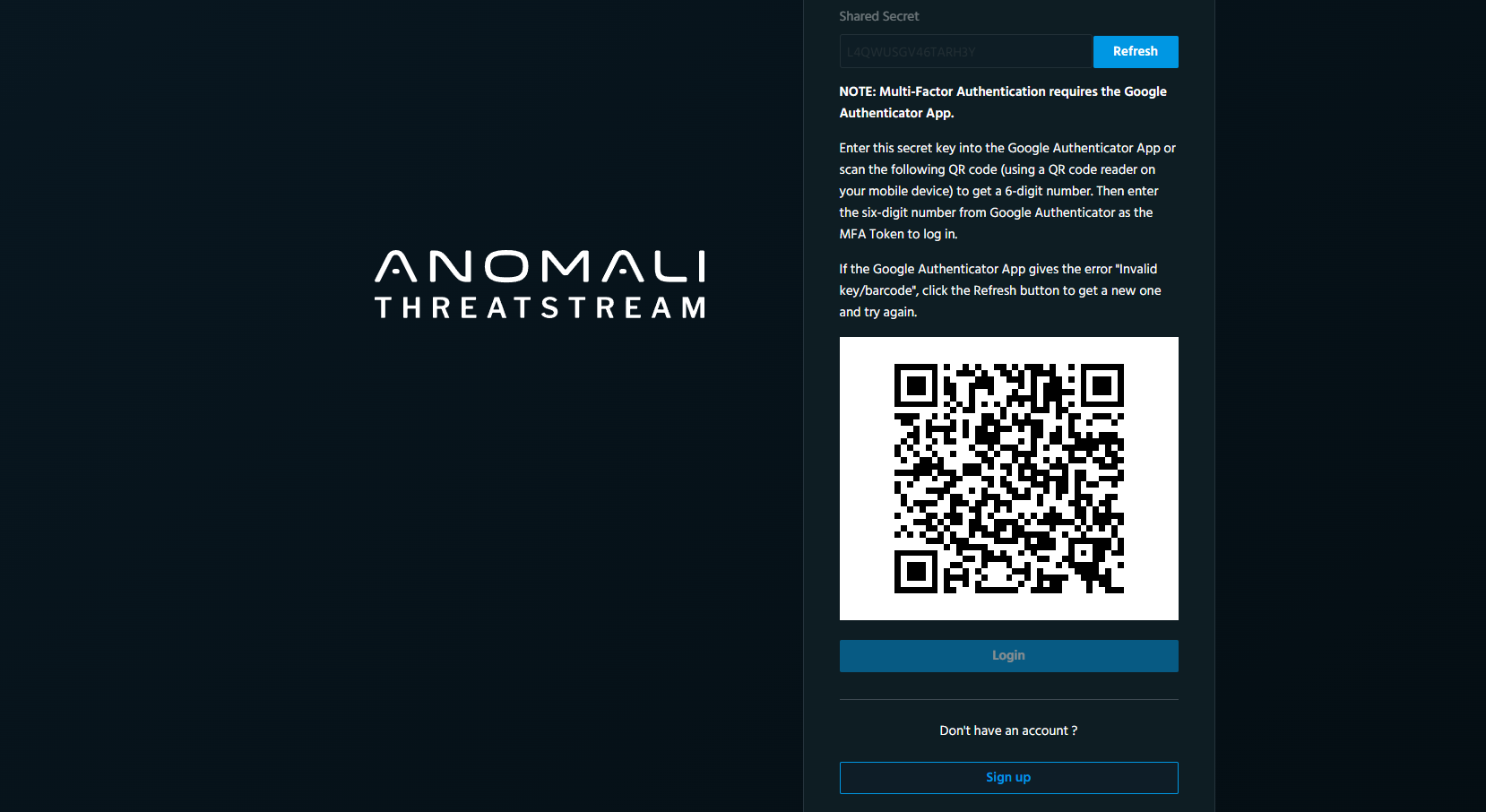
- Set up the Google Authenticator App on your Apple or Android device as follows:
Scan the QR Code displayed on the Login screen on your device to automatically configure the App.
OR
Launch the App and manually enter these values:
Account: Your ThreatStream email
Key: Shared Secret code from the above screen
The Google Authenticator App generates a six-digit numeric authentication code.
- Enter the authentication code in the MFA Token field on the Log in screen.
- Click Login.
Log in Using MFA After the First Time
To log in to ThreatStream after setting up the Google Authenticator App:
- Connect to ThreatStream at https://ui.threatstream.com.
- Enter your email address and password.
- Check I have a Multi-Factor Authentication (MFA) token.
-
Obtain the six-digit numeric code from your Google Authenticator App and enter it in the MFA Token field.
- Click Login.
Reset Your MFA Token
If users are unable to login to ThreatStream with their current MFA configuration, organization administrators can reset MFA tokens for individual users. Users are then prompted to set up MFA with a new shared secret.
To reset configured MFA tokens for individual users:
- Log in to ThreatStream as an administrator of your organization.
- In the bottom-left corner of the side navigation panel, click > ThreatStream and then click User Admin.
- Locate the required user in the table and click Reset MFA.
Recover Your MFA Shared Secret
If you are the sole Org Admin for your organization and cannot login to ThreatStream with your current MFA configuration, you must contact Anomali Support to reset your MFA shared secret.
To prevent this situation from occurring, users who are the only Org Admin for their organization can disable MFA for their accounts or add another Org Admin user.
Excluding Specific Users From MFA
To exclude specific users from using MFA after it has been enabled for your organization:
- Log in to ThreatStream as an administrator of your organization.
- In the bottom-left corner of the side navigation panel, click > ThreatStream and then click User Admin.
-
Deselect the box corresponding to the Use MFA icon, as shown in the example below.
