Accessing Organization Reports
All reports created manually or generated by PIRs within your organization are listed on the Security Reporting page. Additionally, you can also see reports shared with you by other organizations.
To learn how reports are generated from PIRs, see Configuring PIR Outputs.
To access reports, navigate to ThreatStream Next Gen > Investigation & Analysis > Reporting.
(Click the image to enlarge it.)
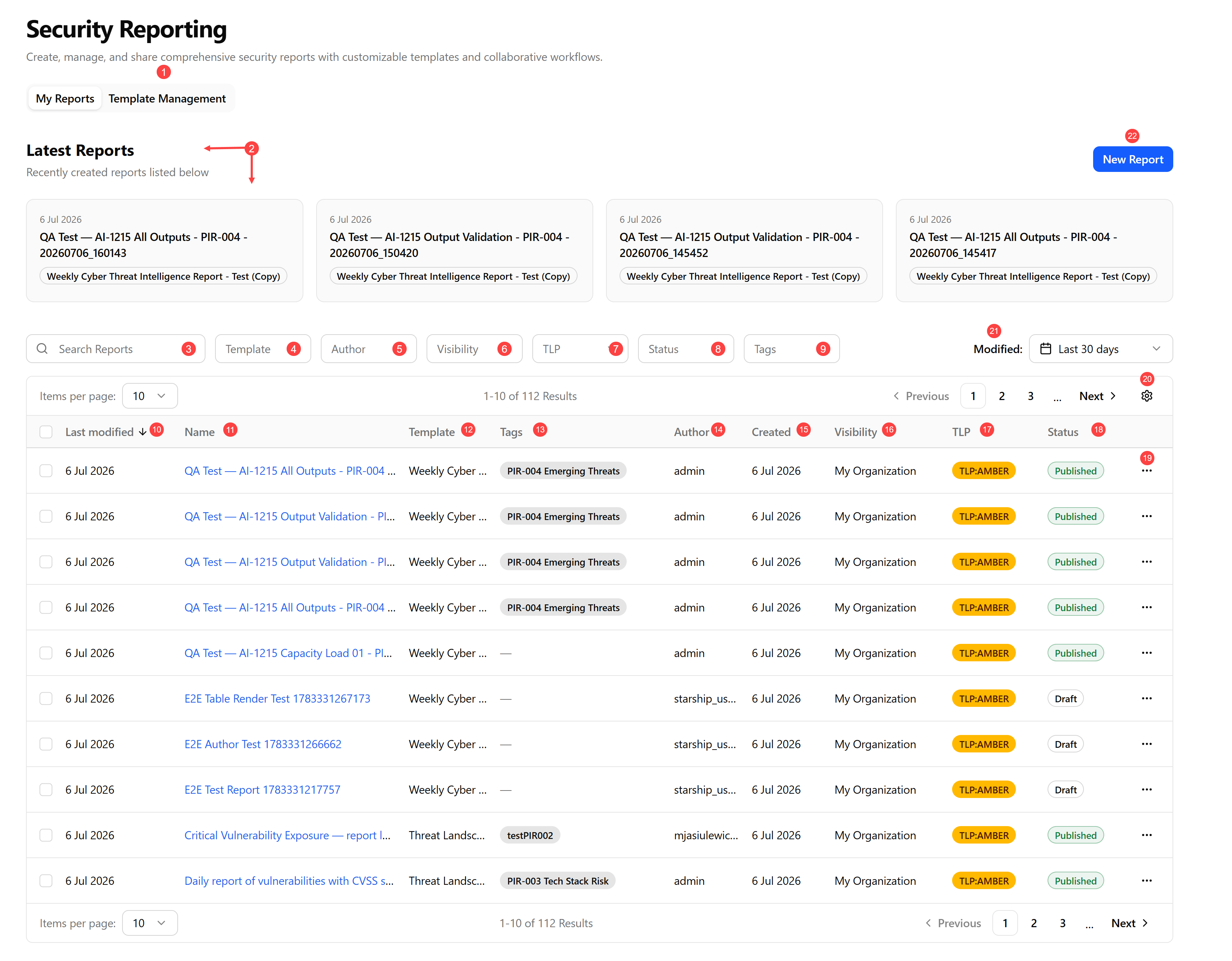
 Template Management: View report templates offered by Anomali out of the box and create new templates that suit your organization needs. For details, see Using Report Templates.
 Latest Reports: View the most recently added reports in your organization, the templates used to create them, and their creation dates.
 Search Reports: Search reports by their names, template, and author. The search is case insensitive and updates incrementally.
 Template: Filter reports by the template used for their creation.
 Author: Filter reports by their author.
 Visibility: Filter reports by their visibility.
Possible values include:
-
Private—report is visible only to the author.
-
My Organization—report is visible to all organization users.
-
Anomali Community—report is visible to all organizations that use ThreatStream Next Gen.
 TLP: Filter reports by their TLP color. Possible values include: red, amber, green, and clear.
The TLP color provides a mechanism to communicate to report readers whether further dissemination of information in the report is allowed; if yes, how freely can this information be distributed. To learn more about TLP, search for "Traffic Light Protocol" in your favorite search engine.
 Status: Filter reports by their status. Possible values include
-
Draft—report is still being created or edited, and its content may be incomplete or unverified.
-
In Review—report has been completed by the author and is undergoing validation.
-
Published—report is finalized and approved.
 Tags: Filter reports by the tags assigned to them. Note that if you want to filter reports by a tag that is not part of the Preferred Tags list (this includes PIR tags), you must enter the full tag value in the search field and press Enter.
 Last Modified: Timestamp of when the report was last modified.
 Name: Name of the report
 Template: Template that was used to create the report.
 Tags: Tags associated with the report.
 Author: User who created the report.
 Created: Timestamp of when the report was created.
 Visibility: Report visibility—Private, My Organization, or Anomali Community.
 TLP: Traffic Light Protocol (TLP) associated with the report. To learn more about TLP, search for "Traffic Light Protocol" in your favorite search engine.
 Status: Status of the report.
 Horizontal more options menu (...):
-
Publish: Publish a report. See Publishing a Report From the Security Reporting Page for details.
-
View: Click this option to view report details. For more information on report details pages, see Viewing Report Details.
-
Edit: Edit a report. See Editing a Report From the Security Reporting Page for details.
-
Delete: Delete a report. See Deleting Reports for details.
 View Settings: Select the columns and table density (default or compact) to be displayed. By clicking the drag handle icon (
 ), drag and drop columns to change their position in the table. To return the view back to its default settings, click Reset View.
 Modified: Select a time range to filter reports based on when they were last updated. By default, last 30 days is selected.
Possible values include: Last 7 days, last 30 days, and last 90 days.
 New Report: Create a new report. See Creating a Report for details.