Creating a Report
Besides the automatic generation of reports from PIRs, you can also create reports manually or with the help of Anomali AI.
To learn how to create a report with Anomali AI, see Creating Reports with Anomali AI.
To learn how PIRs can be configured to generate automatic reports, see Configuring PIR Outputs.
To manually create a new report:
-
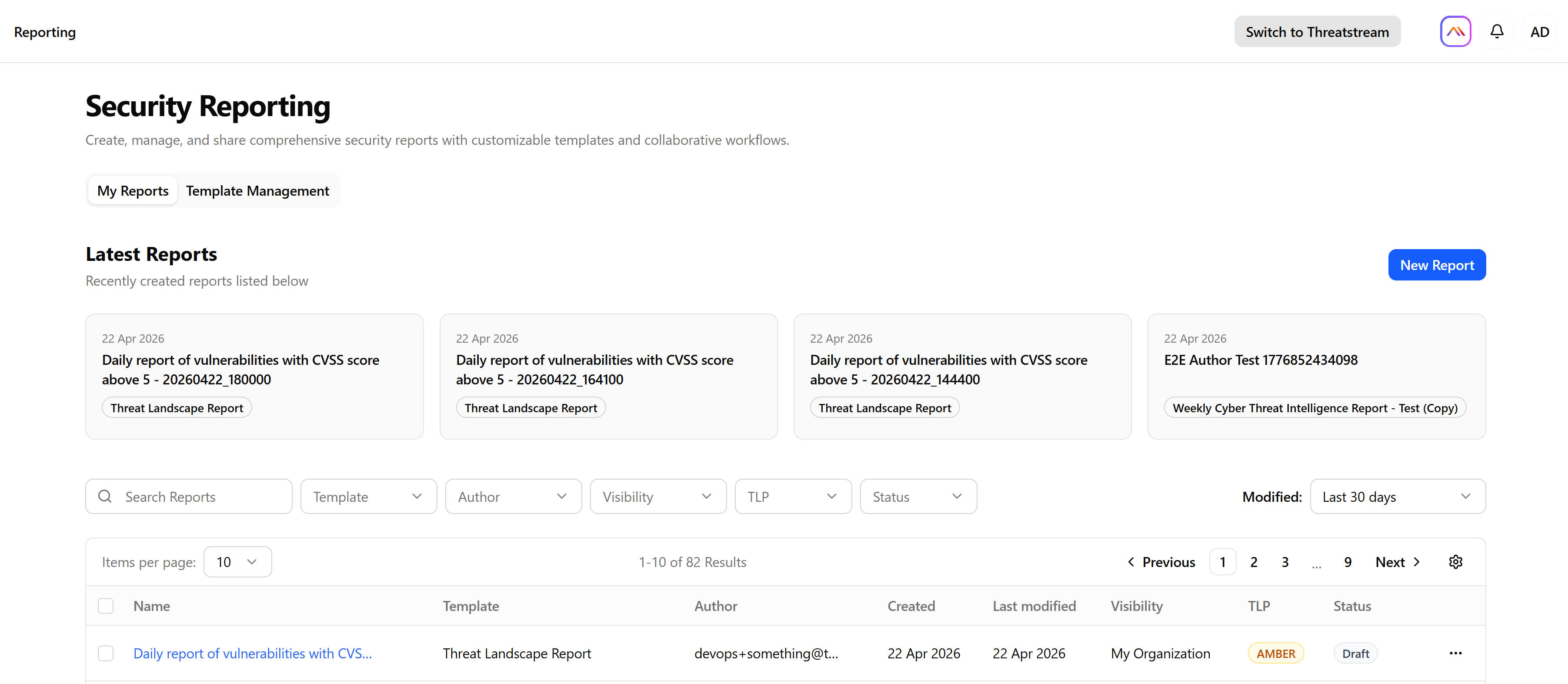
Navigate to ThreatStream Next Gen > Investigations & Analysis > Reporting.
-
On the Security Reporting page, click New Report.
-
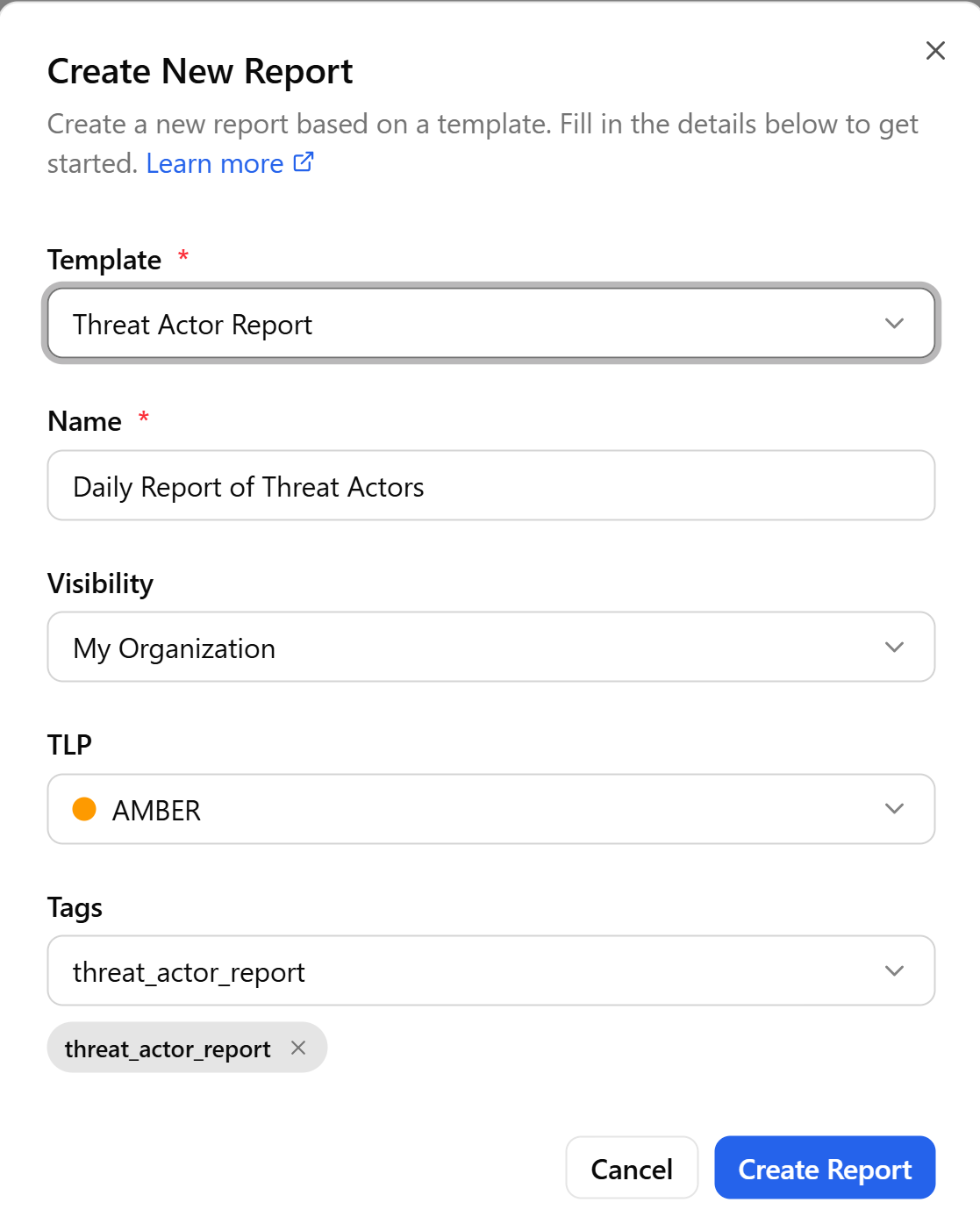
In the Create New Report dialog box that opens, select a template. For more information on report templates, see Using Report Templates.
-
Enter a report name. For example, Recent Threat Types Relevant to My Organization or NIMBLE SPIDER Threat Actor Updates.
-
Select a report visibility:
-
Private—to make the report visible only to the author.
-
My Organization—to make the report visible to all organization users.
-
Anomali Community—to make the report visible to all users who use ThreatStream Next Gen.
By default, visibility is set to My Organization.
-
-
Select a Traffic Light Protocol (TLP) that should be associated with the report.
Possible values include: red, amber, green, and clear. The default value of the report is amber.
The TLP color provides a mechanism to communicate to report readers whether further dissemination of information in the report is allowed; if yes, how freely can this information be distributed.
To learn more about TLP, search for "Traffic Light Protocol" in your favorite search engine.
-
Select or create tags to associate with the report. Tags available for selection are derived from the ThreatStream Preferred Tags list. See Adding Preferred Tags to Intelligence for more information. To add a new tag to the report, enter a tag value in the search field and click +. The newly created tag is displayed under the Tags field. Note that tags created within the report are not added to the list of Preferred Tags.
-
Click Create Report.
The new report is created and added to the list of organization reports visible to all users.
Creating Reports with Anomali AI
To speed up the process of report creation, you can use the Anomali AI assistant to create a report for you.
To create a report with Anomali AI:
-
Navigate to ThreatStream Next Gen > Investigations & Analysis > Reporting.
-
Click the Anomali AI icon (
 ) at the top right corner of your screen.
 -
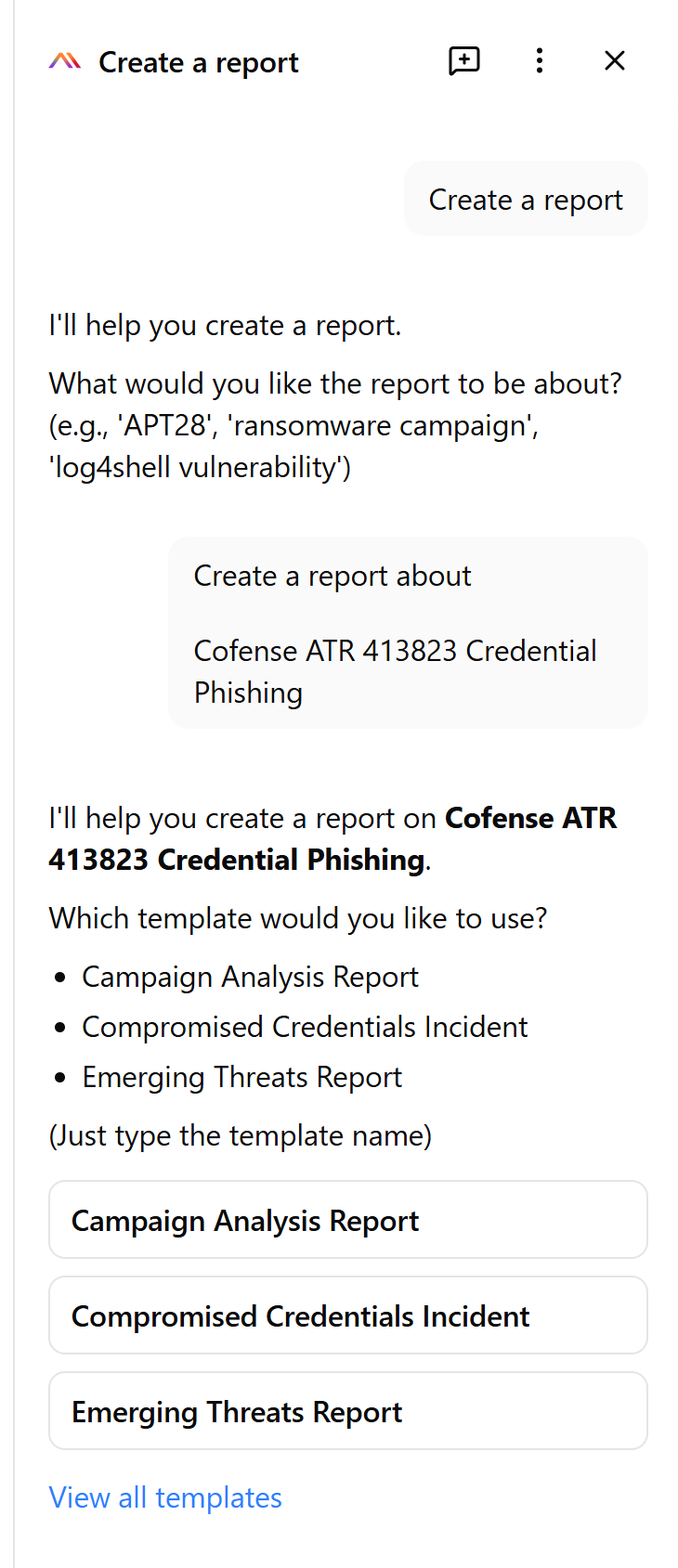
On the slide-out panel, click Create Report.
-
Tell Anomali AI what the report is about.
-
Select a report template.
-
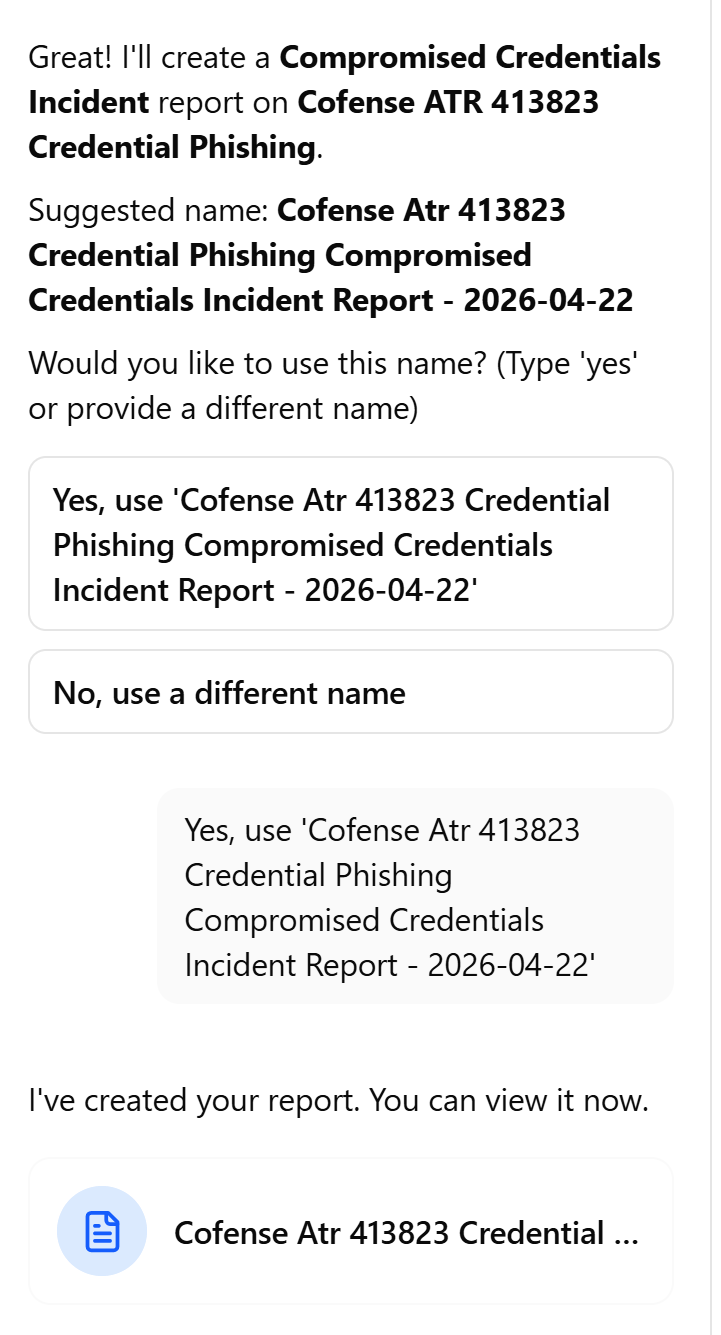
Confirm a suggested report name or modify it.
The new report is created. Click the report to view its details.