Managing Reports
You can apply the following actions to reports created within your organization:
Create Threat Bulletins from reports (coming soon)
Editing Reports
Note: Only Organization Administrators and report authors can edit reports.
You can edit reports in one of the following ways:
Editing a Report From the Security Reporting Page
To edit a report from the Security Reporting page:
-
Navigate to ThreatStream Next Gen > Investigations & Analysis > Reporting.
-
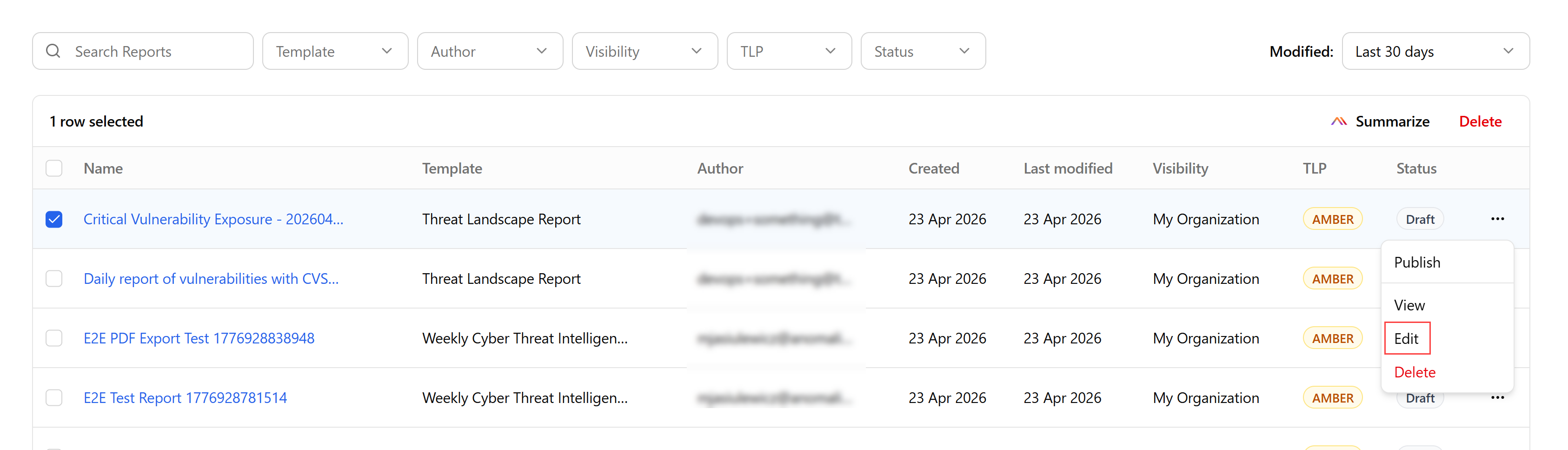
Locate the report you want to edit and click the more options menu (...)
-
Click Edit. The report opens in the editing mode.
(Click the image to enlarge it.)
-
Make the necessary changes in the report.
-
Click Update.
The report is updated.
Editing a Report From the Report Details Page
To edit a report from the report details page:
-
Navigate to ThreatStream Next Gen > Investigations & Analysis > Reporting.
-
Click the report you want to edit.
-
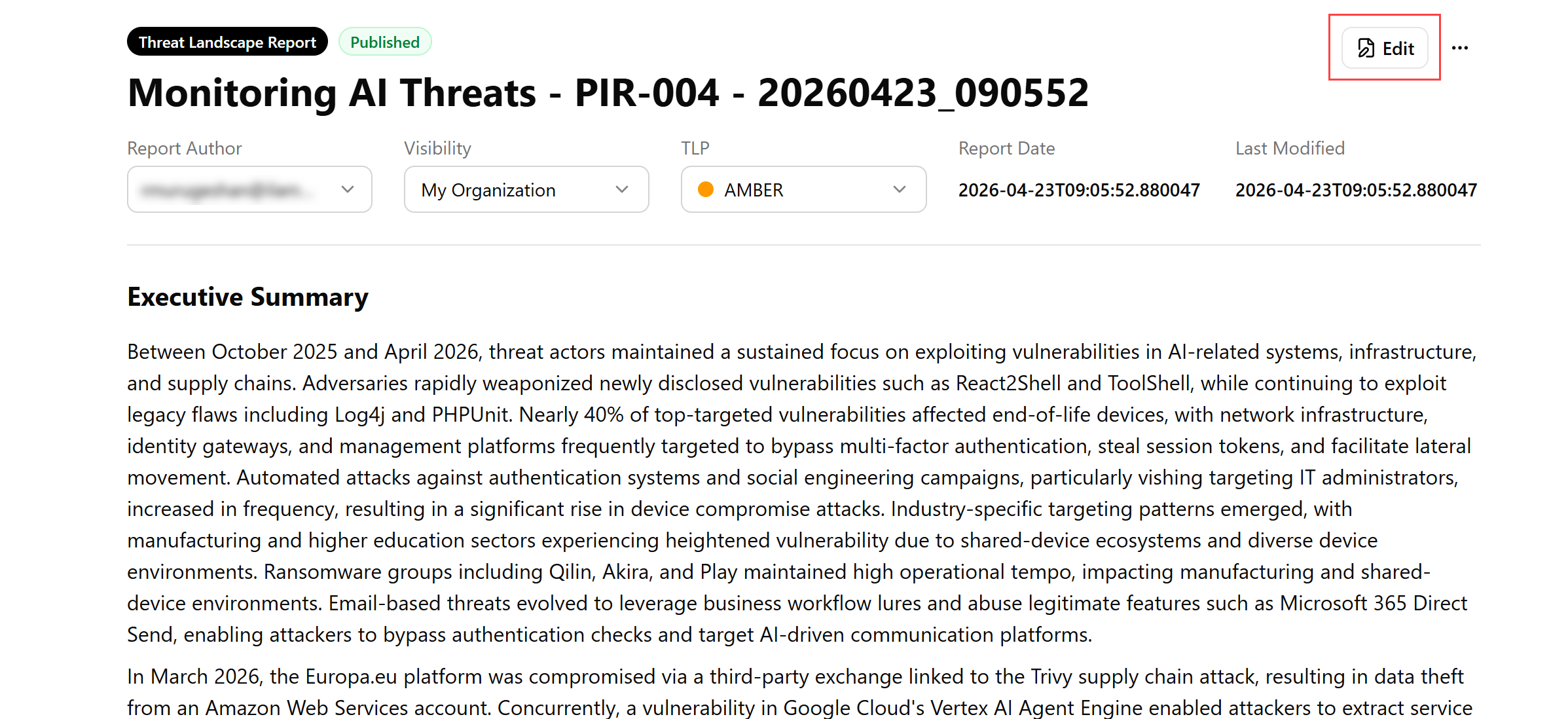
On the report details page, click Edit.
-
Make the required changes.
-
Click Update.
The report is updated.
Exporting Reports to PDF
All reports that are available to you can be exported to PDF.
To export a report to PDF:
-
Navigate to ThreatStream Next Gen > Investigations & Analysis > Reporting.
-
Click the report you want to export. The report details page opens.
-
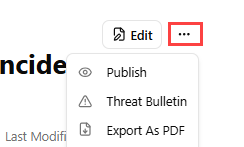
Click the more options menu (...).
-
Click Export As PDF.
The downloading process starts immediately.
Publishing Reports
Report drafts that have been reviewed by required stakeholders and approved can be published.
You can publish a report in one of the following ways:
Publishing a Report From the Security Reporting Page
To publish a report from the Security Reporting page:
-
Navigate to ThreatStream Next Gen > Investigations & Analysis > Reporting.
-
Locate the report you want to publish and click the more options menu (...).
Note: You can only publish reports that are in Draft or In Progress status. -
Click Publish.
(Click the image to enlarge it.)
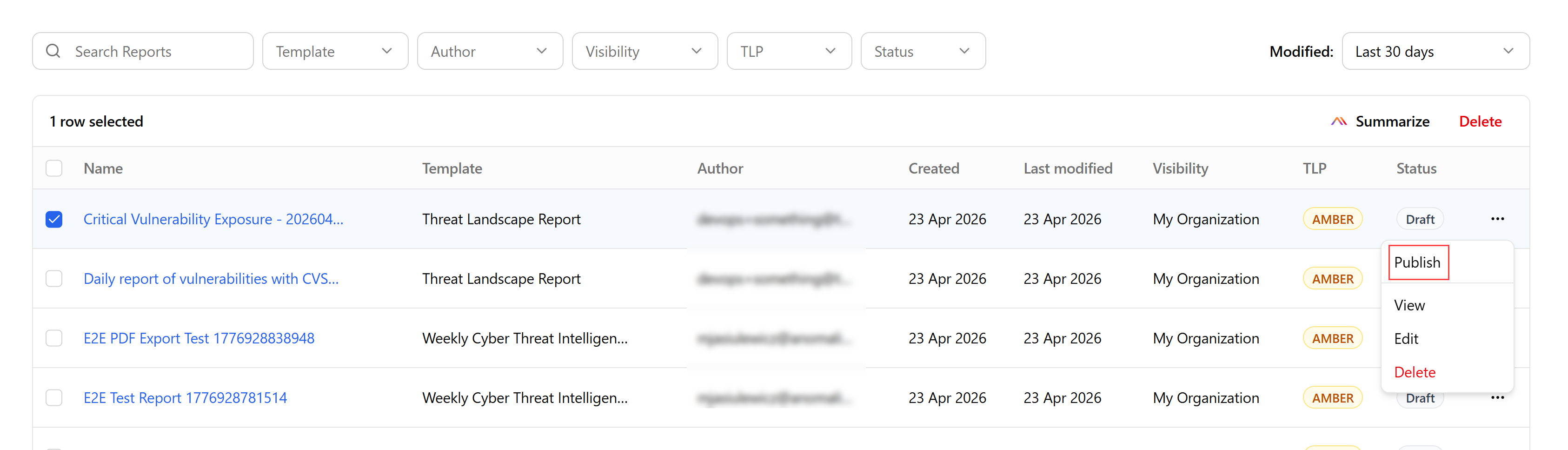
-
Click Publish.
The report status is changed to Published.
Publishing a Report From the Report Details Page
To publish a report from the report details page:
-
Navigate to ThreatStream Next Gen > Investigations & Analysis > Reporting.
-
Click the report you want to publish.
-
On the report details page, click the more options menu (...).
-
Click Publish.
The report status is changed to Published.
Deleting Reports
Organization Administrators and report authors can delete reports. You can delete an individual report or in bulk.
Deleting an Individual Report
To delete an individual report:
-
Navigate to ThreatStream Next Gen > Investigations & Analysis > Reporting.
-
Locate a report you want to delete.
-
Click the more options menu (...) and click Delete.
(Click the image to enlarge it.)
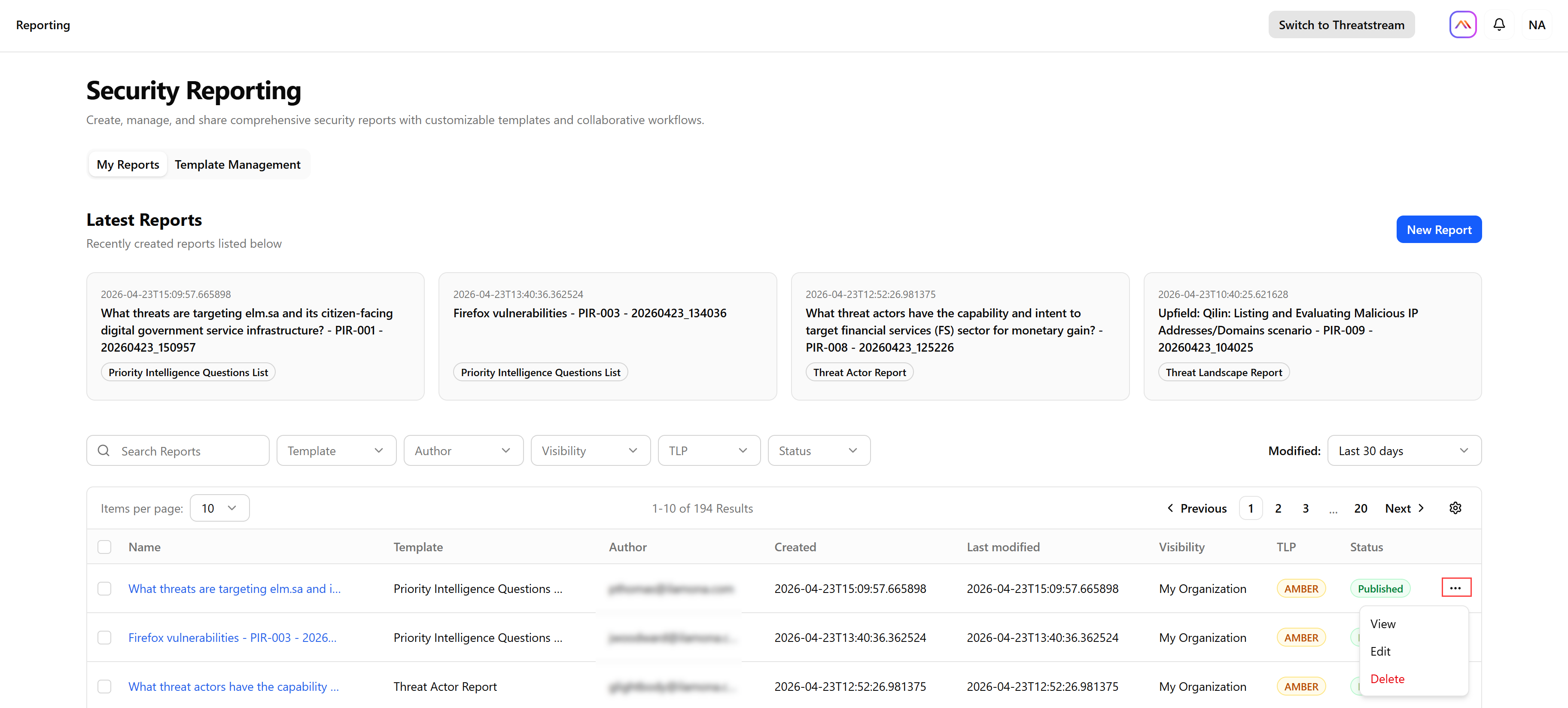
The report is deleted.
Deleting Reports in Bulks
To delete reports in bulk:
-
Navigate to ThreatStream Next Gen > Investigations & Analysis > Reporting.
-
Select the reports you want to delete.
-
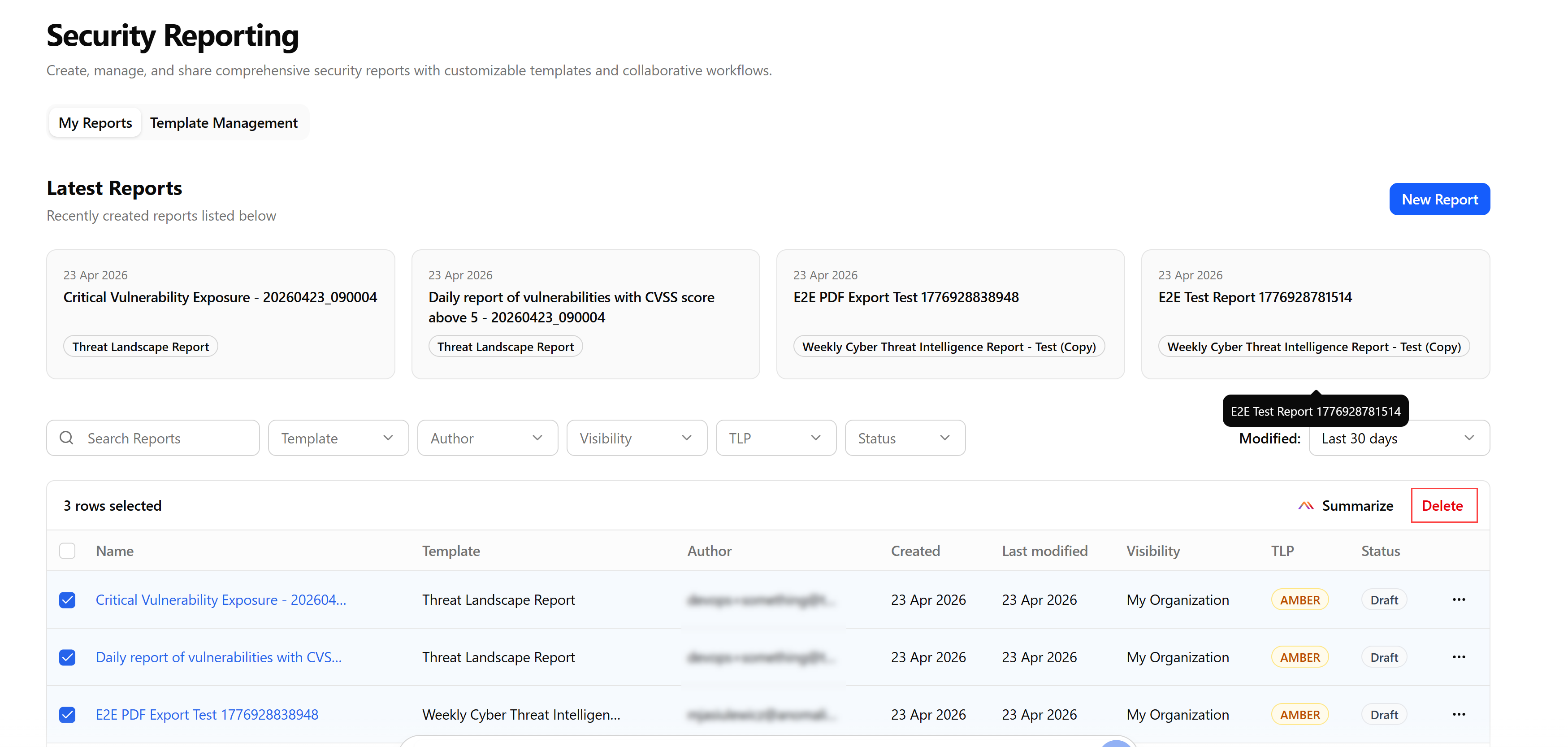
Click Delete.
The reports are deleted.
(Click the image to enlarge it.)