Accessing Threat Models
The Threat Model list page displays the Threat Model entities — Actors, Attack Patterns, Campaigns, Courses of Action, Identities, Incidents, Infrastructure, Intrusion Sets, Malware, Signatures, Threat Bulletins, Tools, TTPs, and Vulnerabilities — that your organization has access to on ThreatStream. It enables you to quickly search entities via keyword searches and easy-to-use filtering.
Access the Threat Model list page by navigating to Analyze > Threat Model.
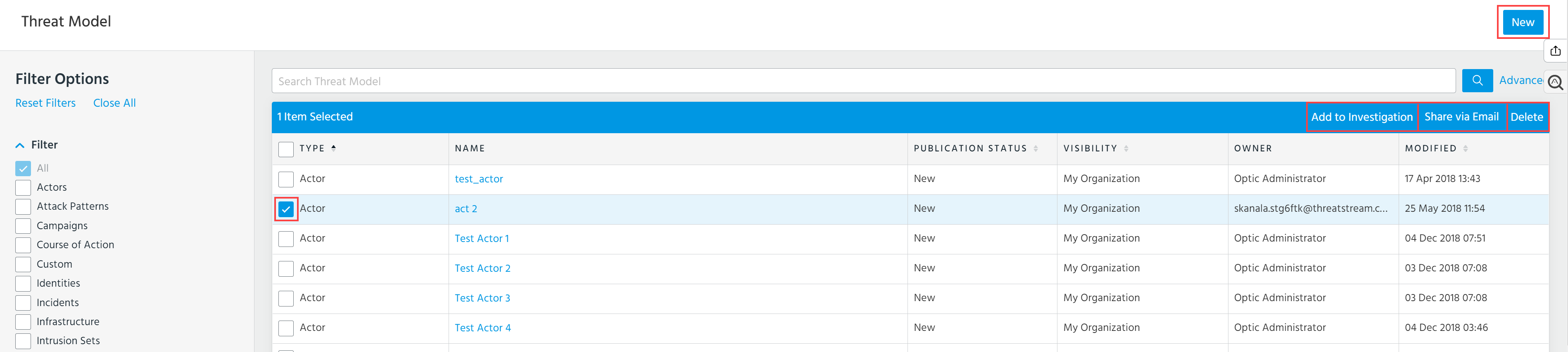
From this page, you can create new Threat Model entities, delete Threat Model entities, and add Threat Model entities to investigations.
Note: Due to the large number of Vulnerabilities imported by the system on a daily basis, Vulnerabilities do not appear in the results by default. You must click Vulnerabilities under Filter Options for Vulnerabilities to appear in search results.
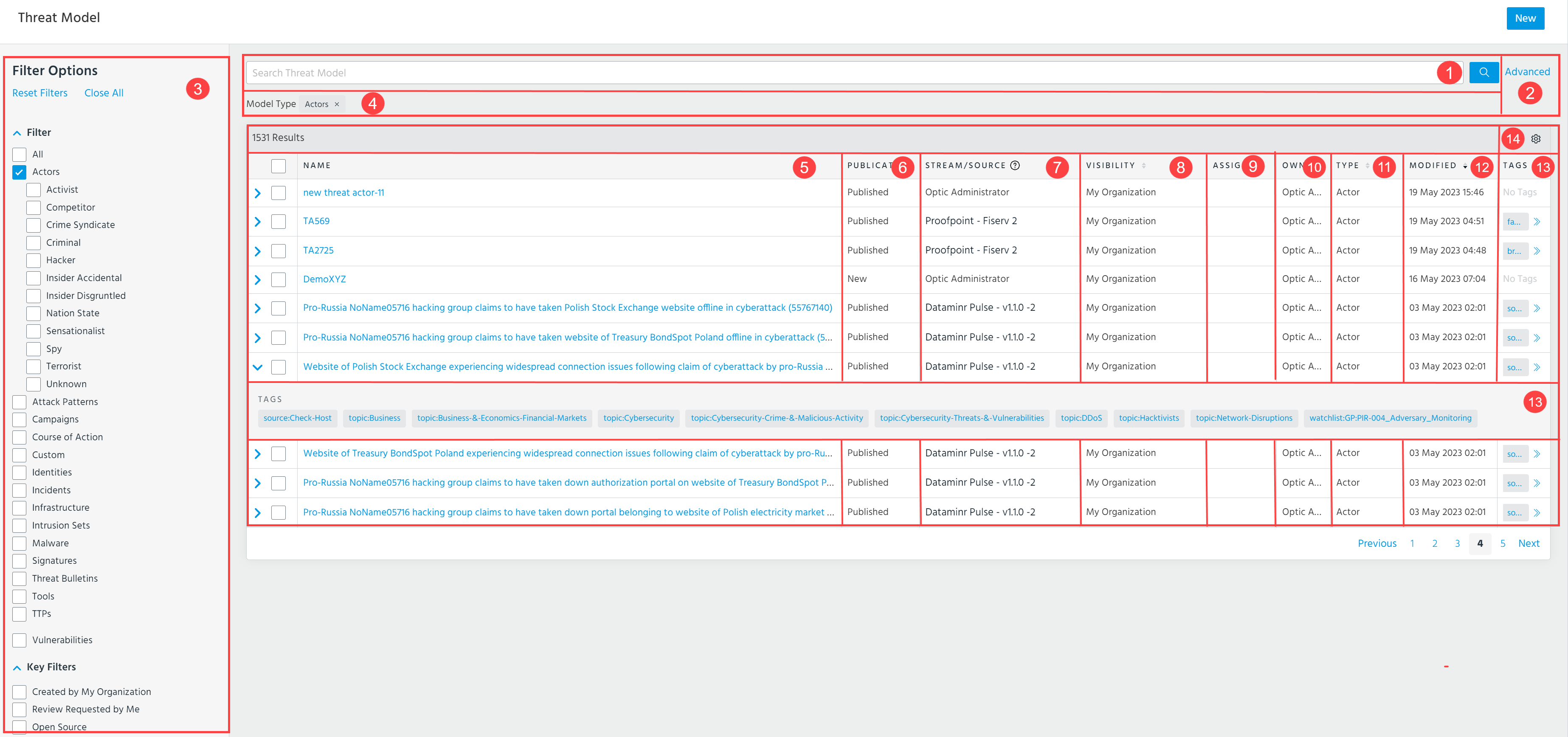
 Search Threat Model entities by keyword. See Performing Basic Threat Model Searches for more information.
 Perform an advanced Threat Model search. See Performing Advanced Threat Model Searches for more information.
 Filter Options: Filter displayed search results.
| Filter | Description |
|---|---|
| Entity Type |
Filter search results by entity type. Entity types include: Actors, Attack Patterns, Campaigns, Courses of Action, Identities, Incidents, Infrastructure, Intrusion Sets, Malware, Signatures, Threat Bulletins, Tools, TTPs, and Vulnerabilities. Vulnerabilities are not included in search results unless you select Vulnerabilities. Tip:
|
| Key Filters |
To view only entities created by your organization, select Created by My Organization. To view only entities which you requested to review, select Review Requested by Me. Open Source Threat Model EntitiesTo view only entities provided by open source intelligence streams, select Show Only Open Source Threat Models. |
| Visibility | Filter entities by visibility: Anomali Community or My Organization. When you select My Organization, entities shared with Trusted Circles are also included in the results. |
| TLP | Filter entities by TLP color. |
| Date Last Updated | Filter entities by those updated in the Last 30 Days, Last 90 Days, This Year, or a Custom Date Range. |
| Tags | Filter entities based on Tags. |
| Publication Status | Filter entities based on Publication Status. See Reviewing Threat Model Entities for Publication for more information. |
| Streams | Filter entities based on streams from which they originated. |
| Source | Filter entities based on Source. Sources include Trusted Circles and APP Store feeds. |
| Workgroups | Filter entities that are visible only to specific workgroups. See Restricting Threat Model Entities to Workgroups for more information. |
| Assignee | Filter entities based on Assignee users in your organization. |
| Owner |
Filter entities based on Owner. An Owner is the user who created the entity. For entities created by your organization, specific users are displayed. "Analyst" is displayed for all entities shared through Trusted Circles. For entities shared with the Anomali Community or anonymously through Trusted Circles, no value is shown. Note: The Owner column is not displayed by default. You must select it from the Table Settings. See item |
To reset filters, click Reset Filters. To close all filters, click Close all.
 View selected filters.
 Type: Threat Model entity type
 Name: Name of the Threat Model entity.
 Publication status: Current publication status of the entity.
 Stream/Source: Stream/source of the Threat Model entity.
 Visibility: Visibility setting for the entity displays what group of users can see the Threat Model entity.
 Owner: Threat Model entity owner.
 Modified: Most recent date the entity was modified.
 Table Settings. Select the columns you want to be displayed. Available columns include Type, Name, Publication Status, Stream/Source, Visibility, Assignee, Owner, Modified, Created, Date Published, Source Created, Source Modified, CVSS 2.0, and CVSS 3.0. You can also specify how many rows you want to be displayed per page.
From the Threat Model list page, you can also take the following actions:
- Create a new Threat Model entity. See Adding New Threat Model Entities for more information.
- Delete one or more selected Threat Model entities.
- Add selected Threat Model entities to a new or existing investigation. When you add entities to an investigation you can additionally add any observables associated with the entities to the investigation.
- Share Threat Model entities with ThreatStream users (within or outside your organization) or non-ThreatStream users through email. See Sharing Threat Model Entities via Email for more information.
Performing Basic Threat Model Searches
Basic searches enable you to quickly locate Threat Model entities of interest by keyword.
When you perform a search, ThreatStream queries the following fields:
| Entity | Fields Searched |
|---|---|
|
Actors |
Aliases, Description, Name, Tags |
| Attack Patterns | Aliases, Description, Name, Tags |
| Campaigns | Aliases, Description, Name, Tags |
| Courses of Action | Description, Name, Tags |
|
Incidents |
Description, Name, Tags |
| Infrastructure | Aliases, Description, Name, Tags |
| Identities | Description, Name, Tags |
| Intrusion Sets | Aliases, Description, Name, Tags |
| Malware | Aliases, Description, Name, Tags |
| Signatures | Description, Name, Tags |
| Threat Bulletins | Description, Name, Tags |
| Tools | Aliases, Description, Name, Tags |
| TTPs | Aliases, Description, Name, Tags |
| Vulnerabilities | Aliases, Description, Name, Tags |
When performing threat model searches, follow these guidelines:
-
There is an implied AND operator between keywords in multi-word queries. Words do not need to be contained in the same field for an entity to appear in the search results.
For example, an entity containing foo in its description and bar in its name would be returned for the query foo bar. -
To search for complete phrases, enclose your query in double quotes.
For example, to search for the phrase foo bar, enter "foo bar". -
All special characters, except periods (.) and commas (,) are treated as joins between the words preceding and succeeding them. Therefore, simply enter a search string with special characters, such as a name, an email address, domain name, or URL.
Note that queries containing special characters may return additional search results because the special characters in the search string are not matched exactly but treated as joins between the words of the search string.
For example, searching for APT-28 will return matches for APT-28, APT+28, APT 28, APT/28, APT#28 and so on. -
Periods and commas are matched exactly when an alphanumeric character precedes and succeeds the character. Therefore, to search for an IP address, simply enter the IP address in the dotted-decimal form.
For example, to search for the IP address 1.2.3.4, enter 1.2.3.4