Managing Reports
Caution: Reports in Security Analytics are deprecated. Please see Reports from Search for more information.
You can use the Manage > Reports page to schedule reports. Reports are snapshots of Security Analytics dashboards filtered for a specified time range and search filter expression.
Security Analytics users can view and manage report jobs they created, as well as the report configurations created by others.
Create a Scheduled Report Job
A scheduled report job generates a report that can be downloaded. When you create the scheduled report job, you have the option to set up email notifications with links the recipients can use to download the report.
To create a report job:
-
Navigate to Manage > Reports.
-
Click Actions and select Schedule Report.
-
Complete the configuration as described in the following table.
Setting Description Name A meaningful and unique name for the report. This will be used as the report title. The report name can only have letters, numbers, and the underscore, dot, and space characters. Description Optional: Describe the purpose of the report. Report Type
Select one:
- HTML report
- PDF report
Dashboard Select from the following dashboards:
Filter Specify an IOC Match field-based search expression or select an IOC Match saved search to filter data presented in the report.
Time Range Select a time period, a relative expression, or a date range. The time period filter is based on event time; in other words, the timestamp in the event log.
Schedule Select a schedule type and define the import schedule:
-
Default: Specify a frequency and start time.
-
Cron: Specify a schedule in cron tab format.
												# ┌───────────── minute (0 - 59)
												# │ ┌───────────── hour (0 - 23)
												# │ │ ┌───────────── day of the month (1 - 31)
												# │ │ │ ┌───────────── month (1 - 12)
												# │ │ │ │ ┌───────────── day of the week (0 - 6) (Sunday to Saturday)
												# │ │ │ │ │

												# │ │ │ │ │

												# │ │ │ │ │

# * * * * *Notes:
-
Do not schedule a report job to run more frequently than every 1 hour.
-
The scheduled time that you configure corresponds with the local time that is read from your Web browser.
-
Enable email delivery To send the report in an email:
- Click the Enable email delivery option. Complete additional settings that become available.
- Enter a single recipient email address or a comma-separated list of email addresses.
-
Customize the email subject line and email message text to your preference.
-
Click Save.
A row for the new scheduled report configuration is added to the report configurations table.
View Report Job History and Download Reports
The scheduled report details page shows a configuration summary and job history. From the job history, you can view information about completed jobs, preview a particular report, and download a particular report.
To download a report:
-
Navigate to Manage > Reports.
- Click the scheduled report configuration name in the first column of the report configurations table to display the details page.
- Click the Jobs tab.
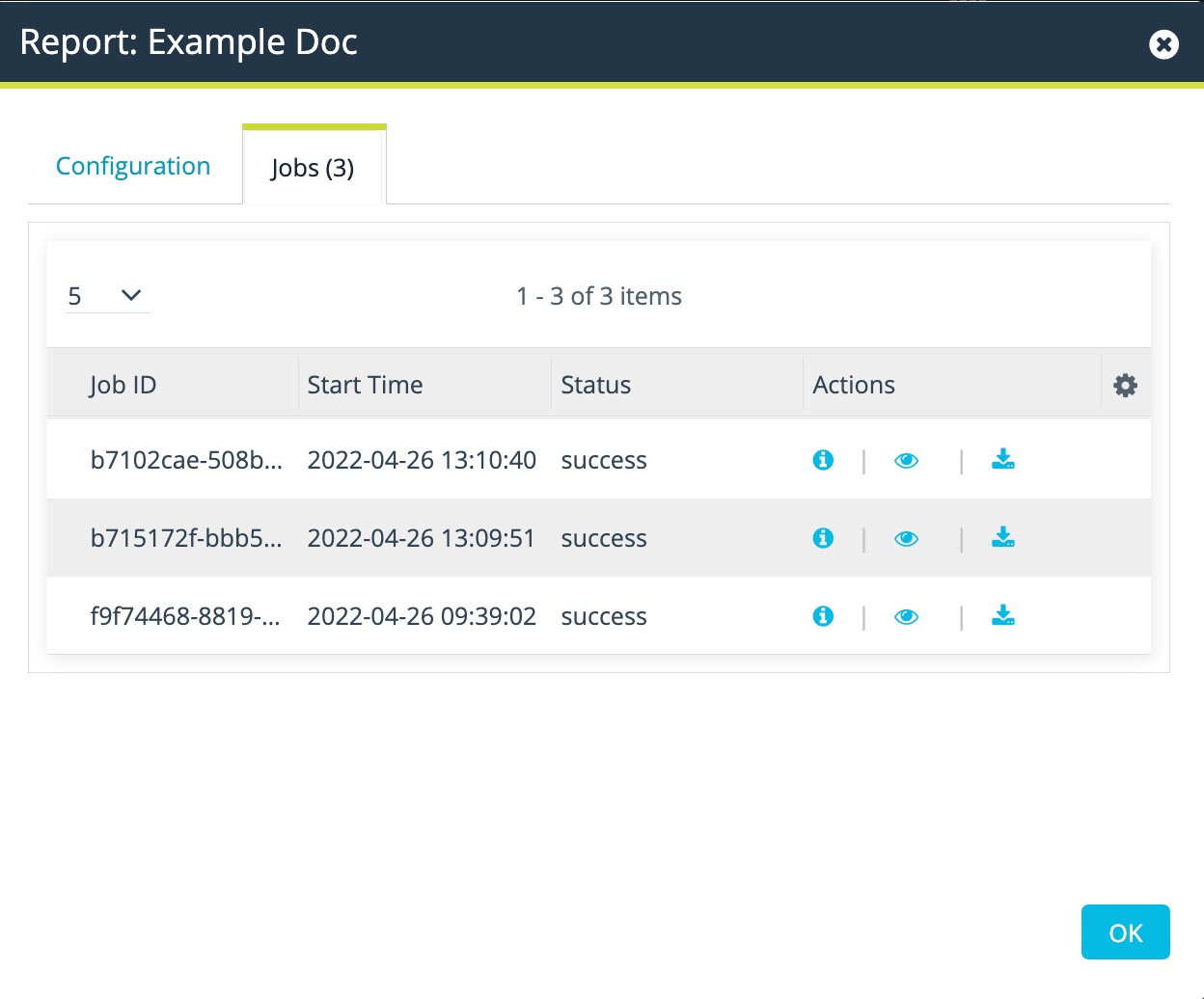
- Click the Action icons to perform actions described in the following table.

View job details. 
Preview the report. From the Preview window, you can 
Download the report. - Click OK to dismiss the detail page and return to the scheduled report configuration list.
Manage Report Configurations
You can edit, delete, preview, or change the active state of a report configuration from the report configurations table.
Preview a Report
|
|
In the Preview column, click the Preview icon. For PDF reports, the preview window has a toolbar you can use to download or print the report preview. |
Modify a Report Configuration

|
In the Actions column, click the Edit icon. |
Delete a Report Configuration

|
In the Actions column, click the Delete icon. |
Activate/Deactivate a Report Configuration

|
In the Active column, toggle the Activation icon. When you toggle the configuration off, the icon is grayed out. The report job associated with the configuration will no longer run on schedule. |