Overview Dashboard
The Overview Dashboard provides a high-level view of threats in your network. The interactive visualizations of Security Analytics statistics allow you to drill down further on any element of concern for a deeper analysis.
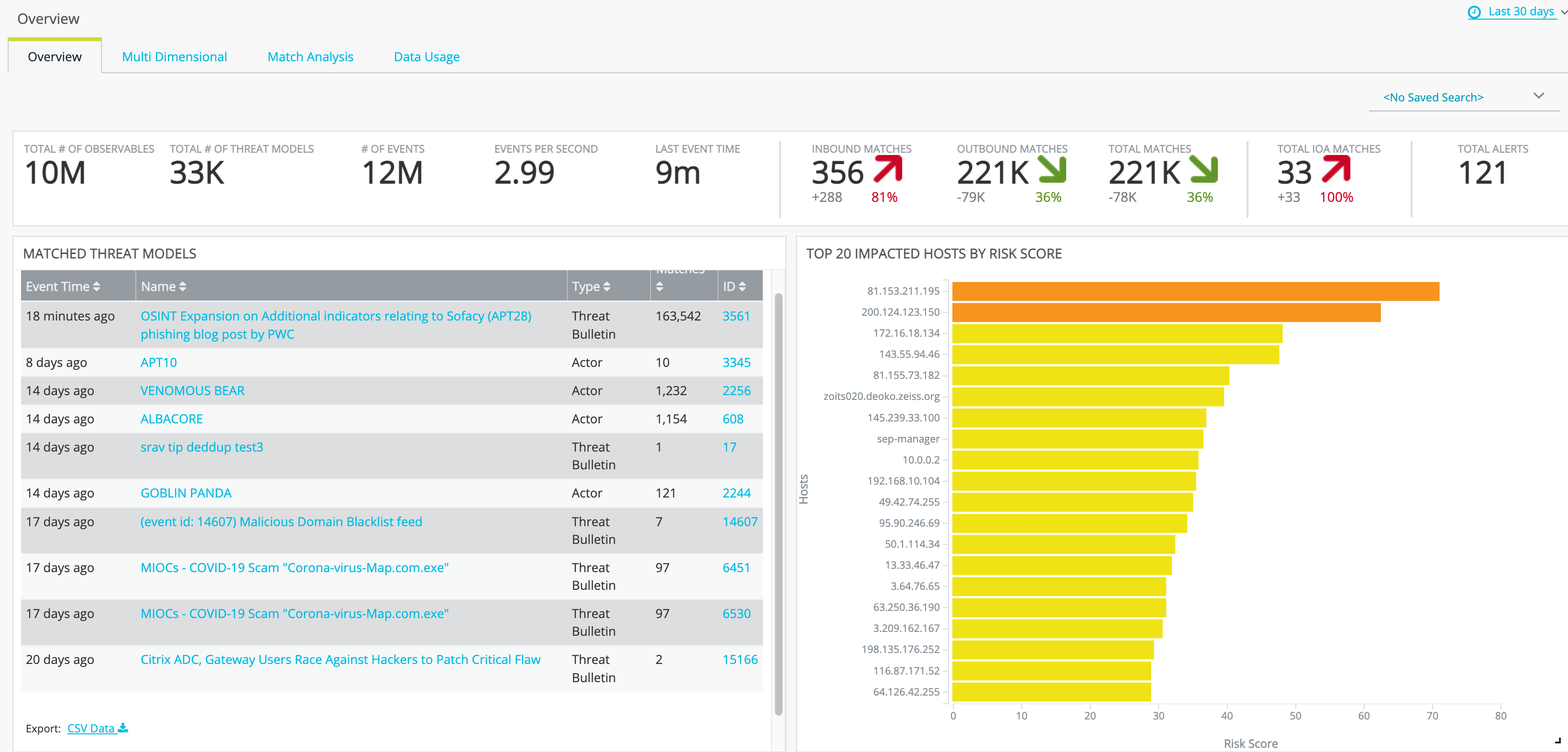
The following figure shows the Overview Dashboard. The sections that follow provide details about the Overview Dashboard panels.
For an overview of dashboard time period and saved search filters, file export, and navigation elements, see Getting Started with Dashboards.
Top Panel
The top panel contains the following counters.
| Counter | Description |
|---|---|
|
Total # of Observables—Count of observables (also known as indicators) from threat intelligence sources. Note: This is a cumulative count of the set of observables used for correlation since the initial deployment. |
|
# of Threat Models—Count of threat models from threat intelligence sources. Note: This is a cumulative count of the set of threat models used for correlation since the initial deployment. |
|
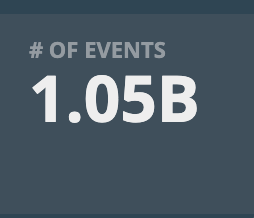
# of Events—Count of events received from log sources during the selected time period. |
|
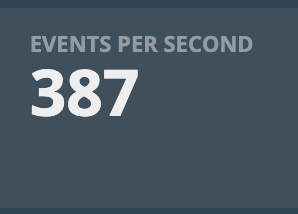
Events per Second—Event log ingestion rate during the selected time period. |
|
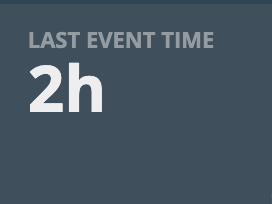
Last Event Time—Hours since the last event was received. |
|
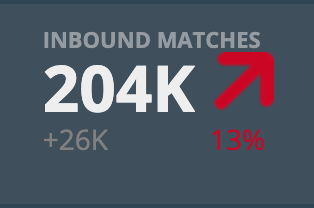
Inbound Matches—Count* of inbound events that matched indicators during the selected time period. Inbound events are the ones in which a device on your network is the destination of the event. |
|
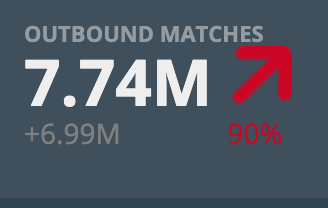
Outbound Matches—Count* of outbound events that matched indicators during the selected time period. Outbound events are the ones in which a device on your network is the source of the event. |
|
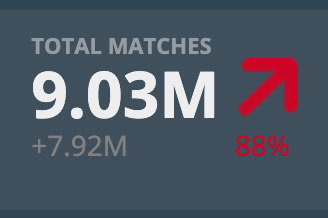
Total Matches—Count* of indicators that have matched your event data during the selected time period. The total includes inbound, outbound, and non-network-related matches, such as file hash and email matches. |
|
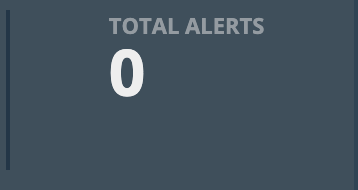
Total Alerts—Count* of alert events during the selected time period. |
* These counts include three numbers:
-
The number in large font is the count of indicator matches in the selected time period. The default time period is Last 7 days.
-
The number in the smaller font is a comparison in number of indicator matches in the prior time period. If the selected time period for the dashboard is Last 7 days, the time period for comparison is the period from 14 days ago to 7 days ago. A plus (+) or minus (-) sign indicates an increase or decrease in the number of matches.
-
Trend is the percent increase or decrease based on the two time periods. This change is also shown by the trend arrow.
Matched Threat Models
This panel displays a table showing the 10 most recent threat models that matched events.
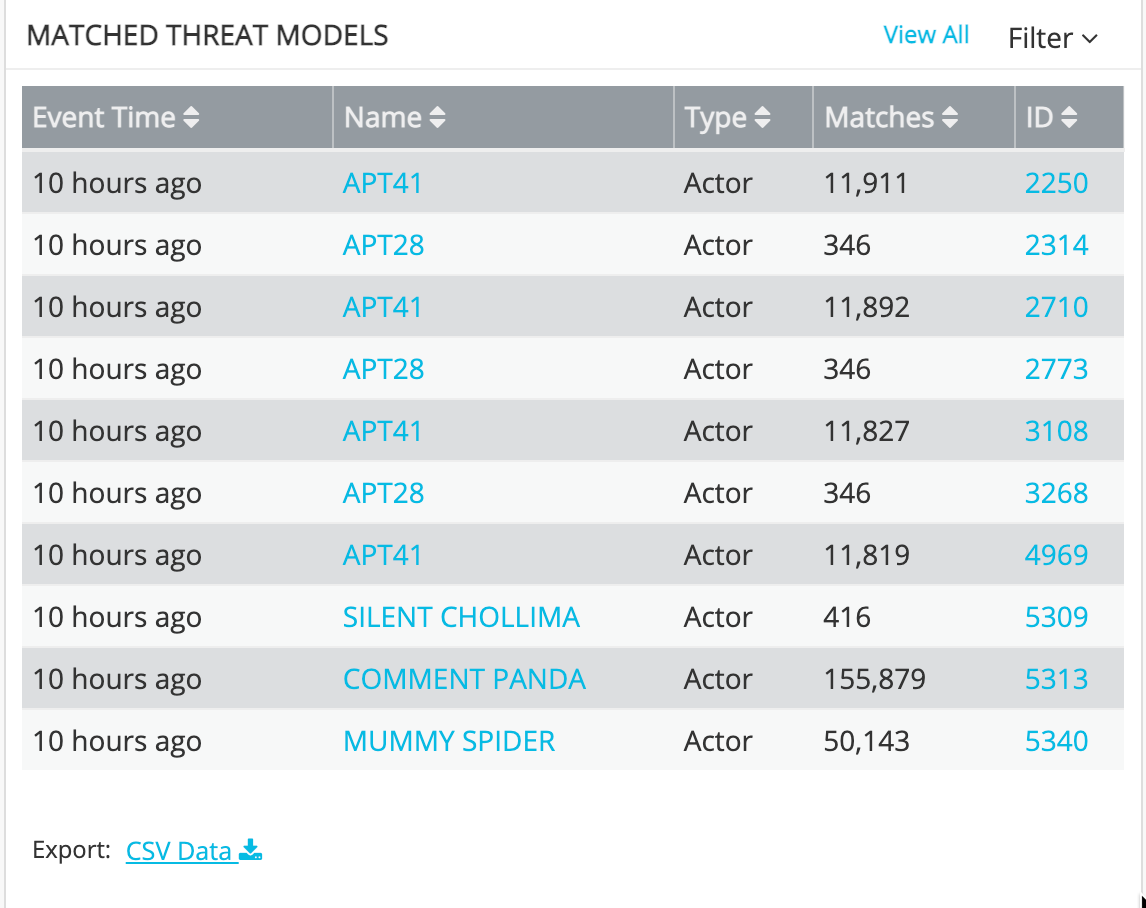
The following table describes the Matched Threat Model table columns.
| Column | Description |
|---|---|
| Event Time | Time relative to the present that the event occurred. |
| Name | The name of the threat model entity. |
| Type | Actor, Attack Pattern, Campaign, Threat Bulletin, TTP, Vulnerability. You can use the Filter control above the table to display the 10 most recent matches for a selected threat model type. |
| Matches |
Count of unique matches during the selected time period. The default time period is Last 7 days. You can use the time period picker in the top-right corner of the page to change the time period. |
| ID | Threat Model ID in ThreatStream. |
Drill-in on Items of Concern
Click the linked threat model name to issue an Activity page search for the selected threat model entity. The following figure shows the search results for a selected Actor.
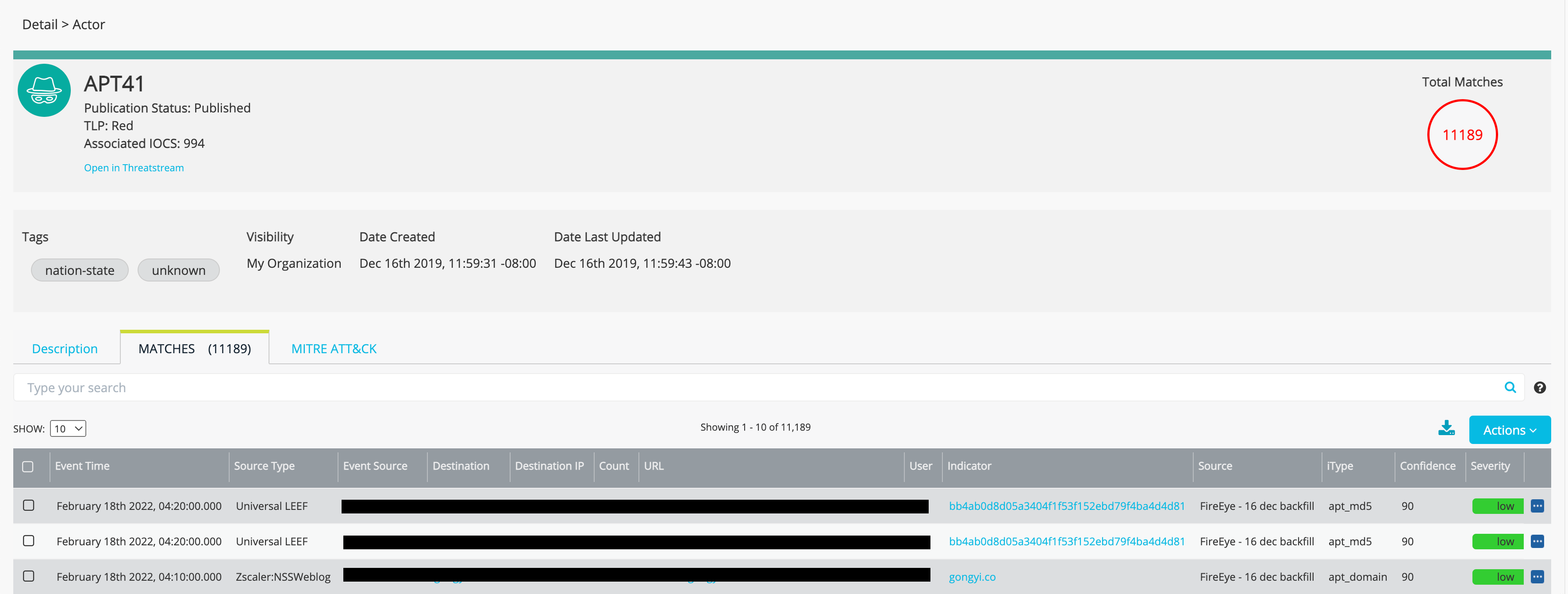
Note: The Matched Threat Models panel displays the number of unique matches, which is an approximate count of unique values (Cardinality Aggregation). When you drilldown from the panel to a threat model details page, the number on the details screen displays the total (not unique) number of matches. As a result, at times, the number of matches on the two screens may differ slightly.
Top 20 Impacted Hosts by Risk Score
This panel displays a bar chart showing the top 20 hosts with events that matched indicators, ordered by risk score. Risk score statistics are re-calculated each day, and the data for the day is used to update the panel between midnight and 03:00 AM. Updates are based on events occurring in the previous 1 day. Events ingested via backfill jobs may have event times earlier than the previous 1 day. These backfill events do not impact risk score.
Risk score is a weighted score based on multiple factors, including indicator confidence, severity, indicator type, and the number of sources reporting the indicator. Event logs where the action reported is equivalent to "blocked" do no impact risk score.
Gain Insight Quickly
Hover over the bars to display the score for an individual event source. Click a bar to display the Asset Details page for the host.
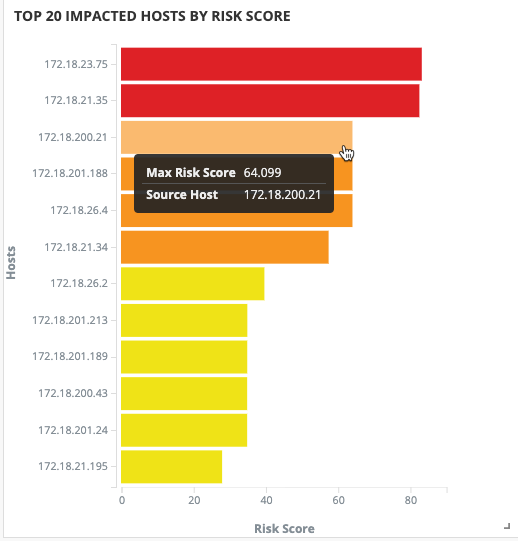
The following table describes the bar chart.
| Field | Description |
|---|---|
| Max Risk Score | The highest risk score reported during the selected time period. Risk score is a weighted score based on multiple factors, including indicator confidence, severity, indicator type, number of sources reporting the indicator, asset criticality, and directionality of the match. |
| Event Source | Host IP address. |
Drill-In on Items of Concern
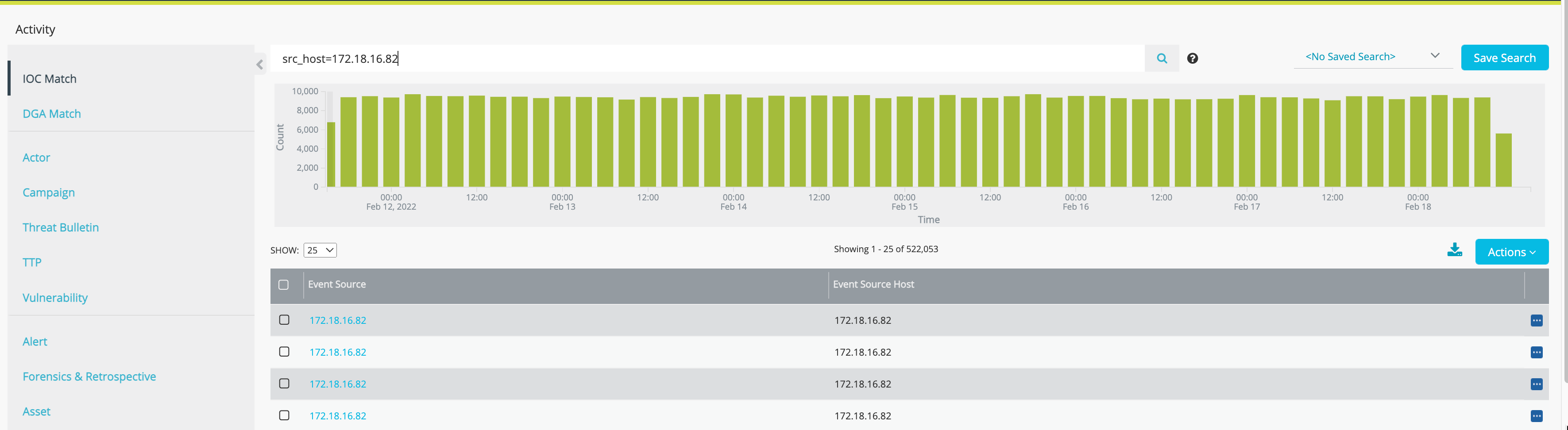
Click a bar in the chart to issue an IOC Match activity search for the particular host.
Indicator Match Timeline
This panel displays a bar chart showing the trend in matches over time.
Gain Insight Quickly
Hover over the bars to display the count for a time period.
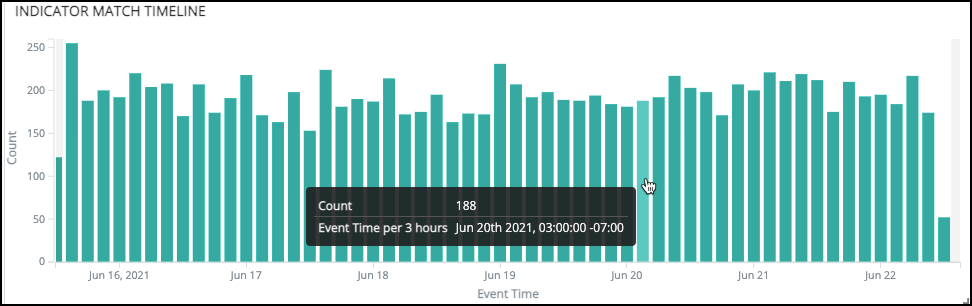
The following table describes the graph.
| Field | Description |
|---|---|
| Count | Total indicator matches for the time period. |
| Event Time | The granularity of the time axis is based on the dashboard time period selection. The default time period is Last 7 days. In a chart with this granularity, a bar indicates the count in a 3 hour period. |
Drill-in on Items of Concern
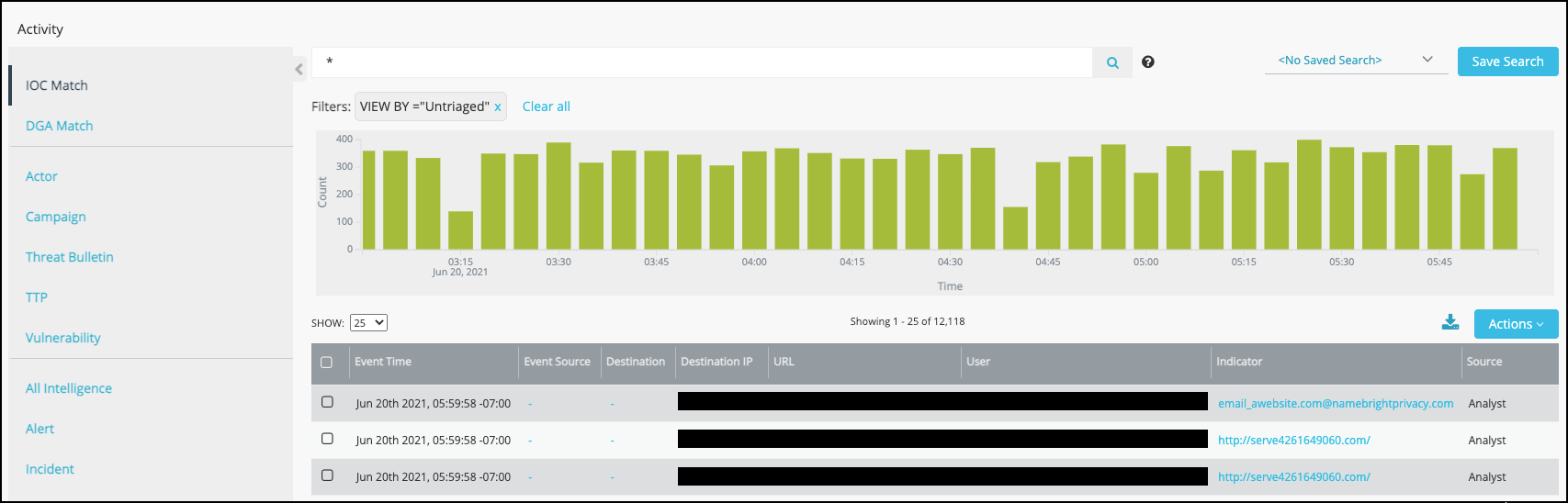
Click a bar in the chart to issue an IOC Match search. The following figure shows the Activity page search results for events with the selected time period.
Matches by Threat Type
This panel displays a time-volume meter for the top matched threat types.
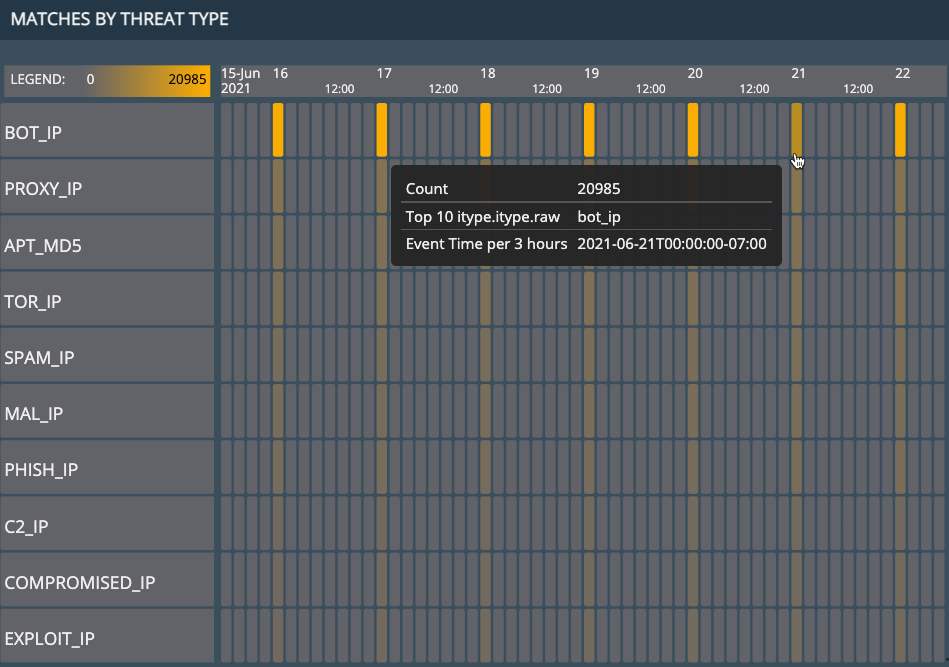
The following table describes the statistics.
| Dimension | Description |
|---|---|
| Count |
Total indicator matches for the time period. The volume indicator ranges from dim to bright. The greater the count, the brighter the volume. |
| Threat Type | Indicator type. See ThreatStream Indicator Types for a complete reference. |
| Time |
The granularity of the time axis is based on the dashboard time period selection. The default time period is Last 7 days. In a chart with this granularity, each bar indicates the count in a 3 hour period. |
Drill-in on Items of Concern
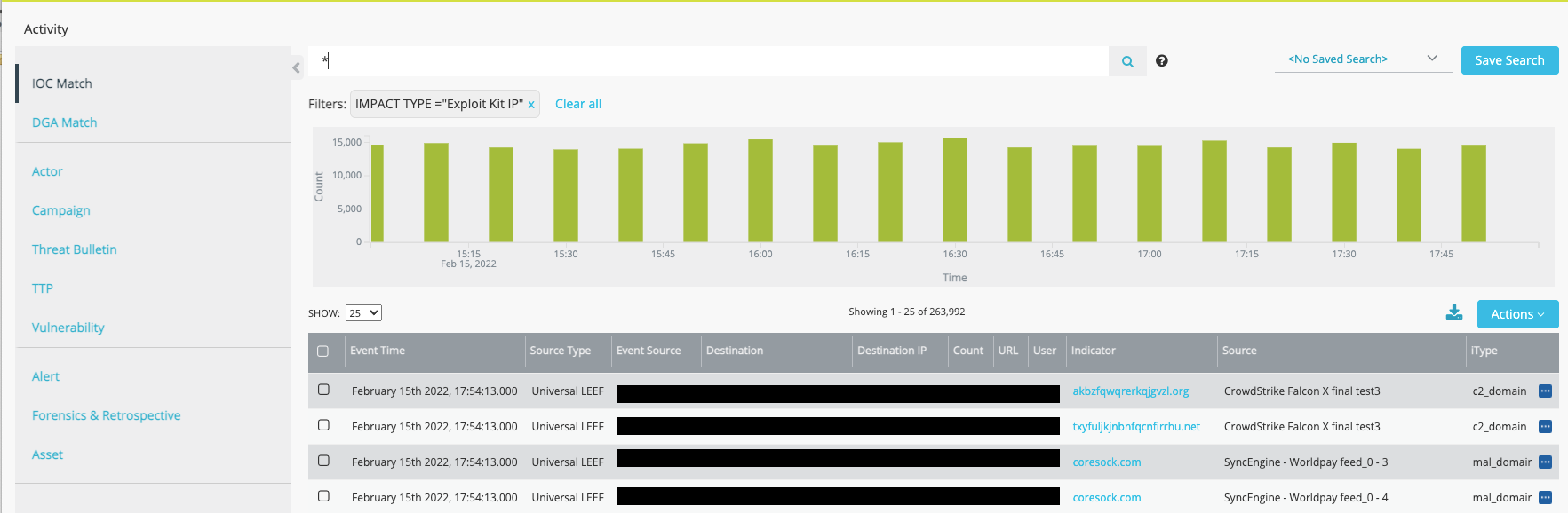
Click a cell in the chart to issue an IOC Match search. The following figure shows the Activity page search results for events with the selected impact type.
Top Originating Countries
This panel displays a bubble chart of the indicator matches by country. The larger the bubble, the higher the score.
Gain Insight Quickly
Hover over a bubble to display the indicator value and score.
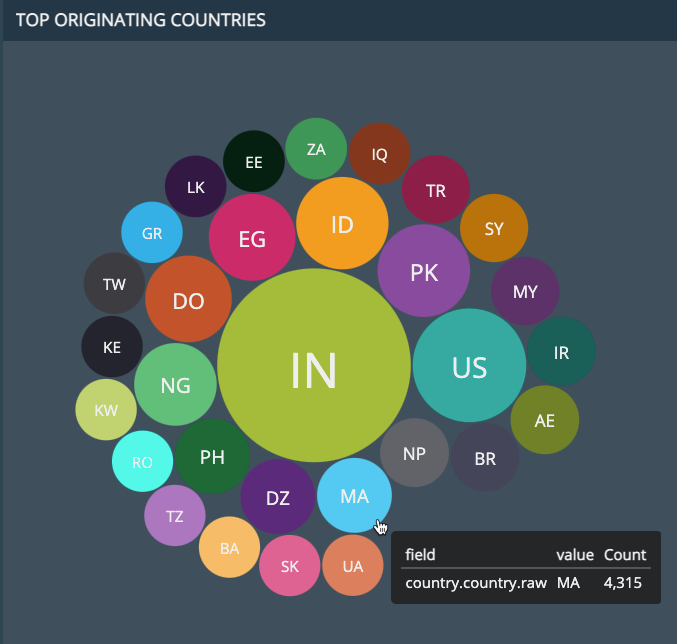
The following table describes the chart.
| Field | Description |
|---|---|
| field-value | The field-value pair used for this visualization is country.country.raw - <country>. |
| Count | Matches where the specified country was the source of the tracked event. |
Drill-In on Items of Concern
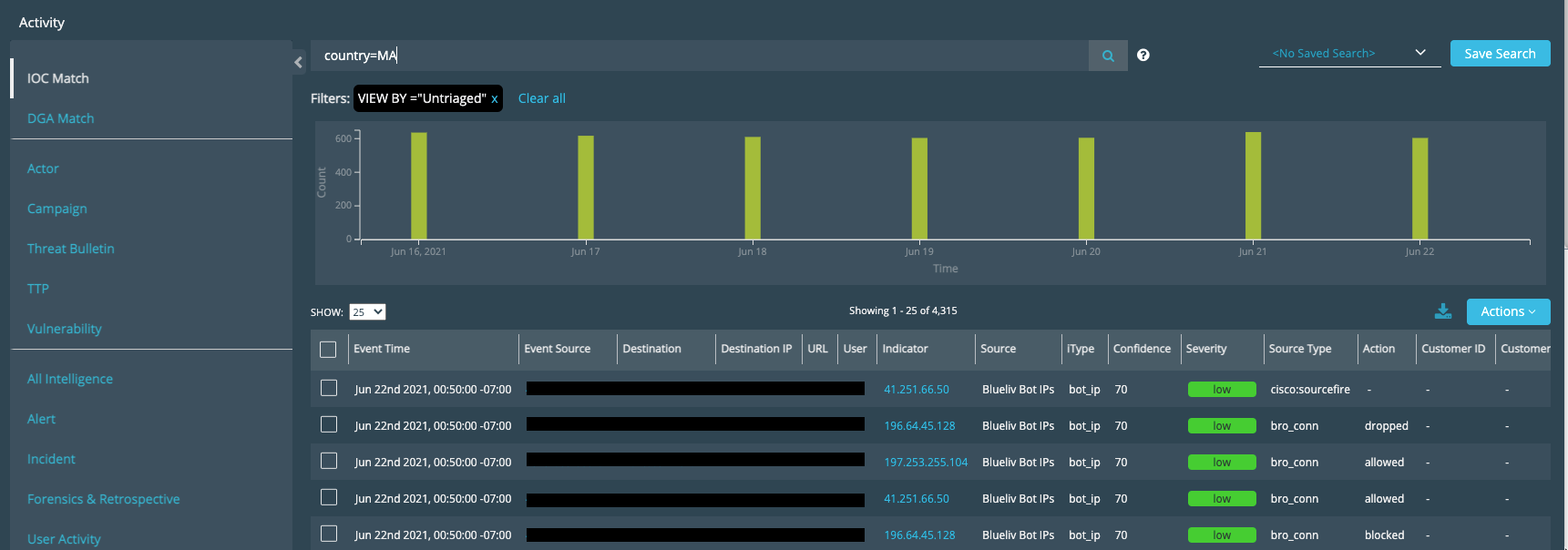
Click the country code in a bubble to issue an IOC Match search on the Activity page, filtered for the selected country. The following figure shows IOC Match search results for Morocco.