Multi Dimensional Dashboard
The Multi Dimensional Dashboard has ten visualizations and table panels that show the occurrences of IOC matches over time. The panels bring different elements of IOC matching into focus—for example, IOC matches over time or IOC matches by source. You can use the search box to form a filter expression, and you can also apply additional filters by clicking data points in the panels.
When a filter is applied or cleared, Security Analytics updates all of the Multi Dimensional Dashboard panels to reflect the new results.
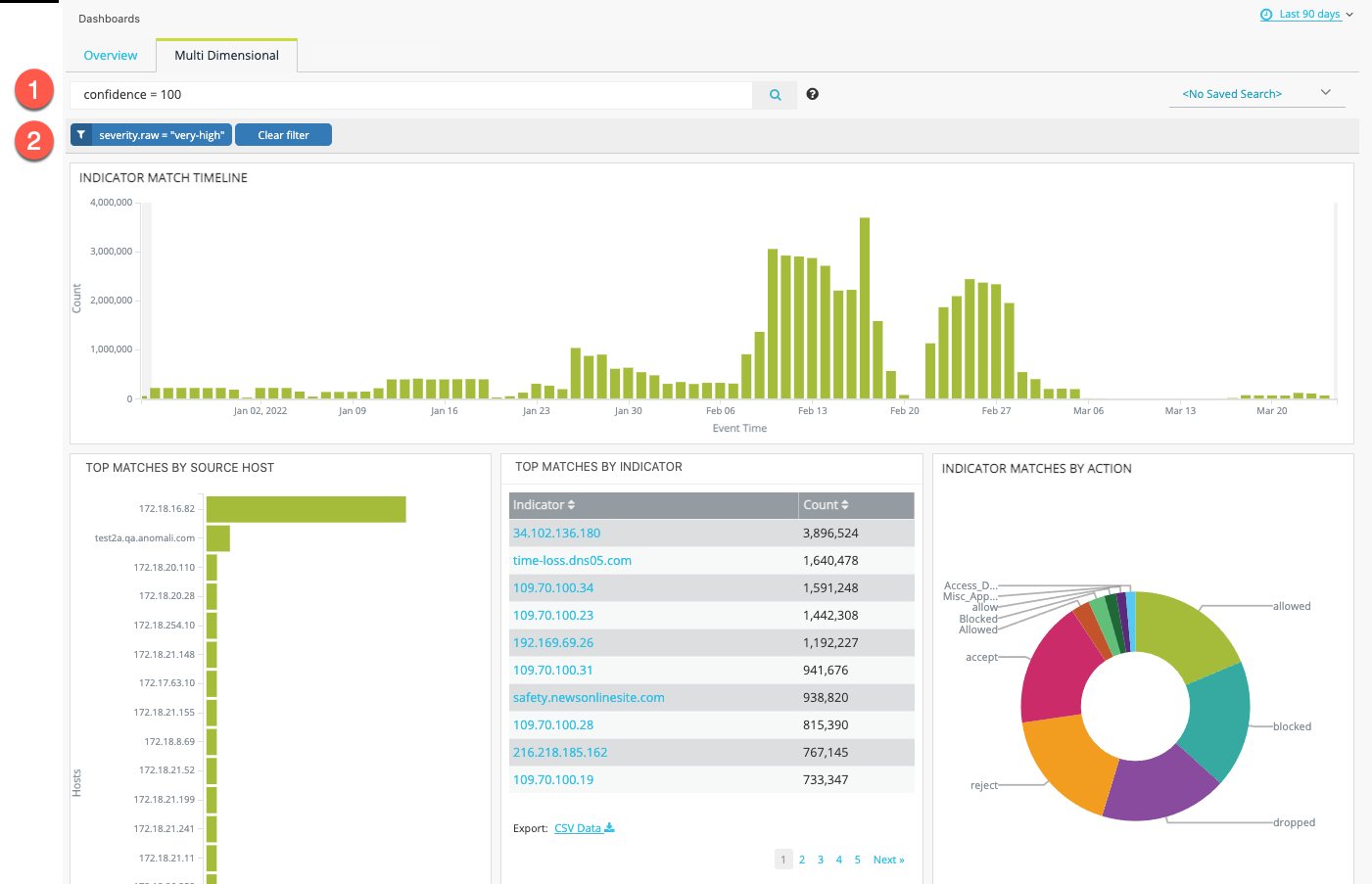
The following figure shows the Multi Dimensional Dashboard. The sections that follow provide details about the Multi Dimensional Dashboard panels.

|
Query search box. See Getting Started with Activity Search. |

|
Data point filters. To remove a single filter, hover over it to reveal an X you can click to remove it. To clear all data point filters, click Clear filter. |
For an overview of dashboard time period and saved search filters, file export, and navigation elements, see Getting Started with Dashboards.
Indicator Match Timeline
This panel displays a bar graph showing the count of indicator matches over time. Click a bar to filter by date. Click and drag overa range of bars to set a date range filter. The filter is applied to all panels in the dashboard.
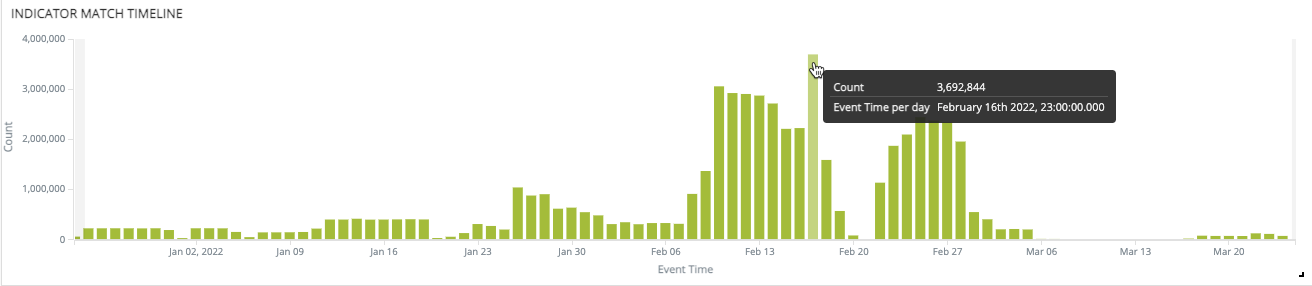
The following table describes the graph.
| Field | Description |
|---|---|
| Count | Total indicator matches for the time period. |
| Event Time |
The granularity of the time axis is based on the dashboard time period selection. Note: The default time period is Last 7 days. In a chart with this granularity, a bar indicates the count in a 3 hour period. You can change the default time period associated with your user profile. See Modifying My Profile. |
Top Matches By Source Host
This panel displays a bar chart showing the top 20 match counts by source host during the selected time period. Hover over the bars to display the match count. Click a bar to apply a data point filter to the Multi Dimensional Dashboard.
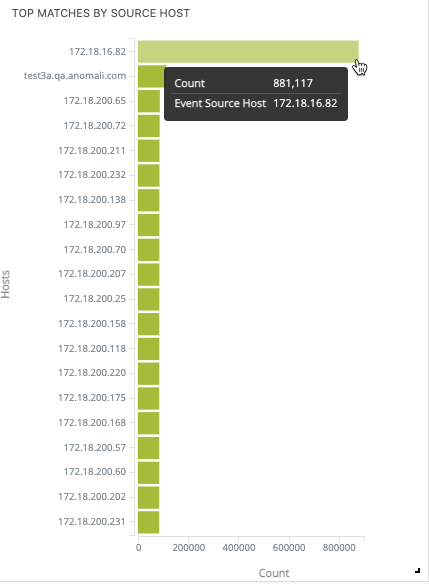
The following table describes the bar chart.
| Field | Description |
|---|---|
| Count | Count of event matches during the selected time period. |
| Event Source Host | An event source host value derived from asset_src_hostname, event.src, or event_ip fields, in that order. The hostname provided by the asset enrichment would be most readable, so if it data exists for it, it is used. If not, then the other source fields are evaluated. |
Top 10 Destination Ports
This panel displays a table listing the top 10 destination ports in matched events. Click a destination port to apply a data point filter to the Multi Dimensional Dashboard.
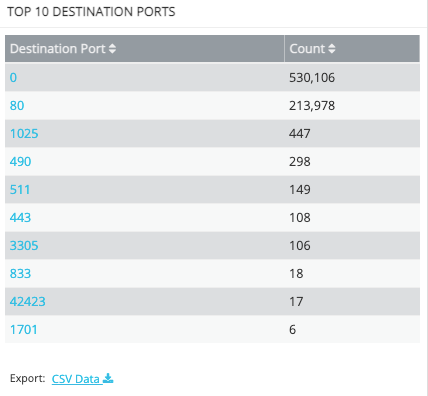
The following table describes the Top 10 Destination Ports table columns.
| Column | Description |
|---|---|
| Destination Port | The destination port in the matching event log. |
| Count | Count of events with this destination port in matched events during the selected time period. |
Top Matches By Indicator
This panel displays a table listing the top 50 match counts by indicator during the selected time period. Click an indicator value to apply a data point filter to the Multi Dimensional Dashboard.
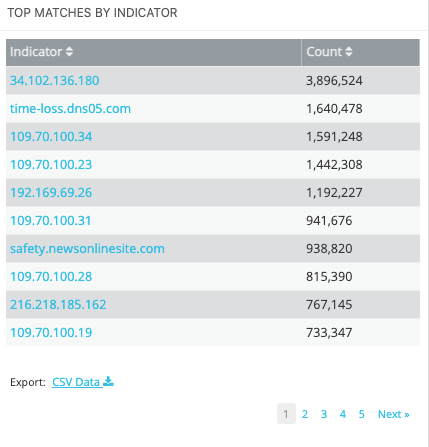
The following table describes the To Matches By Indicators table columns.
| Column | Description |
|---|---|
| Indicator | The matching indicator value. |
| Count | Count of events with this value in matched event logs during the selected time period. |
Indicator Matches by Action
This panel displays a doughnut chart showing the distribution of actions identified in event logs for matches. Hover over a band in the doughnut to display the count for an individual action. Click a band to apply a data point filter to the Multi Dimensional Dashboard.
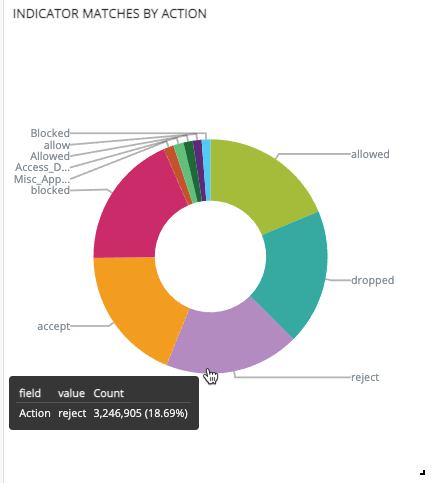
The following table describes the statistics.
| Column | Description |
|---|---|
| field-value | Action: allowed, dropped, blocked, unknown. |
| Count | Count of events with this action in matched event logs during the selected time period. |
Indicator Matches by iType
This panel displays a bar chart showing the distribution of iTypes in matched event logs during the selected time period. Hover over a band in the bar to display the count for an individual iType. Click a band in the bar to apply a data point filter to the Multi Dimensional Dashboard. Click and drag over a range of bars to change the time range filter.
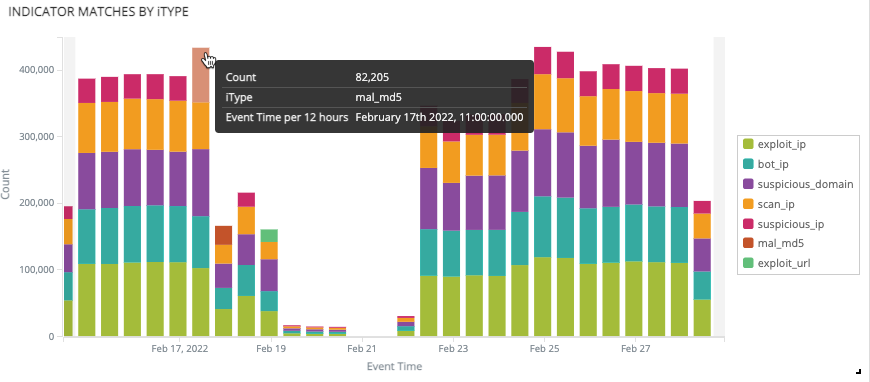
The following table describes the statistics.
| Column | Description |
|---|---|
| Count | Count of events with this iType in matched event logs during the selected time period. |
| iType | Indicator type. See ThreatStream Indicator Types for a complete reference. |
| Event Time |
The granularity of the time axis is based on the dashboard time period selection. Note: The default time period is Last 7 days. In a chart with this granularity, a bar indicates the count in a 3 hour period. You can change the default time period associated with your user profile. See Modifying My Profile. |
Indicator Matches by Severity
This panel displays an area chart showing the distribution of severity in matched event logs during the selected time period. Hover over a band in the area to display the count for an individual severity. Click a band to apply a data point filter to the Multi Dimensional Dashboard. Click and drag over a range of dates to change the time range filter.
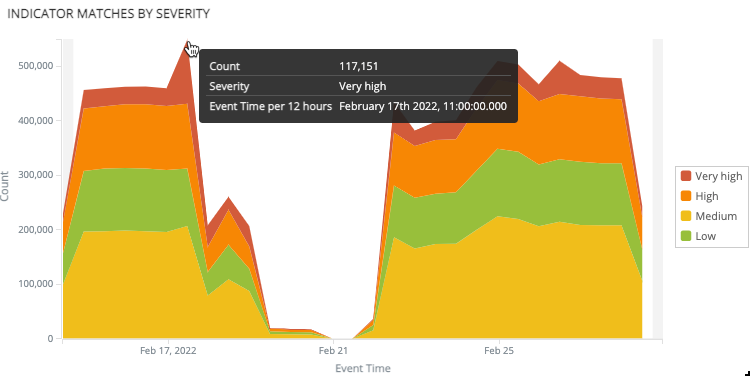
The following table describes the statistics.
| Column | Description |
|---|---|
| Count | Count of events with this severity in matched event logs during the selected time period. |
| Severity | Very-High, High, Medium, Low. |
| Event Time | The granularity of the time axis is based on the dashboard time period selection. |
Indicator Matches by Confidence
This panel displays a doughnut chart showing the distribution of confidence scores in matched event logs during the selected time period. Hover over a band in the doughnut to display the count for an individual confidence score. Click a band to apply a data point filter to the Multi Dimensional Dashboard.
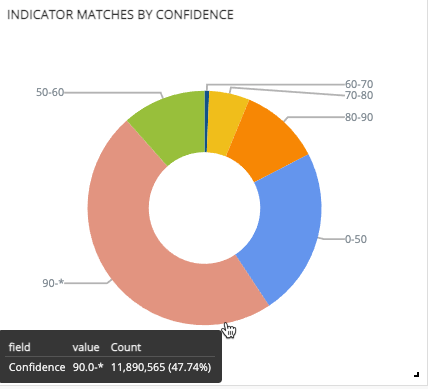
The following table describes the statistics.
| Column | Description |
|---|---|
| field-value | Confidence score with the specified value. |
| Count | Count of events with this confidence score in matched event logs during the selected time period. |
Indicator Matches by Geo Location
This panel displays an area chart showing the extent of indicator matches in global locations during the selected time period. Hover over the volume circle to display data point statistics. You cannot filter the Multi Dimensional Dashboard through interactions with this panel.
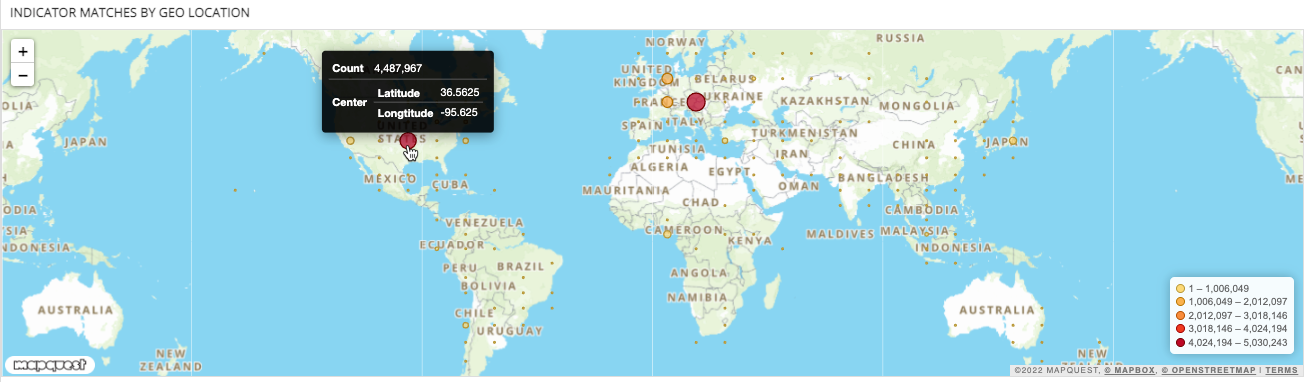
The following table describes the statistics.
| Column | Description |
|---|---|
| Count | Count of events with this action in matched event logs during the selected time period. |
| Center | Latitude and Longitude for the location. |
Indicator Matches
This panel displays an IOC Match table. You cannot filter the Multi Dimensional Dashboard through interactions with this panel.
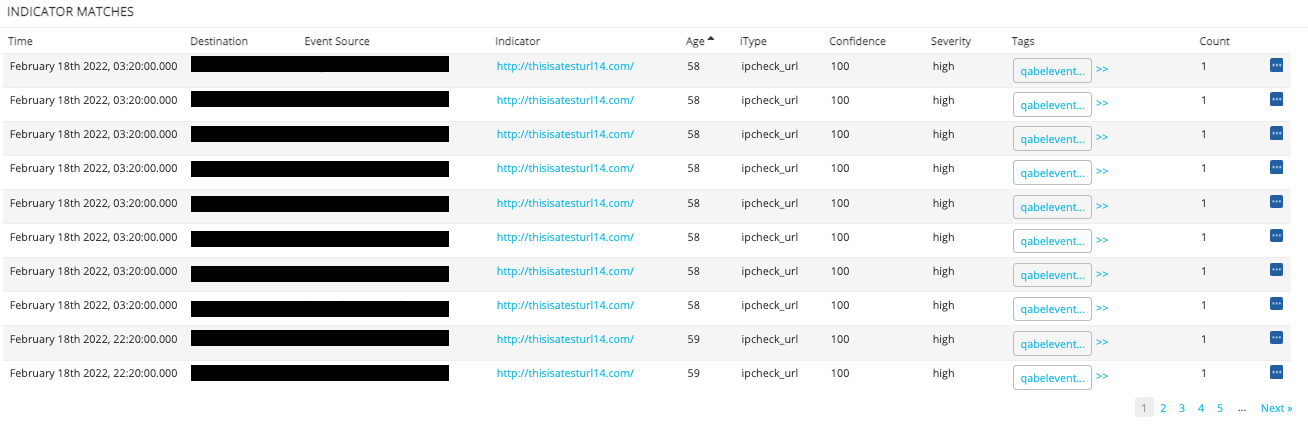
The following table describes the Indicator Matches table columns.
| Column | Description |
|---|---|
| Time | Event timestamp. |
| Destination | Destination IP address in event log. |
| Event Source | Source IP address in event log. |
| Indicator | Matching indicator value. You can click the value to display a context menu that allows you to perform a retrospective search for the indicator value. |
| Age | How long ago was the indicator first downloaded on Security Analytics. |
| iType | Indicator type. See ThreatStream Indicator Types for a complete reference. |
| Confidence | Score from 0 to 100, as reported by the threat feed provider. |
| Severity | Very-High, High, Medium, Low. |
| Tags | Any user-defined tags associated with the indicator. |
| Count | Number of matches per this event log. |

|
Click the Details icon to view more details about an event. |