Managing Custom Macros
Custom macros created within your organization can be edited, cloned, and deleted on the Macros page. These actions can be taken in two ways:
-
By selecting a macro and clicking Edit/Clone/Delete.
-
By hovering your mouse over a macro and clicking the edit/clone/delete icon.
Editing a Macro
Note: A user can always only view and edit macros they own. See User Sharing and Permissions for more information.
When editing a macro, you can change its the description, arguments, and definition. The name cannot be modified. To change the name, clone the macro. See Cloning a Macro for details.
Once a macro is changed, the changes are reflected in alerts, saved searches, and dashboards which were created with AQL search queries referencing this macro.
To edit a macro:
-
Navigate to Manage > Macros.
-
Select the macro you want to edit and click Edit. Alternatively, hover the mouse over the macro you want to edit and click
 .
. -
In the Edit Macro dialog box that opens, make the required changes.
-
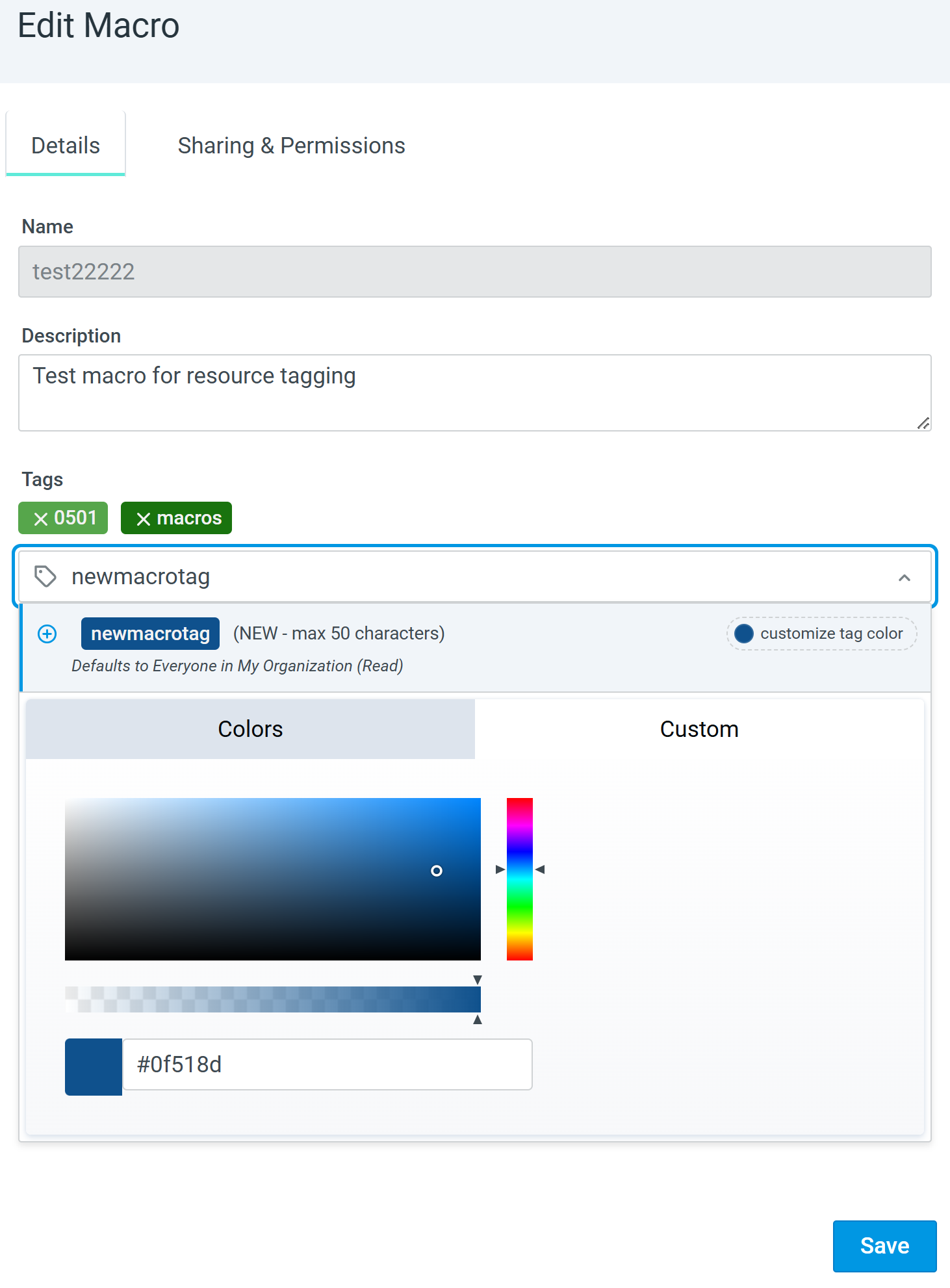
(Optional) In the Tags field:
-
Enter or select resource tags to apply to the macro. The auto-complete suggestion shows tags you own and tags shared to your organization. Private tags associated with other users are not shown, except to organization administrators.
-
To create a new tag inline, type a name containing up to 50 characters and click Customize tag color to select a color. A new tag is added to the shared tag list immediately, even if you abandon updating the macro.
-
To apply an existing tag, type in the field and select it from the auto-complete suggestion results.
-
Click Manage Resource Tags to view existing or newly created tags.
-
-
Click Save. The changes are applied to the macros.
Newly created tags default to Everyone in my Organization (Read). Only tag owners and users with write permission can add or remove tags. See Resource Tagging Permissions for more information.
Cloning a Macro
Note: A user can always only view and edit macros they own. See User Sharing and Permissions for more information.
To clone a macro:
-
Navigate to Manage > Macros.
-
Select the macro you want to clone and click Clone. Alternatively, hover the mouse over the macro you want to clone and click
 .
. -
In the New Macro dialog box that opens, configure the macro name, description, arguments, and definition if necessary.
-
Click Save.
The cloned macro is added to the list of macros.
Deleting a Macro
Note: A user can always only view and edit macros they own. See User Sharing and Permissions for more information.
To delete a macro:
-
Navigate to Manage > Macros.
-
Select the macro you want to delete and click Delete. Alternatively, hover the mouse over the macro you want to delete and click
 .
. -
In the warning message that opens, click Delete.
The macro is deleted.