Using Alerts
Anomali alerts automate the detection and response process for security events that meet user-defined conditions. By continuously monitoring large volumes of event data, alerts ensure that relevant security signals trigger notifications and response workflows with minimal manual intervention.
Alert rules define the conditions, schedules, and actions associated with each alert. When triggered, alerts can automatically execute configured actions such as sending email notifications, forwarding events to external systems, or adding matched data to ThreatStream investigations, among several others. An organization can configure a maximum of up to 250 alert rules.
These automated workflows help analysts stay informed about critical events without needing to remain logged in to the platform, enabling efficient monitoring and investigation.
Alerts support both the eventlog and OCSF Version 1.2 schema fields with dotted notation. See OCSF Schema Overview for more information on the OCSF fields and naming conventions.
Overview
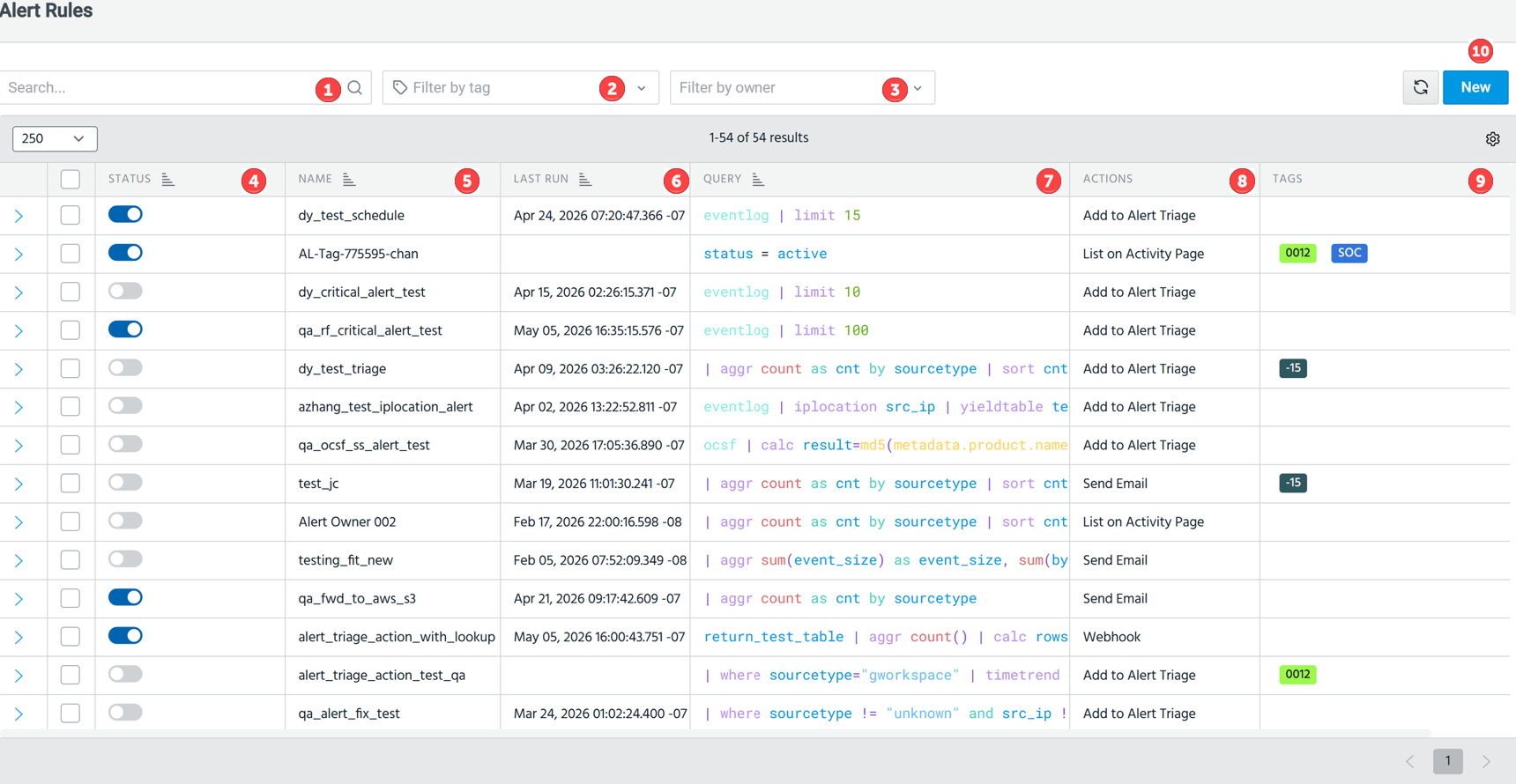
To set up an alert, on the Anomali menu, navigate to Alerting > Manage > Alert Rules.

|
Search bar: Search for an alert by its name. The search incrementally filters the table as you type the name or values from other columns. |

|
Filter by tag: Filter the alert list by one or more resource tags.
See Filtering Alerts by Resource Tag for details. |

|
Filter by owner: Filter the alert table based on the owner of an alert. Note: A user can view, edit, or clone alerts they create. See User Sharing and Permissions for more information.
|

|
Status: Toggle the status switch to enable or disable an alert. |

|
Name: Displays the name of the alert. Each alert must have a unique name. |

|
Last Run: Shows the most recent date and time the alert was triggered. |

|
Query: Captures the AQL query used to configure an alert. You can enter an AQL query or you can use a saved search. Alerts support forensic searches. |

|
Actions: Shows all the actions a triggered alert is configured to take. |

|
Tags: Resource tags applied to an alert for filtering and organization.
|

|
Start Time: Denotes the start of the time range of the query used to configure the alert. |

|
End Time: Denotes the end of the time range of the query used to configure the alert. |

|
Schedule: Indicates the configured schedule of the alert. |

|
Timezone: Denotes the timezone of the user configuring the alert. |

|
Trigger Condition: Captures the condition that will trigger an alert. |

|
New: Create a new alert. |

|
Refresh: Click |
 to add tags to an alert.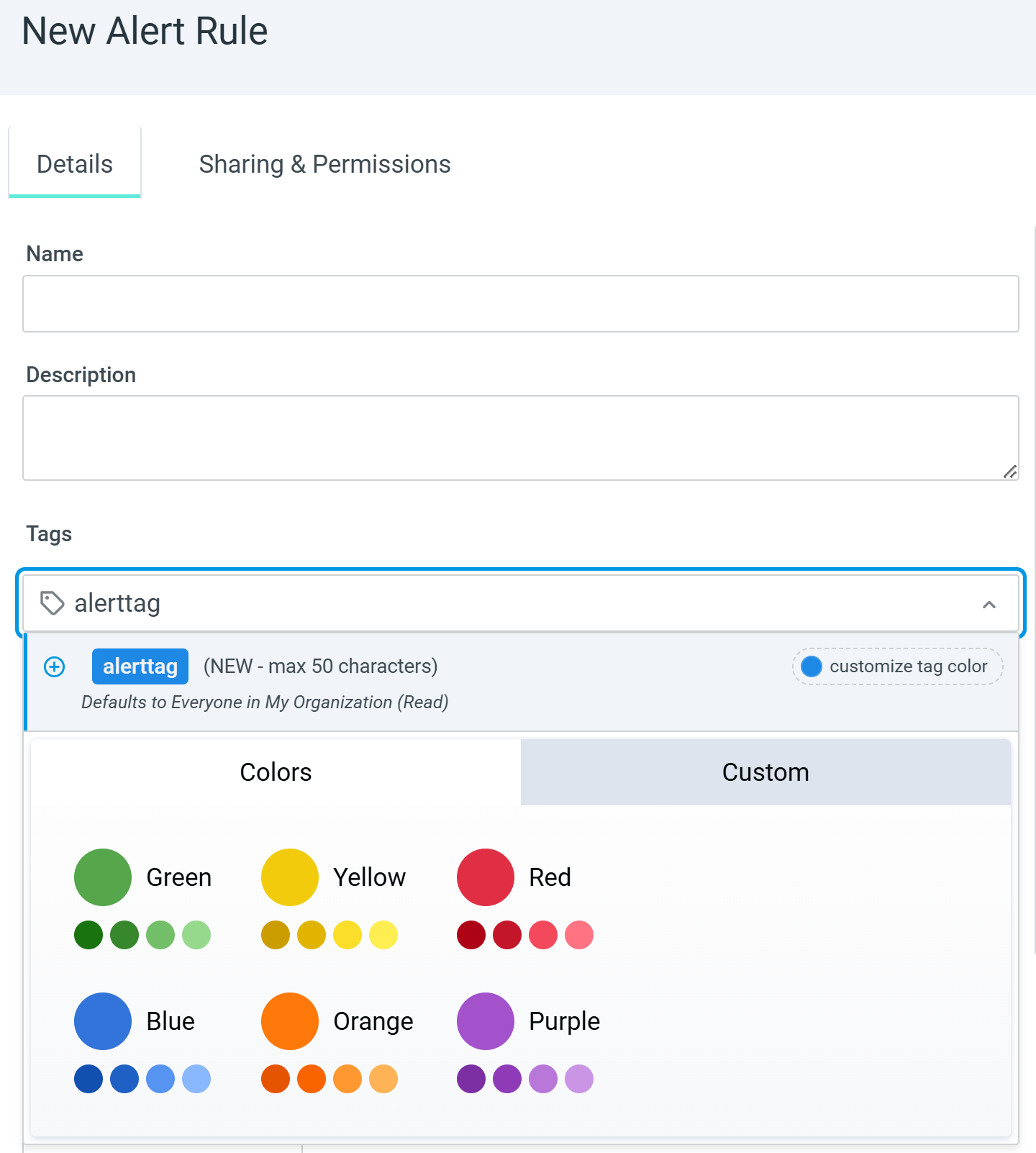
 to force alert table refresh.
 User Sharing and Permissions
All users can always view and edit alerts they own. They can see only alerts they are entitled to view, based on the permissions granted under the Sharing & Permissions tab.
If the Sharing & Permissions settings are configured as:
-
Private—Only the owner of the alert can view and edit the alert. By default, if no sharing is specified, the alert is private.
-
Shared—Users with specified roles can view and edit the alert, according to their assigned permissions.
Users with roles granted read permissions:
-
Can view, clone, and export alerts they own. Can only view, but cannot edit, the alerts they do not own.
Users with roles granted write permissions:
-
Can modify the alert, but not sharing or permission rights.
Users who own the alert:
-
Can perform all actions, including editing ownership and permissions of the alerts they own.
-
If no sharing is specified, by default, the alert is private (not shared).
Audit logging:
-
All create, update, and delete actions are logged with details such as the timestamp or the alert action.
-
Only org admins can access all audit trails to ensure reliable compliance.
Organization Administrators
-
Can perform all actions, including editing ownership and permissions of any alert.
-
Can access all audit trails.
Creating Alerts
Alerts run scheduled AQL queries that evaluate trigger conditions and automatically perform configured actions when the conditions are met. See for more information.
Set Alert Actions
Configure an alert to perform one or more actions when it triggers. See Setting Alert Actions for more information.
Triage your Alerts
You can triage your alerts and investigate, prioritize, and manage triggered alerts. See Alert Triage for more information.
Managing Alerts
You can edit, clone, or delete alerts. See Managing Alerts for more information.