Managing Alerts
You can edit, clone, or delete alerts that you own. See User Sharing and Permissions for more information.
Edit an Alert Configuration
To edit an alert:
-
Navigate to Alerting > Manage > Alert Rules.
-
In the Actions column, click Edit to modify an alert.
(Optional) In the Tags field:
-
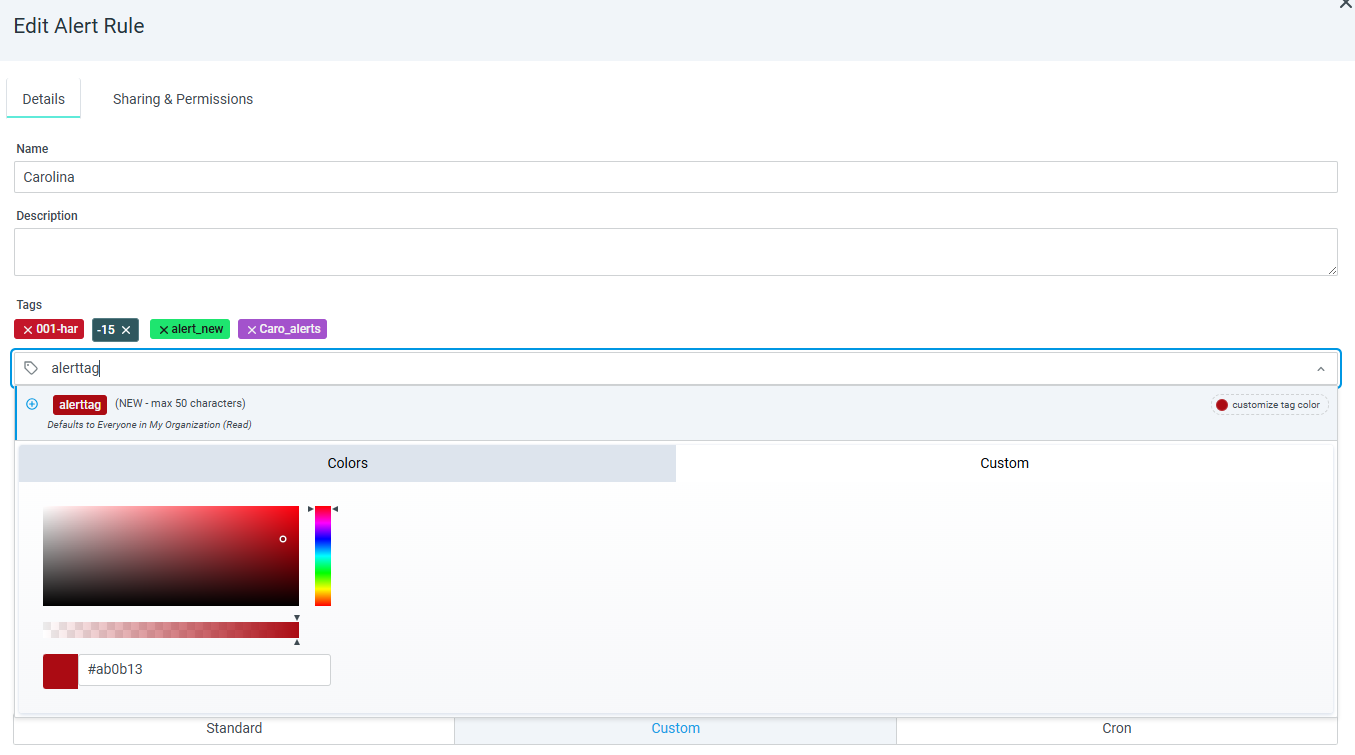
Enter or select resource tags to apply to the alert. The auto-complete suggestion shows tags you own and tags shared to your organization. Private tags associated with other users are not shown, except to organization administrators.
-
To create a new tag inline, type a name containing up to 50 characters and click Customize tag color to select a color. A new tag is added to the shared tag list immediately, even if you abandon updating the alert.
-
To apply an existing tag, type in the field and select it from the auto-complete suggestion results.
-
Click Manage Resource Tags to view existing or newly created tags.
-
-
Click Save after making your edits. The changes are applied to the alert.
Newly created tags default to Everyone in my Organization (Read). Only tag owners and users with write permission can add or remove tags. See Resource Tagging Permissions for more information.
Filtering Alerts by Resource Tag
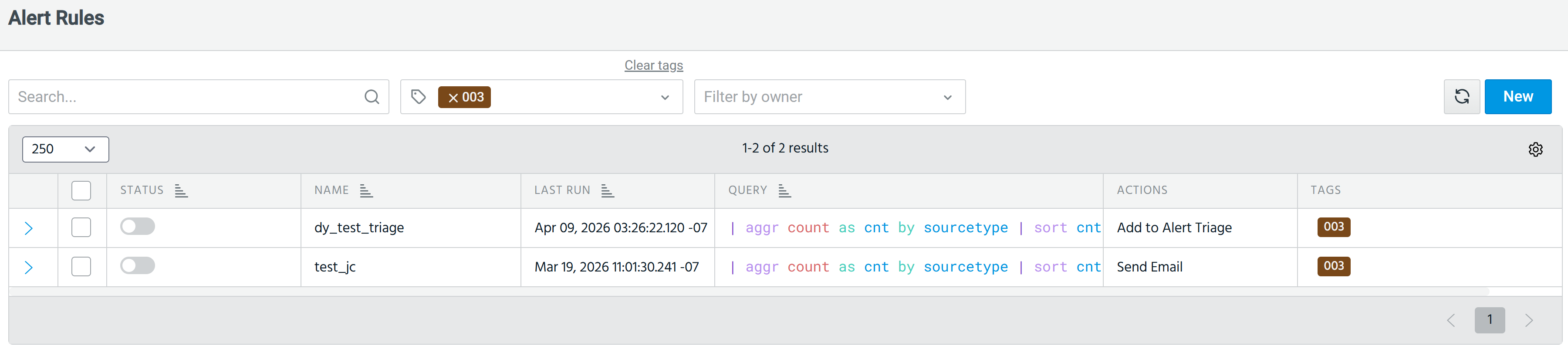
You can filter the alert list by one or more resource tags. When you select multiple tags, only alerts that have all selected tags applied are returned.
To filter alerts by resource tag:
-
Navigate to Alerting > Manage > Alert Rules.
-
Click the Filter by tag drop-down and select one or more tags. The count displayed next to each tag reflects usage for alerts only, not the total across all the supported resource types. A tag used across multiple resource types will show a different count on each resource page, depending on the resource you are viewing. The list updates to show only alerts that have all selected tags applied.
-
Click Clear tags to clear the filter.
Bulk Editing Tags and Permissions for Alerts
You can add resource tags and update sharing permissions across multiple alerts at once.
Required Permissions
-
Details tab: Requires write permission or ownership on each selected alert. The tag drop-down shows only tags you own or that are shared to your organization. Organization administrators also see private tags owned by other users.
-
Sharing & Permissions tab: Available to alert owners and organization administrators only. Users with write-only permission cannot modify sharing settings.
To bulk edit tags and permissions for alerts:
-
Navigate to Alerting > Manage > Alert Rules.
-
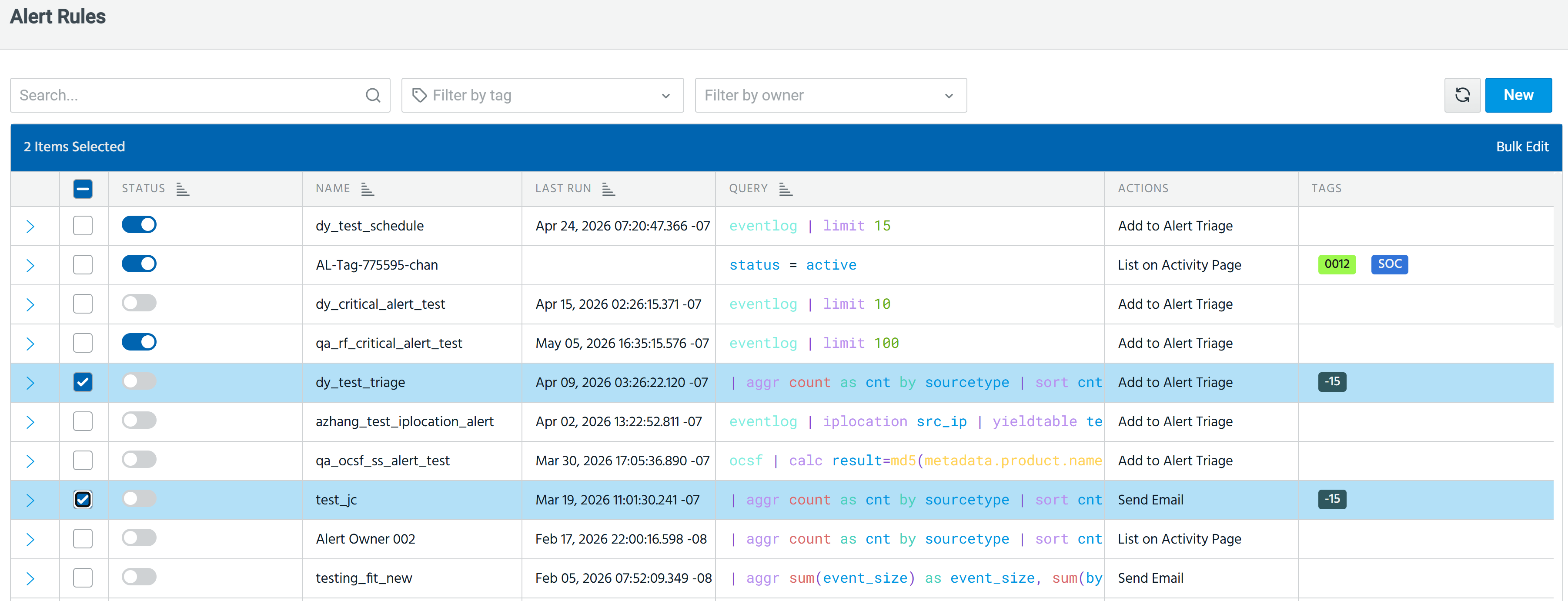
Select the alerts you want to update.
-
Click Bulk edit.
-
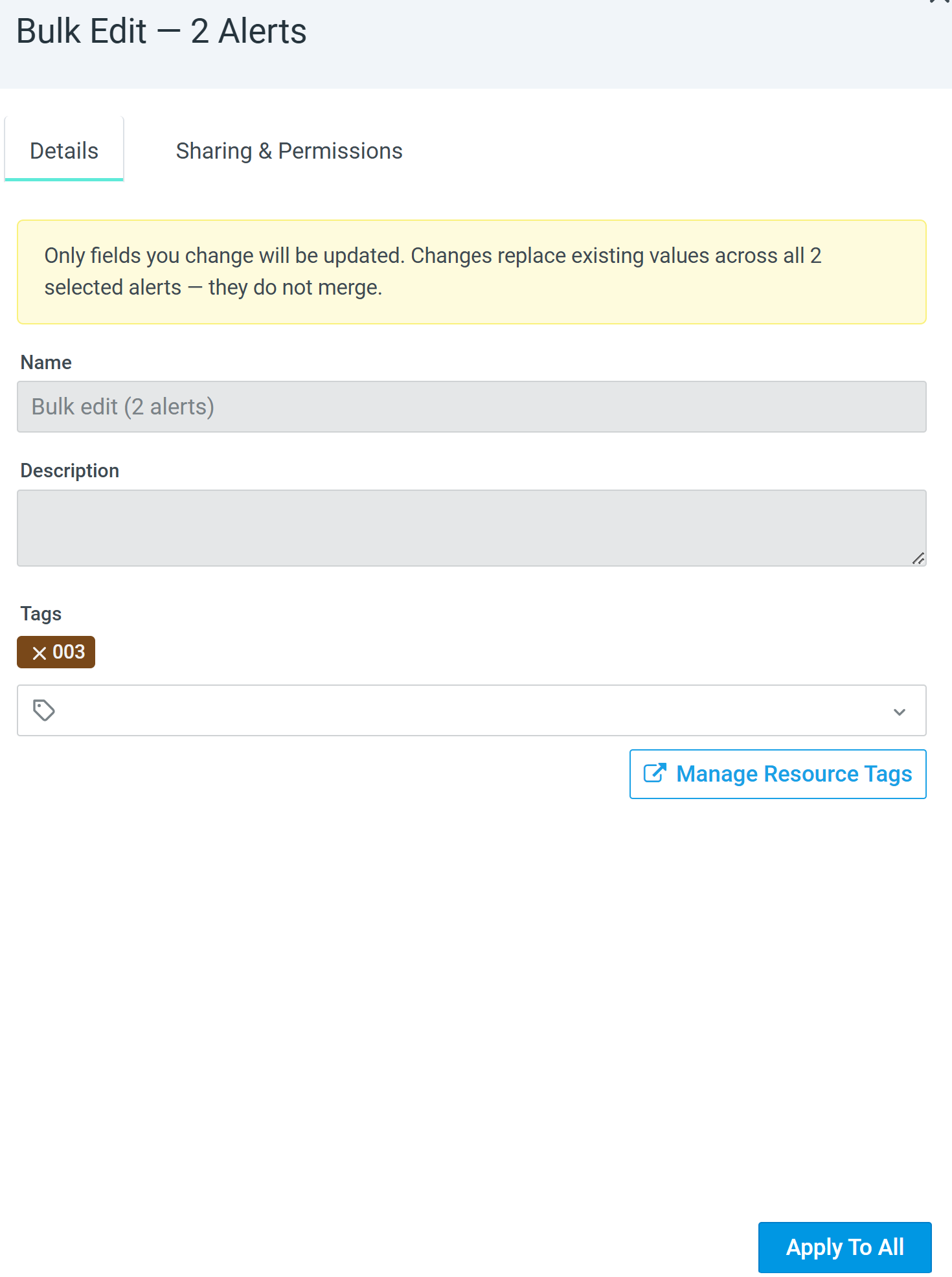
Click the Details tab and enter or select tags in the Tags field.
-
Enter or select resource tags to apply to the alert. The auto-complete suggestion shows tags you own and tags shared to your organization. Private tags associated with other users are not shown, except to organization administrators.
-
To create a new tag inline, type a name containing up to 50 characters and click Customize tag color to select a color. A new tag is added to the shared tag list immediately, even if you abandon updating the alert.
-
To apply an existing tag, type in the field and select it from the auto-complete suggestion results.
-
(Optional) Click the Sharing & Permissions tab to update sharing settings for the selected alerts. See Resource Tagging Permissions for more information.
-
Click Apply to All.
The tags and permissions are updated for all selected alerts.
Clone an Alert Configuration

|
In the Actions column, click Clone to create an editable copy of an alert. |
Delete an Alert Configuration

|
In the Actions column, click Delete to delete an alert. |