Alert Triage
Alert Triage in Anomali Security Analytics helps you investigate, prioritize, and manage triggered alerts.
This centralized workspace provides visualization panels for quick alert assessment and tracking. It also includes tools for filtering, editing, and managing alerts throughout the investigation lifecycle, along with details about MITRE ATT&CK mappings.
While alert rules determine what qualifies as a security event, triage actions define how you interact with those results, including severity assignment, ownership, investigation tracking, and alert management.
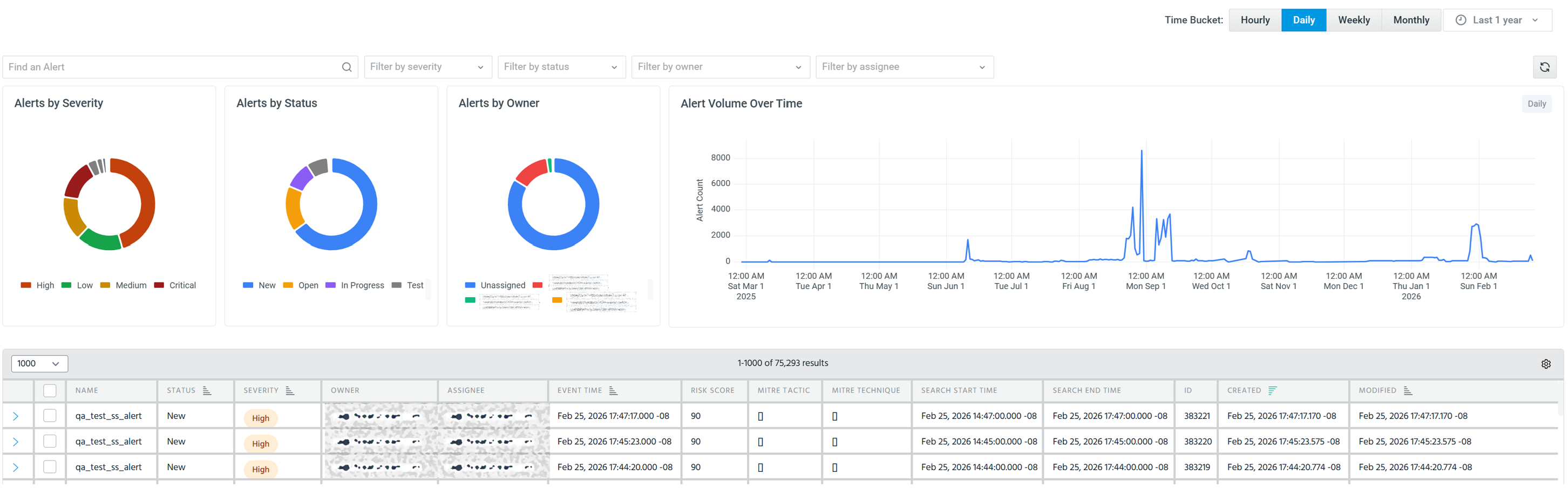
(Click the image to enlarge it)
Accessing Alert Triage
To access the Alert Triage page, navigate to Alerting > Alert Triage from the side navigation panel.
Understanding the Interface
The Alert Triage page consists of four main areas:
- Visualization Panels: Four panels at the top show alert distribution by severity, status, owner, and volume trends over time.
- Time Range Controls: Time bucket selector (Hourly, Daily, Weekly, Monthly) and date range picker allow filtering alerts by time period.
- Filter Controls: Drop-down filters for severity, status, owner, assignee, along with a text search field help you find specific alerts.
- Alert Results Table: A table that displays all alert details including name, status, severity, risk score, MITRE ATT&CK mappings, and entity information.
Alert Triage Workflow
The following workflow helps you effectively triage alerts:
- Review Visualization Panels: Check the severity, status, and volume charts to identify trends and areas requiring immediate attention.
- Set Time Range: Adjust the time bucket and date range to focus on the relevant time period for investigation.
- Apply Filters: Use severity, status, owner, and assignee filters to narrow down the alert list to your focus area.
- Select Alerts for Review: Select an alert in the table and click Edit to view detailed information in the Alert Details side panel. You can select one or more alerts and configure bulk actions.
- Investigate and Update: Review alert details, MITRE mappings, or entity information, edit alert properties, add comments, or self-assign alerts as needed.
- Take Action: Update alert status or link alerts to new or existing investigations.
Managing Time Range
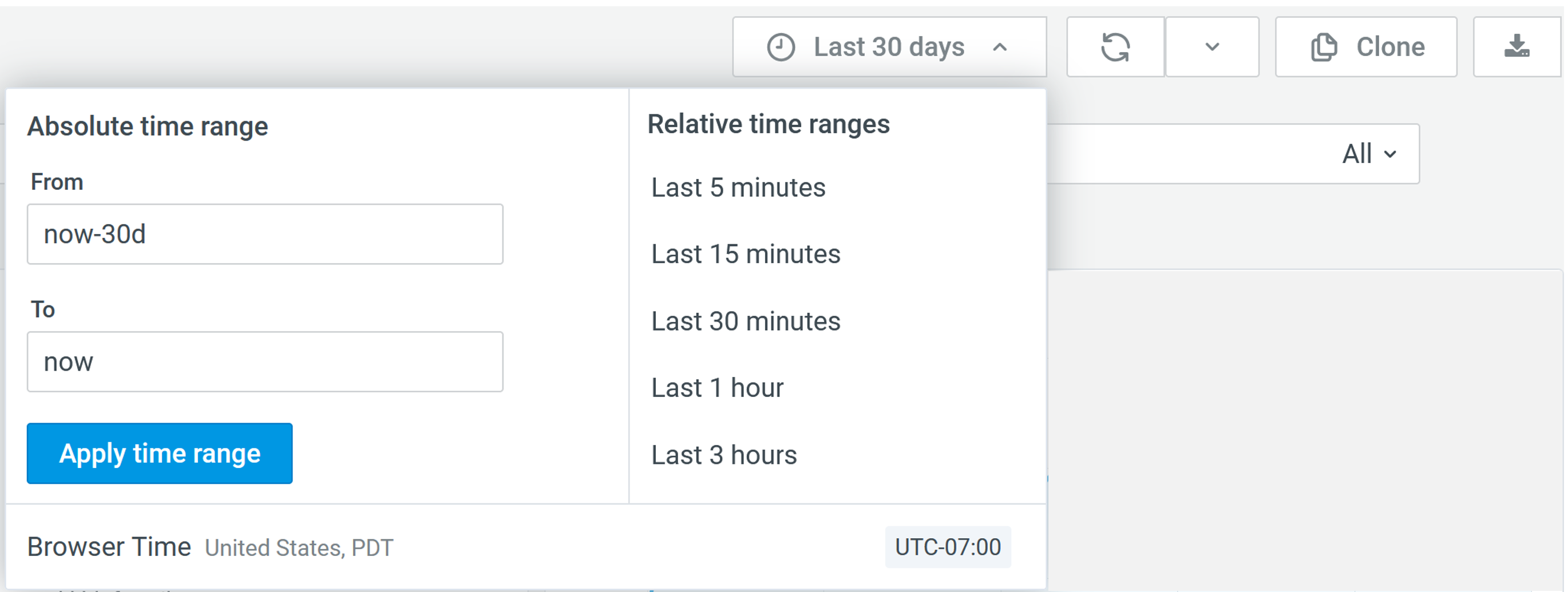
The time range controls allow you to filter and focus on alerts from specific time periods relevant to your investigation by selecting a time bucket and date range:
- Time Buckets: Select Hourly, Daily, Weekly, or Monthly to group alert data into time intervals. The default is Daily.
- Date Range: Use the dropdown to select a preset range (Last 1 hour, Last 2 days, Last 7 days, and more) or specify a custom range. Supports relative time ranges, for example,
now-7dfor the last seven days.
Visualization Panels
You can gain a concise overview of alert distribution and trends through the alert visualization panels:
| Panel | Description |
|---|---|
| Alerts by Severity | Shows alert distribution across severity levels (Low, Medium, High, Critical, Custom, or Informational). Hover over a pie chart segment to see the count. Click the segment to filter the alert table by that severity level. |
| Alerts by Status | Displays alerts grouped by status (New, Open, In Progress, Closed, or Custom). Helps identify alerts requiring attention. Click a pie chart segment to filter the alert table by that status. |
| Alerts by Owner |
Captures alert ownership information by analyst email address. Useful for workload balancing and identifying unassigned alerts. Note: See User Sharing and Permissions for more information on what alerts you can view, edit, clone, or delete.
|
| Alert Volume Over Time | Tracks alert volume trends over the selected time period. Helps identify spikes or patterns in alert generation. Hover over the line chart data points for exact counts. |
Alert Results Table
The alert results table displays details for all alerts matching your configured filters. The table shows the total number of results and supports pagination for larger result sets.
| Column | Description |
|---|---|
| Name | Displays the alert title or identifier. Select an alert and click Edit to open the Alert Details side panel. |
| Status | Shows the current alert status (New, Open, In Progress, Closed, or Custom). Select an alert and click Edit to view or edit the alert status in the Alert Details side panel. |
| Severity | Denotes the color-coded severity level (Low, Medium, High, Critical, Custom, or Informational). Select an alert and click Edit to view or edit the alert severity in the Alert Details side panel. |
| Owner |
Captures the email address of the alert creator or analyst who owns this alert. Select an alert and click Edit to reconfigure the owner in the Alert Details side panel. Note: See User Sharing and Permissions for more information on what alerts you can view, edit, clone, or delete.
|
| Assignee | Denotes the analyst assigned to investigate this alert. New alerts appear as Unassigned until an analyst self-assigns or is assigned by another user. |
| Event Time | Displays the timestamp when the alert was triggered. |
| Risk Score | Displays the calculated risk score associated with the alert. |
| MITRE Tactic | Displays the MITRE ATT&CK tactic associated with this alert (for example, Initial Access, Execution, or Reconnaissance). See the official MITRE ATT&CK documentation for more information. |
| MITRE Technique | Denotes the specific MITRE ATT&CK technique ID and name describing the adversary behavior, providing detailed context for threat analysis. |
| Search Start or End Time | Displays the time range for the data that was searched when this alert was generated. |
| Search Job ID | Job ID of the search |
| Search Query | AQL query associated with the alert. |
| ID | ID of the triaged alert. |
| Created | Timestamp of when the alert was triaged. |
| Modified | Timestamp of when the triaged alert was modified. |
You can also select multiple alerts for bulk operations, such as adding them to new or existing ThreatStream investigations.
Viewing and Editing Alert Details
To edit an alert, select it and click Edit in the table to open the Alert Details side panel. The panel displays the following information:
- Full alert metadata (name, status, severity, timestamps)
- Risk score
- Comment history with timestamps and analyst names
- Search results of the AQL query associated with the alert, with support for running the query in Search
Editing Alert Properties
Select an alert and click Edit in the Alert Details panel to edit the following fields:
- Status: Update Status to New, Open, In Progress, Custom, or Closed.
- Severity: Adjust Severity level to ensure the alert is assigned the appropriate risk level.
- Owner: Reassign alert ownership to another analyst or team.
- Assignee: Assign the alert to yourself or another analyst for investigation.
Adding Comments
Add JIRA-style comments to document your investigation steps, findings, and decisions. Comments are timestamped and include the name of the analyst, creating an auditable history of actions. Multiple comments are supported to facilitate collaboration among team members. You can also edit or delete comments you post.
Self-Assigning Alerts
When you create an alert, it appears as Unassigned by default. You can assign the alert to yourself as the Assignee. This enables flexible analyst workload distribution and maintains appropriate alert ownership.
Refresh Alerts
Click Refresh ( ) to reload alert data and visualization panels with the latest information. The page does not refresh automatically. Refresh the page to view current data.
Linking to Investigations
You can add one or more alerts to new or existing ThreatStream investigations for comprehensive threat tracking. If you create a new investigation:
-
Enter a name for the investigation.
-
(Optional) Enter a description.
-
Assign the investigation to either a user or a workgroup. By default, it is assigned to you.
-
Set the visibility of the alert to users or workgroups in your organization. By default, it is visible only to you.
To add an existing investigation, switch to the Add to Existing tab and select an investigation from the drop-down list.
See the ThreatStream Investigation documentation to understand how investigations work.