Configuring Single Sign On (SSO)
Anomali enables you to configure single sign-on (SSO) using either a SAML 2.0-compliant identity provider (IdP) or an OKTA Marketplace identity provider. If your organization uses one of these identity providers, you can provision and manage integration with your IdP to enable SSO on the Anomali platform. From the SSO tab of the User & Role Management page, you can configure an integration with your IdP by uploading an XML Metadata file from your IdP or by manually configuring the integration details. See Configuring an Identity Provider for SSO for more information.
If you use SAML for SSO, Anomali supports the following integration options for user management:
-
Integration with Microsoft Active Directory Federation Services (ADFS) for user management through Microsoft Active Directory or Azure Entra ID. For more information on enabling this integration, see Enabling User Management with Active Directory Federation Services and Azure Entra ID.
-
Integration with SAML 2.0-compliant IdPs for user management through a preferred IdP. For more information on enabling this integration, see Enabling User Management with SAML 2.0 IdP Services.
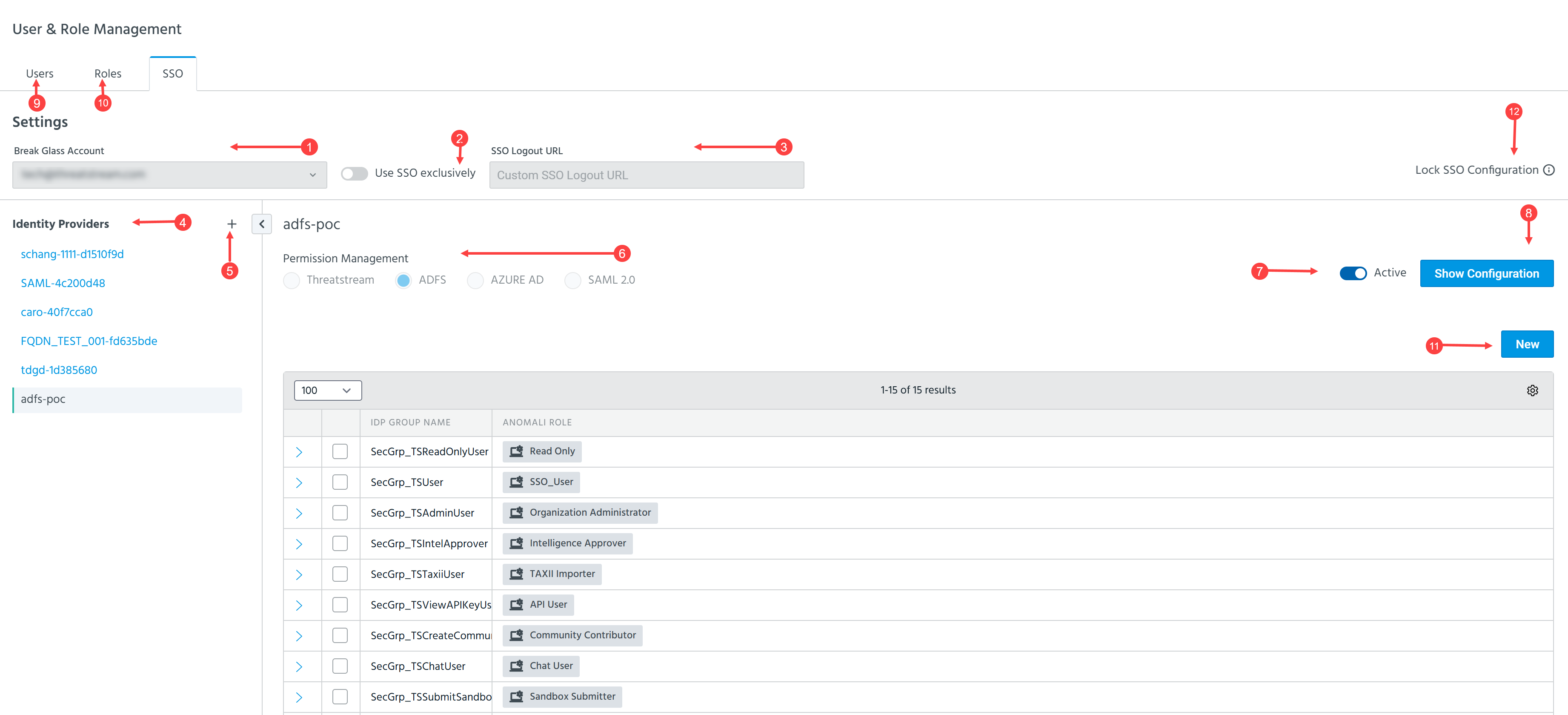
 Break Glass Account: To use SSO on the Anomali platform, you must select a user account to serve as a Break Glass Account.
The Break Glass Account serves two critical purposes:
-
Emergency access when your SSO identity provider is unavailable.
-
SSO configuration management.
The Break Glass Account user maintains access to the Anomali platform through the ThreatStream login page, even when your organization uses SSO exclusively for logging in. The Break Glass Account should be an independent, local account on the Anomali platform. Another account with the same configuration must not exist in the SSO IdP. Doing so will cause login failures. See Managing Users to learn how to create a local account on the Anomali platform.
 Use SSO exclusively: Enable this setting to restrict users from logging into the Anomali platform through its interface.
If this setting is enabled and an IdP is selected in Permission Management (see
 ), user and role management is handled exclusively through the chosen IdP.
If this setting is enabled and ThreatStream is selected in Permission Management (see
), SSO is used solely for authentication, while user and role management remain within the Anomali platform (except the Break Glass Account user).
 Custom SSO Logout URL: Enter the URL for the portal of your SSO identity provider. You will be directed to this URL when logging out of the Anomali platform. If left blank, the default ThreatStream login URL is used.
 Identity Providers: Identity providers configured by your organization.
 Add new identity provider: Configure an IdP. See Configuring an Identity Provider for SSO for more information.
Permission Management: Define whether the roles assigned to authenticated users are determined by ThreatStream or by an Identity Provider. If you select ThreatStream, Organization Administrators manage users and their roles from the Anomali user interface. If you select ADFS, AZURE AD, or SAML 2.0, you are prevented from managing users and roles from the Anomali platform interface and must use ADFS, AZURE AD, or a SAML 2.0-compliant IdP for user and role management.
-
For more information on using ADFS or AZURE AD for user management, see Enabling User Management with Active Directory Federation Services and Azure Entra ID.
-
For more information on using SAML 2.0 for user management, see Enabling User Management with SAML 2.0 IdP Services.
 Active: Whether the configured IdP is active. This switch must be enabled for users to authenticate to the Anomali platform through the IdP. See Activating an IdP for details.
 Show/Edit Configuration: View and edit configured Identity Provider Details and view configured Service Provider Details. Use this button to download the Service Provider certificate for a configured IdP.
 Users: View the list of Anomali platform users and the roles assigned to them.
 Roles: View user roles. See Managing Roles for details.
 New: Create a new SSO mapping for groups configured on ADFS, Azure Entra ID, or a SAML 2.0 compliant IdP. See Enabling User Management with Active Directory Federation Services and Azure Entra ID and Enabling User Management with SAML 2.0 IdP Services for details.
 Lock SSO Configuration: Use this setting to prevent any further changes to the SSO configuration other than with the Break Glass Account. After locking the SSO Configuration, the following SSO settings become read-only:
-
Break Glass account
-
Use SSO Exclusively
-
SSO Logout URL
-
Identity providers
-
Permission Management
-
Active
-
Show/Edit Configuration
However, you can still modify IdP Group to Anomali Role mappings.
To lock an SSO configuration, click Lock SSO Configuration or the tooltip icon ( ) next to it. In the dialog box that appears on the screen, click Lock SSO Configuration. The SSO Configuration is locked.
To unlock an SSO configuration, click SSO Configuration Locked or the tooltip icon () next to it. In the dialog box that appears on the screen, click Unlock SSO Configuration. The SSO Configuration is unlocked.
Before You Begin
-
Ensure you have an active subscription with the identity provider you are going to use. ThreatStream can integrate with SAML 2.0 or OKTA IdPs.
-
Define the Anomali roles you will use for user access control. For information on available Anomali roles, refer to Using System Roles and Managing Roles.
-
Define IdP groups and which roles you want to map to these IdP groups. A single IdP group can have multiple roles assigned to it.