Enabling User Management with SAML 2.0 IdP Services
Anomali provides the capability to integrate with identity providers (IdP) that are compatible with the SAML 2.0 protocol, thus enabling single sign-on (SSO) and user administration from the preferred IdP.
Integration between a SAML 2.0 IdP and the Anomali platform means that the IdP creates a SAML response to the platform. The SAML response must contain an assertion with the group attribute name attribute. This attribute allows the mapping of roles to groups between the IdP and the Anomali platform. You can view a sample of a SAML 2.0 assertion in Sample SAML 2.0 Assertion with Group Attribute Name.
group attribute name attribute may be called differently depending on a preferred IdP.Requirements
-
You must have an active SAML 2.0 configuration on the Anomali platform. Contact Anomali Support for assistance.
-
You must use a SAML 2.0-compliant IdP that supports exporting group lists as SAML attributes.
-
You must have a configured SAML group list mapping with the specified
group attribute nameattribute.
Enabling user management with SAML 2.0 IdP is a two-step process, which involves:
-
Configuring the integration in a SAML 2.0 IdP. See Configuring the Integration in a SAML 2.0 IdP.
-
Enabling the integration on the Anomali platform. See Enabling the Integration on the Anomali Platform.
Configuring the Integration in a SAML 2.0 IdP
Configuring the integration in IdP involves creating groups which later will be mapped to roles created on the Anomali platform. The procedure for creating groups depends on your preferred IdP.
When configuration in the IdP is complete, proceed to Enabling the Integration on the Anomali Platform to complete configuration within the Anomali platform.
Enabling the Integration on the Anomali Platform
To finish configuring the integration, you must configure a Break Glass account and map the groups created in a SAML 2.0 IdP to their corresponding roles on the Anomali platform.
To enable the integration on the Anomali platform
-
In the bottom-left corner of the side navigation panel, click Settings (
 ) > User & Role Management.
 -
Click the SSO tab.
-
From the Break Glass Account drop-down list, select a user account that will serve as the Break Glass Account.
Notes:Only accounts of organization administrators are available in the drop-down list.
The Break Glass Account should be an independent, local account on the Anomali platform. Another account with the same configuration must not exist in the SSO IdP. Doing so will cause login failures. See Managing Users to learn how to create a local account on the Anomali platform.
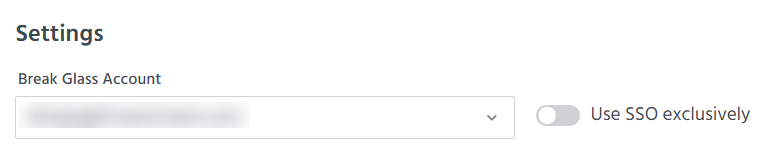
- (Recommended) Enable the Use SSO exclusively if you want to prevent users from logging in through the ThreatStream login page.
-
Add an identity provider, as described in Configuring an Identity Provider for SSO.
-
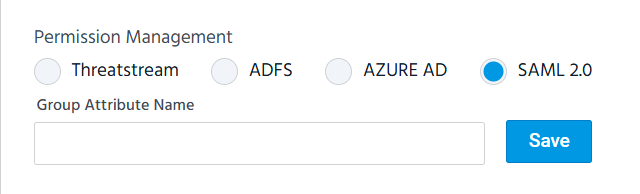
After the identity provider is configured, specify SAML 2.0 under Permission management.
-
In the Group Attribute Name field, specify the
group attribute namefrom your IdP group list configuration, and then click Save.Important: In order for the integration to work properly, make sure that thegroup attribute nameis the same both on the Anomali platform and IdP. -
Assign Anomali roles to all groups configured on the IdP.
To assign roles to an IdP group:
-
Click New.
-
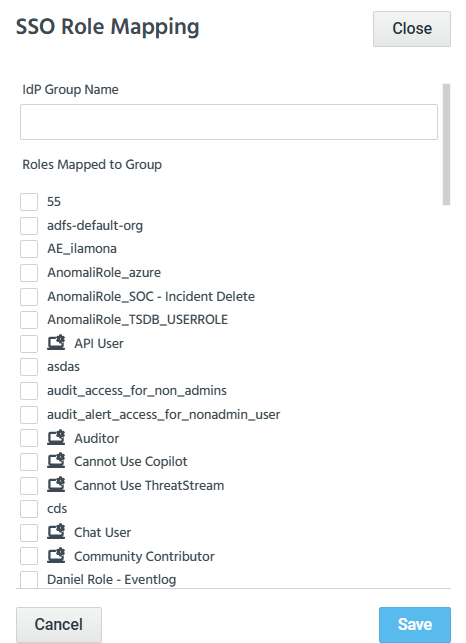
In the SSO Role Mapping dialog box, enter an IdP group name.
-
Select roles for this group.
-
Click Save.
The SSO role mapping is created successfully.
Repeat this process for each IdP group.
-
Configuration is complete and your integration is now active.
Sample SAML 2.0 Assertion with Group Attribute Name
Below is a sample SAML 2.0 assertion where the group attribute name is called name, its value is "IDP_group", and the user has a membership in the following groups: SecGrp_TSAdminUser, SecGrp_TSSubmitSandbox, SecGrp_TSUser, and SecGrp_TSViewAPIKeyUser.
You can use this sample to compare it against the SAML 2.0 assertion in your preferred IdP and check how the group attribute name is called.
<saml:Attribute FriendlyName="group list"
Name="IDP_group"
NameFormat="urn:oasis:names:tc:SAML:2.0:attrname-format:basic"
>
<saml:AttributeValue xmlns:xs="http://www.w3.org/2001/XMLSchema"
xmlns:xsi="http://www.w3.org/2001/XMLSchema-instance"
xsi:type="xs:string"
>SecGrp_TSAdminUser</saml:AttributeValue>
<saml:AttributeValue xmlns:xs="http://www.w3.org/2001/XMLSchema"
xmlns:xsi="http://www.w3.org/2001/XMLSchema-instance"
xsi:type="xs:string"
>SecGrp_TSSubmitSandbox</saml:AttributeValue>
<saml:AttributeValue xmlns:xs="http://www.w3.org/2001/XMLSchema"
xmlns:xsi="http://www.w3.org/2001/XMLSchema-instance"
xsi:type="xs:string"
>SecGrp_TSUser</saml:AttributeValue>
<saml:AttributeValue xmlns:xs="http://www.w3.org/2001/XMLSchema"
xmlns:xsi="http://www.w3.org/2001/XMLSchema-instance"
xsi:type="xs:string"
>SecGrp_TSViewAPIKeyUser
</saml:AttributeValue>
</saml:Attribute>