Managing Users
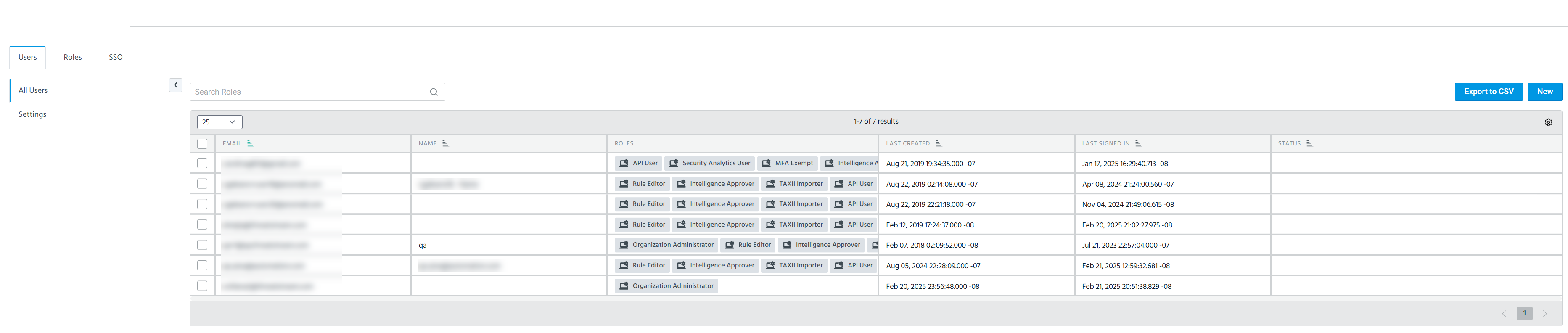
The Users tab on the User & Role Management page provides a list of all active users in your organization, including their names, assigned roles, statuses when they were created, and when they last signed in. From the Users tab, organization administrators can add new users, modify user roles, reset MFA tokens, reset user passwords, unlock and deactivate accounts, reset API credentials, and export user information in CSV format.
For details on user management, refer to these sections:
Adding a User
Users with the Organization Administrator role can add new users to their organization and assign roles to them.
To add a new user to your organization:
-
In the bottom-left corner of the side navigation panel, click Settings (
 ) > User & Role Management.
 -
On the Users tab, click New.
-
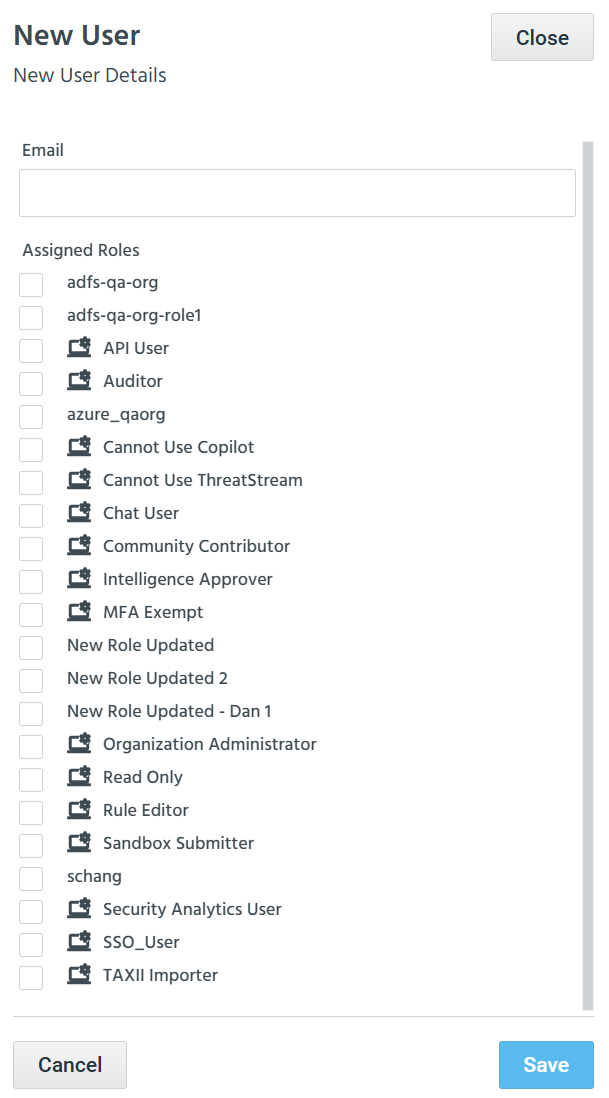
In the New User dialog box that opens, enter the user's email.
-
Select the roles that you want to assign to the user. A user can have multiple roles assigned. The effective permissions of a user are the union of all permissions granted by all their assigned roles. If one of the assigned roles of the user has a permission and the other does not, then the user is granted the permission. If none of the assigned roles has a permission, then the user is not granted the permission.
Note: Roles with the icon next to them are ThreatStream systems roles, which are predefined by Anomali. System roles are primarily intended to facilitate the transition of existing Anomali customers to the new User Management UI. Instead of assigning system roles, Anomali recommends creating custom roles tailored to the needs of your organization. Use system roles only when a required permission is not available for inclusion in a custom role. For mode details on system roles, refer to Using System Roles. For details on creating custom roles, refer to Creating a Role.
 -
Click Save.
The new user is added to the list of organization users.
Editing User Roles
Organization administrators can configure roles of their organization users. Name and email address of users cannot be configured.
To edit roles of a user:
-
In the bottom-left corner of the side navigation panel, click Settings (
) > User & Role Management. -
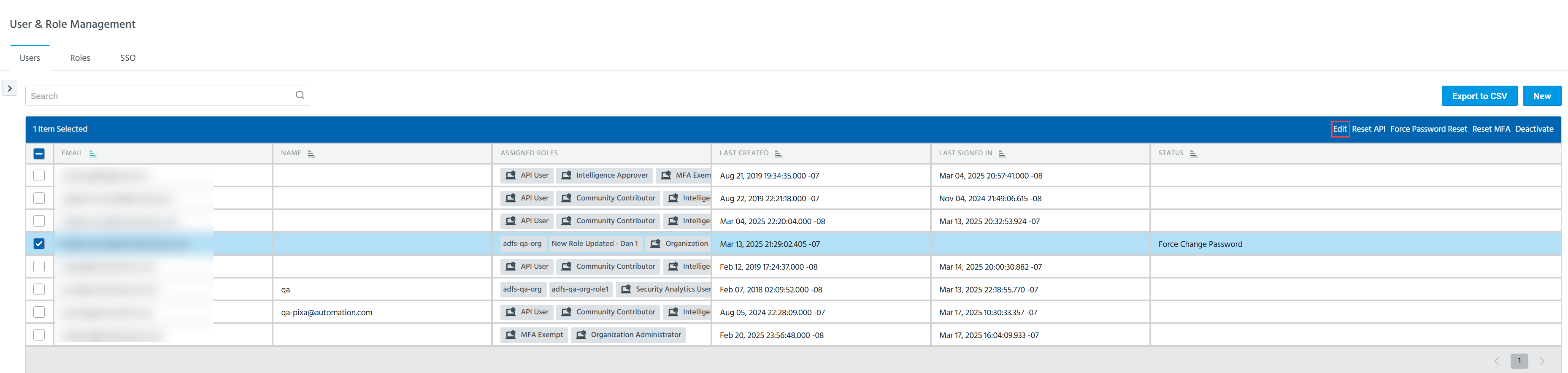
On the Users tab, select the user whose roles you want to configure.
-
Click Edit.
-
Select the new roles you want to assign to the user.
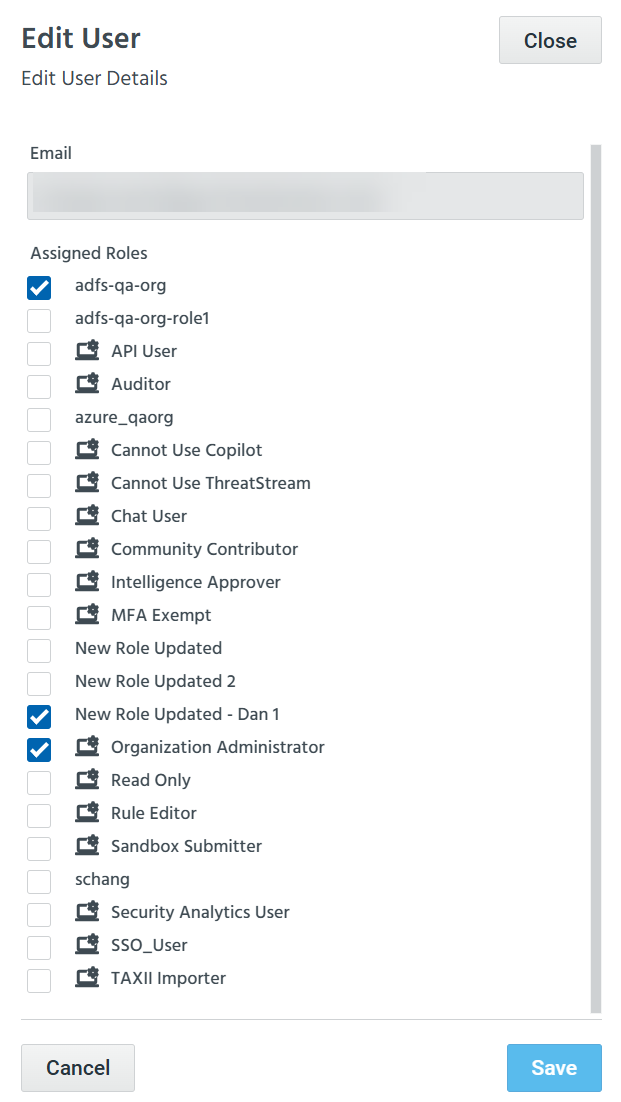 Note: When updating roles of multiple users, the newly selected roles replace existing roles previously assigned to these users.
 -
Click Save.
The user's roles are updated.
Resetting MFA Tokens
If users cannot log in to ThreatStream due to their current MFA configuration, organization administrators can reset their MFA tokens. After the reset, users will be prompted to configure MFA using a new shared secret.
To reset a configured MFA token for a user:
-
In the bottom-left corner of the side navigation panel, click Settings (
) > User & Role Management. -
On the Users tab, select the user whose MFA you want to reset.
-
Click Reset MFA.
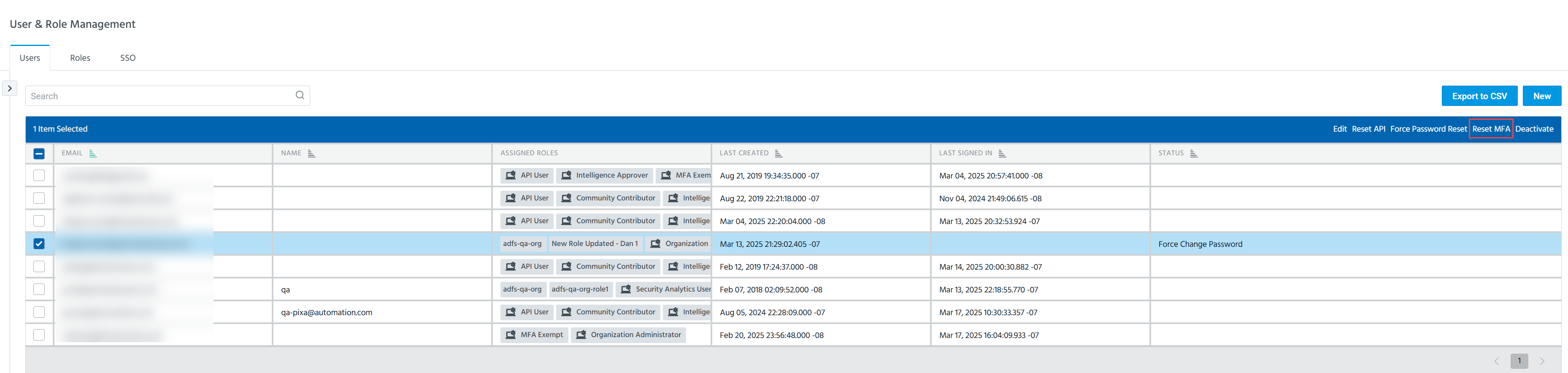
The user's MFA token is reset.
Recovering the MFA Shared Secret
If you are the sole organization administrator for your organization and cannot log in to the Anomali platform with your current MFA configuration, you must contact Anomali Support to reset your MFA shared secret.
To prevent this situation from occurring, users who are the only organization administrator for their organization can disable MFA for their accounts or add another organization administrator user.
Unlocking a User
Organization administrators can unlock user accounts that were locked due to consecutive failed login attempts.
To unlock a user account:
-
In the bottom-left corner of the side navigation panel, click Settings (
) > User & Role Management. -
Select the user whose account you want to unlock.
-
Click Unlock User.
The user's account is unlocked.
Resetting API
Organization Administrators can reset the existing API for selected users.
To reset an existing API:
-
In the bottom-left corner of the side navigation panel, click Settings (
) > User & Role Management. -
Select the users whose API you want to reset.
-
Click Reset API.
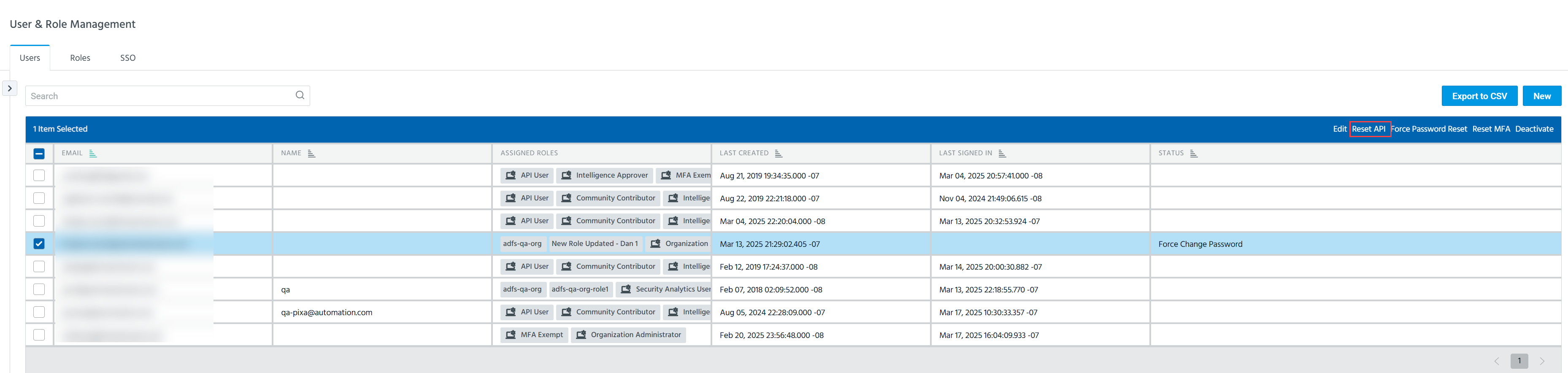
The API of the selected users is reset.
Resetting a Password
Organization administrators can force selected users to create a new password on their next log in to ThreatStream.
To force a password reset:
-
In the bottom-left corner of the side navigation panel, click Settings (
) > User & Role Management. -
Select the users who you want to force to reset their passwords.
-
Click Force Password Reset.
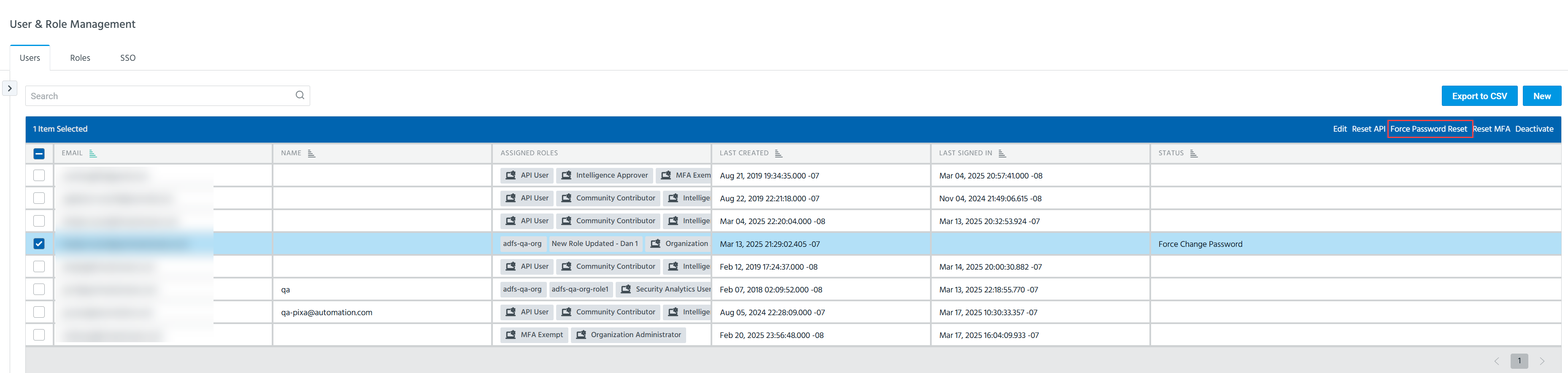
The password of the selected users is forced to be reset.
Deactivating a User
Organization administrators can remove selected users from the list of their organization users. After taking this action, the users are disabled. The deactivated users are no longer displayed on the Users tab and cannot log in to the Anomali platform. To reactivate a deactivated account, a new user with the email address associated with the deactivated account must be added to the organization user list. For details, see Adding a User.
To deactivate a user:
-
In the bottom-left corner of the side navigation panel, click Settings (
) > User & Role Management. -
Select the user(s) whose account you want to deactivate.
-
Click Deactivate.
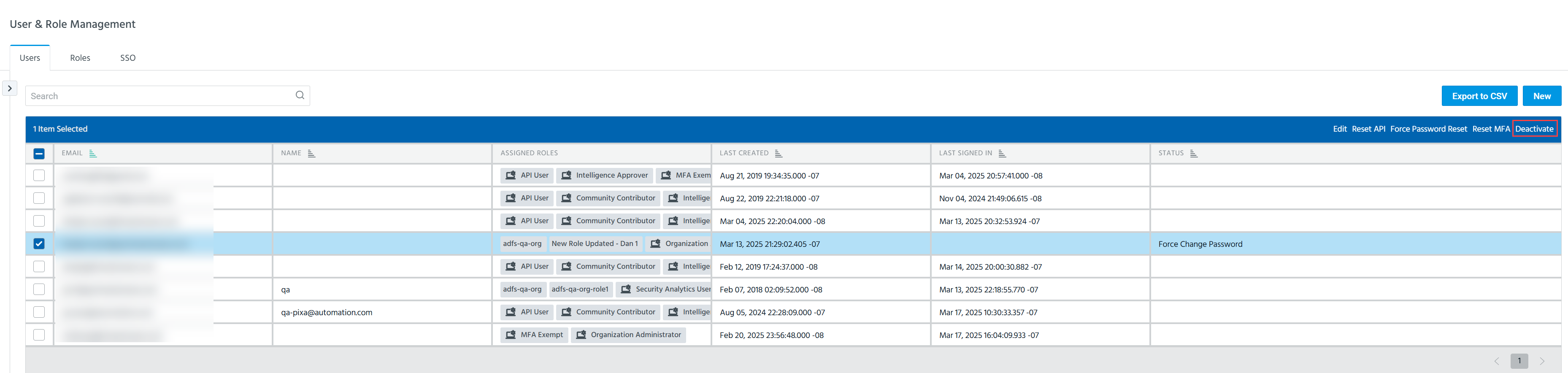
The selected users are deactivated.
Exporting User Information
User information can be exported in the CSV format. Exports include the following information visible on the Users tab: user names, email addresses, dates users were added, status of user accounts, roles assigned to users, and timestamps of most recent logins. Exports are limited to 10,000 users.
To export user information:
-
In the bottom-left corner of the side navigation panel, click Settings (
) > User & Role Management. -
Click Export to CSV.
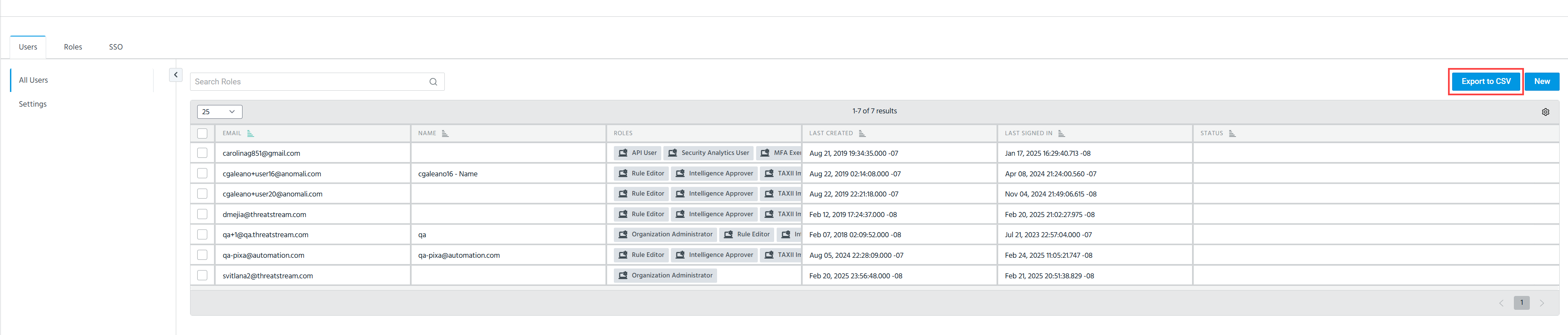
The downloading process starts immediately.