Viewing Sandbox Reports
You can access sandbox reports from the Sandbox page.
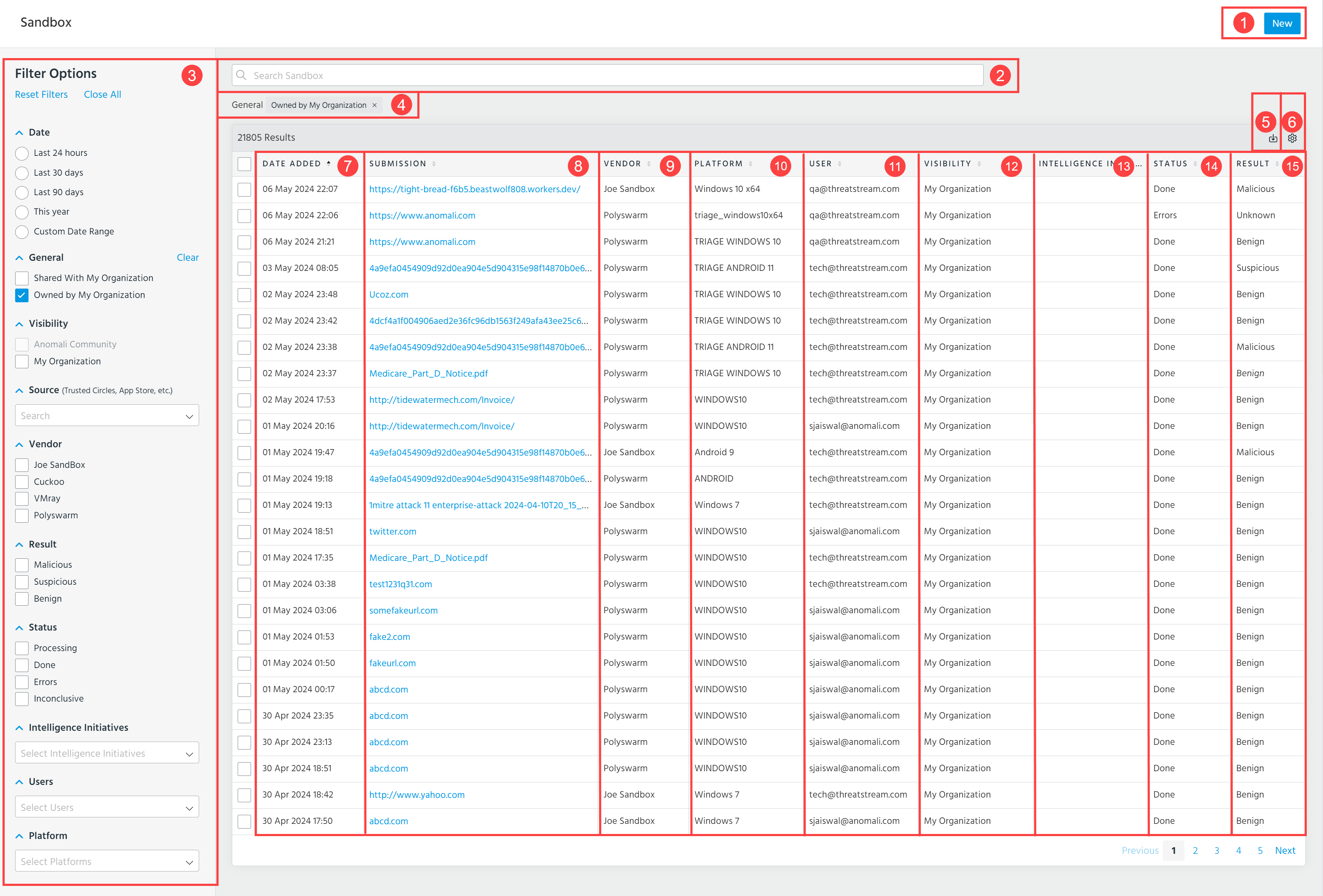
 Create a new sandbox detonation. See Submitting Malware for Detonationfor more information.
 Search sandbox reports by keyword.
 Filter sandbox reports by date, visibility, source, vendor, result, status, intelligence initiative, user, and platform. Select Owned by My Organization to display only sandbox detonations created by your organization. Select Shared with My Organization to display detonations created by other organizations. By default, only detonations created by your organization are displayed.
 View selected filters.
 Export selected reports in CSV format. See Exporting Sandbox Reports in CSV Format.
 Toggle which columns are visible, and the number of results displayed per page.
 Date the sandbox submission was made.
 Name of the submission.
 Vendor that performed the detonation.
 Platform on which the malware was detonated.
 User who made the sandbox submission. This field is blank for sandbox detonations created by other organizations.
 Visibility of the sandbox report—My Organization (private), Trusted Circles, or Anomali Community (public).
 Intelligence Initiatives associated with the detonation.
 Status of the sandbox report:
-
Processing: The sandbox is actively processing your submission and working to return a result.
-
Done: The sandbox has processed your submission and has returned a result.
-
Errors: The sandbox could not complete detonation due to an error. Error messages are displayed on the sandbox report.
-
Inconclusive: The sandbox could not return a result because dynamic detonation is not supported for the submitted file type. This status applies to VMRay detonations only.
 Result of the sandbox report—Malicious, Benign, Suspicious, or Unknown.
Note: Unknown results indicate that there was an issue processing the sandbox detonation and the verdict is inconclusive. For more context, error messages are listed in the sandbox report.
To view a sandbox report:
- Navigate to ThreatStream > Research > Sandbox.
- Locate the sandbox report of interest and click the name of the submission.

Details of the report are displayed. Examine the details to determine next steps.
Information in a Sandbox Report
A typical sandbox analysis report on ThreatStream provides the following information:
-
Report details such as the sandbox report ID, the platform on which the malware was detonated, report visibility, malware category, confidence score, malicious detections (PolySwarm only), the user who submitted the report, the timestamps for when the detonation started and completed, and the total duration of the detonation.
Note: The Malicious Detections section displays the number of malicious detections identified in the scan out of the total detections. For example, 2/8.
Additional details can be viewed on the Scan Results tab. -
A slideshow or video recording of the steps taken to detonate the malware. The video recording include the download, playback speed and picture in picture options to let you review the detonation process at your own pace.
-
Signatures of the malware.
-
Dropped files created or written to disk during execution
-
Startup overview showing how the sample attempts to persist or execute automatically when the system starts or a user logs in.
-
Network and behavior analysis of the malware.
-
Scan results (PolySwarm only).
-
Report errors.
Note: PolySwarm reports display combined report data and scan results when both are included in a detonation. If one result succeeds and the other fails, both the successful data and the error message appear on the same page. If both fail, both error messages are shown.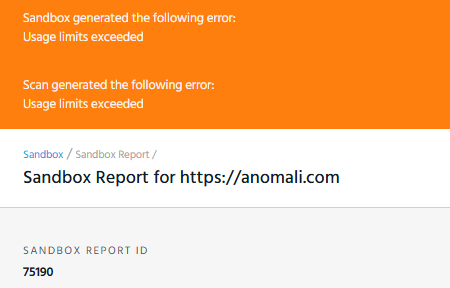
- Other details about the sandbox report, such as whether the report is Anomali Community or My Organization.
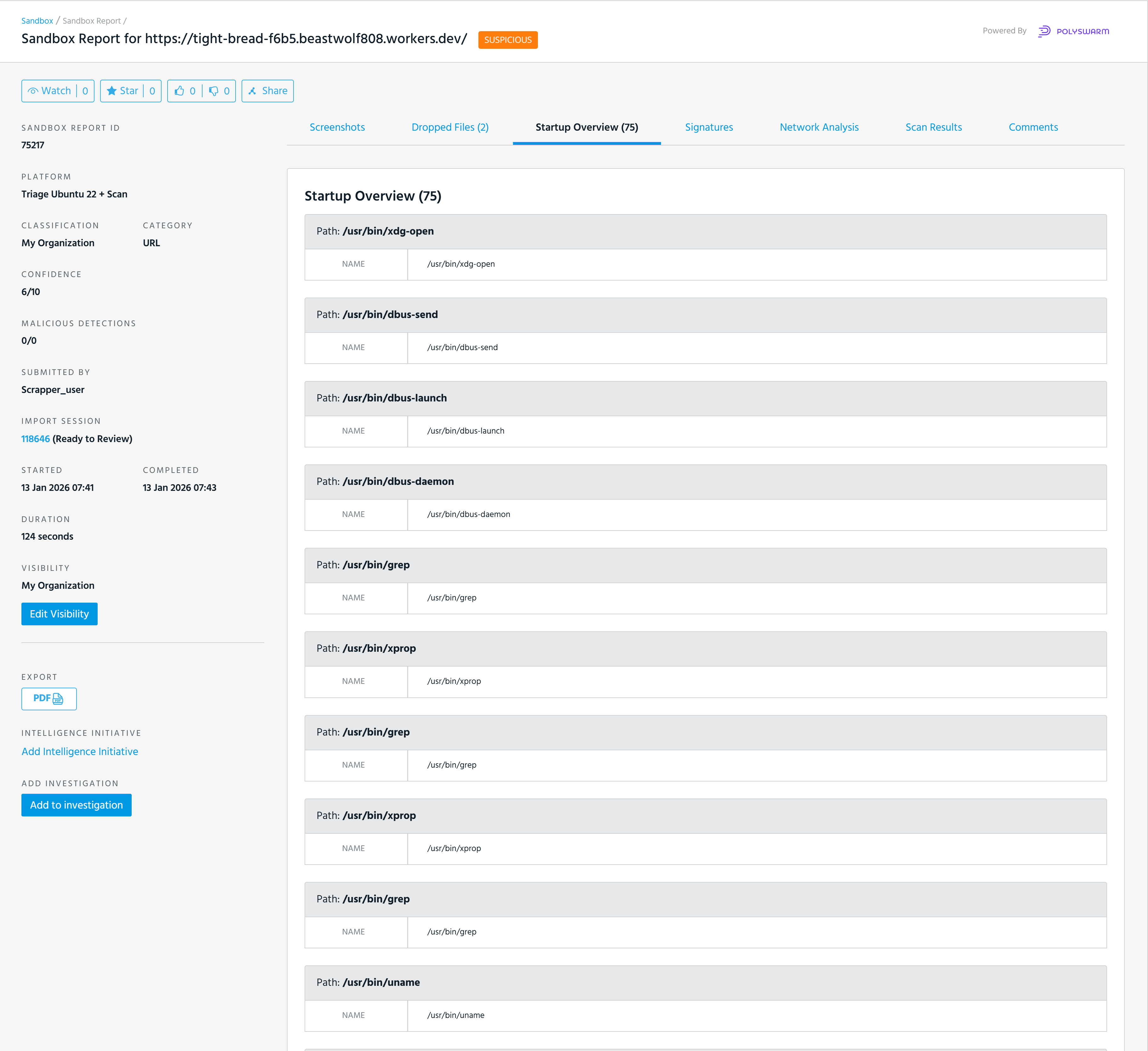
If you selected Import Observables when you detonated the malware, an import session is automatically created for malware that is marked "Suspicious" or "Malicious." You can use this session to import malicious observables into ThreatStream. For malware classified as "Benign", an import session is not created. See Importing Observables from a Sandbox Report for more information.
On Sandbox Report pages, you can also take the following actions:
-
Add or view comments made for the report. To add private comments that are only visible to your organization, assign them the Private color red. Comments assigned the Public white color are visible to any user with access to the report.
-
Export the report in the PDF or PCAP formats. For details, see Exporting a Sandbox Report.
-
Add an intelligence initiative to the report. For details, see Associating Intelligence Initiatives with a Detonation Report.
-
Add the report to an existing investigation or create a new investigation that will be associated with this report. For details, see Adding Sandbox Reports to Investigations .