Submitting Malware for Detonation
Use the Sandbox feature to safely detonate suspicious files or URLs in an isolated environment and analyze their behavior. You can submit a file or a URL for analysis, selecting the vendor, target platform, and other submission parameters to fit your investigation needs. Once processed, results are compiled into a detailed sandbox report that helps you assess potential threats.
- Navigate to ThreatStream > Research > Sandbox.
- Click New.
-
Specify the following parameters in the ANALYZE IN SANDBOX dialog box:
Field Definition Add Your Detonation File If you are submitting a file:
-
Click File Upload.
- You can upload file in any format that is compatible with the Sandbox vendor you select.
- The maximum size supported for the file is 50 MB.
-
Drag and drop the file into the window, or click browse to select a file to browse to the location of the file and select it.
If detonating on Joe Sandbox or PolySwarm and the file is password protected, select File is encrypted and enter the password for the file.
Passwords can contain letters and numbers only. Special characters are not supported. If you do not specify a password for uploaded files, Joe Sandbox attempts to open protected files with the default password—"infected".
Notes:-
On PolySwarm, file password is supported only for .pdf and .zip files.
-
The VMRay sandbox service does not support password protected files.
-
-
When detonating a file containing QR code images on PolySwarm, select Yes under Does this file contain any QR code images? if you want to analyze URLs embedded in the QR codes.
If you are submitting a URL:
- Click URL.
-
Enter the URL in the text box below.
Notes:The URL must not exceed 2,000 characters.
Joe Sandbox does not support URL submissions on the macOS platform.
Select Vendor Select the sandbox vendor to whom you want to make the submission. Select Platform Select the platform on which the submitted malware will be detonated.
Notes:-
VMRay dynamically selects a detonation platform based on the submission you make. Therefore, this option is not available when making submissions to VMRay.
-
The list of available detonation platforms for Joe Sandbox activated via ThreatStream may differ from the list of available detonation platforms for Joe Sandbox activated via an individual subscription.
PolySwarm supports selecting multi-platform selection.
# of Detonations (Premium VMRay Subscriptions Only)
Specify the number of detonations you want VMRay to perform for the submission. If you specify 2 or 3, VMRay performs the detonations on different platforms. A Sandbox Report is created on ThreatStream for each detonation that returns results.
Each detonation is treated as a submission toward your quota. Therefore, if VMRay detonates a submission on three different platforms, your number of remaining detonations is reduced by three. However, if you submit an archive file which contains multiple files, VMRay attempts to detonate each file and your number of remaining detonations is only reduced by one.
Import Observables Select Import Observables if you want ThreatStream to create an import job for any observables discovered during detonation.
Note: This option may be disabled depending on how your Org Admin has configured your organization settings. See Allow Observable Imports from Sandbox for more information.
PolySwarm Scan (PolySwarm Only) Select Scan my artifacts if you want to submit your file or URL for a PolySwarm scan too. Tags Enter any tags you want to associate with the resulting Sandbox Report. Visibility Select a Visibility setting—Anomali Community, My Organization, or Trusted Circles.
If you selected Trusted Circles, check the Trusted Circles with which you want to share the report from the provided list.
Note: After detonation is complete, the visibility setting can only be edited to increase the visibility of the resulting sandbox report. Visibility can not be edited to restrict visibility of the sandbox report. As such, if you select Anomali Community during submission, you may not edit the visibility setting after detonation is complete.
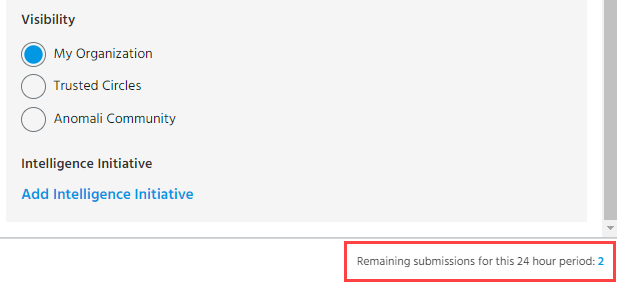
Note: The number of submissions you can make in a 24-hour period varies between sandbox vendors. You can view the number of submissions you have left after selecting a vendor on the Analyze in Sandbox window. The count is displayed at the bottom of the window.
-
-
Click Add Intelligence Initiative and select the Intelligence Initiative to associate with the submission. Click Save.
-
Click Analyze. The malware is submitted to the Sandbox. An entry is created on the Sandbox screen in Processing status.

The status changes to Done after the submission is processed. Click the submission name to view the Sandbox Report.

Note: If you submitted an archive file, individual reports are generated for each file detonated by the sandbox service.