Creating Intelligence Initiatives
Org Admins can create intelligence initiatives from the Intelligence Initiatives screen.
To create an intelligence initiative:
-
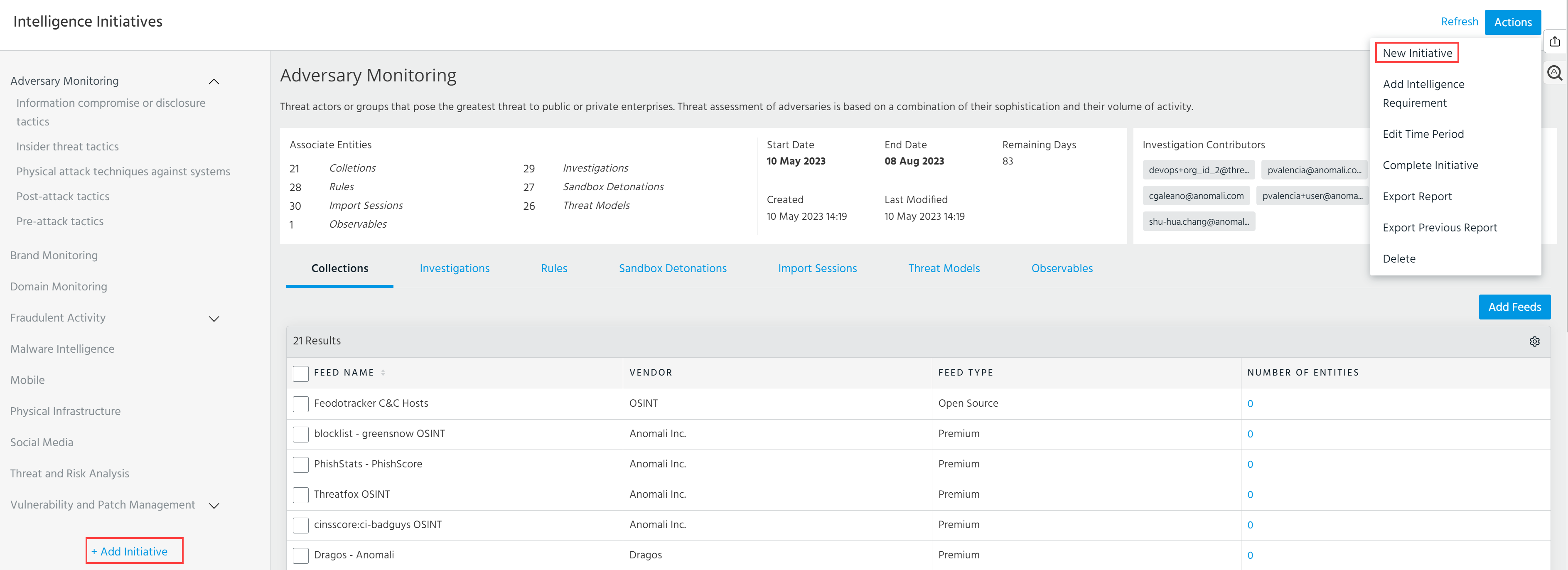
Navigate to ThreatStream > Manage > Intelligence Initiatives. The intelligence initiatives screen is displayed.
-
Select New Initiative from the Actions menu, or click + Add Initiative.
-
Select the type of intelligence initiative you want to create. You can select Adversary Monitoring, Brand Monitoring, Domain Monitoring, Fraudulent Activity, Geopolitical, Malware Intelligence, Mobile, Phishing, Physical Infrastructure, Social Media, Threat and Risk Analysis, and Vulnerability and Patch Management.
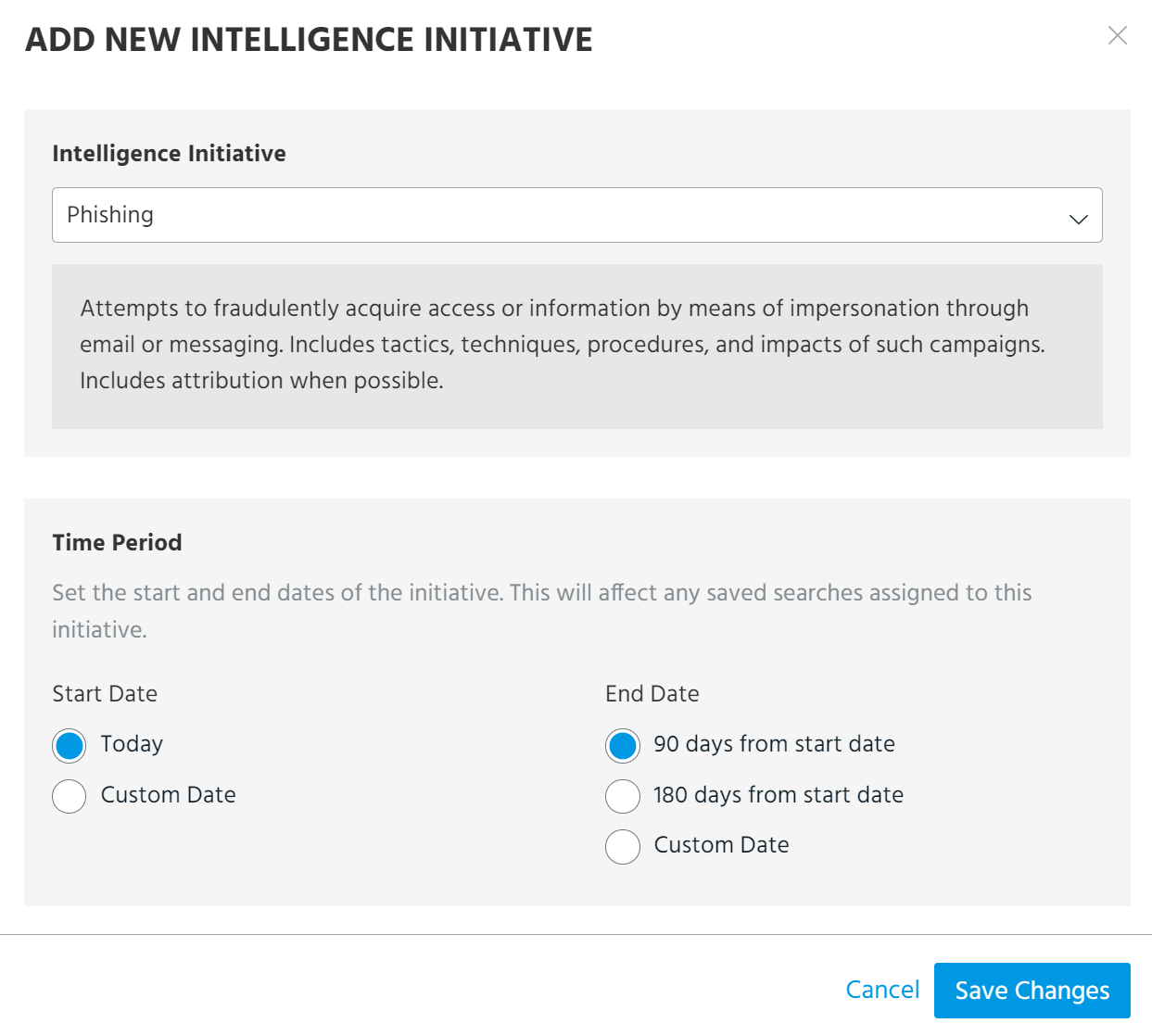
Note: Only types which are not associated with open initiatives are displayed. You can only have one active initiative of a given type at once.
-
Select a Start Date and End Date to specify a time period for the initiative. Time periods can be no longer than 180 days.
-
Click Save Changes to create the initiative.
-
To associate Collections (feeds) with the initiative:
-
On the Collections tab of the initiative, click Add Feed above the Collections table settings.
-
Select the feeds of interest and click Add.
Note: You can add a maximum of 100 feeds to an intelligence initiative.
-
-
To associate Investigations with the initiative:
-
Navigate to Research > Investigations.
-
Locate the investigation of interest and click the investigation name to open the details page of the investigation.
-
Under Intelligence Initiatives, select the intelligence initiative type associated with the initiative of interest. You can select multiple intelligence initiatives for the investigation.
-
-
To associate rules with the initiative:
-
Navigate to Manage > Rules.
- Select the rule you want to associate with the initiative.
- Click Edit.
-
Under Intelligence Initiatives, select the intelligence initiative type associated with the initiative of interest. You can select multiple intelligence initiatives for the rule.
-
-
To associate sandbox detonations with the initiative:
-
Navigate to the details page of the sandbox detonation you want to associate with the intelligence initiative. See Viewing Sandbox Reports for more information.
-
Click Add Intelligence Initiative.
-
Select the intelligence initiative with which you want to associate the detonation.
-
Click Add.
Note: You can also associate sandbox detonations with intelligence initiatives during the submission process. Click Add Intelligence Initiative under Intelligence Initiative on the Analyze in Sandbox window before submitting your detonation. See Submitting Malware for Detonation for more information.
-
-
To associate import sessions with the initiative:
-
Navigate to the Import Review page of the import session you want to associate with the initiative. See Viewing Import Jobs Associated With Your Organization for more information.
-
Click Add Intelligence Initiative.
-
Select the intelligence initiative with which you want to associate the import session.
-
Click Add.
Note: You can also associate import sessions with intelligence initiatives during the import process. Click Add Intelligence Initiative under Attribute to Intelligence Initiative on the import assistant before submitting your import. See Importing Observables for more information.
-
-
To associate Threat Model entities with the initiative:
-
Open the Threat Models tab of the intelligence initiative.
-
To associate threat model entities using a saved search, select Saved Searches under Attribution Source and then click Add Saved Search. Select the saved search of interest and then click Save Change. Threat Model entities returned by the saved search and modified within the time period specified for the intelligence initiative are listed in the Threat Model table. For more information on creating saved advanced threat model searches, see Saving Threat Model Search Filters.
To manually associate threat model entities with the initiative, navigate to the details page of the threat model entity you want to associate and select the intelligence initiative under Intelligence Initiatives. You can select multiple intelligence initiatives.
Note: Threat model entities can only be manually associated with intelligence requirements from the details page of the threat model entities. Saved search attribution configured for the primary intelligence initiative does not apply to associated intelligence requirements.
-
-
To associate observables with the initiative:
-
Open the Observables tab of the intelligence initiative.
-
To associate observables using a saved search, select Saved Searches under Attribution Source and then click Add Saved Search. Select the saved search of interest and then click Save Change. Observables returned by the saved search and modified within the time period specified for the intelligence initiative are listed in the Observables table. For more information on creating saved advanced observables searches, see Saving Threat Model Search Filters.
To manually associate observables with the initiative, navigate to the details page of the observable you want to associate and select the intelligence initiative under Intelligence Initiatives in the Intelligence table. You can select multiple intelligence initiatives.
Note: Observables must be manually associated with intelligence requirements from the details page of the observables. Saved search attribution configured for the primary intelligence initiative does not apply to associated intelligence requirements.
-