Viewing Import Jobs Associated With Your Organization
The Import page displays the list of every import job associated with your organization. Users with Approve Intel privileges can also approve, delete, or reject import jobs from this page.
To view the Import page, navigate to Manage > Imports.
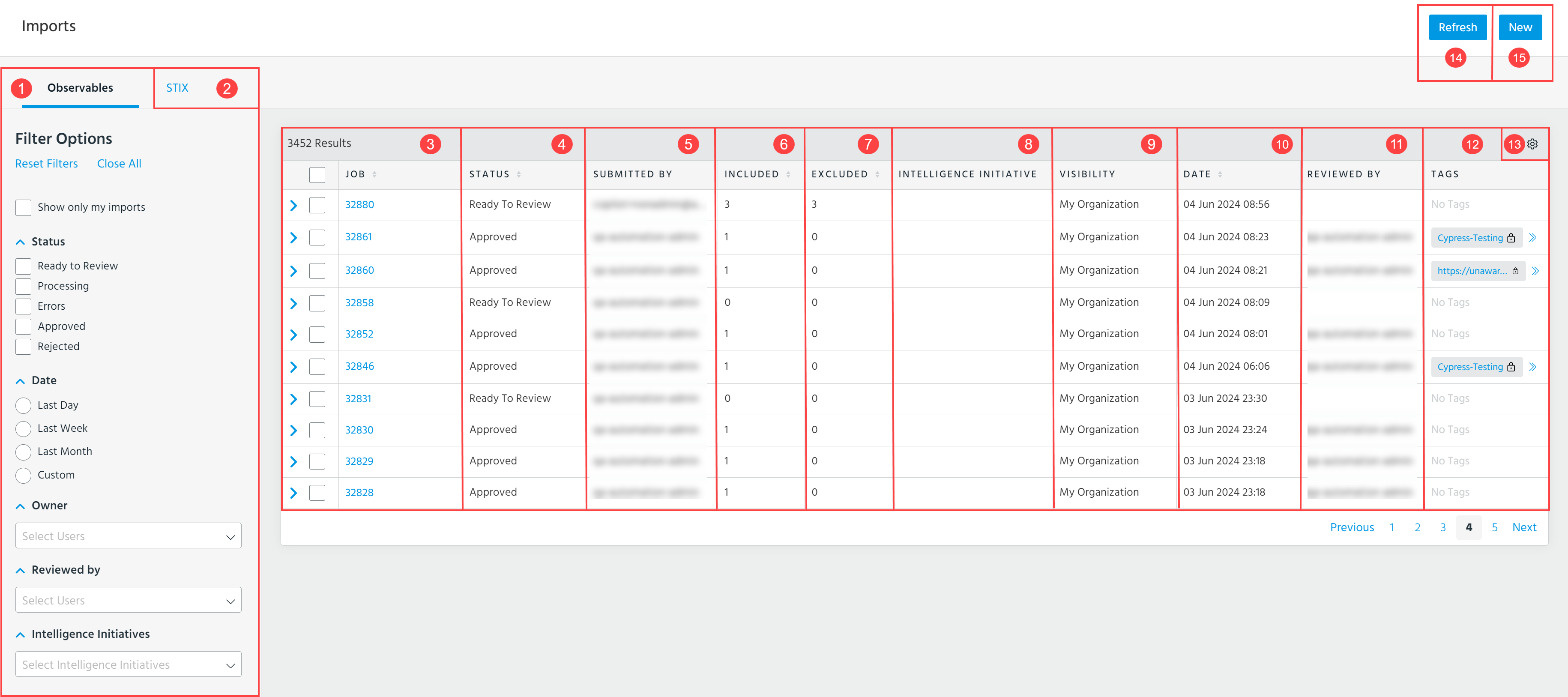
 Filter Options: Filter the displayed import jobs by Status, Date, Owner, Reviewed by, and Intelligence Initiatives. You can view import jobs that you have submitted by selecting Show only my imports.
 STIX: Click the STIX tab to view the list of the STIX import jobs. For more information, refer to Viewing STIX Import Jobs.
 Job: Job number associated with the import job. You can click a job number to view observables on the search page.
 Status: Current status of the import job. View any errors associated with the job by clicking errors.
 Submitted by: Organization user that submitted the import job.
 Included: Number of included observables associated with the import job.
 Excluded: Number of excluded observables associated with the import job.
 Intelligence Initiative: Intelligence initiative associated with the job. See Attributing Organizational Goals with Intelligence Initiatives for more information.
 Visibility: Displays whether the import job is assigned the visibility setting Anomali Community, My Organization, or available to specific Trusted Circles. Click the Trusted Circles link to see all trusted circles with which the job is shared.
 Date: Timestamp when the import job was submitted.
 Reviewed by: User who reviewed the import job.
 Tags: Tags associated with the import job. To view all tags of the import job of your interest, click the corresponding arrow in the Tags column or on the right side of the imports table.
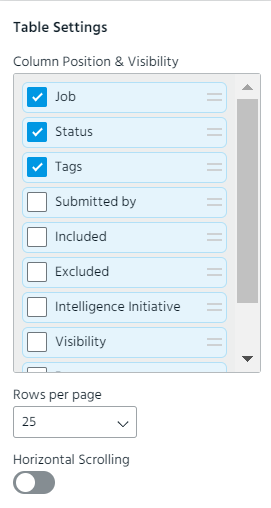
 Table Settings: Select the columns that you want to see in the table. You can select the Job, Status, Tags, Submitted by, Included, Excluded, Intelligence Initiative, Visibility, Date, and Reviewed by columns. The Reviewed by and Tags columns are hidden by default. Additionally, you can change the order of columns in the table by using the drag-and-drop functionality, specify the number of rows to be displayed per page, and enable or disable horizontal scrolling.
From the Import page, you can take the following actions:
 Refresh: Refresh the page.
 New: Submit a new import job. See Importing Observables.
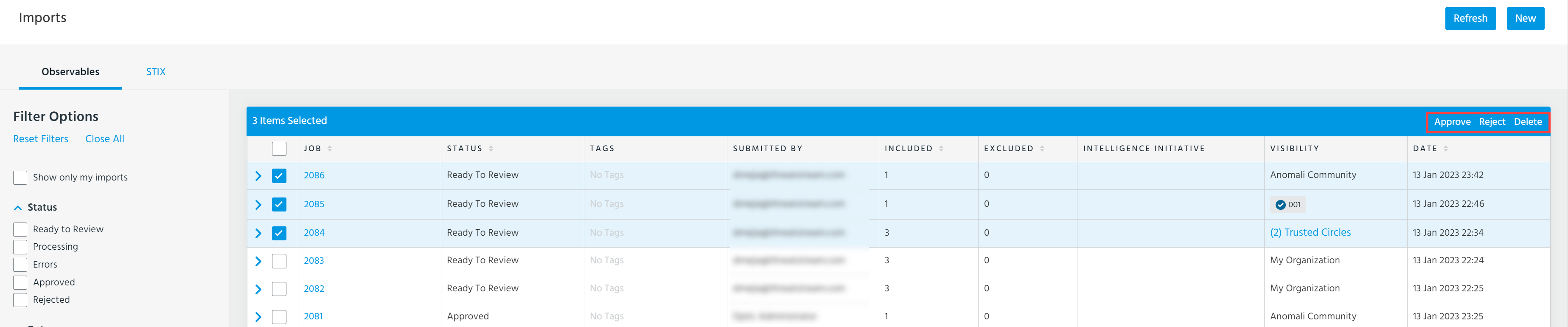
Additionally, you can apply the following actions to selected import jobs:
- Approve: Approve the selected import jobs. See Approving Import Jobs in Bulk.
- Reject: Reject the selected import jobs. See Rejecting Import Jobs.
- Delete: Delete the selected import jobs and all associated observables. Deleting Import Jobs.