Viewing STIX Import Jobs
The STIX Imports screen provides the status of recently imported STIX data. To access the STIX Imports screen, navigate to Manage > Imports and open the STIX tab.
For information about importing STIX data, see Importing STIX Data into the Anomali Threat Model .
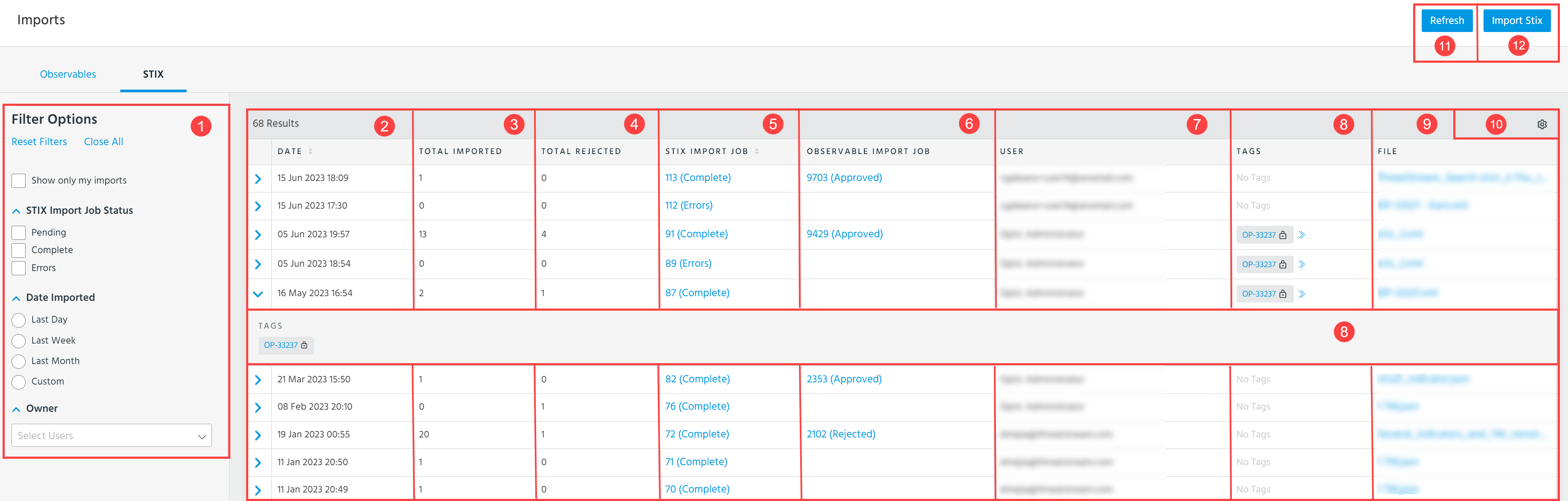
 Filter STIX import jobs by Status, Date, and Owner. Click Show only my imports to view STIX imports which you submitted.
 Date: Time stamp of when the STIX import occurred.
 Total Imported: Number of STIX entities (Threat Model entities and observables) that were imported. To see a list of all imported entities, click the link in the STIX Import Jobs column.
 Total Rejected: Number of STIX entities (Threat Model entities and observables) that were rejected. To see a list of all rejected entities, click the link in the STIX Import Jobs column.
 STIX Import Job: Job ID and status of the STIX import job. Click the link to view import job details. The STIX Import Review window lists the Threat Model entities that were successfully imported and the ones that were rejected with a reason for rejection, as shown in the following figure.
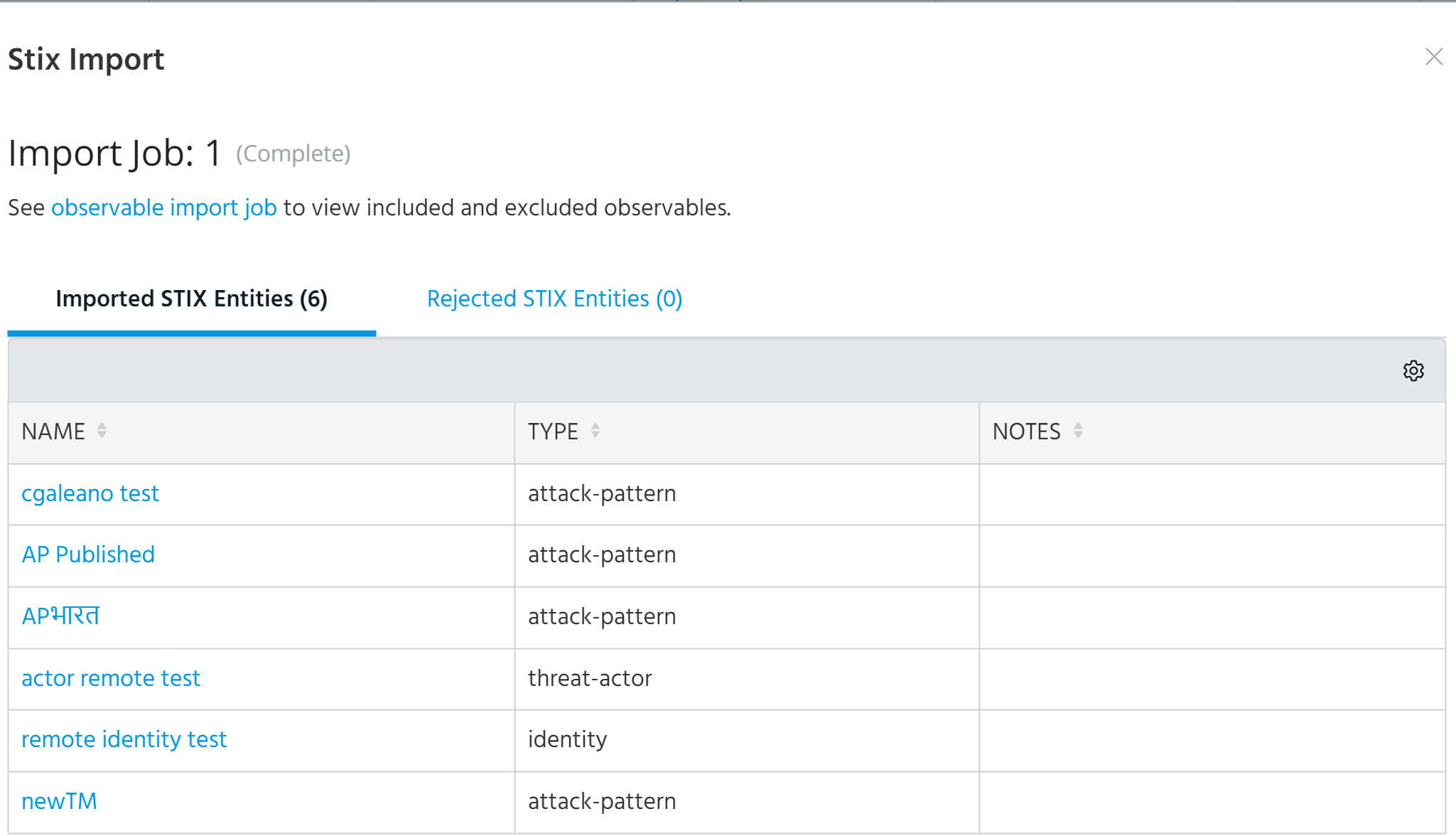
While the Imported STIX Entities tab lists imported Threat Model entities only, the Rejected STIX Entities tab lists rejected Threat Model entities and observables.
Note: Rows are ordered by import job ID when you sort the table using the STIX Import Job column.
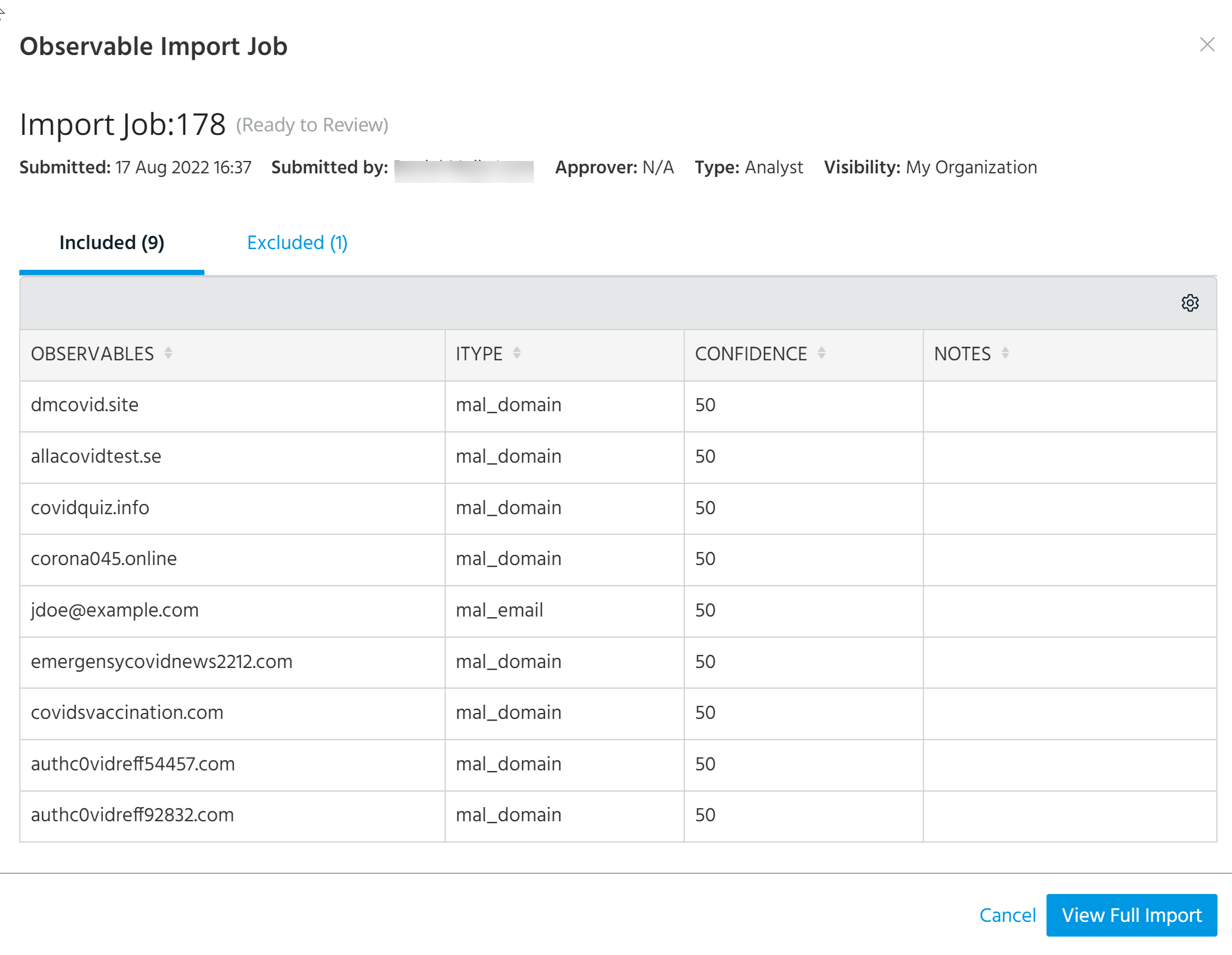
 Observable Import Job: If the JSON or XML file contained any observables, an observable import job is created for them. Click the link to view import job details. Included observables are listed on the Included tab. Excluded observables are listed on the Excluded tab.
Click View Full Import to open the Import Review page for the import job. See Approving Import Jobs for more information.
 User: The ThreatStream user who initiated the STIX import.
 Tags: Tags added to the STIX import job. To view all tags of the STIX import job of your interest, click the corresponding arrow in the Tags column or on the right side of the STIX import jobs table.
 File: The STIX JSON or XML file that was uploaded for import.
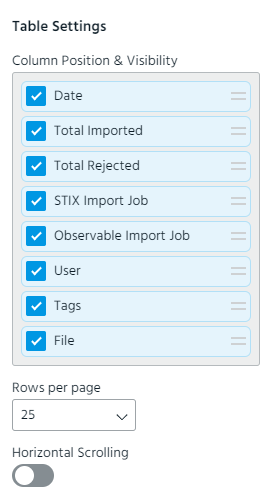
 Table Settings: Select the columns that you want to see in the table. You can select the Date, Total imported, Total Rejected, STIX Import Job, Observable Import Job, User, Tags, and File columns. Additionally, you can change the order of columns in the table by using the drag-and-drop functionality, specify the number of rows to be displayed per page, and enable or disable horizontal scrolling.
 Refresh: Refresh the STIX import jobs listed on the page.
 Import STIX: Submit a new STIX import job on the STIX tab of the import assistant. See Importing STIX Data Through the Import Assistant for more information.