Managing Custom Macros (Classic UI)
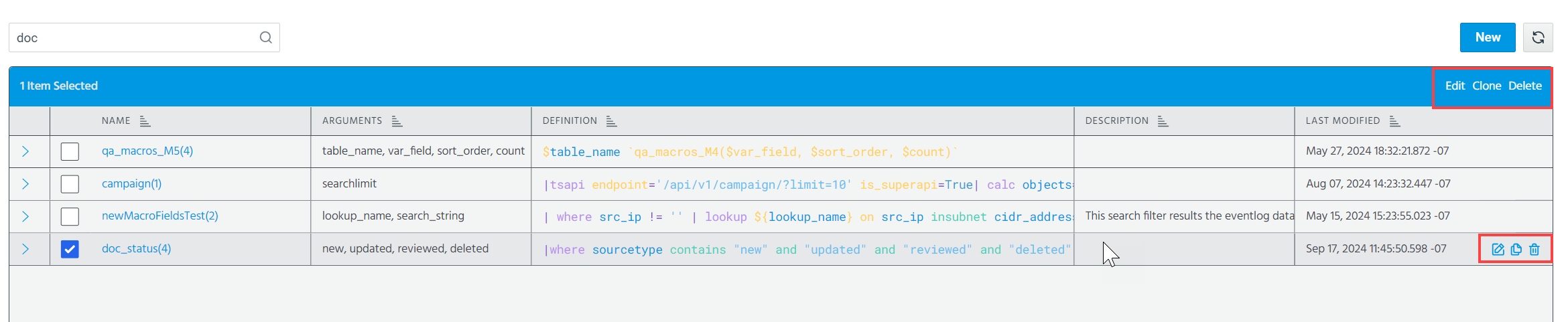
Custom macros created within your organization can be edited, cloned, and deleted on the Macros page. These actions can be taken in two ways:
-
By selecting a macro and clicking Edit/Clone/Delete.
-
By hovering your mouse over a macro and clicking the edit/clone/delete icon.
Editing a Macro
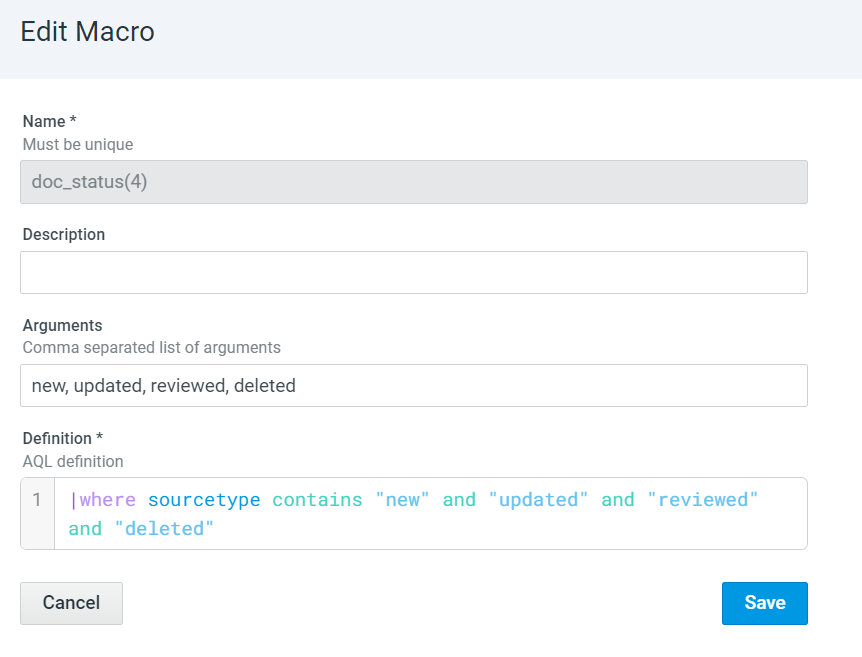
When editing a macro, you can change its the description, arguments, and definition. The name cannot be modified. To change the name, clone the macro. See Cloning a Macro for details.
To edit a macro:
-
Navigate to Manage > Macros.
-
Select the macro you want to edit and click Edit. Alternatively, hover the mouse over the macro you want to edit and click
 .
. -
In the Edit Macro dialog box that opens, make the required changes.
-
Click Save.
The changes are applied to the macros.
Cloning a Macro
To clone a macro:
-
Navigate to Manage > Macros.
-
Select the macro you want to clone and click Clone. Alternatively, hover the mouse over the macro you want to clone and click
 .
. -
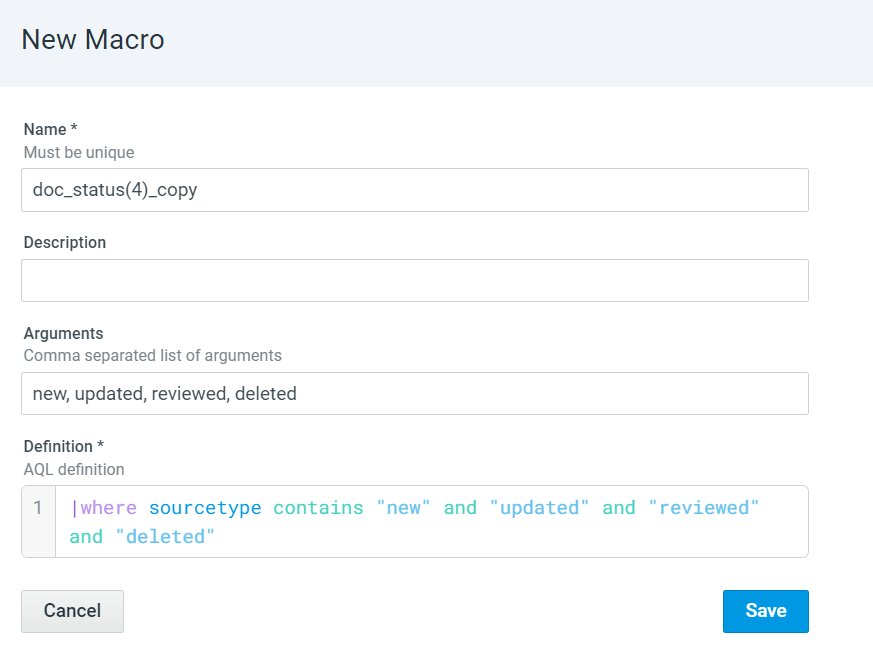
In the New Macro dialog box that opens, configure the macro name, description, arguments, and definition if necessary.
-
Click Save.
The cloned macro is added to the list of macros.
Deleting a Macro
To delete a macro:
-
Navigate to Manage > Macros.
-
Select the macro you want to delete and click Delete. Alternatively, hover the mouse over the macro you want to delete and click
 .
. -
In the warning message that opens, click Delete.
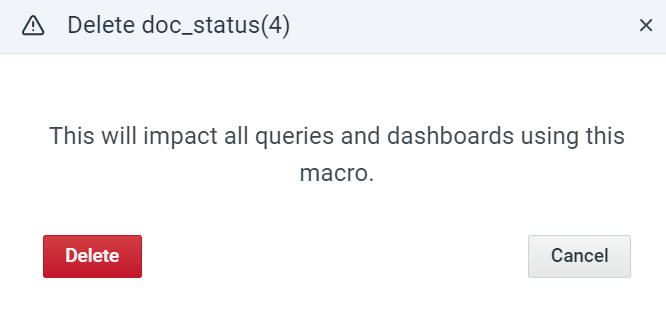
The macro is deleted.