Anomali University Course:
Using Lookup Tables (Classic UI)
A lookup table is a CSV file that has enrichment data and can be any set of fields that you want to correlate with an event log field, enabling the lookup table data to enrich Search results.
For example, the eventlog lookup table empowers AQL Views and Security Analytics to map Anomali's event log schema to different event fields from varied event log sources.
Anomali offers and supports two types of lookup tables:
-
System lookup tables: These are lookup tables that Anomali offers out of the box. See Anomali System Lookup Tables (Classic UI) for more information.
-
Custom lookup tables: Anomali allows you to create your own lookup tables for downstream applications.
To learn how to create a custom lookup table, refer to Creating Custom Lookup Tables (Classic UI).
To learn how to view, append, update, export, or delete custom lookup tables, refer to Managing Custom Lookup Tables (Classic UI).
To access all lookup tables available to your organization, navigate to Search > Lookup Tables.
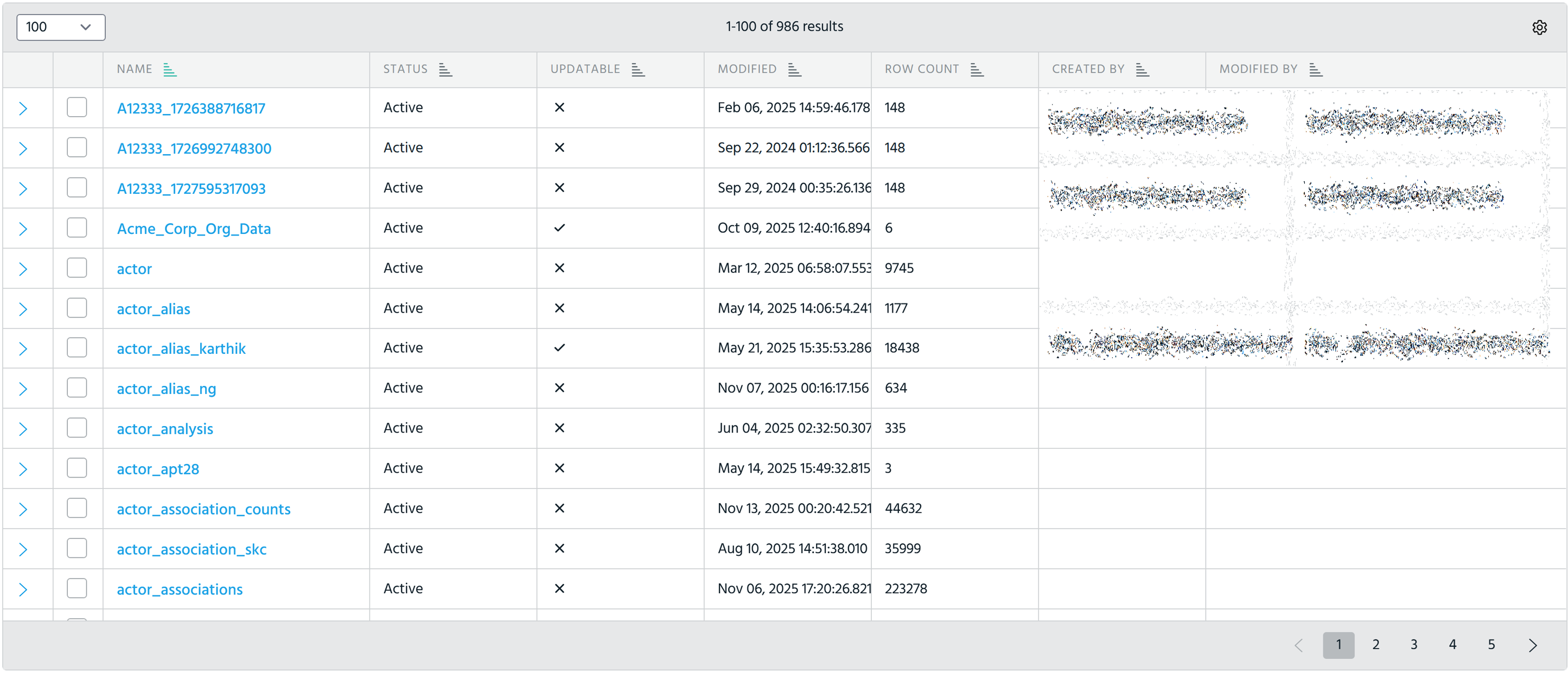
Search: Enter the lookup table name that you want to find.
Name: Name of the lookup table.
Status: View the activation status of the lookup table:
-
Active: An active status indicates that the table has been created and is ready to be used in Search. You cannot activate a lookup table
-
Inactive: An inactive status indicates that activation is not yet completed.
Updatable: Whether the lookup table is updatable.
Data Modified: Date when the lookup table was last modified.
Row Count: Number of rows in the table.
Table Settings: Select which columns to dispay.
Refresh: Refresh the list of lookup tables.
New: Create a new lookup table. Refer to Creating Custom Lookup Tables (Classic UI) for details.
User Permissions and Actions
-
All users can upload lookup tables.
-
All users can use Search to query any lookup table.
-
Org admin users can append, update, and delete any lookup table.
-
Non-org admin users can append, update, and delete only those lookup tables that they own.