Creating Custom Lookup Tables (Classic UI)
You can add a lookup table to your AQL Search environment by uploading a comma-separated value (CSV) file. Additionally, you can add values to existing lookup tables.
CSV Import Guidelines
To successfully upload a lookup table, follow these file upload guidelines:
-
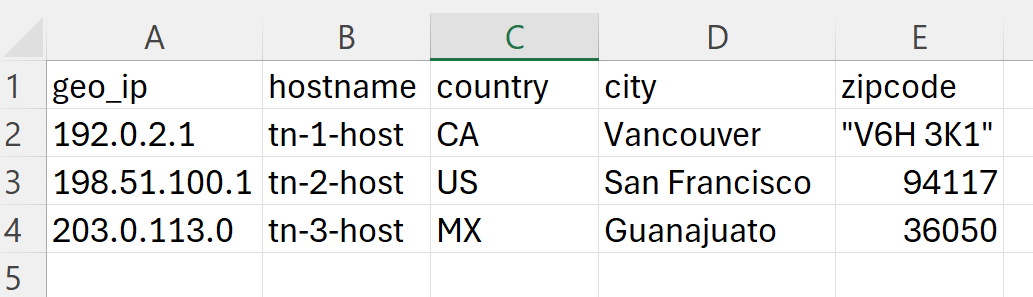
The upload file must have a heading row with the lookup table field names.
-
Avoid using the same field names as the eventlog schema.
-
In searches, field name is case sensitive, so use capitalization conventions that are easy for search users to follow. For example, all lowercase.
-
Enclose values that have spaces in straight quotation marks (").
-
File formats must be CSV, .gz, or .tar.
-
The upload file can be a maximum of 100 MB.
If your CSV file is larger than 100 MB, use the following guidelines to upload your data:
Compress the file to reduce its size.
Split the content into multiple smaller files. After that, upload the first file to create a lookup table and append the remaining files to this table. See Appending to an Existing Lookup Table for more information.
The following is an example of a lookup table:
To upload a lookup table:
-
Create a CSV file that contains the required values, as described above.
-
Navigate to Manage > Lookup Tables.
-
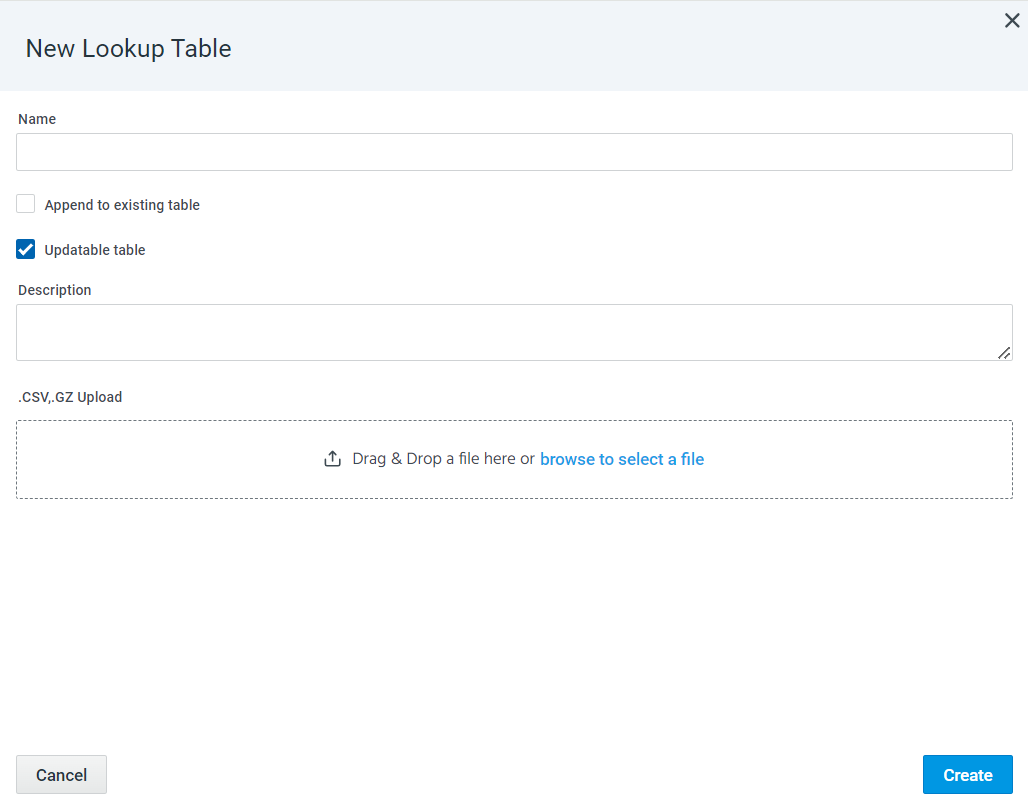
Click New. The New Lookup Table dialog box opens.
-
Enter a table name in the Name field.
Note:-
This is the lookup table name that users can reference in AQL Search.
-
The name may contain only alphanumeric characters and underscores.
-
The name cannot begin with a number.
-
Do not name the table the same name as an event field or lookup table field.
-
-
(Optionally) Select Append to existing table if you want to add the rows to an existing lookup table. See Appending to an Existing Lookup Table for details.
-
(Optionally) Select Updatable table if you want to be able to make updates to the table. See Updating Lookup Tables for details.
Note: System tables and lookup tables created using theyieldtableoperator cannot be updated. -
(Optionally) Enter a description of the lookup table in the Description box.
-
Use the file controls to browse and select your CSV file.
- Click Create.
The lookup table is added to the list of lookup tables on the Lookup Tables list page.