Managing Custom Lookup Tables (Classic UI)
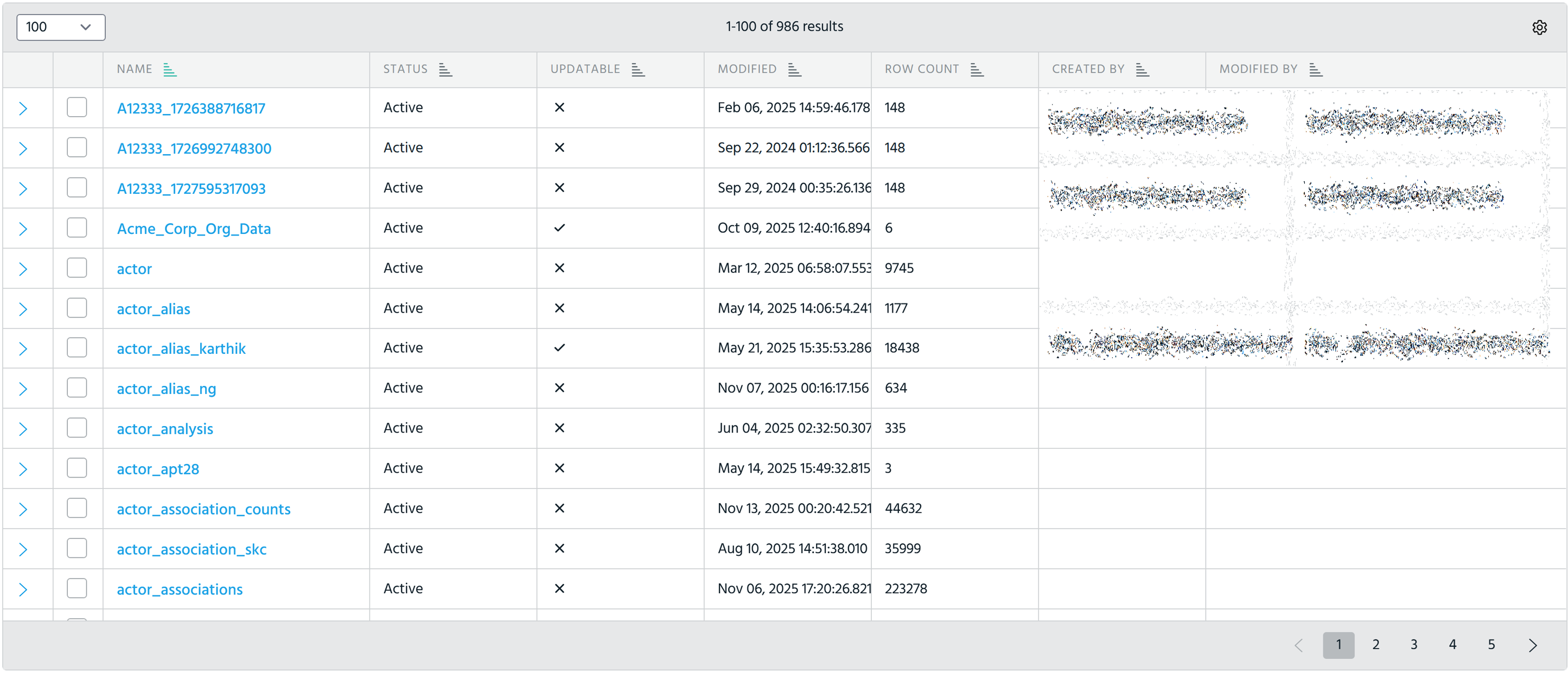
From the Search > Manage > Lookup Tables page, you can perform the following actions with custom lookup tables:
Lookup table validation
If there is a problem with the table validation, the status of the table turns to Failed. To know the reason the lookup table activation failed, click View Details next to the Failed status.
Appending to an Existing Lookup Table
 ) on the Lookup Table tab. Refer to Updating Lookup Tables for details.
To append (add rows in bulk) to an existing lookup table:
-
Create a CSV file that contains the rows you want to add to an existing lookup table. Note that the rows you add must have the same number of columns as the lookup table to which you add the rows.
-
Navigate to Manage > Lookup Tables.
-
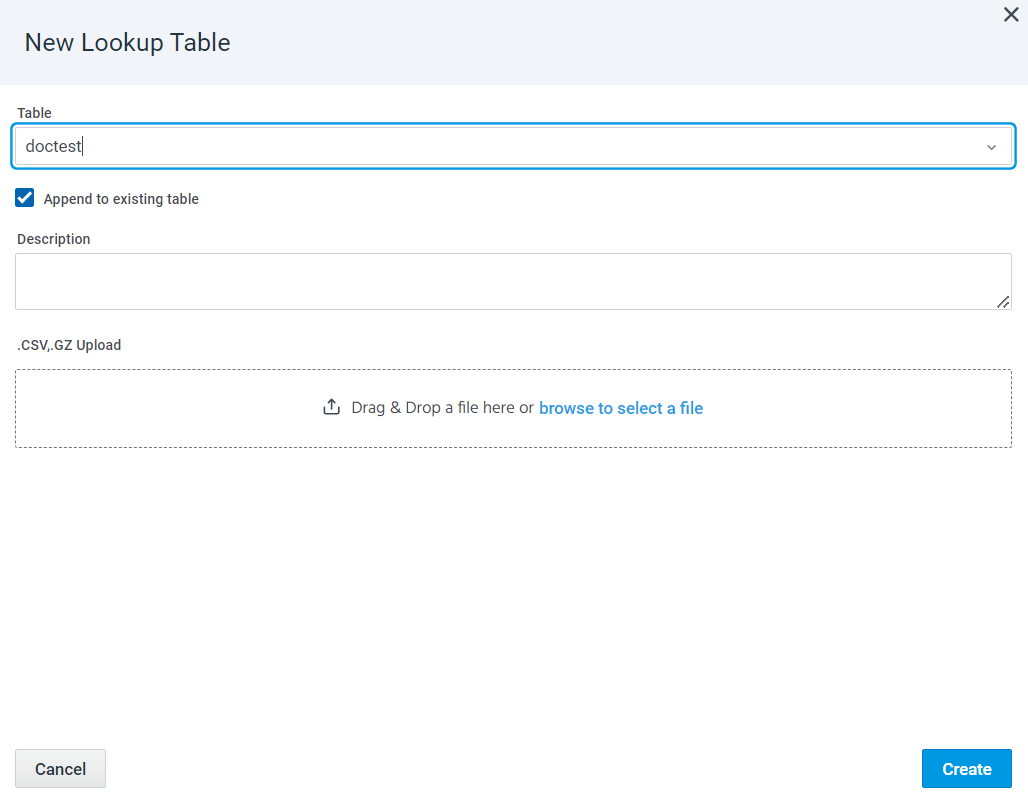
Click the New. The New Lookup Table dialog box opens.
-
Click Append to existing table.
-
Select the lookup table to which you want to add rows.
-
(Optionally) Enter a description of the lookup table in the Description box.
-
Use the file controls to browse and select your CSV file.
-
Click Create.
The rows are added to the existing lookup table.
Updating Lookup Tables
Updatable lookup tables can be modified. You can edit cell values, add rows, and delete rows.
To update a lookup table:
-
Navigate to Manage > Lookup Tables.
-
Hover your mouse over the lookup table you want to update and click the Edit icon (
). You are redirected to the table in the edit mode.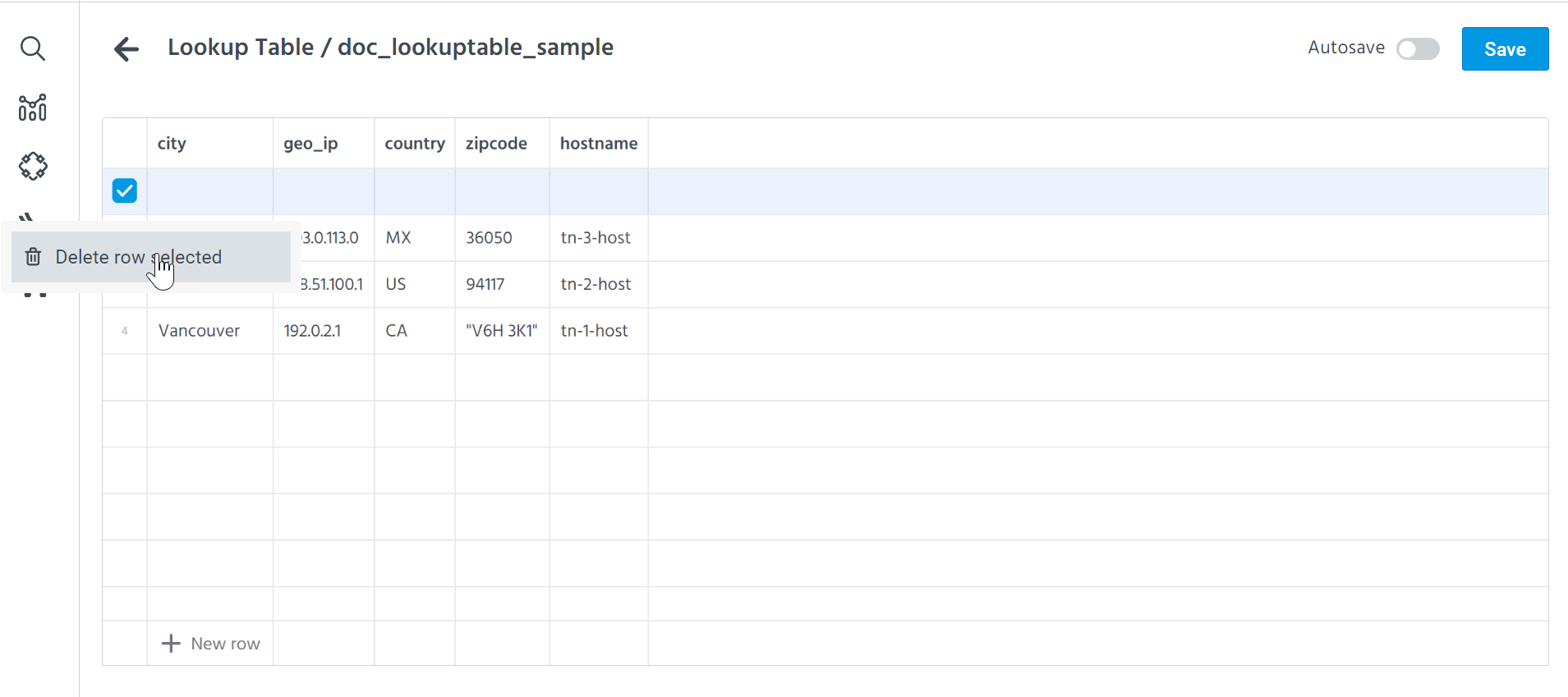
-
(Optionally) Disable Autosave if you don't want to automatically save your updates. When Autosave is enabled, updates are auto-saved every minute.
-
Modify the lookup table:
-
To add a new row to the table, click + New row.
-
To delete a row, select the row you want to delete, right click on the selected row, and click Delete row selected.
To delete all rows, select the header row, right click on the rows, and click Delete rows 1-x. -
To edit a cell value, double click on a cell and edit its value. Values in the header row cannot be modified.
-
-
If Autosave is disabled, click Save.
The lookup table is updated.
Viewing Lookup Tables
You can view all lookup tables in Search on the Result tab.
To view a lookup table:
-
Navigate to Manage > Lookup Tables.
-
Click the active lookup table of interest.
You are redirected to the Result tab of the AQL Search page.
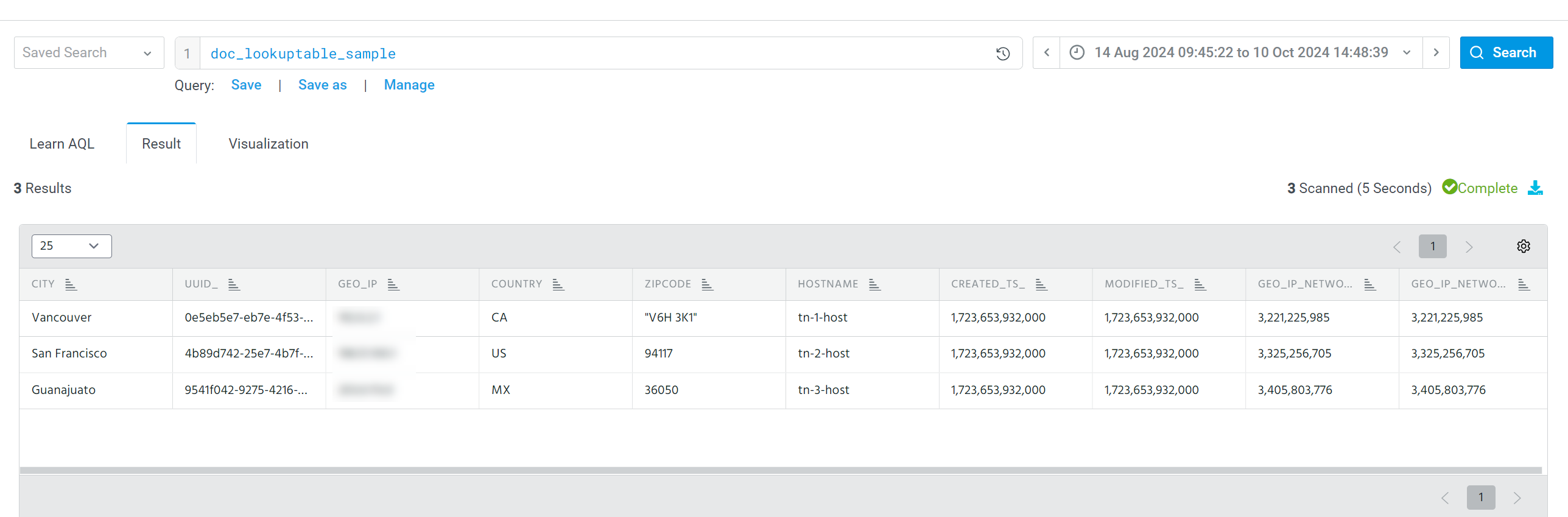
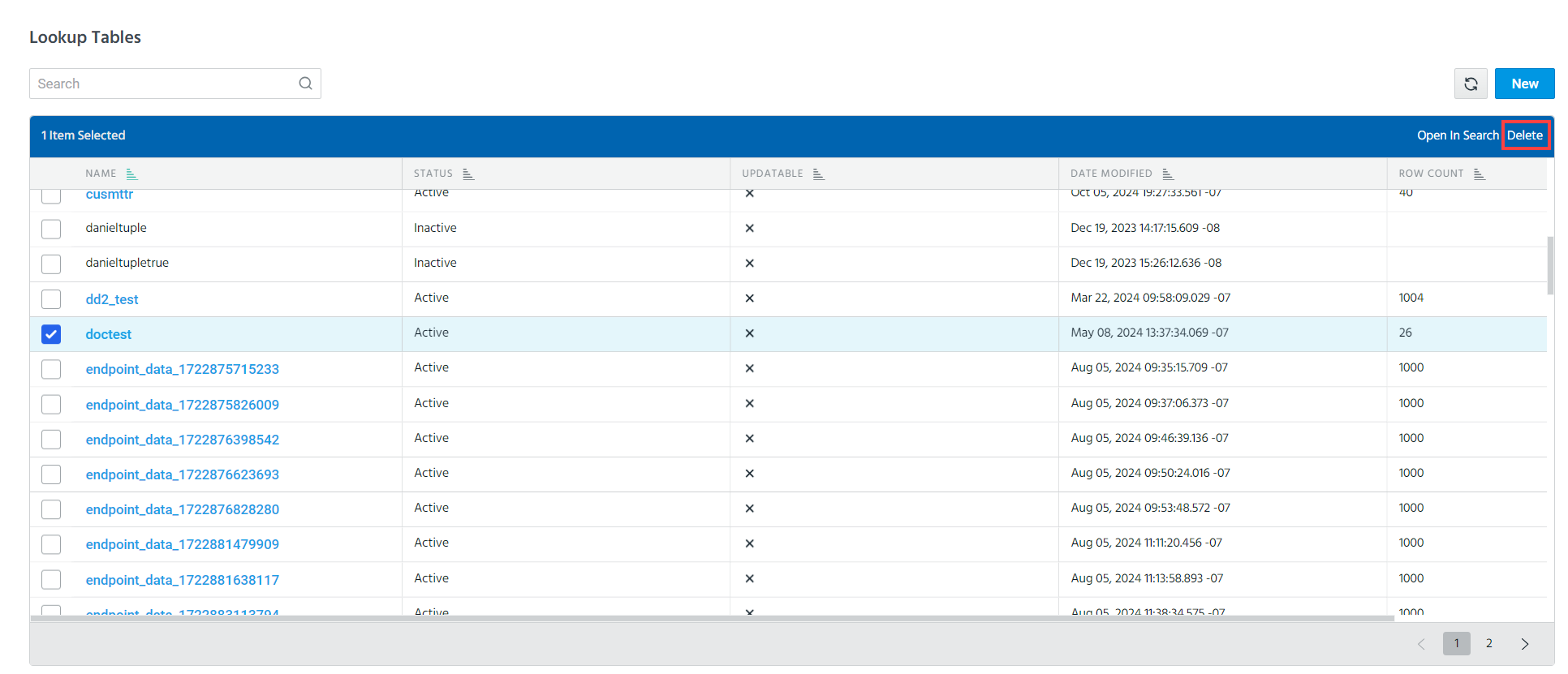
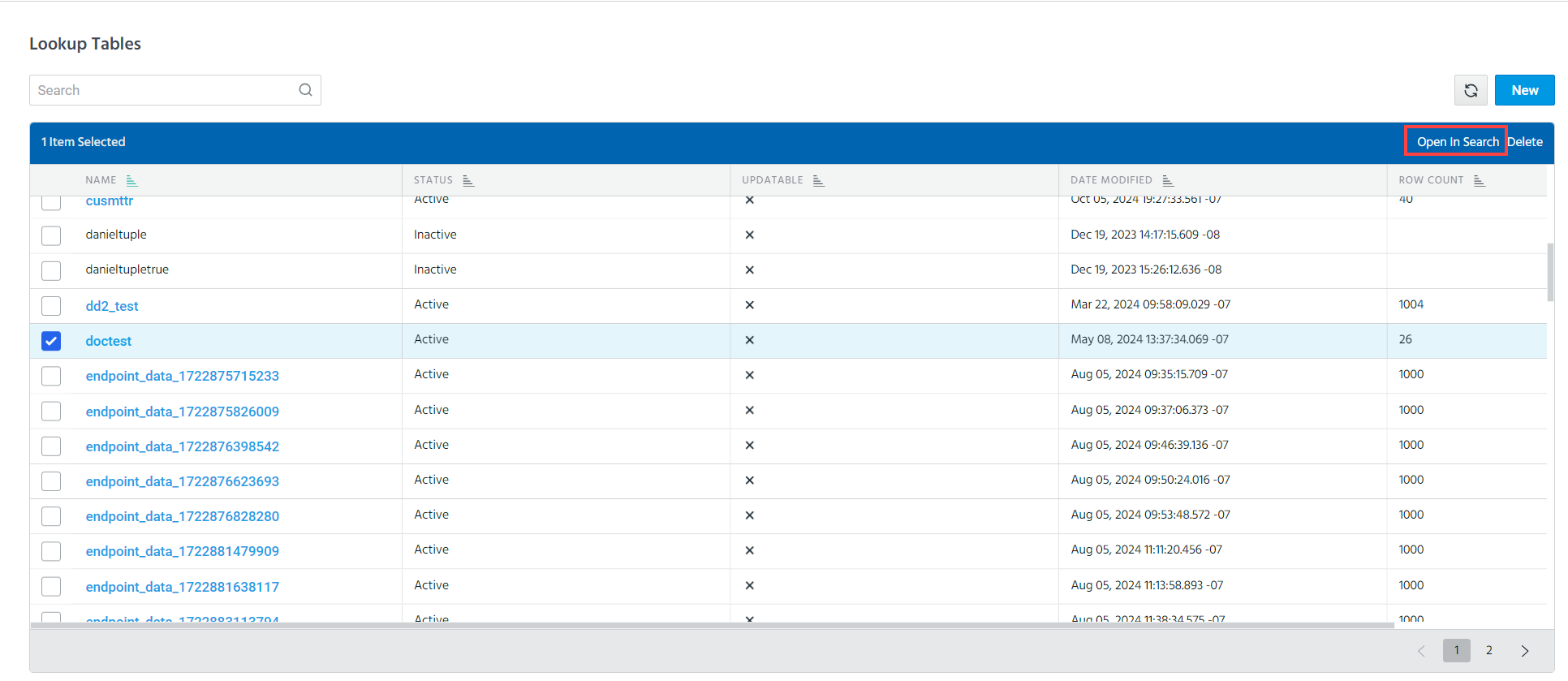
Alternately, to view a lookup table in Search, select a lookup table of your interest and click Open in Search. You are redirected to the Result tab of the AQL Search page.
Exporting Lookup Tables
Lookup tables can be exported in CSV or JSON format.
To export a lookup table:
-
Navigate to Manage > Lookup Table.
-
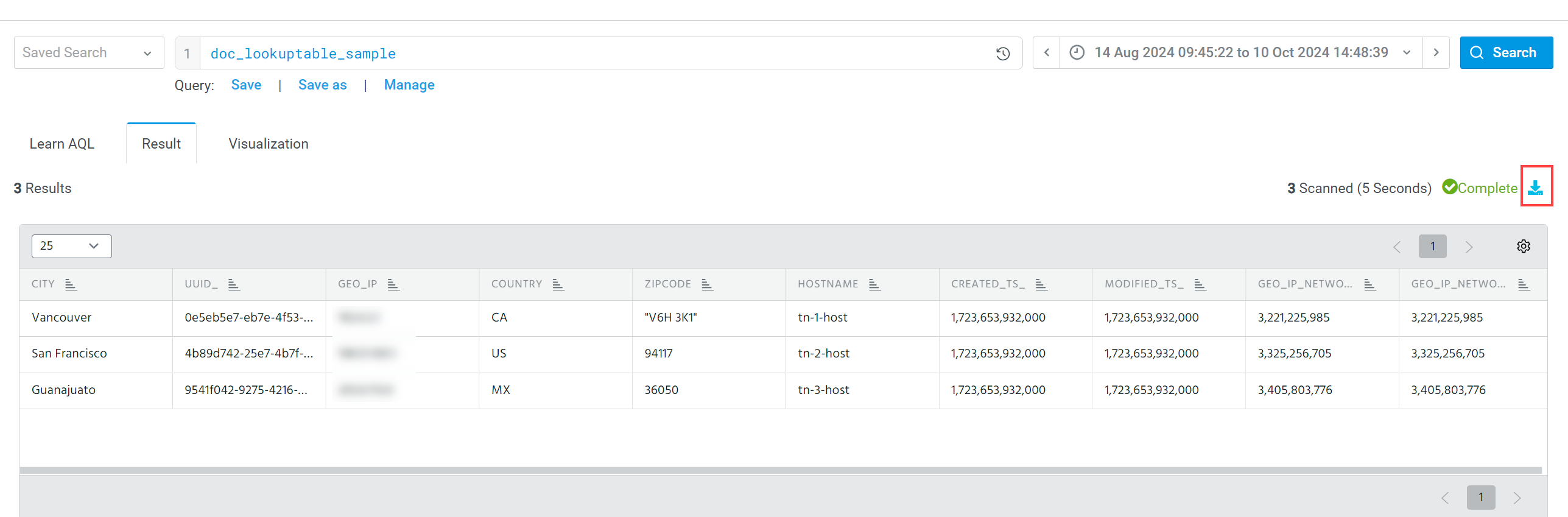
Click the active lookup table of interest. You are redirected to the Result tab of the AQL Search page.
-
Click the Export icon (
 ).
).
-
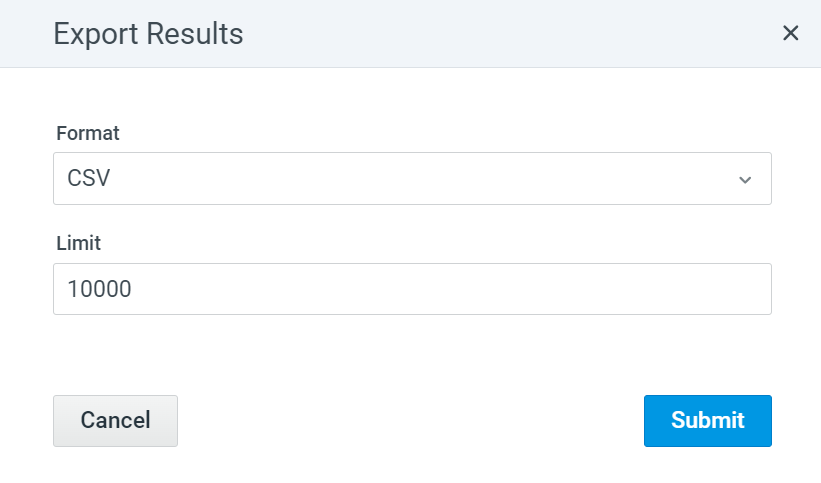
In the Export Results dialog box, select an export format (CSV or JSON) and enter a maximum number of rows you want to export.
-
Click Submit.
Downloading of the lookup table starts immediately.
Deleting Lookup Tables
To delete a lookup table:
-
Navigate to Manage > Lookup Tables.
-
Mouse over the lookup table you want to delete and click the Delete icon (
 ).
).
The lookup table is deleted.
Alternately, to delete a lookup table, select a lookup table of your interest and click Delete.