On this page:
Related topics:
Managing Pre-Built Detection Rules
You can install pre-built detection rules from detection packs to add ready-to-use detections to your environment without writing AQL from scratch. You can install all rules in a pack or select individual rules, review installed rules and their metadata, and remove rules that are no longer needed.
Installed rules are added in a disabled state. Operational parameters such as risk score and look-back window are pre-populated with Anomali recommendations and can be adjusted to suit your environment. The detection logic is read-only and cannot be modified directly. Before a rule can run, you must validate, test, and activate it. See Creating Detection Rules for details.
For details on other detection rule actions, see Managing Detection Rules for details.
Installing Pre-Built Detection Rules
To install all rules from a detection pack:
-
Navigate to ThreatStream Next Gen > Security Operations > Detection Rules.
-
Click Detection Packs.
-
Locate the detection pack of your interest and click View.
-
In the detection pack details dialog box, click Install All Rules.
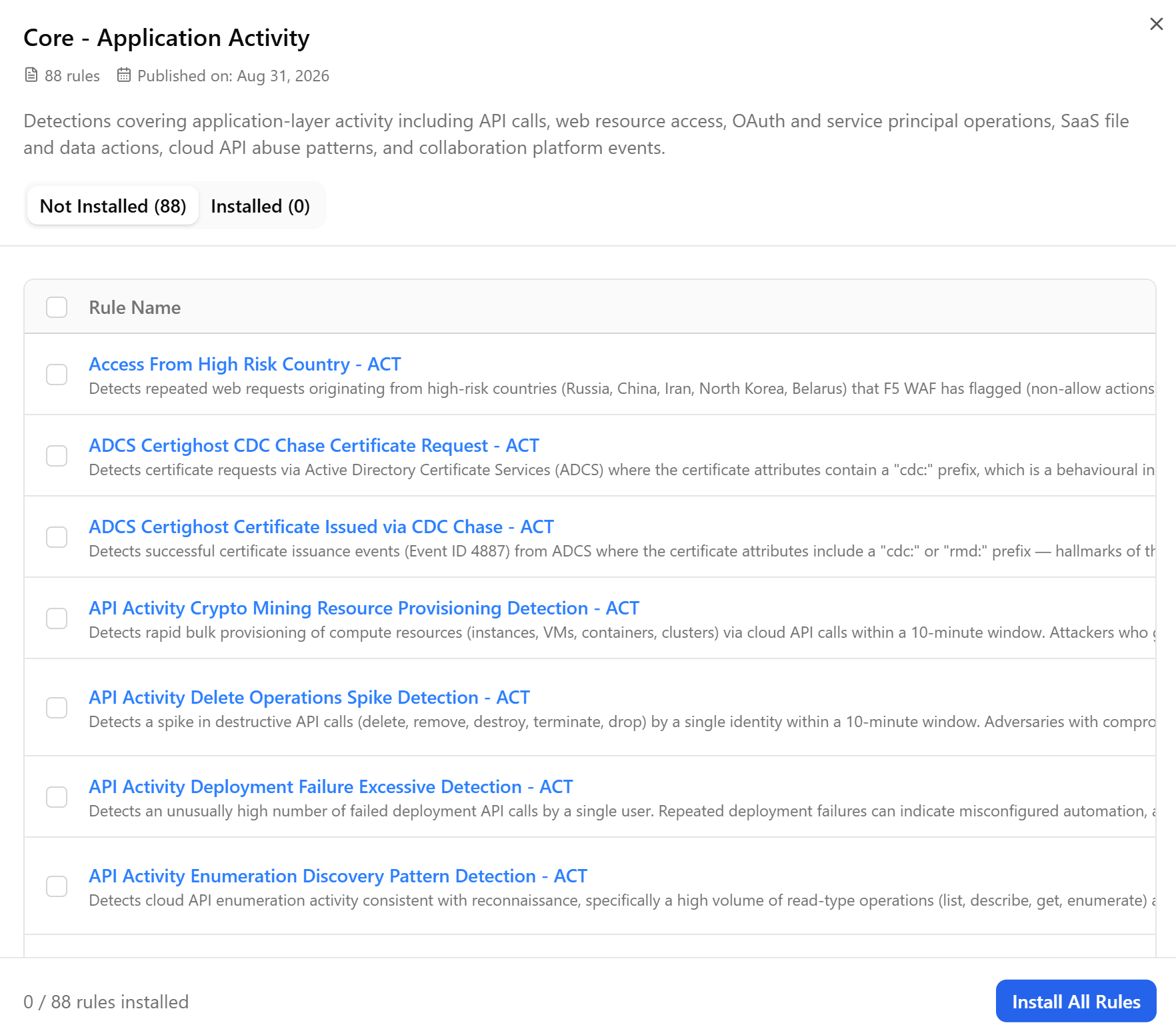
All rules from the detection pack are installed and available on the Detection Rules page.
To install individual rules from a detection pack:
-
Navigate to ThreatStream Next Gen > Security Operations > Detection Rules.
-
Click Detection Packs.
-
Locate the detection pack of your interest and click View.
-
Select the rules from the detection pack and click Install Selected.
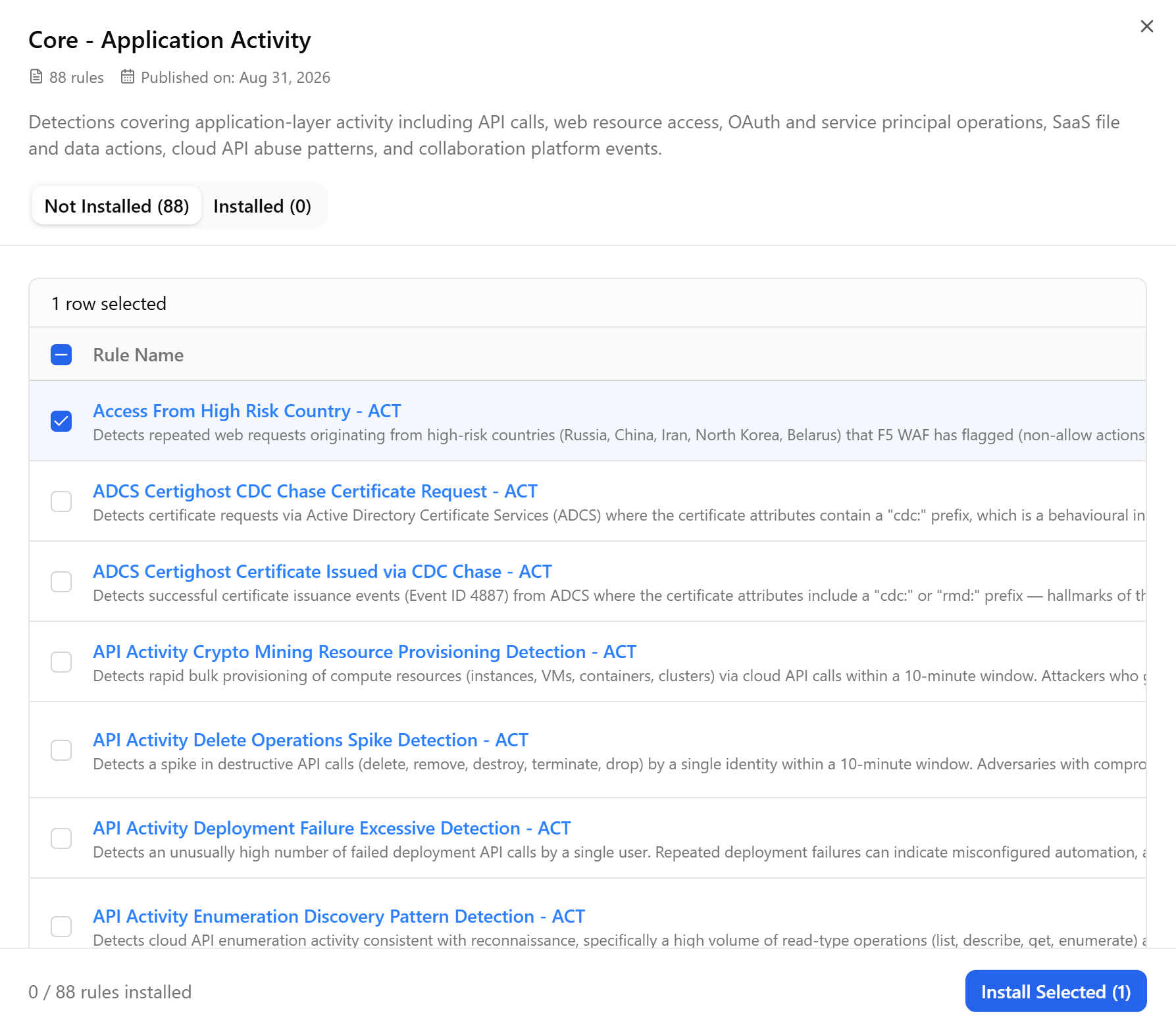
The selected rules are installed and available on the Detection Rules page.
All rules installed from a detection pack are listed under the Installed tab of the detection pack details page. There, you can also view version, risk score, MITRE technique, and OCSF category of every installed detection rule.
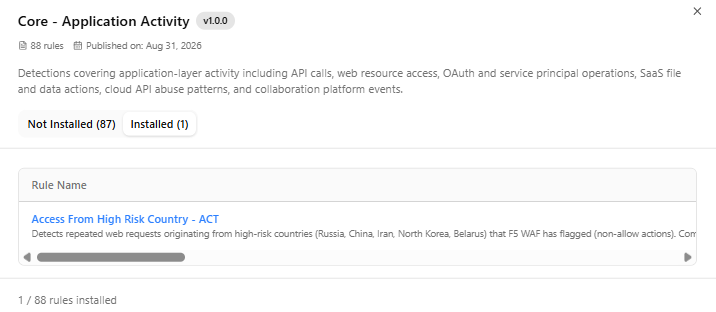
If you ever want to remove the installed detection rule, you can always remove it. See Removing Pre-Built Detection Rules for details.
Removing Pre-Built Detection Rules
If you no longer need a pre-built detection rule, you can always remove it.
To remove a pre-built detection rule:
-
Navigate to ThreatStream Next Gen > Security Operations > Detection Rules.
-
Click Detection Packs.
-
Locate the detection pack containing a rule you want to remove and click View.
-
Click the Installed tab and locate the rule you want to remove.
-
Scroll the page to the right and click Remove.
This action uninstalls the rule from the pack deployment and deletes its detection rule. It's detection history and alert rule references are not preserved.
Alternatively, you can remove a pre-built detection rule from the rule's corresponding more options menu (...) on the Detection Rules page. See Deleting Detection Rules for details