PIR MCP Integrations
On the Output step of the Priority Intelligence Requirement (PIR) creation process, you can choose integrations like Jira and Slack to automatically route PIR results and alerts to the right teams. See PIR Output for details.
These integrations help you create and update Jira issues for tracking work, as well as send real-time Slack notifications to coordinate response and keep stakeholders informed.
Configuring Jira Output
Choosing Jira as one of your PIR output options, enables you to automatically create Jira issues, assign them to the appropriate team members, and update ticket status as investigations progress based on the PIR findings.
Before configuring the Jira output of a PIR, verify that the JIRA MCP integration is configured on the Integrations Marketplace. See Jira MCP Integration for details.
To configure the Jira output:
-
Navigate to ThreatStream Next Gen > Priority Intelligence Requirements.
-
Click New PIR. The Create New PIR workflow opens.
-
Complete the Description, Input, and Process steps. See Creating a PIR for details.
-
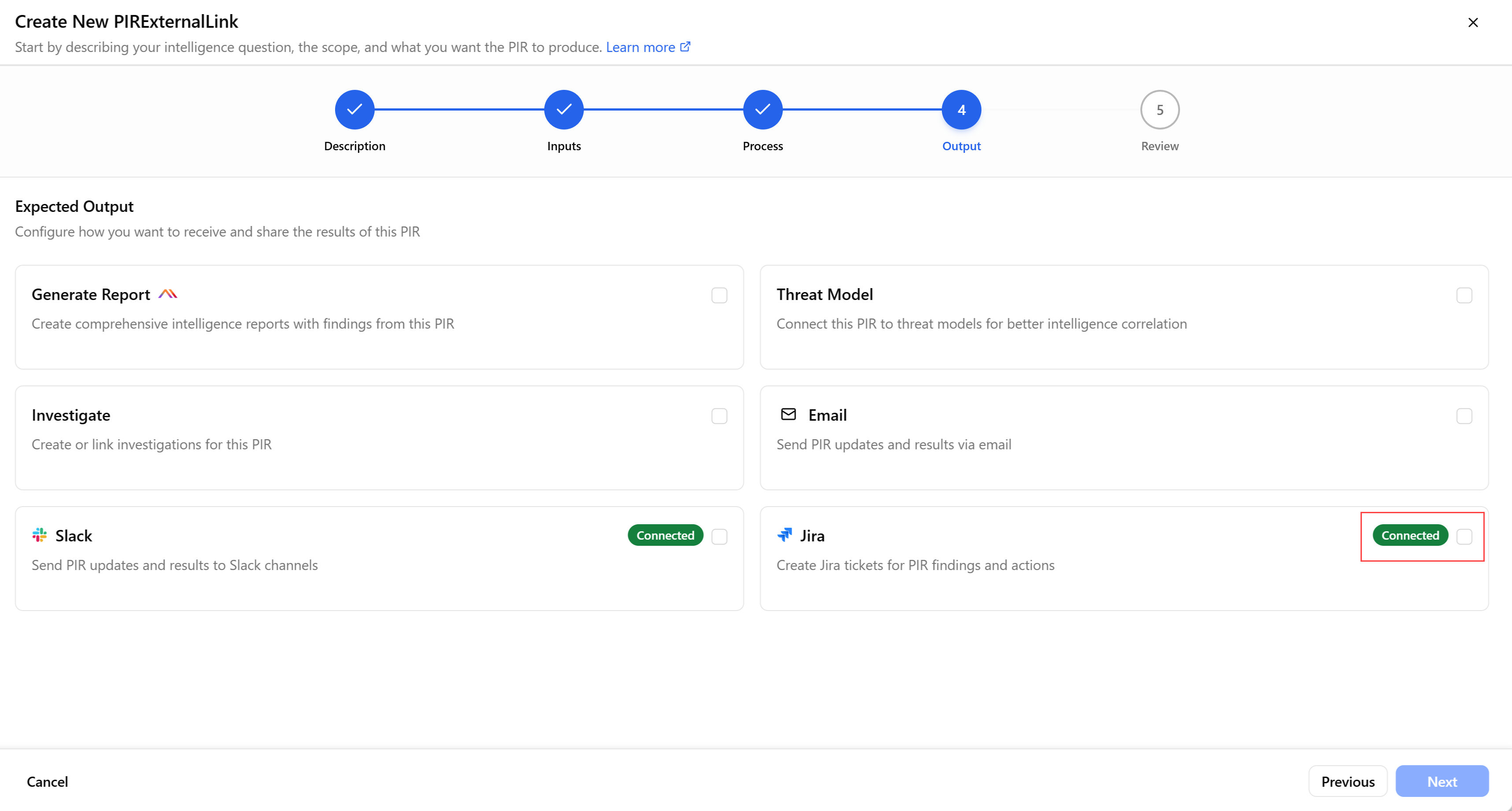
On the Output step, select Connected in the Jira section. The Jira dialog box opens.
-
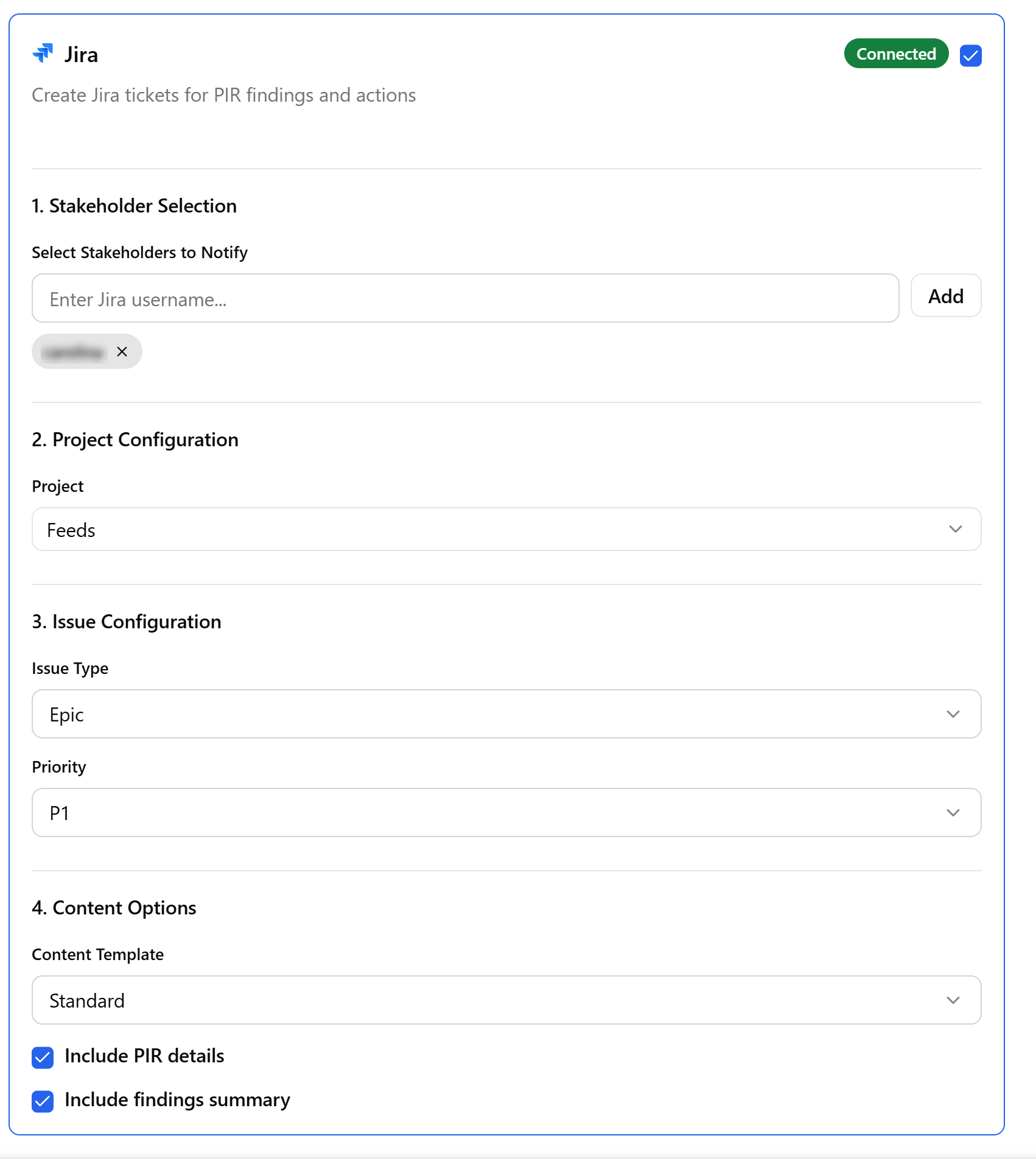
Configure the following parameters:
-
Stakeholder Selection: Use the Add button to add Jira users that will be notified.
-
Project Configuration: Select a Jira project associated with this PIR topic.
-
Issue Configuration: Select an issue type and its priority.
For example:
Issue Type—Epic, Bug, Task, Sub-task, and so on.
Priority—P1, P2, P3, Blocked, and so on.
-
Content Options: Select a content type. Possible options include: Standard, Brief, and Detailed.
-
Include PIR details: Select this option if you want to include PIR details in the Jira tickets.
-
Include findings summary: Select this option if you want to include a findings summary in the Jira tickets.
-
-
When you are done configuring all output options, click Next.
Configuring Slack Output
When threats are detected by a PIR or investigations require coordination, ThreatStream Next Gen can automatically notify the right people and let them take action directly in Slack.
Before configuring the Slack output of a PIR, verify that the Slack MCP integration is configured on the Integrations Marketplace. See Slack MCP Integration for details.
To configure the Slack output:
-
Navigate to ThreatStream Next Gen > Priority Intelligence Requirements.
-
Click New PIR. The Create New PIR workflow opens.
-
Complete the Description, Input, and Process steps. See Creating a PIR for details.
-
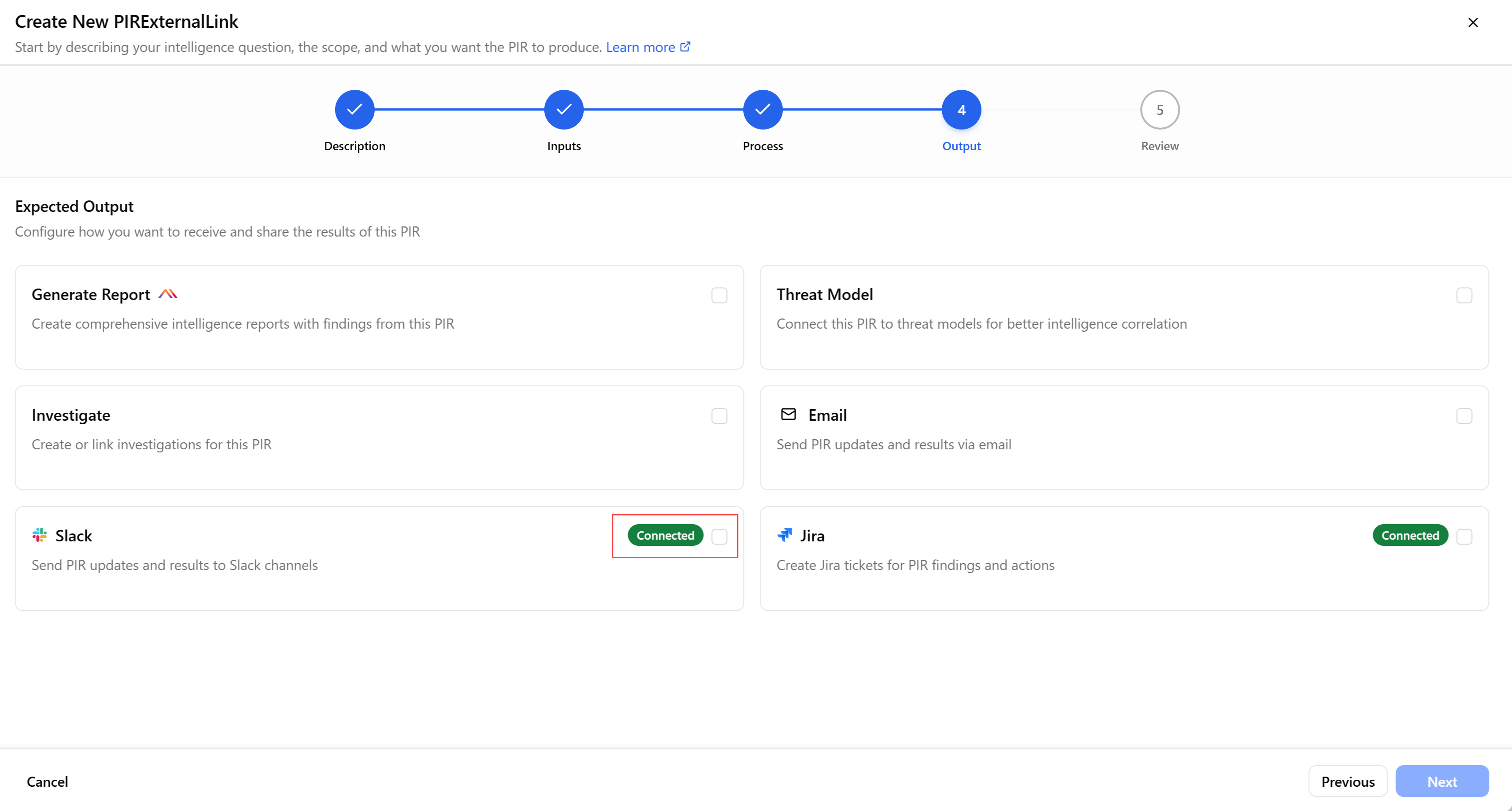
On the Output step, select Connected in the Slack section. The Slack dialog box opens.
-
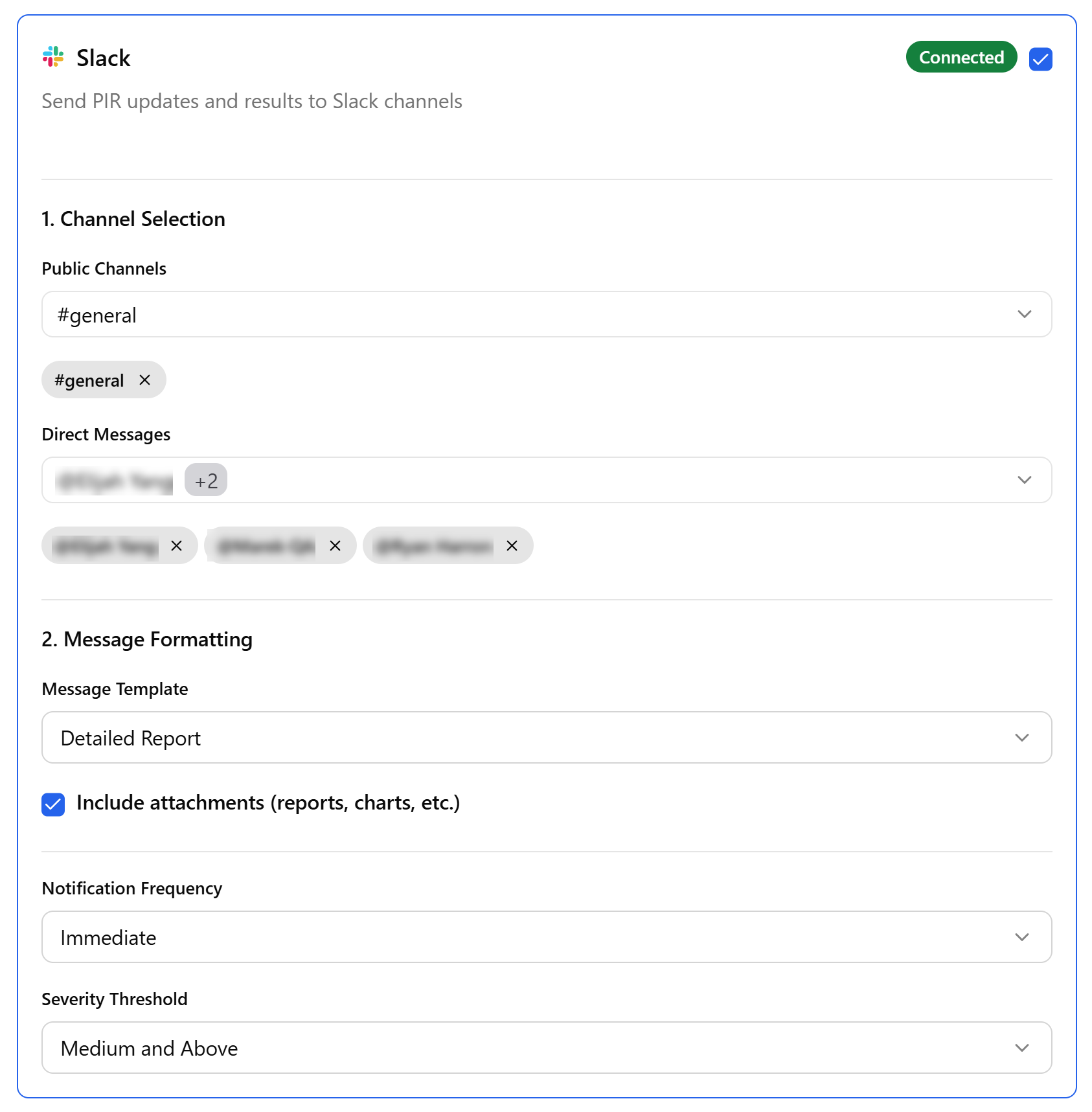
Configure the following parameters:
-
Channel Selection: Select public channels and/or users that will be notified of the PIR findings.
-
Message Formatting:
-
Select a Message Template—Brief Summary, Detailed Report, or Custom.
-
Select a Notification Frequency—Immediate, Hourly Digest, or Daily Digest.
-
Select a Severity Threshold—All Severities, High Only, Medium and Above.
-
-